

Choose according to the work to be done
Your visitor wants to know what cleaning 37.5 m² with preparation and protection might cost. Your team wants the correct details if the customer subsequently requests a quote. These two needs do not necessarily require the same settings. Calculation must work before any contact-detail collection. The enquiry must then transmit enough detail to avoid asking again for area, rate and options by phone. This comparison examines a popular visual calculator and an enquiry builder with a server-side formula.
Stylemix Cost Calculator Builder presents pricing through a visual builder. The free formula may suffice for a page that simply displays an amount. Organised collection, conditions or documents may require a paid offering. Quoteform is worth examining if you want to save enquiries in WordPress and export them as CSV. Its formula uses field identifiers; allow for a different learning process and organise notifications separately if the team does not check its dashboard regularly.
The two tests verify different quote stages. With Stylemix, we checked amounts displayed by the browser offline. With Quoteform, we checked the amount recalculated and saved by the server on submission.
- Demonstration to publish. Stylemix — Builder with elements and a formula field. Quoteform — Form with fields and a result.
- Referencing a field in the formula. Stylemix — Identifier shown by the builder. Quoteform — Technical name in braces.
- Enquiries and follow-up. Stylemix — Examine the order form and chosen plan's features. Quoteform — Submission recording and CSV export documented.
- Email and PDF. Stylemix — Check required modules and licence scope. Quoteform — Plan a separate solution if the workflow requires it.
- Amount validation. Stylemix recalculated the estimate in the browser. The Quoteform acceptance test confirmed server-side recalculation and recording.
- Where to start? Stylemix — Free version for an anonymous estimate. Quoteform — WordPress directory version for exploring enquiries.
Compare before you choose
The offers at a glance
Find the use case and budget that fit, then read the details to see the limitations and any components you may need.
On smaller screens, the table scrolls horizontally. With a keyboard, press Tab to focus the table, then use the left and right arrow keys.
| Offer | Best for | Pricing and billing | Renewal and support |
|---|---|---|---|
 Cost Calculator Builder — StylemixRead the details | A visual simulator with area, rate and options. | Free + Pro | Terms for any paid plans were unavailable at the time of review. |
 QuoteformRead the details | Priced enquiries saved in WordPress and available for export. | Free with no Pro offering advertised | Terms for any paid plans were unavailable at the time of review. |
The reference quote: a fixed amount and a variable price
Create a private copy of your service page. In both plugins, define the same inputs: €40 travel, area between 10 and 200 m², a rate of €9.50/m² for routine cleaning or €13.20/m² with preparation, and €25 protection if selected. Display these demonstration values near the form. This allows manual recalculation and reveals whether an option has been counted twice.
montant = arrondir(40 + surface × tarif + protection, 2)
For 37.5 m², the €13.20 rate gives €495; €40 travel makes €535, and €25 protection brings the total to €560. The other rate without protection gives €396.25. An out-of-range value must remain an error even if a mathematical calculation could produce a total. Test 9.9 and 200.1, then an empty field, a negative amount and a value with two decimal places. On a French-language phone, check how the field handles the comma. The application must interpret it correctly or explain how to correct the input.
Rounding applies to the final amount. Avoid converting each value to an integer number of euros. A €13.20 rate displayed without decimals or misplaced intermediate rounding can create a discrepancy the customer will see in their enquiry. Present the total beside the formula explained in everyday words: “The price includes travel and the service per square metre.”
Configure Stylemix Cost Calculator Builder
Install the plugin from the WordPress directory, then open its builder. Create a calculator with a quantity representing area. Configure a minimum and maximum if the field offers them. For the rate and protection, choose elements returning a numeric value. Use a single service choice and, for protection, a choice valued at 0 or 25. A single-choice field with two answers is often easier to test than a checkbox that returns an empty value in some configurations.
Add a formula element and reuse the identifiers displayed by your builder. For example, if the fields are named quantity_field_id_0, dropDown_field_id_1 and dropDown_field_id_2, the desired structure is:
40 + quantity_field_id_0 * dropDown_field_id_1 + dropDown_field_id_2
These identifiers are examples. Insert fields through the builder or copy their displayed names. Configure display to two decimal places, then check the formula's actual rounding by comparing the result and any submitted value. If the quantity field includes per-unit multiplication, leave it disabled: the formula already multiplies by the rate. Present the result as an indicative price, then embed the calculator with the shortcode generated by your installation. Check the page in a private window before adding an enquiry form or payment button.
If you need to email the total, store orders or produce a PDF, consult the editions' scope and official pricing. Also check where the team will find an enquiry if email does not arrive. For a simple simulator, defer these choices until the calculation is validated.
On a WordPress 7.1.4 copy with Stylemix 4.0.21, we used a slider from 10 to 200 m² and two radio-button groups. Here is the formula saved in the calculator and sent to the browser.
40 + range_field_id_3 * radio_field_id_6 + radio_field_id_7
At 37.5 m², Chrome displayed €560.00 with preparation and protection, €535.00 with preparation alone and €396.25 for routine cleaning without protection. The slider advanced by 0.1 m² using the keyboard, and the last price changed to €397.20. At the limits, the browser displayed €135.00 at 10 m² for routine cleaning without protection and €2,705.00 at 200 m² with preparation and protection.
The tab was offline during interactions. The six amounts validate the calculation displayed in the browser. Quote submission, payment and server-side recalculation remain to be checked separately. The slider displayed a decimal point and euro amounts a comma in this environment.
Without a preselected service, the test form initially displayed €40.00 travel. Check that the first amount on your form can be distinguished from the complete estimate.
Configure Quoteform
Install Quoteform from WordPress.org and create a private form. Give short identifiers to the area, rate and protection fields. For area, use a numeric field and enforce bounds and precision if your version exposes them. Separate the rate label from its numeric value. For example, “Cleaning with preparation” must lead to 13.20, not become a string to multiply. For protection, test the value used when nothing is selected; an explicit choice of 0 or 25 simplifies acceptance testing.
The formula to adapt to your field names is:
round(40 + {surface} * {tarif.price} + {protection.price}, 2)
In Quoteform, a choice field stores the answer and exposes its configured price under .price. For example, you can give “Cleaning with preparation” the technical value preparation and a price of 13.20; the formula reads {tarif.price}. Compare the three reference amounts before adding contact details. Then embed the form with the administration-provided shortcode. Prepare a fictional enquiry and find it in the submissions screen. Export a CSV and open it in a text editor before importing it into a spreadsheet: you can check the raw value, presence of choices and accent handling.
Also check what the customer sees when closing the page immediately after requesting the quote. The confirmation screen must say the enquiry was received if it was actually saved. If your organisation needs an immediate email or PDF, design that workflow separately and test receipt. Having a CSV in administration does not remove the need to decide who reviews and handles enquiries.
In local acceptance testing (WordPress 7.1.4 and Quoteform 0.1.3), the shortcode produced its form, and the server accepted €560, €535 and €396.25 for the three stated cases. The artificial €1 total sent in the request was not retained: €560 was calculated and stored. Areas outside 10 to 200 m² were rejected. However, the request with 37.55 m² was accepted and produced €560.66 despite a configured step of 0.1. The raw string “37,5” was rejected by the server; this test does not show how a French browser submits the value. Check this input in the browser and add server validation if your pricing requires a single decimal place.
Detect problems before opening the form
Repeat acceptance testing in a private window with the theme and cache your readers use. Using only the keyboard, the order must be area, service, protection, result, then enquiry. Force an error in the first field and check that other choices remain present. On a very small screen, examine whether the result is visible after changing an option. For amounts announced by a screen reader, limit unnecessary updates during typing.
If you collect an enquiry, try changing the total value in a request to your test installation. For the €560 example, replace the client total with €1 without changing area, service and protection. Storage must contain €560 after recalculation, or the request must be rejected. Then test an out-of-range area. Ignoring a false total is insufficient if the server accepts an area the interface rejects. Keep these two results separate in your test notes.
Check a second situation: someone opens the page, then an administrator changes the rate before submission. If the visible and recalculated amounts differ, have the new amount confirmed before treating the enquiry as a commitment. For a purely indicative estimate, state that prices may be adjusted. A paid order requires repeating these checks in the payment system's test environment, with amount, currency and confirmation checked server-side.
Present the result with appropriate limits
The reference quote separates price from commitment. Use the word “estimate” on the button or in the result title, especially if cost also depends on difficult access, a date or surface condition the form does not measure. Avoid a vague note buried below the form: one line under the amount can explain what is included and what the business still needs to confirm. The same line must remain readable when the form switches to a single column.
During acceptance testing, also check that zero-euro choices remain visible in the summary. An enquiry displaying only “Protection: €0” does not clearly say whether the visitor chose to omit it or the data was lost. Prefer labels such as “No protection” to technical values. If you can choose between retaining enquiries and storing only an anonymous simulation counter, select the minimum collection suited to the chosen process. A visible estimate requires neither email nor saving entries.
When a field accepts a step of 0.1, test the keyboard and server separately. A submit button may prevent entering 37.55 on the page while the API accepts it. If one decimal place is part of the pricing schedule, an interface restriction is insufficient: require server-side validation or choose another workflow. Until this rule is verified, do not present the version as suitable for establishing a contractual price.
Which version should you choose after testing?
For an initial anonymous price, choose the version that makes the formula and error messages easiest to manage on your site. A service page does not need data collection to be useful: a displayed amount and clear explanation may suffice. If your team wants to revisit enquiries in WordPress and import them into a spreadsheet, compare Quoteform's actual CSV with your process. Examine the Stylemix plan if you need a visual builder with an order workflow, advanced conditions or an automatic document.
For a very small pricing schedule, a price table may suffice: it is quick to read and lets users check units even when JavaScript is blocked. If your rule must cover several buildings, volume discounts or zone surcharges, prepare a separate test set before choosing a tool. Adding a formula to a form is simple; reproducing your business exceptions and retaining consistent enquiries accounts for most of the work.
Further reading
Sources and references
Use these references to check the features, requirements and limitations described. Reading documentation is not a practical test.
View 5 references
- Cost Calculator Builder — Stylemix — Official listing ↗ — Documentation consulted:
- Cost Calculator Builder — Stylemix — Publisher documentation and offering ↗ — Documentation consulted:
- Cost Calculator Builder — Stylemix — Publisher documentation and offering ↗ — Documentation consulted:
- Cost Calculator Builder — Stylemix — Publisher documentation and offering ↗ — Documentation consulted:
- Quoteform — Official listing ↗ — Documentation consulted:
Uses, prices and what to check
2 offers in detail
Compare the features you need and the terms of each offer. The order of these entries does not indicate a ranking.
Cost Calculator Builder — Stylemix
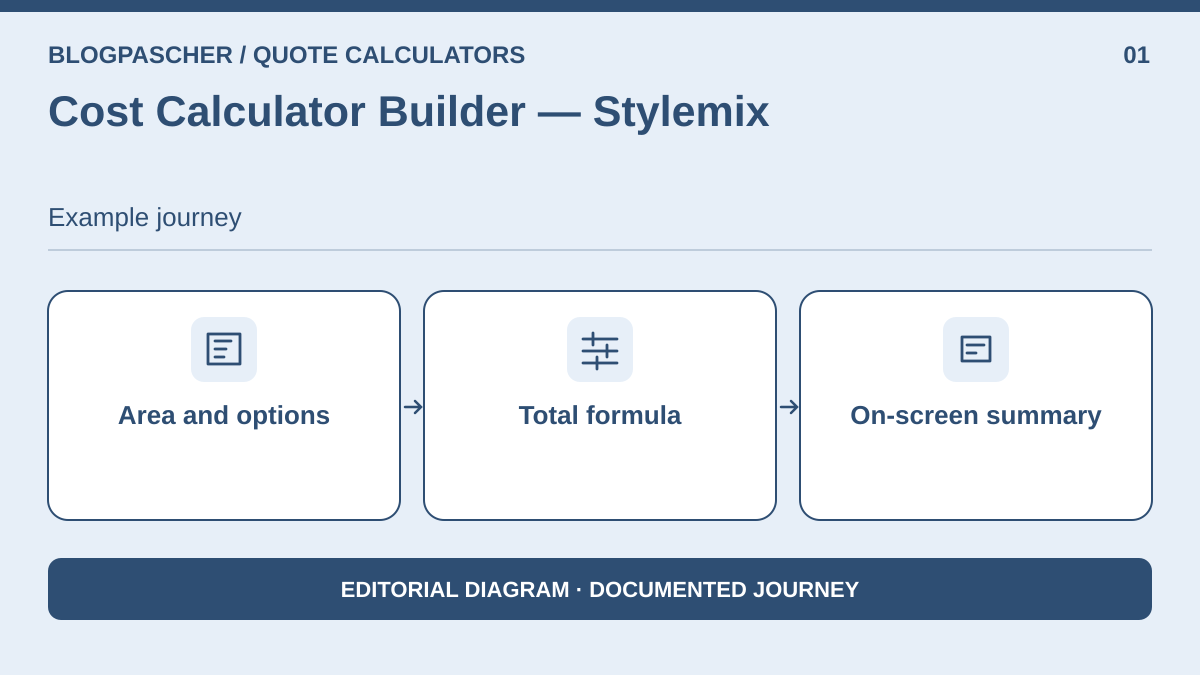 Editorial diagram. Area and options → Total formula → On-screen summary. — BlogPasCherOpen full-size illustration ↗
Best forA visual simulator with area, rate and options.
Cost Calculator Builder lets users choose an area, service and option to obtain an indicative price. The free version's calculator produced the six expected amounts in offline Chrome. For 37.5 m², the amount ranged from €396.25 for routine cleaning without protection to €560.00 with preparation and protection. The test also checked the slider's keyboard step. For an enquiry, payment or document, check the chosen plan's features and handling of the submitted amount.
Offer pricing
Free + Pro
Checked on .
Strengths
- Visual formula without purchase for a simple estimate
- On-screen summary
What to consider
- The acceptance test covers the desktop slider. Mobile display and decimal input in a text field remain to be checked.
- Collection, PDF and orders depend on modules and the licence.
Pricing terms and compatibility
Understanding the offer
- Price at the time of review
- Free + Pro
- Currency
- Unspecified. Confirm for the offer you choose.
- Billing
- Unspecified. Confirm for the offer you choose.
- Renewal and support
- Unspecified. Confirm for the offer you choose.
- Taxes and fees
- Unspecified. Confirm for the offer you choose.
- Commitment and terms
- Unspecified. Confirm for the offer you choose.
- Date checked
Compatibility and components
- WordPress 7.1.4 and Stylemix 4.0.21. Six calculations checked in offline Chrome. The acceptance test covers the estimate displayed in this configuration.
Quoteform
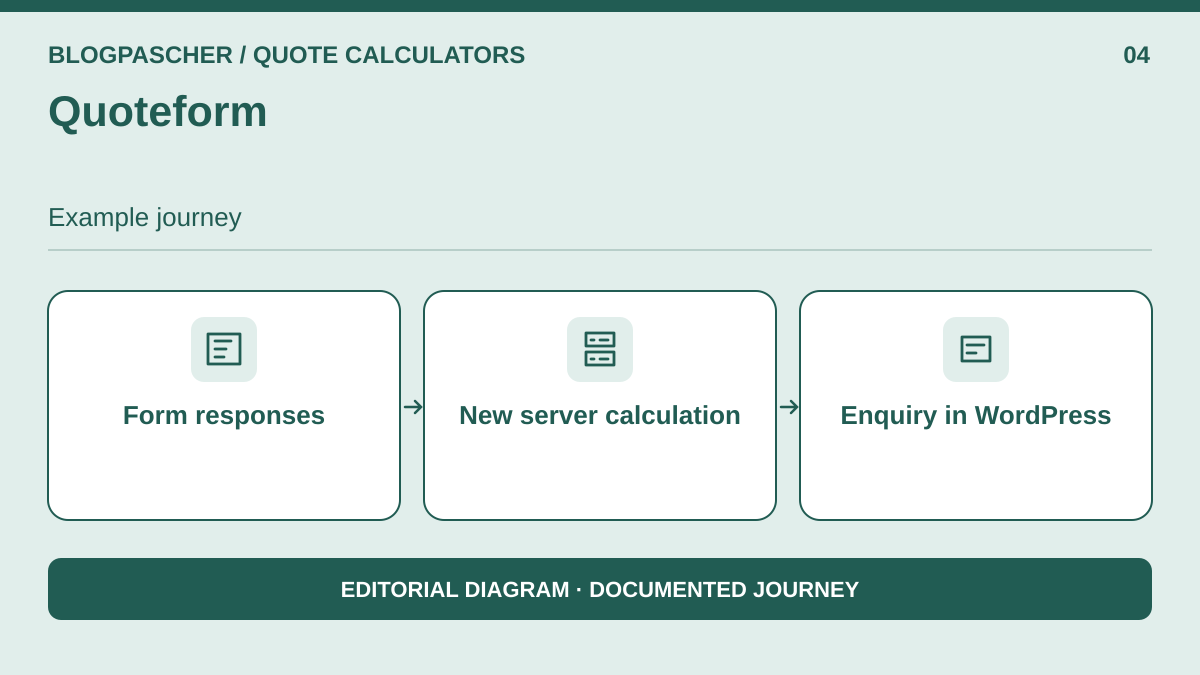 Editorial diagram. Form responses → New server calculation → Inquiry in WordPress. — BlogPasCherOpen full-size illustration ↗
Best forPriced enquiries saved in WordPress and available for export.
Quoteform addresses the need to record enquiries in WordPress. Prices associated with options are read in the formula using the .price suffix. The server recalculated and saved €560 despite a modified client amount being present. Area bounds were checked through REST requests. However, a displayed step of 0.1 does not limit server-side precision in the tested version. If your team expects an automatic email, it must prepare a workflow separate from entries and CSV.
Offer pricing
Free with no Pro offering advertised
Checked on .
Strengths
- Submission recalculation and CSV in WordPress
- Enquiry in WordPress
What to consider
- The API accepted 37.55 m² despite a step of 0.1.
- The raw string “37,5” was rejected by the API. Check what your browser sends.
- The documented version does not provide native notification email.
Pricing terms and compatibility
Understanding the offer
- Price at the time of review
- Free with no Pro offering advertised
- Currency
- Unspecified. Confirm for the offer you choose.
- Billing
- Unspecified. Confirm for the offer you choose.
- Renewal and support
- Unspecified. Confirm for the offer you choose.
- Taxes and fees
- Unspecified. Confirm for the offer you choose.
- Commitment and terms
- Unspecified. Confirm for the offer you choose.
- Date checked
Compatibility and components
- WordPress 7.1.4 and Quoteform 0.1.3. PHP shortcode rendering and REST submissions checked locally. Check decimal-comma input in the browser.