Web hosting
1984 Hosting for WordPress in Iceland: pricing and backups
1984 Hosting’s WordPress plans in Iceland, initial and renewal terms, migration, the Security Pack and backup limitations.
Read more →

Site appearance
Web hosting
Single-domain cPanel hosting, with different workflows for installing, testing and transferring WordPress depending on the plan.
Source published: · Source updated: · Editorial policy
Visit the official Serverplan website ↗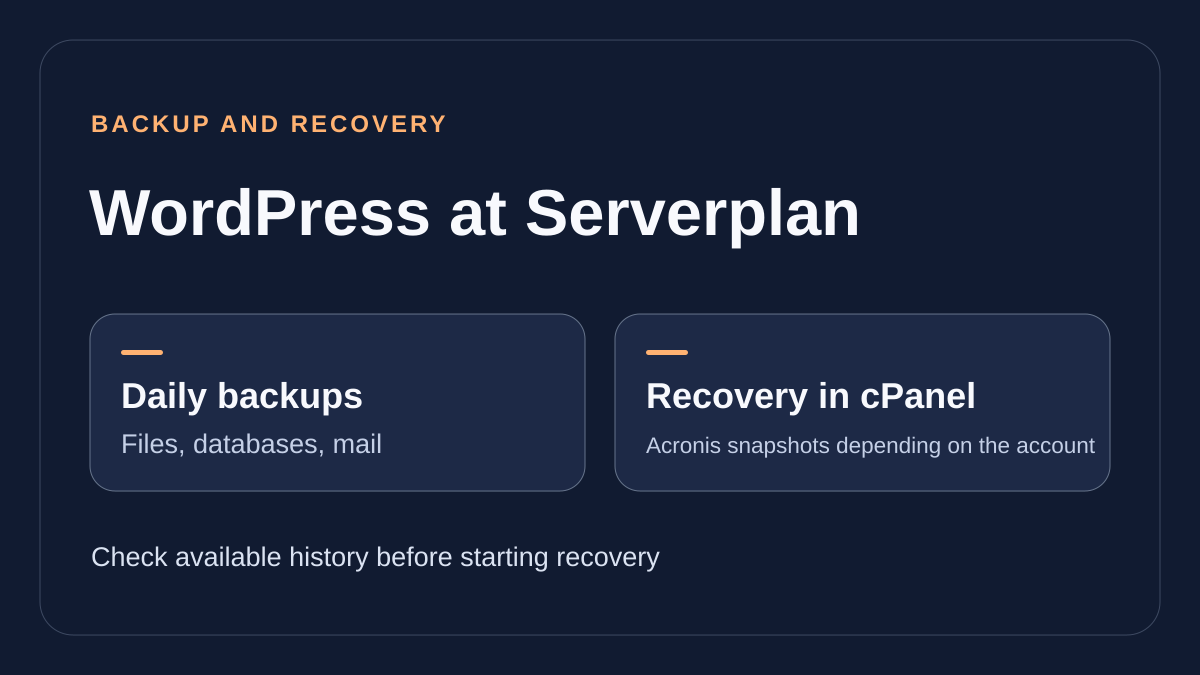
This profile is based on published offers and documentation. No new hosting benchmark or support test was performed for this translation.
Prices retain the market, currency and billing period described in the French source. Translation does not update a commercial quote. Confirm the final price, taxes and options before ordering.
| Plan | Price and billing | Resources and limits |
|---|---|---|
| Starterkit | 26 EUR excluding VAT/year Renewal: No separate rate recorded. Check the amount in the renewal notice. Annual VAT-exclusive pricing recorded November 10, 2026. For shared hosting, renewal by payment unless otherwise agreed in writing. | 5 GB, 5 mailboxes, 1 database WordPress to install, self-managed migration |
| Startup WordPress | 76 EUR excluding VAT/year Renewal: No separate rate recorded. Check the amount in the renewal notice. Annual VAT-exclusive pricing recorded November 10, 2026. For shared hosting, renewal by payment unless otherwise agreed in writing. | 20 GB, 50 mailboxes, 20 databases Staging, AI assistant and tool-based migration |
| Enterprise WordPress | 142 EUR excluding VAT/year Renewal: No separate rate recorded. Check the amount in the renewal notice. Annual VAT-exclusive pricing recorded November 10, 2026. For shared hosting, renewal by payment unless otherwise agreed in writing. | 100 GB, 100 mailboxes, 100 databases Migration tool and advertised on-demand backup |
| Enterprise Plus WordPress | 230 EUR excluding VAT/year Renewal: No separate rate recorded. Check the amount in the renewal notice. Annual VAT-exclusive pricing recorded November 10, 2026. For shared hosting, renewal by payment unless otherwise agreed in writing. | 200 GB, 100 mailboxes, 150 databases Support-assisted migration and advertised PHP Superveloce |
Serverplan presents four WordPress plans in Italy. Starterkit contains 5 GB storage and five mailboxes. Startup WordPress increases to 20 GB and fifty mailboxes. Enterprise WordPress and Enterprise Plus WordPress list 100 and 200 GB, with one hundred mailboxes each. The comparison presents these plans as single-domain. Subdomain and database options notably serve copies or application needs. If managing several clients, clarify separation of accounts, contracts and access before counting possible installations. An agency can plan one account per site or compare the reseller range on its own quote.
The table gives one, twenty, one hundred and one hundred and fifty databases respectively, with a maximum of 5 GB per database across every tier. A store whose database already approaches that volume gains no headroom on this limit simply by moving from Startup to Enterprise. Record the largest table sizes and growth over several months. Examine scheduled tasks, logs and search indexes before changing configuration. For email, the comparison lists 5 GB maximum per mailbox on Starterkit and 15 GB on higher plans, plus a limit of three hundred sends per hour. Also check shared space and the account’s counting method. Plan a separate sending tool if the site must distribute campaigns.
The Enterprise Plus card highlights PHP Superveloce. Other stack components, execution resources and usage conditions matter for dynamic transactions. Record required PHP versions and the logged-in site’s load before choosing a tier. Traffic advertised without a numerical limit on the cards does not remove account limits. The site also distinguishes a WooCommerce range. Apply its terms only if the quote identifies that product.
As of November 10, 2026, the annual public price is €26, €76, €142 or €230 excluding VAT depending on tier. The site shows annual plan prices. Approximate monthly equivalents of €2.17, €6.33, €11.83 and €19.17 help compare budgets. No second pricing table appears on these cards. If the reference price stays unchanged, two years would represent €52, €152, €284 or €460 excluding VAT for hosting alone. The amount due must be checked in the renewal order. The comparison cites included domain extensions including .it and .eu. Check holder eligibility, inclusion duration and the separate domain price if retaining it after leaving hosting.
Article 6.2 of the specific contract provides renewal by payment at expiry for services in the residual category unless otherwise agreed in writing. It reserves automatic renewal rules for servers, VPS, Supercloud and reseller plans. The guide locates renewal in Ordini in scadenza, then Rinnova selezionati. Identify hosting, domain and options before selecting rows. For early payment, the guide goes through I tuoi prodotti, then the service page. Keep the deadline and renewal amount. For a French holder, the site establishes only the VAT-exclusive price. Clarify the invoice, payment method and date payment must be received to avoid interruption.
Starterkit suits someone able to install and maintain WordPress. The other three cards advertise a prepared CMS, updated core, caching, staging and SSH, WP-CLI and Git access. Enterprise and Enterprise Plus advertise one-click plugin and theme update actions. Identify who decides version changes and validates features afterward. A one-click update can still require checking forms or checkout. Reserve a window when the person responsible for those checks is available.
 Editorial illustration based on the official documentation. — Illustration by BlogPasCher.Open full-size illustration ↗
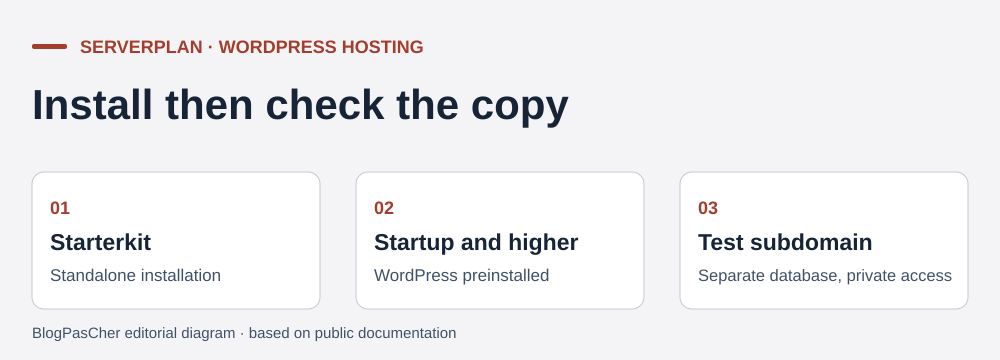
With Starterkit, prepare a self-managed installation on the cPanel target. Commercial help and the EasyApp guide do not describe the same installer availability on the entry tier. Check whether it is present in the account. If absent, plan manual installation with dedicated files, database and user. If the domain already serves another site, prepare a subdomain or empty destination. Choose the WordPress domain and path, configure an administrator separate from publishing accounts and record the access address. With Startup or higher, follow initial setup of the preinstalled installation. The guide then places the service page under I TUOI PRODOTTI, then Hosting. Check the selected domain, certificate and dashboard access before moving traffic.
A migration may fail because the old site depends on a particular PHP version or module. In cPanel, open the PHP version tool specified for the account, record the current setting, then change only the test domain if the screen allows that granularity. Compare public display and administration. For a store, add a product to the test cart and open an order without real payment. Consult logs if a page returns an error after the change. If the old setting remains available, restore it on the test target and identify the incompatible plugin. If the previous version is no longer offered, keep the old server active during correction.
The Startup, Enterprise and Enterprise Plus cards advertise SiteBuilder AI with an assistant and text and image generation. The indexed guide version identifies the Extendify plugin and Site Assistant menu in WordPress. It ties the creation workflow to the preinstalled version and excludes transfers and manual installations. It specifies a 72-hour window for restarting guided creation of a new template. This limit concerns generating a new template. According to the guide, resulting pages remain editable in the editor. The guide now redirects to a help screen without the article body. The 72-hour window is information from the indexed version. Confirm its duration and eligibility of a migrated project. Quotas, model, request retention and rights after departure are not established. Before generating, keep a copy of the blank site and use a description containing no customer data.
The Serverplan guide proposes cloning through Installatron an installation created with EasyAPP. In cPanel, create a test subdomain, check its folder and prepare access restrictions. Under Applications, open Installatron, select the source WordPress site, then choose Clona. In the Dominio field, select the test subdomain, verify the path and confirm creation. The guide states that the module copies files, creates a database and user, and adjusts domain references in the copy. If the current installation is not recognized, check the tool’s import options or prepare a test database with copies of files and SQL. Keep the source database separate.
Protect access before sharing a test address. Disable the outgoing mail server, payment keys, webhooks, periodic tasks writing externally and inventory synchronization. Then open the destination with and without credentials. Confirm that production has changed neither certificate nor domain and that the copy uses its own database. For an intermittent incident, repeat the precise action triggering the error and retain the time and corresponding log. This provides more usable evidence than a simple homepage screenshot.
One-click staging is advertised from Startup. The cloning guide does not describe automatic merging of production data. To publish a validated setting, reproduce it in a targeted way and check its value on the active site. For a broader change, record the replacement scope and writes since the copy. If staging fails, restore the old test configuration or remove the clone after checking the selected domain, directory and database. Production remains the reference for recent orders and accounts.
The cards advertise daily backups. The overview says copies are isolated on separate servers in a data center area. The shared hosting guide describes daily off-site copying and access to cPanel tools. The table also has an hourly-copy row. The record does not allow assignment to a specific plan. Ask for affected components, retention and delivery time. A daily copy may suffice to recover an old page, while a store must plan how to retrieve orders and payments after the selected point. Exact retention and location still need checking.
In cPanel, open Acronis Backup if available. The provider’s indexed procedure first selects a point, then a component. Under files, select the file or folder and choose Download to examine it outside production, or Recover to restore it. Check the option that deletes target files absent from the copy before Start recovery. Under Databases, download SQL if you need to inspect it or use Recover. According to this guide, Add suffix to the recovered database name permits restoration under another name. Check that database on a test installation. Under Mailboxes, choose the mailbox and check whether confirmation deletes messages newer than the copy. Consult Recovery Operation log to follow the operation. The current shared hosting guide confirms the module and points. Button details come from the indexed Acronis procedure, whose current opening displays only the help portal.
To keep an independent archive, open cPanel backup and export the site directory and SQL. The shared hosting guide also mentions mail filters and forwarders. Keep a separate copy of important messages if your archive omits them. To restore one theme file, first compare the downloaded file with its current version. Database restoration is justified if the incident really affects tables. When files and database must return together, choose both from the same point. On a site that received orders between dates, first isolate those writes so they can be reconciled after recovery.
For a plugin error after an update, compare file version with table version before restoring an old point. Take a copy of the current state and record business data to preserve. After recovery, open the dashboard, a public page and the feature that triggered the incident. If the problem persists, restore the state captured before intervention and continue on an isolated copy. If administration is inaccessible but data intact, evaluate targeted file intervention before rolling the entire database back.
The table distinguishes Starterkit self-managed migration, the tool advertised for Startup and Enterprise, and support intervention advertised for Enterprise Plus. Before transfer, confirm what assistance includes and who fixes incompatibilities. Supply volume, database size, PHP versions, mail items and planned date. For self-managed transfer, export SQL and files at the same date. Prepare a database and user in cPanel, import SQL, upload files and adapt wp-config.php to the new settings. For a large import, check phpMyAdmin limits and SSH availability. A database over the advertised maximum must be addressed before switching.
Keep the original DNS zone and mail settings. Test the site on a protected target, then check certificate and redirects before changing web records. Keep MX, SPF, DKIM and DMARC values if mail is unchanged. If mailboxes move, recreate addresses and aliases, copy messages, then verify receipt and sending. If the site fails, restore old web records and recover data entered at the target before reopening the old database. Keep both services until data is reconciled.
To leave, export files, SQL and mailboxes before expiry and test readability outside the account. The terms describe disconnection at termination and access to export features during a four-day window. Announced deletion for shared hosting occurs later. Keep those deadlines distinct and obtain the date applicable to the contract. If retaining the domain, check access and transfer code before allowing hosting to expire. For a technical request, use the portal ticket with offering identifier, time and reproducible issue. The guide also specifies a telephone PIN in Assistenza. Serverplan advertises technical ticket access 24 hours a day and 365 days a year. An English portal does not confirm response language. The offering and account workflow consulted are in Italian. Clarify channel, language and included intervention for a WordPress incident, such as plugin incompatibility or database recovery.
In phpMyAdmin on the old host, select the WordPress database and inspect table sizes under Structure. First make a complete SQL export. Identify the largest items and associate each table with WordPress or the plugin creating it. For completed tasks, expired sessions or old logs, use the owning plugin’s purge feature if documented. Perform this check on a copy. Deleting a table identified only by size may remove payment or subscription information. After purging, compare export size, administration access and business data on the copy. If the database remains over the 5 GB limit, request a suitable target before scheduling the switch. Keep the export intact to return to the previous state.
Use these references to check the features, requirements and limitations described. Reading documentation is not a practical test.
English translation of the reviewed French edition. Code examples retain their original identifiers, comments and output strings for reproducibility. Linked exercise files and original screenshots may contain French. No new practical tests or price checks are implied by translation.
1984 Hosting’s WordPress plans in Iceland, initial and renewal terms, migration, the Security Pack and backup limitations.
Read more →Compare 34SP.com WordPress containers, shared memory, staging copies, downloadable snapshots and site migration.
Read more →Compare AEserver’s managed WordPress prices and check whether your network must be split into independent installations before migration.
Read more →