

Read the requirement that actually blocks WordPress
You open a WordPress installation or update and a message reports an insufficient PHP version, an outdated database or a missing PHP extension. The goal is an environment compatible with the intended version without bypassing the check or erasing an existing installation.
PHP is the engine that runs WordPress. MySQL or MariaDB is the service that stores its data. A PHP extension is an engine module, different from a plugin installed in the WordPress dashboard. These three elements need separate checks.
Copy the exact rejection text with the relevant WordPress version and time. Do not retain only “incompatible server”: the message may specify the component and required threshold. A database connection error alone does not prove its version is too old.
Do not modify core files to remove the version check. That would hide a warning without providing the functions WordPress needs.
Protect what exists before restarting installation
Check whether the domain should host a new site or restore a site that already contained data. If posts, accounts or orders existed, do not continue the wizard as a new installation. Have the correct database, directory and update context confirmed.
Preserve files and a database backup in private storage before changing the environment. Check their dates and restorability. Downloading the site directory does not automatically include MySQL or MariaDB data.
Record current versions and settings and other sites using the same account. A PHP or database-service change may have a shared scope. Prepare rollback with the provider; downgrading a database version is not a guaranteed simple button.
If preparing a test copy, ensure its database is separate and protect its access. Disable email, payments and external automation before using it. A staging address alone does not make tests harmless to business operations.
Identify the plan, permissions and environment
On self-hosted WordPress, use the authorized hosting account or provider support. A WordPress administrator role does not necessarily grant permission to change engines. If you manage content only, send the message to the administrator without requesting their password.
Record the domain, document root and hosting plan. The document root is the directory published for that domain. One installation may use a different PHP version from another site on the account or inherit a shared setting.
On WordPress.com, engines are managed by the platform and cPanel does not apply. A PHP option may nevertheless be available for your site. Prepare backups and a copy before this route. If the option is absent or the database engine is involved, contact support for the relevant site.
In multisite, involve the network administrator. Shared files, configuration and components may make a change useful for one site but problematic for others.
- Open the WordPress.com hosting dashboard and select the correct site title.
- Open Settings, then the Server section and PHP. Record the initial version.
- Choose an available, maintained version compatible with your themes and plugins; use the prepared copy first.
- Click Save, then check the site and its functions in that same environment.
- If incompatibility occurs, return through the same path to the initial version only if it is still offered and supported. Otherwise apply the rollback prepared with support.
Compare the domain’s PHP with terminal PHP
If WordPress still responds, open Tools → Site Health → Info and record values in Server and Database. If rejection occurs before installation, request the corresponding report for the affected domain or subdomain from the hosting panel. Record the address and, if several sites share the account, the indicated directory and PHP handler. PHP chosen for a domain may differ from PHP selected for a subdomain, scheduled task or terminal.
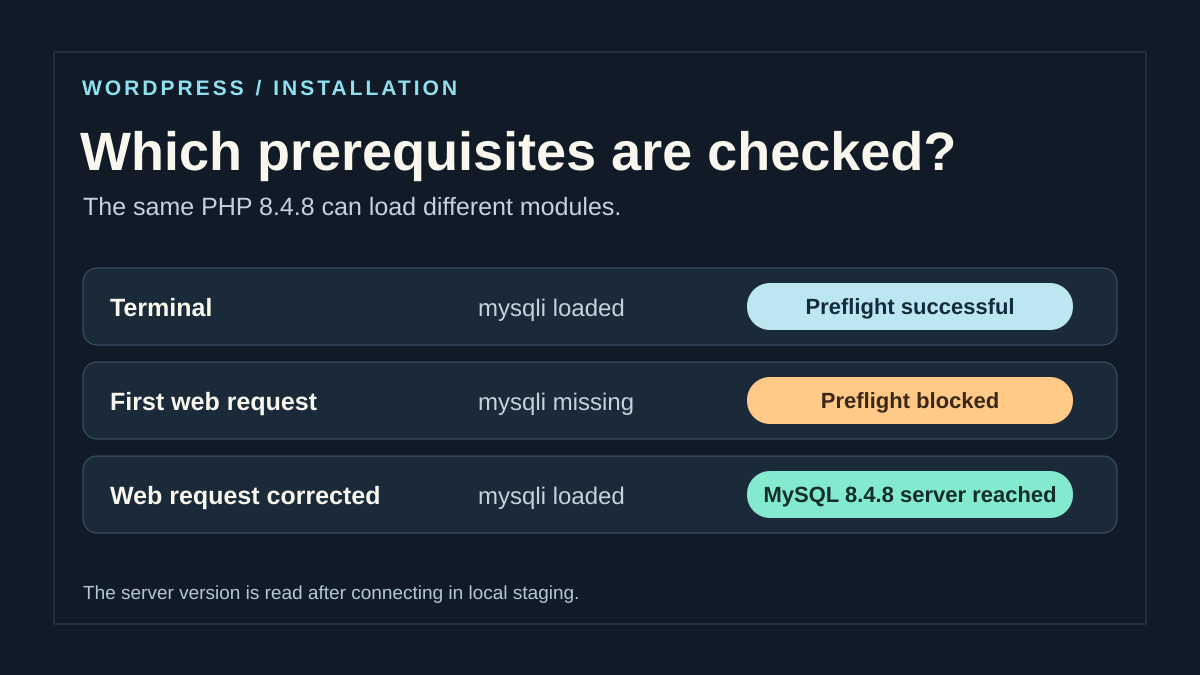
With terminal access, php -v reports the PHP version executed by that command. php -m reports modules loaded by that PHP and php --ini helps identify its configuration. Keep these readings for comparison with the domain. Even with an identical version number, configuration and modules may differ. Ask the provider to confirm the required module in the process serving the site, especially when the error names mysqli and the terminal already sees it. Use the panel’s private diagnostics. A PHP information page accessible on the site may expose environment details unnecessary for public diagnosis.
After an authorized change, repeat the same check on the copy and within the same domain. The expected result is the selected version in the web request, with the module present where WordPress needs it. If the panel shows the new version but the request still fails with the same message, have domain inheritance, handler and configuration checked before changing another setting. To undo the change, restore the previous selection and check the affected address again.
Check the database server connection and version
A loaded MySQLi module allows PHP to attempt the connection. If the message reports a connection rejection, first check the declared database address and the service actually receiving the request. Ask the host to confirm the expected server, port or socket and installation access. An SQL client may be installed on the machine while the expected server does not respond. The PHP client or phpMyAdmin version is not the server version.
If you have access to phpMyAdmin or a private hosting tool, open the connection used by the installation. Select the expected database and run the following read-only query. Keep the full string, which identifies MySQL or MariaDB, and compare it with the requirements of your target WordPress version. If the panel connects you to another instance, request a reading from the correct instance before choosing an upgrade.
SELECT VERSION() AS version_serveur;Separate the accepted minimum, recommendation and support
An installation check verifies the thresholds of the WordPress version in use. Hosting recommendations target an environment more suitable for current operation. Finally, the engine’s support lifecycle determines whether its branch still receives fixes. Meeting an old minimum does not automatically satisfy all three needs.
As of November 3, 2026, the official WordPress recommendations page lists PHP 8.3 or higher, MariaDB 10.11 or higher, or MySQL 8.0 or higher, plus HTTPS. Recheck these reference points before a future change. They do not guarantee compatibility with every plugin.
Choose a maintained branch with the provider that is compatible with the target WordPress version and your components. The highest available version is not necessarily the best first test for an old site. A branch receiving security fixes only does not have the same support horizon as an actively supported branch.
Keep the exact minimum stated by your installation to explain the rejection. Do not reuse numbers from an old tutorial as deployment recommendations.
Also compare the row for your target WordPress version in the official PHP/WordPress matrix. A combination supported by core does not validate all your themes and plugins. Record three separate conclusions: the rejection threshold, target-version compatibility and the maintenance period of the selected PHP branch.
Choose between activation, a prepared upgrade and migration
The first approach fits a plan that already has the required versions and modules while the domain uses an old setting. It can address a new installation after checking the directory and confirming there is no data to preserve.
The second prepares the upgrade of an existing site or database service. It requires a test copy, backups and documented rollback. It is necessary when existing data and components must follow the change, even if the panel offers a very simple button.
The third becomes relevant if the provider confirms the plan cannot supply a compatible, maintained environment. You must then prepare a transfer or another suitable plan without changing DNS before checking the destination.
Start without installing a new WordPress plugin. A plugin does not upgrade the MySQL server or replace a PHP module missing at startup. The hosting panel and support are the first means of correction.
Approach 1: select the correct engine for the domain
This operation applies if the correct version is already available and the new site or prepared copy can use it. The cPanel account must have permissions for the confirmed domain. Before applying anything, record the initial version and inheritance, then verify that restoring them will be allowed.
Do not select every domain on the account. Check shared document roots and scope with the provider. If the needed version does not appear, it is unavailable to this account; do not replace this selection with a directive added to the theme. MultiPHP Manager is also not a universal PHP-module installation screen. Record PHP-FPM status without changing it for this test; inherit mode does not allow PHP-FPM activation. Changing this process manager may affect several domains sharing the same root.
Reopen the same installation check or Site Health to verify the effective version. Then check the home page, an internal page and the editor on the copy. If the reported version has not changed, have the context identified before making another change.
To undo this test, return to the same row and restore the recorded original version or inheritance, if that choice remains authorized, then Apply and check again. Otherwise use the rollback prepared with the provider; the panel does not guarantee availability of an old branch. For an existing site, the production switch follows only the preparation described below. This PHP rollback undoes no file or data update performed alongside it.
- In cPanel, open Software, then MultiPHP Manager.
- Find the exact domain. Record its PHP version and any Inherited indication; have shared roots confirmed.
- Select only that domain’s row, then choose the validated version under PHP Version. Check the rollback option one final time.
- Click Apply. Keep the recorded PHP-FPM state; do not change this setting simultaneously for the test.
- Reopen the installation check or Site Health, then check the home page, an internal page and the editor. The effective version must match the selection.
- If the test fails, restore the authorized original version or inheritance on this same row, then Apply. If the choice has disappeared, use the rollback arranged with the provider.
Confirm the requested module before changing the installation
A WordPress message reporting a missing MySQL extension may refer to mysqli, the PHP module used by a standard installation to communicate with MySQL or MariaDB. Record the exact message and web context. If you can change modules in the panel, ask which set applies to the domain’s PHP. An active checkbox for another PHP engine does not explain this rejection. A site hosted with managed settings must have these values checked by the provider.
On a copy, activate only the requested module through the plan’s documented mechanism, then repeat the same check. Disappearance of the message lets you proceed to connection verification. If a new message identifies an unreachable database or denied access, continue with database-service parameters. The engine version is checked after a successful connection. To undo the test, restore the domain configuration previously recorded. If the installation uses a special database mechanism provided by its host, ask which requirements apply.
Approach 2: prepare an existing site’s upgrade
With the administrator, create a protected copy reproducing relevant components and data, then prepare the target environment. Verify the separate database and disabled external effects before opening it. A copy on a different engine may not reproduce every current condition; document these differences.
Bring components into compliance with their requirements and update procedures. Check their versions’ compatibility with the planned PHP and WordPress. Do not deactivate an essential component and then consider a site validated when it no longer fulfills its function.
First test the PHP change on its own when it can be separated. Simultaneously changing the theme, engine, database and addresses would prevent attribution of a failure to its cause. Keep a record of steps and the last working state.
If incompatibility appears, preserve its message and have the affected component corrected or replaced in this context. An old, unmaintained engine must not become a permanent solution merely because it hides that incompatibility.
Assign the database upgrade to the right administrator
The MySQL or MariaDB service often belongs to the host’s infrastructure. On a shared account, its upgrade may extend beyond your site. Request the target version, intended upgrade path, appropriate backup and intervention scope before any decision.
Changing PHP does not upgrade this database service. Conversely, migrating the database does not load a missing PHP module. Keep the two checks separate so you know which rejection should disappear after each correction.
A database engine upgrade may change internal structures and prevent a simple return to the old version. The provider must prepare a restoration or another supported rollback. Do not settle for a “downgrade” promise without an explanation of preserved data and the write window.
MySQL and MariaDB are distinct products. Moving between them requires its own compatibility and transfer checks. Do not treat it as changing a number in the panel or run a conversion command found in a forum.
Approach 3: change environment if the plan is unsuitable
If the provider confirms it cannot supply the necessary versions or modules, first ask whether it can move the site to a compatible environment within its service. Another plan or host may become necessary, but the decision should rest on the exact constraint.
Before purchasing or transferring, have the engines actually available for your site, their maintenance and necessary modules confirmed. Also check migration access, backups, usable capacity and the exit process. A marketing claim of “WordPress compatible” does not describe every component requirement.
Prepare the destination without replacing production. Have the copied site checked through suitable protected access with a separate database and external effects disabled. Do not change DNS simply to find out whether the transfer worked.
Keep the original hosting and backups until validation. If the new destination fails, you must know how to return to the intended service and which recent data may be missing. Do not delete the original account as soon as the first page displays elsewhere.
Distinguish compatibility from transfer problems
A destination with the correct versions may still have a database connection error if credentials, selected database or host do not match. Use database connection diagnostics while keeping sensitive values in the administrator’s private tools.
If the wizard appears instead of old posts, stop installation. Confirm the data and their association instead of creating new tables to make the screen disappear. Meeting a requirement does not prove the correct database was imported.
If the browser downloads a PHP file, have the host contain potential exposure and follow the guide devoted to that symptom. Selecting a recent version alone does not guarantee requests are routed to the engine.
After a transfer, also check the addresses and certificate of the domain actually used. An HTTPS name error and a version requirement are different diagnoses. Do not disable certificate validation to continue installation acceptance testing.
Repeat checks on an isolated installation
To prepare isolated acceptance testing, record the exact PHP version, WordPress version and database server used. Then compare the MySQLi module in the terminal and web PHP. An identical version number may correspond to two different configurations. If the module is missing on the web side, the WordPress precheck may return mysql_not_found even when the terminal loads it correctly. This is a scenario to verify, not a measured result on your site.
Once the module is confirmed on the web side, separately verify the connection to the expected instance and its version using the read-only query above. MySQLi error 2002 indicates a connection problem that needs its full message for clarification; it does not prove the database is too old. The mysqlnd version describes the PHP client, whereas SELECT VERSION() reports the server reached. Record both without confusing them and apply the requirements specific to MySQL or MariaDB according to the product actually used.
To repeat verification on your copy, record three results separately. First record the domain’s PHP and required modules. Then confirm the connection reaches the expected instance and read the full server version. Finally compare these values with the WordPress version and plugin and theme requirements. A successful precheck allows further verification. It does not by itself validate file writing, table installation or the entire site.
If your access is limited to the dashboard or panel, send the provider the domain, time, exact message and already available results. Request a reading of the PHP serving the domain and the version of the targeted database instance. Repeat the test on the copy after correction and also check the functions that matter for this site. Keep the old selection and rollback procedure until validation ends.
Validate requirements in the correct environment
After the change, record full versions and modules again in the context that failed. Verify the domain and database server used. A recent number in the panel is insufficient if WordPress continues to reach the old service.
For an installation confirmed to be new, resume the intended wizard and verify the requirements rejection has disappeared before continuing site creation. For an existing site, check startup and data; do not open a new installation merely to prove the engine works.
Keep any new messages. A component incompatibility or denied database connection after the change needs a separate analysis, not removal of the initial check. Support must be able to compare before and after using the same information.
If the result is unsatisfactory, apply the prepared rollback. Do not assume downgrading an engine will restore data or changing a configuration file will undo an upgrade already performed on the database.
Check useful functions before going live
On the copy or within the authorized validation process, open the home page, an internal page and the usual administration area. Check resources, links and login. A site that loads its home page may still fail in the editor or media processing.
Use a test draft to confirm saving, then reopen it. If the project needs a specialized function, prepare its test in a context that disables payments and external messages. Do not draw a conclusion from plugin activation alone.
After a migration, the administrator must check expected data and recent writes before the final switch. The method depends on activity: an open store is not synchronized like an unchanged brochure site. Keep a rollback point and conditions for shutting down the old service.
Remove temporary diagnostics and check that the copy does not remain exposed. Retain backups and the report until the site and required operations have been validated.
Retain project requirements and deadlines
Your support record should contain the exact message, target WordPress version, recorded PHP and database versions, affected modules and domain. Add the scope of the change, important components, available backups and results of testing on the copy.
Ask the provider to distinguish what is immediately available, what requires intervention and what exceeds the plan. Have any costs specified before a commercial change without assuming a purchase replaces fixing an incorrect domain association.
Keep documented component requirements and end-of-support dates for selected engines. Plan an upgrade before expiration, with a compatibility check at every stage. An installation working today on an old branch does not guarantee future maintenance.
At the next change, recheck official sources and the environment actually loaded. Recommendations evolve. The lasting reference point is a compatible, maintained site verified for its actual uses, with a rollback procedure proportionate to the changes made.
Sources and references
Use these references to check the features, requirements and limitations described. Reading documentation is not a practical test.
View 19 references
- WordPress: official hosting recommendations ↗
- WordPress Hosting: environment and compatibility by version ↗
- PHP: supported versions ↗
- WordPress: startup checks for PHP and modules ↗
- WordPress: database version check ↗
- cPanel: domain PHP selection ↗
- MySQL: preparing an upgrade ↗
- PHP: configuration loaded by context ↗
- WordPress: Site Health ↗
- WordPress: backups ↗
- WordPress.com: managed environment ↗
- WordPress: preparing a site migration ↗
- WordPress: PHP compatibility matrix ↗
- MySQL: VERSION function ↗
- MariaDB: VERSION function ↗
- phpMyAdmin: SQL features ↗
- WordPress.com: PHP selection in server settings ↗
- PHP — reading the connected server version ↗
- MySQL — version and active database ↗