

Inventorying tasks before two copies can run them
A site needs to move from one hosting provider to another. The files and database are ready, but some processes must continue only once. A backup, synchronisation or scheduled publication may run after the move. If the old and new sites remain active together, each may see a due task in its copy of the database. The team must know which site handles it and be able to check what actually ran.
WP Crontrol provides an exportable inventory and, since version 2.0.0, free logs for selected events. Advanced Cron Manager also offers event viewing and management; its logging, measurement and debugging tools are advertised in Pro. The choice therefore no longer reduces to “free to view, paid to observe”. Start with the record needed for migration, then check which information each log lets you reconcile with the expected result.
Before installing a tool, record the current method of launching tasks. WordPress can launch WP-Cron on visits. A hosting provider can also call this mechanism from an external scheduler. If you already have a task list and logs from a controlled environment, that information may suffice. The extension becomes useful when it is difficult to reconcile what WordPress schedules with what hosting launches.
The selected project concerns comparison before and after a transfer. It differs from general repair of overdue tasks. An old due time may draw attention but does not justify immediately running the task. The first expected result is an understandable list of processes and their owners, followed by a switch that leaves only one site active for each.
- List processes that have an effect outside the site.
- Identify how WP-Cron is currently launched.
- Decide what evidence each process must leave.
Compare before you choose
The offers at a glance
Find the use case and budget that fit, then read the details to see the limitations and any components you may need.
On smaller screens, the table scrolls horizontally. With a keyboard, press Tab to focus the table, then use the left and right arrow keys.
| Offer | Best for | Pricing and billing | Renewal and support |
|---|---|---|---|
 WP CrontrolRead the details | An exportable inventory and targeted observation without a paid licence. | Free plugin in the WordPress directory. No subscription for the inventory workflow. | Terms for any paid plans were unavailable at the time of review. |
 Advanced Cron ManagerRead the details | A team that has identified a need for Pro diagnostics or already uses this tool. | Free base plugin. Annual Pro advertised, amount not confirmed in the record. Annual for Pro. Taxes not established in the record. | Check the amount and renewal with the publisher. |
Building a record the team can compare
Prepare a table with the task name, arguments needed to identify it, frequency, next due time and the component registering it. Add a field describing what the task does. A local cleanup task and sending to customers do not have the same effect. If you do not know which plugin it belongs to, search for its name in the documentation or ask the site owner. Keep the event in the record during this investigation.
An event’s technical name corresponds to a WordPress hook. Two rows sharing this name may target different items if their arguments differ. A seemingly duplicate row may, for example, process two lists or two different operations. Compare the name and arguments with the extension using them. Do not group rows solely because their label is identical.
Record the time zone and date of the inventory. A recurring task expected tomorrow before the copy may appear on the following day on the new site if it ran between the two records. A useful comparison distinguishes a normal difference in due time, a missing task and a duplicate creation. For a one-off action, also keep the process identifier or reference if the application supplies one.
Arguments may contain record identifiers or other internal data. Keep the export in a team-only location and do not send a raw CSV to someone who only needs to understand a single task. A summary with the name, frequency and truncated reference often suffices. The first migration sheet should specify whom to notify about an unknown row.
- Record the name, arguments and due time of each important task.
- Classify local effects and external effects.
- Record the time zone and person responsible for the task.
Capturing events with WP Crontrol
On an authorised copy, open Cron → Cron Events in WP Crontrol 2.0.0; Tools → Cron Events remains accessible according to the official listing. Locate events, their arguments and associated actions. First look for processes that publish, send or modify an external service. During the inventory, leave run, pause and delete commands alone. The immediate goal is to retain a readable state, with the site and time of the record.
Use the Export button to retain the list as CSV. Open the file in your viewing tool and identify two known tasks. Check that the arguments and due times let you find them again. The CSV is for inventory and reconciliation. Keep the database backup separate for settings and states. An inventory file must not be used as a procedure to import events onto the target site.
When the screen reports that no action is associated with a task, note the row and context. On a copy where some plugins are deliberately disabled, this signal may be expected. Then compare the same event after activating its responsible extension in a properly isolated environment. An absent action after migration is a point to explain. It is not enough to justify deleting every event with the same name.
After transfer, open the same screen on the target and export a second CSV. Compare rows and note which differences correspond to actions performed in the meantime. If the target scheduler remains suspended during this check, compare the record without running a task. You can then observe a known test task once the team has approved the target taking responsibility.
WP Crontrol 2.0.0 makes logs free, but they remain inactive until you enable them for an event. Then consult Cron → Cron Logs for the selected process. The changelog advertises 30-day retention and a cap of 10,000 entries per site; deleting the plugin deletes its log tables and settings. Therefore retrieve useful traces before uninstalling. A log menu’s existence does not prove that a previous execution was recorded there.
- Open Tools → Cron Events and export the list.
- Compare tasks by name and arguments.
- Take a second inventory before authorising the target’s processes.
Preparing targeted observation in Advanced Cron Manager
On another copy, activate Advanced Cron Manager and open Tools → Cron Manager. Locate the events and schedules tables. Find the same tasks as in the WP Crontrol record and note their parameters. The screen lets you manage events and schedules. During the inventory, focus on reading. Changing a frequency to speed up a trial may affect another process using the same frequency.
If WP Crontrol’s free traces do not cover your needs, examine Advanced Cron Manager’s Pro tools, including Cron Logger, Performance Stats and Debug Tool. Define precisely what is missing: memory measurement, diagnostic data added by the developer or a particular scheduling rule. On the copy, compare the trace of a reversible local operation with the expected result. An execution row indicates that the process was entered; its technical success does not prove that external synchronisation produced the correct content.
For a failing process, record the name, time, environment and useful trace. Do not confuse a task that never starts with one that starts and then encounters an error. In the first case, compare the date, launch mechanism and availability of its action. In the second, ask the process owner to check its inputs and external dependency. A difference between the sites may stem from an inactive extension, different access or a missing file.
After the trial, return logging settings to an appropriate level. Traces may increase data volume and contain site-specific information. Set their retention period and access. If the need is limited to an event comparison, use the free foundation and keep a targeted record rather than detailed observation beyond the migration.
- Locate events and schedules in Cron Manager.
- Evaluate the Pro log with an isolated test operation.
- Compare an execution trace with the expected result.
Separating WordPress events from other queues
The hosting scheduler may trigger WordPress, but it may also run independent scripts. Ask the hosting administrator for a record of these tasks. After migration, check their command, user and destination. If the old scheduler still calls the old domain or a URL now redirecting to the new site, the number of triggers may differ from the plan. Record call sources before restarting tasks.
If WooCommerce or another extension uses Action Scheduler, also examine its own scheduled actions list. WP-Cron may launch the mechanism draining these actions. That does not turn Cron Events into an inventory of every pending action. Compare WordPress tasks and application queue actions separately. For order-related processes, record the last successful actions and next important tasks before making the final copy.
On the copy, block or redirect operations that would contact real services. Maintenance mode visible in the browser does not necessarily suspend scheduler calls, task queues or a provider’s direct access. Check isolation with the person controlling the server and external accounts. Keep only one environment authorised to process real data at each stage of the switch.
If the target uses a system scheduler, follow the method documented by the hosting provider and WordPress. Coordinate activation of the new call and termination of the old one. A setting preventing visit-based triggering does not replace the scheduler’s required call. Perform an end-to-end check before considering the migration complete.
- Record server calls and application queues.
- Prepare to stop the source and activate the target.
- Check that only one site runs real processes.
Comparing the licence and need for traces
As of November 4, 2026, WP Crontrol and Advanced Cron Manager are offered free in the WordPress directory. WP Crontrol 2.0.0 now includes logging and Cron Insights without a Pro purchase. The free Advanced Cron Manager workflow covers event inventory and management; its advanced diagnostics are still presented in Pro. Choose the necessary feature before comparing licences. Do not base a purchase on an old comparison that assigns all logging to the paid option.
BracketSpace presents Advanced Cron Manager Pro as an annual offering, with several licences and one year of support and updates. The public page consulted November 4, 2026 shows a loading indicator instead of amounts. No precise price, renewal amount or tax-inclusive total is therefore retained. Request a dated proposal for the required number of sites before budgeting for this option. The comparison remains usable for both free workflows; it cannot price a Pro purchase.
The operational cost comes from analysis time and trace retention. For a simple migration, two clearly dated exports and a queue check may suffice. For a site whose processes run for a long time or send to several services, execution traces may justify more detailed monitoring. Define beforehand what must be visible after the switch. A measurement that does not help decide whether the process succeeded mainly adds noise.
Prepare the budget with one line for hosting, one for the plugin if necessary and one for the person comparing the two records. Keep accounts and data separate. The purchase decision depends on the log’s usefulness and how long the team needs to retain this visibility.
- Choose the trace level needed after migration.
- Check the annual price of Pro if selected.
- Include operational workload in the budget.
Checking versions without confusing minimum requirements with validation
Official metadata archived November 3 and cross-checked November 4, 2026 states WP Crontrol 2.0.0, minimum WordPress 6.6 and minimum PHP 7.4, with “tested up to” WordPress 7.1.4. Advanced Cron Manager 2.7.0 advertises minimum WordPress 5.0, minimum PHP 5.3 and “tested up to” WordPress 6.9.11. Advanced Cron Manager’s old minimum does not recommend retaining an old PHP version. Nor does it prove that all newer versions have been tested.
The Pro commercial page presents its own requirements and requires the Advanced Cron Manager plugin to be active. Do not replace the base plugin’s requirements with those from this commercial page. For the intended target, record WordPress, PHP, base plugin and any purchased Pro extension versions separately. The gap between the site’s WordPress version and the declared directory boundary must remain visible in the decision. It calls for acceptance testing on the copy and does not alone establish either failure or compatibility.
Also retain extensions registering schedules and callbacks. Advanced Cron Manager states that custom schedules it adds remain available only while it is active, whereas created events persist after deactivation. Removing the inventory tool may therefore affect a site to which a frequency was added during testing. For a straightforward migration, avoid creating a new frequency; if necessary, document its owner and check its presence after any plugin removal.
On a multisite copy, start with an identified site and its administration context. Do not assume a single screen summarises every subsite’s tasks. Likewise, a tool handling the Action Scheduler trigger does not replace an inventory of its application actions. These scope checks are proposed acceptance-test points, not results observed in an installation. No task, migration or performance measurement was executed for this comparison.
- Record versions of the base plugin, Pro and target.
- Check who supplies each custom frequency.
- Establish scope per site and queue before comparing.
Switching once and retaining the ability to reassign processes
Just before switching, record the reference time, last completed operations and pending events. Close inputs the old site must no longer process. Check that its triggers have stopped and reconcile the task list with the target’s final inventory. A domain or server migration may also change a script path or access to a dependency. Confirm that the new site calls the correct destination before processing real requests.
First authorise processes whose effects you can observe. Consult their due time and business result, then check that the source did not produce the same action. If a task does not run, investigate its state and origin before forcing it. A manual launch could send two messages or create two entries if the previous process is still running. Keep the time and identifier of each checked operation.
If you must return to the old site, first stop the target’s triggers. Compare what it executed with what the source still has pending. Decide which operations the team must resume, ignore or reconcile. Do not automatically reactivate every source event after traffic returns. Returning to the previous site does not reset actions already sent to an external service.
Once stable, retain the inventory, triggering method and evidence of important operations. The next person moving the site will be able to identify sensitive tasks and know where to check their effects. Remove temporary observation tools according to the team’s procedure only after retrieving useful traces.
- Take a final inventory at the moment of switching.
- Check execution and its effect in only one environment.
- Reconcile completed operations before any rollback.
Restoring an identified event without reinserting the entire queue
Imagine that a synchronisation process no longer appears after the copy. Find its hook, exact arguments, frequency and owner in the initial inventory. First check whether its extension is active and configured on the target. If it provides a command to repair its schedule, use its documented workflow on the copy and observe the row created. Manually adding an event without an available callback does not restore the process; it merely adds a due time that remains unusable.
If the team changed only a date or pause, return to that same row and restore the value or state recorded before the trial, using a tool that permits it. Compare arguments before confirming. A shared frequency must not be changed to correct a single event without recording its other users. If the task already produced an external effect, reconcile it before rescheduling: restoring a WordPress due time undoes neither a sent file nor a processed order.
The inventory CSV is not a restorable queue backup. Also avoid globally replacing the database cron state with an old value: legitimate events may have appeared during migration. Prefer the owning extension’s mechanism or a targeted intervention prepared by its owner. For each correction, retain the row before and after, the time and justification. If the owner cannot identify the event, leave the process suspended within the planned scope and have its origin analysed.
To close acceptance testing, choose a demonstration publication and synchronisation to a test destination. Check their effects on the target, then ensure the source did not reproduce them. Compare the last completed operations with the next due times; an advanced date alone does not prove business success. If returning to the previous site, suspend the target before removing its traffic and explicitly assign only outstanding operations to the source. Switching DNS does not make this assignment.
- Identify the hook and arguments before any correction.
- First use the repair provided by the owning component.
- Reconcile external effects before executing again.
Further reading
Sources and references
Use these references to check the features, requirements and limitations described. Reading documentation is not a practical test.
View 7 references
- WP Crontrol guide ↗ — Documentation consulted:
- WP Crontrol in the directory ↗ — Documentation consulted:
- Advanced Cron Manager in the directory ↗ — Documentation consulted:
- Advanced Cron Manager guide ↗ — Documentation consulted:
- Advanced Cron Manager Pro ↗ — Documentation consulted:
- WP-Cron and the system scheduler ↗ — Documentation consulted:
- WP-Cron due times ↗ — Documentation consulted:
Uses, prices and what to check
2 offers in detail
Compare the features you need and the terms of each offer. The order of these entries does not indicate a ranking.
WP Crontrol
 Official WP Crontrol plugin banner; this image does not depict its interface.
Best forAn exportable inventory and targeted observation without a paid licence.
WP Crontrol provides a CSV export to reconcile events before and after migration. Version 2.0.0 also offers free logs that can be enabled per event. Compare the inventory, available traces and actual process effects. The CSV replaces neither a database backup nor application queue checks.
Offer pricing
Free plugin in the WordPress directory.
Billing: No subscription for the inventory workflow.
Checked on .
Strengths
- CSV export of events.
- Per-event logs and free Cron Insights since 2.0.0.
What to consider
- Logging must be enabled before observation; traces are limited in retention and volume.
- System scheduler and application queues require separate inventories.
Pricing terms and compatibility
Understanding the offer
- Price at the time of review
- Free plugin in the WordPress directory.
- Currency
- Unspecified. Confirm for the offer you choose.
- Billing
- No subscription for the inventory workflow.
- Renewal and support
- Unspecified. Confirm for the offer you choose.
- Taxes and fees
- Unspecified. Confirm for the offer you choose.
- Commitment and terms
- Zero licence cost for the described workflow.
- Date checked
Compatibility and components
- WordPress.org declaration as of November 4, 2026: plugin 2.0.0, WordPress ≥ 6.6, PHP ≥ 7.4, tested up to WordPress 7.1.4.
- Publisher metadata, without a practical test of the site’s combination of WordPress, PHP and extensions.
Advanced Cron Manager
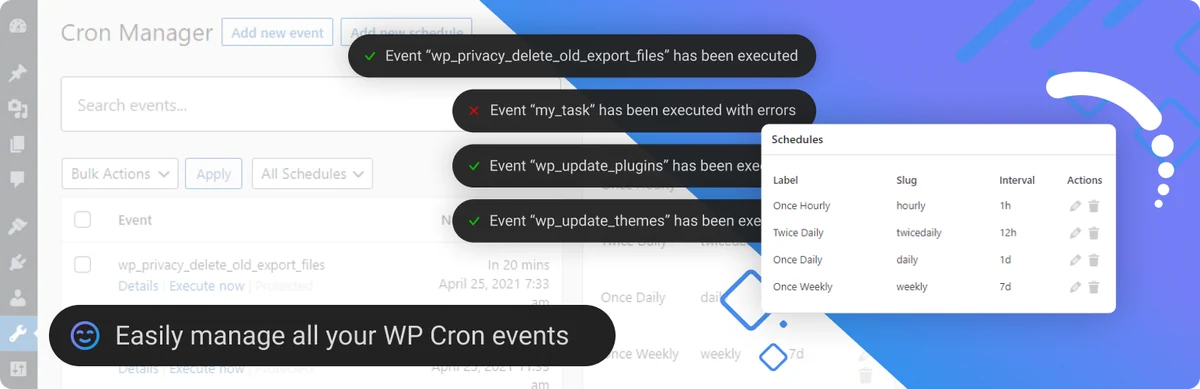 Official Advanced Cron Manager banner: montage of events and frequencies. Visible notifications do not come from our tests.
Best forA team that has identified a need for Pro diagnostics or already uses this tool.
Advanced Cron Manager offers viewing and management of events and schedules. Pro adds diagnostics, including memory measurements and debugging documented by BracketSpace. Compare these needs with WP Crontrol’s free logs before choosing a licence. The Pro price remains to be confirmed; no practical measurement distinguishes the tools here.
Offer pricing
Free base plugin. Annual Pro advertised, amount not confirmed in the record.
Billing: Annual for Pro.
Renewal and support: Check the amount and renewal with the publisher.
Taxes not established in the record.
Checked on .
Strengths
- Tasks and schedules screen in the free base; log and advanced measurements in Pro.
What to consider
- Pro price unavailable for use on the public page consulted.
- The plugin’s custom schedules depend on its activation.
- The log does not guarantee the business result.
Pricing terms and compatibility
Understanding the offer
- Price at the time of review
- Free base plugin. Annual Pro advertised, amount not confirmed in the record.
- Currency
- Unspecified. Confirm for the offer you choose.
- Billing
- Annual for Pro.
- Renewal and support
- Check the amount and renewal with the publisher.
- Taxes and fees
- Taxes not established in the record.
- Commitment and terms
- Several licences advertised; check the number of sites.
- Date checked
Compatibility and components
- WordPress.org declaration as of November 4, 2026: plugin 2.7.0, WordPress ≥ 5.0, PHP ≥ 5.3, tested up to WordPress 6.9.11.
- Publisher metadata, without a practical test of the site’s combination of WordPress, PHP and extensions.