

Recognise the problem you want to solve
An automatic backup no longer starts, actions remain pending in WooCommerce, or the host reports recurring resource consumption. In Site Health, WordPress may also report an overdue scheduled event. The aim is to restore regular processing of useful tasks while preserving orders, files, and operations already performed.
This guide concerns background tasks. It is not a general method for speeding up every page. Slow administration without overdue events or an identified process needs a different diagnosis. Likewise, a few future actions in a list do not demonstrate a failure: they may simply be waiting for their scheduled time.
Start with administration and the host’s tools. The terminal is a third approach, reserved for someone who already has that access. You do not need to install a cleanup plugin to make the first observations. This guide claims no testing on a real site.
Distinguish WP-Cron, the server scheduler, and Action Scheduler
WP-Cron is WordPress’s scheduling mechanism. It retains events to execute, such as certain update checks or scheduled publications. In its usual operation, requests reaching WordPress provide an opportunity to start due events. It is not a service running continuously every second.
A low-traffic site can therefore fall behind. Measured traffic alone is not enough to conclude this, however: a page served entirely from cache may not make WordPress do any work. Conversely, receiving visits does not guarantee that an internal request or plugin function succeeds.
The server scheduler belongs to hosting. It can trigger WordPress at regular intervals independently of visits. An entry saved in that scheduler does not prove that the correct installation is called or that the work completes.
Action Scheduler is a library used by plugins, including WooCommerce. It has its own action queue and logs. Its usual processing relies in part on WP-Cron and asynchronous internal requests. The action_scheduler_run_queue event starts processing that queue; it does not represent every order or email within it.
Preserve data and understand possible effects
A background task may send a message, transmit an order, change a subscription, or call a payment provider. Do not click Run to discover what it does. An action marked failed may have produced some of its effects before stopping. Running it again may therefore repeat an operation already completed.
Before making a change, have a recent database and file backup preserved, together with useful logs. Store these privately, not in the site’s public directory. Record the scheduler’s current configuration and your intervention time. On an active store, new orders keep making the data more recent than the backup.
Do not restore the entire database to undo a Cron setting: you could lose those orders, accounts, or stock changes. Rollback should first target the precise setting changed. Any restoration of business data requires a separate reconciliation with operations performed since then.
For reproduction on a copy, have real payments, emails, SMS, synchronisations, and external tasks disabled as soon as the copy is created, before its first visit. An environment called staging may still contain production keys and queues. Simple duplication does not ensure isolation.
Build a short record before any correction
Record the first symptom, its time with the time zone, and the last known successful operation. Note nearby changes: migration, update, firewall addition, domain change, a large import, or a backup modification. A timing correlation offers a lead; it does not by itself prove responsibility lies with the last component changed.
For each representative task, retain its technical name, scheduled date, status, and identifier if available. The technical name is often called a hook: the name to which WordPress attaches the work to perform. In Action Scheduler, add the group and a few relevant log lines.
Compare dates in the same time zone. A time shown in UTC must not be compared directly with local time without conversion. In WordPress, Settings, General lets you view the site time zone; do not change it simply to make an apparent delay disappear.
Limit information sent to support. A task’s arguments may contain order identifiers, addresses, or other private data. Keep the full record in a protected location and mask these values in a public forum.
Choose the lead according to what still progresses
Observe the situation at two times separated by several expected intervals, without continually refreshing administration. A single count poorly describes a queue receiving new actions while completing others. Also track the age of the oldest overdue action and recent errors.
- Several task families remain overdue: first check their triggering and internal requests.
- One name fails while the others progress: examine its plugin, arguments, and associated error.
- Actions complete, but new entries arrive faster: investigate the work feeding the queue and processing limits.
- Only future actions or old failures are visible: establish their actual effect before describing a current blockage.
Approach 1: start in WordPress administration
With your authorised access, open Tools, Site Health, then the Status tab. Record messages about scheduled events and loopback requests. The Info tab helps identify the environment and versions; it does not replace server execution logs.
A loopback request lets the server request an address on its own site. Site Health’s built-in check uses a particular request designed to finish without executing Cron tasks. Its success therefore does not prove that a business event completed. It checks a technical route, with different limitations from a full execution.
Viewing administration does not freeze the site’s normal mechanisms: some administrative requests may help start ordinary processing. Do not use repeated reloads as a catch-up method. If real processing appears dangerous or duplicated, first have the technical manager arrange its targeted suspension.
WordPress does not provide a detailed list of every plugin’s tasks on this screen. Next look for the affected component’s own log, such as its backup or import history.
Read the Action Scheduler queue without changing it
When the library is present and your account has access, look for Tools, Scheduled Actions, or WooCommerce, Status, Scheduled Actions. The interface uses Scheduled Actions in English. A missing menu does not mean all scheduling has stopped: the site may use another mechanism, or your account may lack the necessary permissions.
Filter pending actions, then examine their dates. Pending includes actions scheduled for the future; focus on those whose due time has passed. Consult Failed, In-progress, and Complete separately: failed actions, running actions, and completed actions. Open the details or log of a small number of representative actions.
Record the hook, group, identifier, and message sequence. Creation without a start points towards launching or processing availability. A start followed by an error points towards the work executed. These clues do not automatically identify the exact cause, but they let you ask a precise question of the right support team.
Use neither bulk deletion nor the manual run button. A shorter list after deletion demonstrates no repair. The logs and identifiers are exactly what helps explain what remains to be done.
Interpret failures and partial operations
A prolonged in-progress status may represent slow, interrupted, or still-active work. Action Scheduler manages limits and batch claims; do not delete its locks or tables to force progress. Its documented behaviour also allows an action considered failed after a timeout to be marked complete later if its work finishes.
For an order-related action, compare the queue log, order notes, and status at the relevant provider. An email may have been sent before a later error. A remote service may have accepted an operation without WordPress recording its response. Queue status alone cannot guarantee that no effect occurred.
Ask the developer to explain whether retrying detects an operation already performed and how it avoids repeating it. For payments or renewals, have the person responsible for the store handle the case. Do not create a real test transaction or artificially change an action to successful to remove an alert.
Examine loopback blocks with the host
A 401 or 403 refusal, TLS error, or timeout points in a different direction. Send the exact message, time, and affected address through a private channel. Ask the host to correlate these details with its logs and check that the server can reach the expected domain.
HTTP protection, firewall rules, DNS, and certificates may be involved. Have the rule or destination demonstrated to be responsible corrected. Globally disabling security, removing every protection, or disabling certificate verification is not an appropriate correction. A password-protected copy may also alter internal-request behaviour.
After the targeted correction, revisit the native check and logs. If requests work but actions still fail, continue investigating the executed function. If no request reaches the expected server, have the route checked before adding another scheduler.
Compare cron launching with Site Health’s loopback
On staging, open Tools > Site Health and keep the loopback test result. Then ask the server manager to record the request that actually starts WP-Cron. Method, route, status, and time matter. Ordinary launching sends a request to wp-cron.php with a coordination parameter. A 401 from HTTP protection may prevent that request reaching WordPress. The event then remains scheduled even if the administration page responds.
The Site Health check may use a similar path and present Basic Auth credentials available in its execution context. Normal triggering does not automatically add those same credentials. A positive administration check therefore does not rule out refusal of the launching request. Ask for the POST status at wp-cron.php to be checked and compared with the event’s presence. Avoid drawing conclusions from a blank page or a 200 status alone.
On the copy, choose an event with no external effect. For example, a hook can write a local marker and increment a test counter. Record its name, intended UTC time, and initial marker. Prepare the comparison before removing protection or changing the scheduler. If the hook only writes that marker, successful execution should create a verifiable record and remove the one-off event from the list.
Reproduce the delay with an event that has no external effect
For an acceptance test prepared by the developer, a demonstration hook can record a local counter and its execution time. Schedule it once in the past on a disposable installation without a business queue. If HTTP protection rejects the launching POST with status 401 before WordPress, the expected result is an event still scheduled and an unchanged counter. Record the results actually obtained; an attempt to launch does not prove that the hook executed.
Without changing this event, compare the native Site Health probe and any Basic Auth context with the normal launching request. A successful loopback must not be confused with processing the test event: reread the counter. After strictly limited authorisation of the intended route or preparation of a server trigger, separately check removal of the one-off event, a single counter increment, and continued anonymous protection of the homepage. These are acceptance criteria, not measured results from your installation.
The developer must prepare and retain the test code and removal procedure before starting. Do not invent a public diagnostic file or a global Basic Auth exception. Normal launching is non-blocking; test instrumentation that waits for the HTTP response changes this context and must be noted in the record. Let the normal lock follow its usual duration without shortening or deleting production locks.
Restore one trigger and verify rollback
If the problem is confirmed on staging, ask the server manager to check HTTP protection rules, the exact destination, and the trigger’s account. If the HTTP call is retained, limit authorisation to the cron path and authenticated internal client. Keep credentials in the host’s secrets mechanism. If the host offers a server scheduler, it can call the correct installation’s PHP script without passing through HTTP protection. The guide’s cPanel path details settings and rollback for that option. First check due tasks and their effects before permitting execution.
Compare the next test event’s time, trigger log, and marker. An execution should advance the due time of a recurring event or remove a one-off event, and produce the expected effect exactly once. Also check that staging still requests credentials from an anonymous session. To undo the change, restore the protection rule or previous scheduler entry, then restore the original trigger mode if changed. To verify rollback on the copy, prepare a second independent test event and record its result after restoring the original configuration. Remove only the test events and traces created for this acceptance test. Configuration rollback does not revoke the effects of a task already executed.
Approach 2: correct the scheduler in cPanel
Required access: cPanel with Cron Jobs available. Choose this branch if the server scheduler is the intended mechanism and its old path or absence has been confirmed. Also identify external calls and native triggering before adding anything. Due events and their effects must have been examined: a correction may allow their normal execution.
Keep the current frequency, execution account, and command. Command-line PHP may differ from web PHP: have the host confirm its path, version, and required extensions, along with the absolute path to this installation’s wp-cron.php. The example below must be adapted, not pasted into every account. It really executes due tasks and is not an inventory command.
Expected result: evidence of this entry being launched by the scheduler, followed by legitimate tasks progressing over several intervals. Keep private output or notifications to an authorised mailbox during observation; do not immediately hide every error. A script may stay silent: the absence of email proves neither launch nor success. Have the host correlate scheduler trace times with task logs. The interval must allow the previous work to finish. If executions overlap, review this setting or the host’s exclusion mechanism rather than multiplying launches.
- Open cPanel > Advanced > Cron Jobs, then Current Cron Jobs. Find the entry actually targeting this site.
- To correct an existing entry, copy its five frequency fields and command into private notes. Click Edit and replace only the confirmed old path, retaining other useful parameters, then click Edit Line. Continue to step 5 without creating a second entry.
- If a new task is genuinely necessary and no other server trigger covers this site, fill in Minute, Hour, Day, Month, and Weekday according to the frequency validated for this work. No universal interval is proposed here.
- In Command, enter the confirmed absolute binary and script paths, then click Add New Cron Job. Coordinate this creation with the native-trigger choice described in the next section.
- Observe launch traces, errors, and actual progress. To undo an edit, restore the saved values through Edit. To undo a creation after disabling native triggering, restore that trigger first as described in the next section, then delete only the new entry. If another managed mechanism replaces the native one, have the host confirm its restoration before removing the entry.
# Exemple à adapter : binaire et script confirmés sur cet hébergement
"/usr/local/bin/php" "/home/compte/public_html/wp-cron.php"
Correct disabled WP-Cron without creating a second problem
This simple case concerns a DISABLE_WP_CRON constant added accidentally to wp-config.php without a replacement scheduler. Required access: authorised editing of that file and a private backup. Confirm these conditions before changing the value: on a managed plan, true may be intentional and accompanied by a mechanism invisible in your panel.
The constant prevents usual automatic triggering; it does not delete events. After correction, the expected result is legitimate tasks resuming during normal requests, then observed progress across several intervals. A site with almost no visits may still need the server path rather than this native solution.
Rollback concerns the retained definition: restore its initial value if the change is not kept. This does not undo emails, orders, or other effects of tasks already executed. Their reconciliation remains separate; do not restore the entire database to undo a configuration line.
- Check due events and their effects, then confirm that no server or external task replaces native triggering.
- Download wp-config.php to a location outside the web. In the original, search for DISABLE_WP_CRON and record its existing definition.
- If this is indeed the mistakenly added line, change true to false as shown in the example, before WordPress loads. You can also remove only the documented addition; do not add a second definition.
- Save, then allow an ordinary visit to occur without manually calling the whole queue. Afterwards, record the age of overdue tasks and newly completed ones.
- If you choose the server scheduler instead, first confirm that it really launches the correct script and that legitimate tasks progress. A saved entry or successful creation message is not enough. Once that replacement is validated, the single definition
define( 'DISABLE_WP_CRON', true );disables native triggering; place it before WordPress loads. Keep the previous value for rollback. Do not retain both triggers unnecessarily or leave the site without an operational mechanism.
// Modifier la définition existante seulement dans le cas confirmé ci-dessus.
define( 'DISABLE_WP_CRON', false );
Approach 3: inventory WP-Cron with technical access
If WP-CLI is already available, the authorised person may use it from the correct installation’s directory. First confirm the site and account used with the host. The commands below inspect configuration or the list; they do not request event execution. The list command loads WordPress and its plugins in that environment; it therefore does not isolate the site from its normal effects.
The first reads only the targeted constant before WordPress loads, without displaying the entire configuration or its secrets. The second presents names, next dates in GMT, relative delays, and recurrences. Keep exported results in a private area.
If the constant is not found, do not conclude that no block exists: filters, a particular configuration, or infrastructure may intervene. If WordPress fails to load, record the error and stop this approach. Do not disable plugins solely to obtain a list artificially different from actual operation.
wp config get DISABLE_WP_CRON --type=constant
wp cron event list --fields=hook,next_run_gmt,next_run_relative,recurrence --format=table
Read the results without turning the inventory into a rerun
The WP-Cron list is not the detail of the Action Scheduler queue. Seeing action_scheduler_run_queue does not give the number of failed business actions. Return to that queue’s own screen for its logs and groups. Do not execute a Run all command or empty events to remove an alert.
Without a terminal, WP Crontrol is a free, optional viewing plugin if no existing tool provides the list. Its current listing describes it as maintained by the Duplicator team; check compatibility before installation. Creating, pausing, executing, and deleting go beyond this inventory. Even wp cron test attempts an HTTP start: do not use it as a simple read operation on a real store.
Required access: an account authorised to install and then view this tool. Expected result: an event tracked through its hook, private arguments, and due time, with recurrence and callback identified. Opening a screen does not suspend normal site activity. If installed only for this diagnosis, it can then be deactivated. Before deleting it, preserve useful logs: uninstalling erases its own logs and settings. If it was already in use, retain its earlier state. Do not delete the observed tasks.
- If necessary, open Plugins > Add New Plugin, search for WP Crontrol, and verify the official listing and prerequisites. It currently lists Syed Balkhi as author. Install and activate only this plugin if the conditions are met.
- Open Cron > Cron Events. The Tools > Cron Events path is still accepted; a translated interface may use another label for Tools.
- Search for the recorded hook. Note its next due time, time zone, recurrence, callback, and arguments in your private record.
- Compare the same entry at another time appropriate to its recurrence, accounting for arguments and due time. Distinguish a future event from an overdue one.
- Do not click Run now, Delete, Pause, or bulk actions. Return to the component’s logs to explain a missing callback or error.
Repair the failing function or excessive task creation
When a single hook accumulates errors, identify its owner through logs, documentation, and plugin support. The name prefix is a clue, not proof. An associated function, often called a callback, may be missing, fail to load in this context, or stop on a PHP error.
Send the full error after removing private data, the component version, and a representative identifier. A corrective update must be prepared on an isolated copy and applied with a rollback compatible with current data. Reactivating an old plugin just to “bring back the hook” may reintroduce other effects.
Several events with the same name are not necessarily duplicates: their dates or arguments may represent different operations. If code unnecessarily recreates a task, correct that creation before considering targeted cleanup with the developer. This guide proposes neither deletion by name nor direct modification of the Cron option in the database.
Reduce the work volume rather than forcing the queue
When actions complete but the backlog grows, investigate what creates the volume: repeated imports, overly frequent synchronisation, repeated retries against an unavailable service, or simultaneous heavy jobs. Compare queue changes with hosting metrics and logs over the same period.
Have the frequency or launching of non-urgent jobs adjusted in the relevant component. Preserve business operations and necessary backups. Globally disabling a plugin may remove functions the queue needs; any suspension must therefore be targeted, understood, and reversible.
Action Scheduler processes work within limits. Blindly increasing memory, batch size, or concurrent processing may worsen the load. Specialised terminal processing can suit a large queue, but sizing it is the technician’s responsibility. Separating groups without examining their dependencies may change the expected order of operations.
Adapt diagnosis to WordPress.com and multisite
On WordPress.com, WP-Cron remains a documented mechanism; the platform also describes server scheduling possibilities. Have support confirm the access and mechanism actually available for your site. Do not transfer a cPanel path or configuration-file change to a plan that does not provide that access.
In a multisite network, record the affected subsite and involve the network manager. The main site working correctly does not prove that every subsite is targeted. With WP-CLI, --url is used in particular to select a network site; its address must be confirmed before inventory.
Do not run a processing loop across the whole network to check one subsite. An inventory of sites actually covered by the scheduler is a separate check, particularly after migration or adding a new site.
Verify recovery without replaying sensitive operations
After correction, choose an observation period suited to the expected intervals. Record the same indicators again: age of the oldest overdue task, newly completed action count, recent errors, and resource consumption. A sustained reduction in delay is more meaningful than a warning briefly disappearing.
Observations concern the legitimate processing the site was meant to perform, not real emails or payments created for testing. For previously failed actions, the developer or business owner must determine which need retrying and which have already produced their effect. This reconciliation precedes any selective rerun.
A healthy queue may retain future actions and a failure history. The aim is therefore not an empty database. Also verify that a temporary setting has not left a backup, synchronisation, or essential function disabled. Keep the configuration record and useful evidence for follow-up.
If the load immediately rises again or the same errors return, stop new catch-up attempts and send the case file. Avoid repeating identical settings that do not change the diagnosis.
Provide an actionable case if the blockage persists
Tell support the identified mechanism, comparable dates, and a few representative actions. Specify what still works: other events, internal requests, or actions from another group. Include useful scheduler configuration without its secrets, exact errors, and changes already attempted with their results.
Two messages require different investigations. A loopback refusal points towards the request route. A could_not_set error concerns saving the Cron list; it does not, on its own, prove insufficient CPU or database corruption. Correlate that message with writes and logs at the same time, without deleting the list to make it disappear.
Ask for a concrete conclusion: identified cause, applied correction, remaining work to retry, and observation method. Keep restoration of triggering separate from handling older operations. This distinction protects recent data while allowing verification that the site is processing useful tasks again.
Read WP Crontrol without confusing scheduling with execution
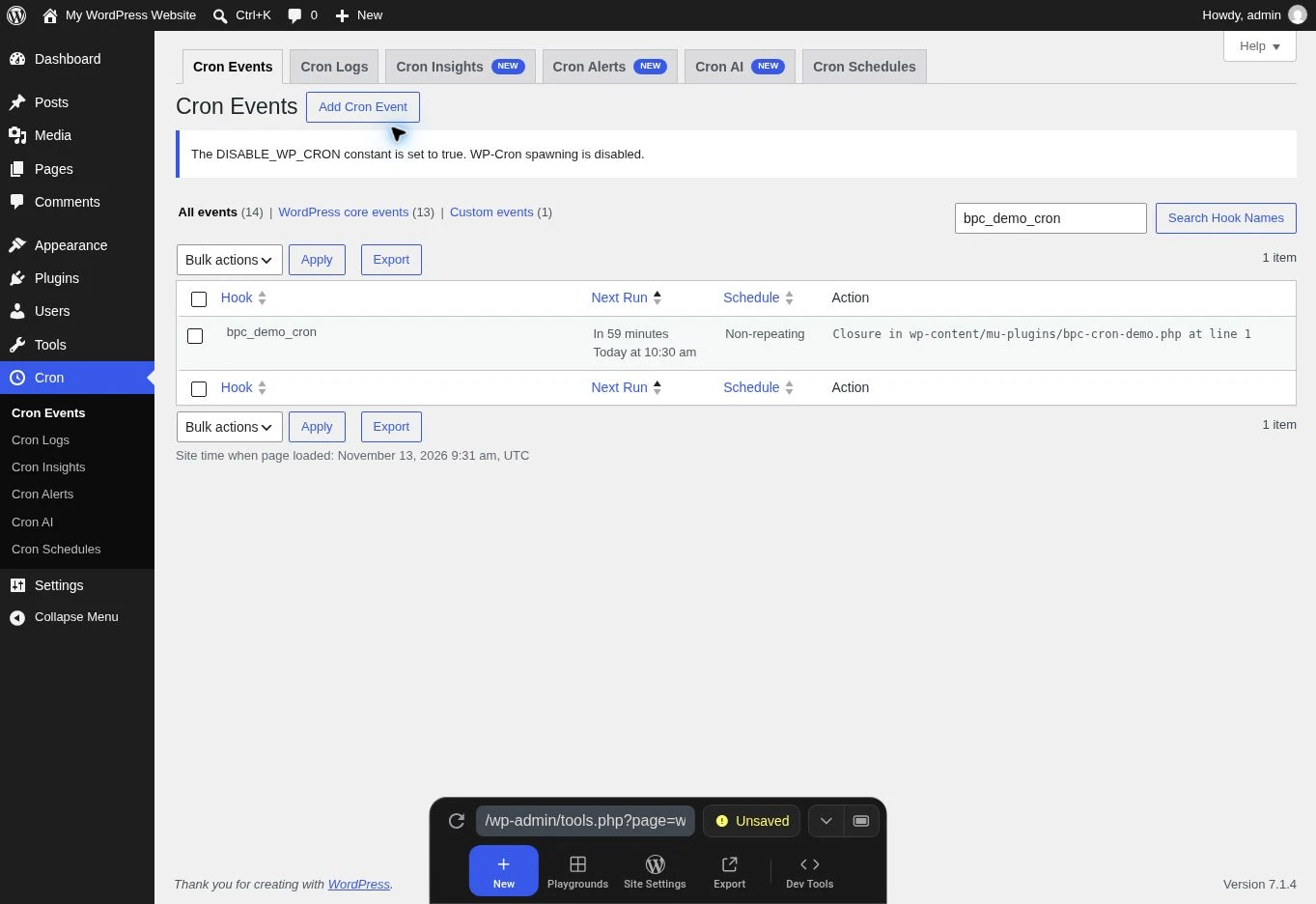
The screenshots come from a test on 13 November 2026 in WordPress Playground: WordPress 7.1.4, PHP 8.3.36, and WP Crontrol 2.0.0 installed from the official directory. Cron, then Cron Events opens the list; depending on version and translation, the entry may also be under Tools. The Search Hook Names field filters the exact hook name. Our demonstration event is bpc_demo_cron, with no business operation or message sending.
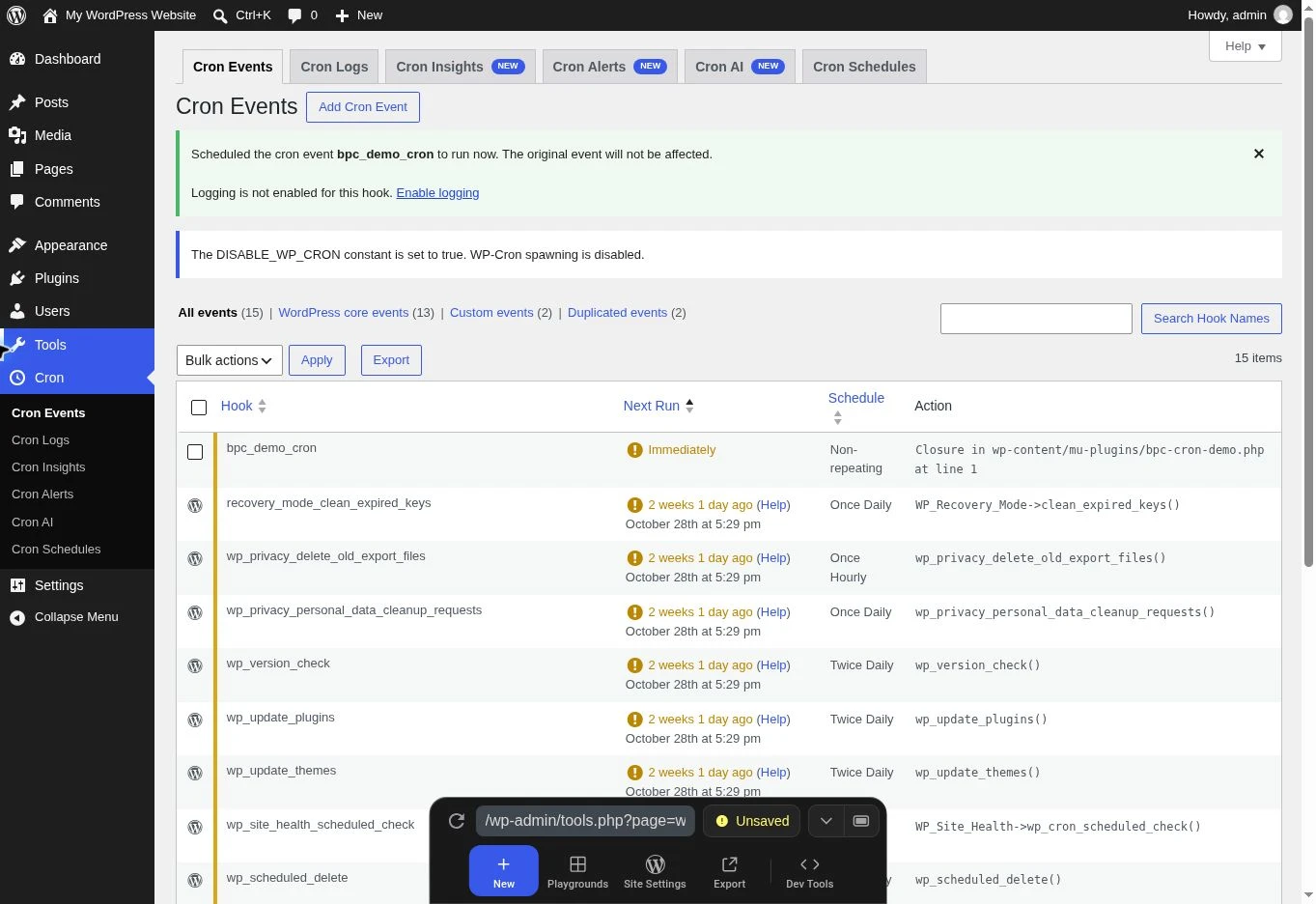
The Run now button displayed “Scheduled the cron event”: the event had been scheduled to start immediately. The expected marker was nevertheless absent. A subsequent request to the cron entry point received HTTP 503 with the message “WP Cron is temporarily disabled in the Playground.”. The environment disabled this processing; this trial validates viewing, filtering, and scheduling in the interface, not callback execution.
On your copy, therefore check the event’s presence, its processing, and the expected concrete effect separately. A green banner is not enough. Do not repeatedly rerun a business task to obtain a different message: first identify the active trigger and any blocks.
Prepare a local test event without sending or payment
On a disposable installation only, the developer may create a previously nonexistent file named wp-content/mu-plugins/bpc-cron-demo.php. The mu-plugins directory must exist; do not overwrite any file. This content is what was used to register the callback in our lab. It writes only a demonstration option when called.
In WP Crontrol, add a one-off event with exactly the hook bpc_demo_cron, no arguments, and no recurrence. Record its due time. On a copy with WP-CLI, wp option get bpc_demo_cron_result should report a missing option before the first run; if it already exists, choose another name in the file and checks rather than deleting unknown data. Use the appropriate path and site parameters to target the copy.
After one Run now and the delay expected from the active trigger, reread this option: the expected value is execute. Our lab did not reach that result because WP-Cron was blocked there. The code is therefore not presented as a successful functional test. To clean up your own trial, delete only its events in WP Crontrol, remove the file created, and, if this test created the option, delete it with wp option delete bpc_demo_cron_result.
<?php
add_action('bpc_demo_cron', function () {
    update_option('bpc_demo_cron_result', 'execute', false);
});
Sources and references
Use these references to check the features, requirements and limitations described. Reading documentation is not a practical test.
View 24 references
- WordPress — how WP-Cron works ↗
- WordPress — connect WP-Cron to the system task scheduler ↗
- WordPress — diagnose loopback requests ↗
- WordPress — create events and callbacks ↗
- Action Scheduler — operation and logs ↗
- Action Scheduler — scheduled actions screen ↗
- Action Scheduler — background processing limits ↗
- Action Scheduler — commands and dependencies between actions ↗
- Action Scheduler — official queue-starting hook code ↗
- WP-CLI — list Cron events ↗
- WP-CLI — read a specific constant ↗
- WP-CLI — the Cron test attempts an HTTP start ↗
- WordPress — native loopback check without running tasks ↗
- WordPress — scheduled event checks ↗
- WordPress — error saving the Cron list ↗
- WordPress.com — WP-Cron and server scheduling ↗
- WP Crontrol — viewing and editing features ↗
- WooCommerce — view and manage orders ↗
- WordPress — debugging, backups, and logs ↗
- cPanel: manage a Cron entry ↗
- WordPress: current WP-Cron triggering ↗
- WordPress: scheduler entry point ↗
- WordPress: HTTP request used to start WP-Cron ↗
- WordPress: filter for cron request arguments ↗