

Recognize recurring temporary unavailability
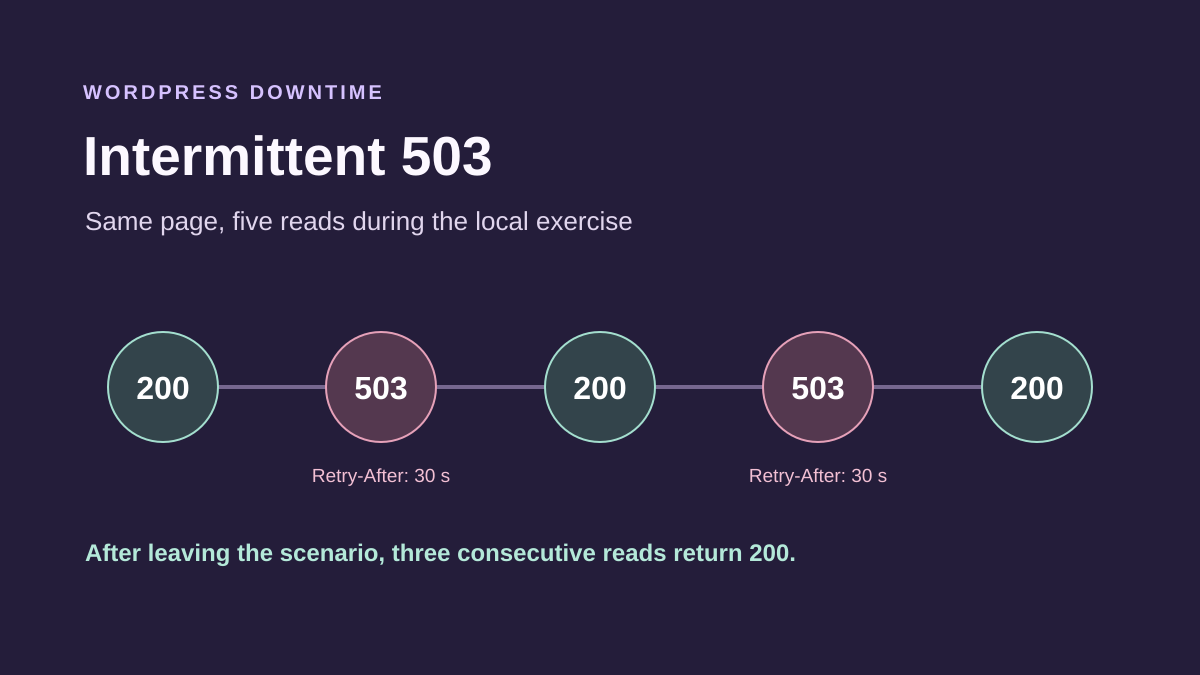
Your WordPress site displays “503 Service Unavailable,” then becomes accessible again moments or minutes later. The status indicates that the service cannot handle the request at that time, particularly during maintenance or overload. It guarantees neither a precise cause nor an imminent automatic repair.
The desired result is stable recovery of useful features, with an explanation of failure periods. A home page returning after each refresh may conceal intermittent denials affecting login, the editor or a store. Follow the flow that actually fails.
This guide concerns 503 observed by a visitor or during a normal operation. A row in technical statistics does not alone prove the site was unavailable to everyone. Keep the exact text, code and context; a 504 timeout, 502 gateway error or 500 internal error calls for different checks.
Keep a timeline instead of multiplying attempts
Record the start and end of each known window, with time and time zone. Note the visited path, whether the account was logged in or anonymous and the full message. Also keep periods when the same page works. These comparisons help the provider find a brief event.
If the error follows a backup, update, campaign or import, report the connection without presenting it as a demonstrated cause. Browser, panel and log times may use different time zones; have them aligned before concluding coincidence.
Copy elsewhere any unsaved text still visible in the editor. For an order, submission or processing operation, check its state before repeating it: an unavailable response does not reveal how far the previous operation progressed.
Stop rapid reloads and simultaneous team attempts. They may add traffic during an already difficult period and confuse observations. A small precise record is more useful than many identical screenshots.
Understand Retry-After without treating it as a promise
A 503 response may contain Retry-After, an HTTP header suggesting a delay before another request. Its value may be a number of seconds or an HTTP date. The server is not required to provide this header, and its absence does not rule out maintenance.
You can record it in browser tools: open Network, select the page’s Document request and inspect response headers. Do this on an ordinary public read; do not manually replay a payment operation to examine its response.
Respecting the specified delay avoids immediately requesting the service again. It does not show that the cause will be resolved when the delay expires. If the same denial returns after the announced period, send both times to support.
Do not change this header in the browser believing that repairs the server. Do not configure a tool to repeat a write request indefinitely either. Availability should return following the correction or completion of the announced work.
Prepare access and identify scope
On a self-hosted installation, capacity and log analysis often requires the hosting account or its support team. A WordPress administrator does not necessarily have those permissions. Involve the authorized administrator rather than sharing their credentials.
Record the WordPress version, PHP version if known and recently changed tools. Mention the hosting, proxy or CDN actually used. A CDN is a service that may deliver some resources through relays; it adds a layer to identify but is not automatically the cause of denial.
Compare paths already observed: public page, login and affected feature. If only an external resource fails with 503, specify its domain. Changing your hosting will not necessarily repair that other application.
On multisite, identify affected sites and those still responding. On WordPress.com, select the exact site and use the service’s tools and assistance. Available files and settings may differ; a standalone server procedure does not automatically apply.
Choose between maintenance, capacity and processing
The first approach concerns unavailability associated with an identified intervention: update, platform maintenance or planned temporary restriction. It checks the status and actual completion of that intervention without opening the site while work is incomplete.
The second targets insufficient capacity or a limitation observed by hosting. It becomes relevant if denials match request spikes or resource events in logs. Traffic alone does not prove insufficient power.
The third examines a task or feature monopolizing the service. Choose it if failure periods match a backup, import or specific action group, with corroborating evidence. An important task should not be deleted just because it runs at the same time.
These approaches may complement each other after facts are identified. Start without a new plugin: network observations, hosting panel and histories already available. A useful correction explains the condition causing denial and how to prevent recurrence.
Approach 1: check announced maintenance
Check provider notifications, service status and the schedule of known interventions. If you started an update, check its progress in the panel or with the administrator. Do not start a second update while the first may still be working.
WordPress native maintenance mode may return 503. A maintenance tool, proxy or host may also produce temporary unavailability according to its own configuration. The number therefore does not tell you which mechanism to remove.
If the intervention is planned, ask for its window and the check that will authorize reopening. Keep the announced end time and then check an ordinary page. If the outage exceeds that period or returns outside it, open an incident with those differences.
Do not force the site back by deleting a file or disabling protection during file or database changes. The expected result is completed work and a validated service, not merely disappearance of the maintenance screen.
Remove a WordPress marker only after checking
If the message is WordPress maintenance and persists after an interrupted update, use the guide dedicated to that blockage. It explains checks before removing the marker. An intermittent 503 without this context is insufficient reason to look for and delete .maintenance.
The administrator must confirm that no update is still running and expected files are in place. Custom maintenance may also come from a component or hosting; it does not necessarily follow the native mechanism.
If the site returns and then regularly fails again, keep those times. The returning message may correspond to a new intervention or another unavailable service. Do not repeatedly delete the same file as a repair routine.
After any validated action on abandoned maintenance, check features affected by the update. If a PHP error then appears, record it and change approach. You may have passed the first blockage without completing recovery.
Approach 2: correlate denials with actual resources
In the hosting panel, view available account measurements and incidents: memory, processes, activity and any reached limits. Screen names depend on the provider. Request a view covering the outage minutes with its time zone rather than an average measured an hour later.
An account may lack capacity while the physical server is not fully occupied. Conversely, a high gauge does not demonstrate that it caused the 503 response. Support must correlate denials with a precise event and explain the affected ceiling or service.
On a plan using CloudLinux, memory or process limits can notably produce 500 or 503 errors. Do not generalize that behavior to every hosting provider. Have the actual mechanism and counters supporting the analysis identified.
Once diagnosis is confirmed, the provider may propose adjusting capacity or processing. Keep values and any cost before deciding. A plan change is not mandatory based solely on the displayed number.
Reduce excessive requests in a targeted way
Compare denial times with received requests: increased legitimate visits, repeated automated reads, expensive searches or external synchronization. Logs let the administrator distinguish volume and paths; visitor count alone does not describe the work performed.
If a repeated call is identified, have its owner and use examined. An authorized integration may need to slow requests. A misconfigured internal tool can create unnecessary load. Correction should target the relevant frequency or flow, with its effects checked.
If protection or rate limiting produces denial, ask which event and rule explain it. Do not globally disable the firewall to avoid 503s. An overly broad exception may remove protection while the service remains fragile.
The expected result is load compatible with the service and accessible legitimate features. If denial persists at normal volume, revisit measurements and affected services. Do not add random visitor blocks to temporarily improve a gauge.
Approach 3: link the incident to scheduled processing
A backup, import, synchronization or media-generation job may coincide with unavailability windows. Check its history and errors at those times. Correlation must explain observed consumption or interruption, not merely show two events occurred on the same day.
When the site uses Action Scheduler, Scheduled Actions may appear under Tools or, with WooCommerce, under WooCommerce, Status, Scheduled Actions. Look at affected actions’ statuses and logs without clicking Run or deleting rows in bulk.
Viewing administration does not suspend normal site operation: requests may help start overdue work. Do not reload this screen to force catch-up. Arrange a targeted pause if actual processing risks repeating dangerously.
The background-tasks guide describes detailed WP-Cron and Action Scheduler diagnosis. Here, retain IDs, the affected group and load window to choose a measure that stabilizes the site without losing pending operations.
Stagger work without emptying queues
The administrator can examine frequency, import size or tool concurrency when a link to denials is demonstrated. The aim is to prevent several heavy jobs from using the same resources simultaneously while retaining necessary tasks.
Before moving a backup or slowing synchronization, record its initial schedule and expected consequences. A postponed backup leaves a longer interval between recovery points; slower synchronization may delay useful information. The business owner must know this effect.
Do not automatically increase concurrent processing to clear an overdue queue. Action Scheduler warns that higher concurrency can overload the server. Deleting actions would lose work without correcting what creates too much of it or prevents completion.
If the change does not stabilize subsequent windows, restore the appropriate setting with the maintainer and seek another cause. Do not rerun every failed action: some may have produced an effect before the error and require individual reconciliation.
Identify the layer producing 503
Denial may come from the site, hosting or an intermediary. Record response text and any request identifier, then have the event correlated with logs at each layer. A logo or header helps orient diagnosis but does not replace correlation.
If visitors actually see the error, the provider must check their request route. If 503 appears only in statistics, ask which request type failed. Some technical preloads may be counted without corresponding to an error page shown to a visitor.
A public page still served from cache can conceal origin unavailability, meaning the hosting behind the relay. Therefore also compare the affected dynamic flow. After repair, a persistent bad copy calls for targeted purging, not general cache deletion before any observation.
Do not make the origin public or disable the CDN for this comparison. Support can organize private checks while preserving network restrictions and HTTPS validation.
Prepare a limited, reversible correction
Before changing a setting, record its name, value, affected sites and restoration method. Have the files and data required for appropriate rollback preserved privately. A file copy does not replace a database backup.
If the host adjusts available PHP processes, it must check their combined consumption and the shared pool’s scope. A setting beneficial to one account may affect other services on the same machine. The technician sizes this change from measurements.
On a test copy, use a separate database and disable payments, emails and external automation before attempting tests. A different address alone does not prove this isolation. Keep initial settings for rollback.
Apply one correction at a time. If it fails or removes an essential feature, restore the intended setting with the administrator. Do not restore all production to an old date to assess a simple capacity hypothesis.
Verify stability during previously failing periods
Revisit the same paths and session conditions as in your initial record. Check content and status, then an ordinary dynamic feature. For saving, use an unpublished draft and reopen it; do not create a real payment or email solely to confirm recovery.
A single successful load is insufficient for an intermittent problem. Agree with support on an observation period covering the problematic windows. If a daily job was involved, immediate disappearance of 503 does not yet validate its next normal run.
During that period, compare recent denials, resource measurements and pending work state. Look for durable improvement without hidden accumulation or disabled functionality. Do not accelerate tasks to finish observation sooner.
If the error returns, keep the time and observed effect, then have the correction reexamined. Do not multiply new settings before that check. For completed maintenance, also confirm temporary restrictions were removed at the right time and normal protections remain active.
Keep precise follow-up and prevent recurrence
The support case should show unavailability windows, affected paths, recent changes and comparative results. Include the request identifier, Retry-After delay when present and corresponding measurements. Clean screenshots and excerpts to remove cookies, tokens and customer data.
Request a conclusion distinguishing confirmed causes from hypotheses. Prolonged maintenance, a resource ceiling and an excessive task require different follow-up. If data is insufficient, agree on what to preserve at the next recurrence instead of claiming a certain cause.
For future major work, avoid uncoordinated simultaneous launches. Schedule backups, imports and updates with activity and dependencies in mind. Document validated settings and the person able to restore them.
Finally, keep monitoring proportionate to useful flows. It should identify new unavailability and notify the administrator without itself creating request bursts. Recovery is satisfactory when the site remains available and necessary work continues to complete.
Compare a maintenance 503 with an intermittent denial
To compare symptoms on a copy, distinguish WordPress maintenance from a capacity denial. Record status, body and Retry-After during planned maintenance and after it ends. Displayed text may help identify the responding layer but does not replace the server log.
An intermittent denial may alternate with normal responses. Preserve the timeline observed on your installation and correlate it with hosting limits. Simulating 503 responses could test a display; it would not demonstrate actual PHP saturation.
To verify real maintenance, first confirm intervention completion with the administrator. Then check expected public content and features affected by the change. If unavailability returns, revisit times and check whether work resumed, the marker was rewritten or logs attribute denials to another service.
Keep a record support can correlate with its logs
In the browser, open Network and record each examined document response with time, time zone, requested path and HTTP status. Record Retry-After and the request identifier if present. Also save a successful response on the same path. For a value expressed in seconds, use it as waiting guidance before another attempt. If the value is an HTTP date, it specifies when the service suggests retrying.
Using the hosting panel, compare the record with resource events or maintenance windows. If you also have task-history access, record the suspected job’s start and end times and state. Look for precise correspondence and check what the log reports during a 200 response. For a 503 generated upstream of managed hosting, ask support which layer produced denial and which condition was active then.
If you have curl, this read displays headers for one response from the test relay. Replace the port with your test setup’s port and use your system’s line. Record status, any Retry-After header and time. For a measurement on your site, choose a public read-only page and space attempts according to service guidance.
# macOS ou Linux
curl -q -sS --max-time 10 -D - -o /dev/null "http://127.0.0.1:8080/page"
# Windows PowerShell
curl.exe -q -sS --max-time 10 -D - -o NUL "http://127.0.0.1:8080/page"
Check recovery at the times when the site failed
After a correction, compare status and a content marker in an immediate check and then during a window when the incident occurred. If a periodic task was involved, wait for its next run in an environment where execution is controlled and verify it finishes. Keep reads spaced apart and follow the service’s retry guidance. Document reads actually obtained after correction, without confusing exit from a simulated state with confirmed hosting recovery.
If you moved a task and the same 503 returns, restore the original schedule according to the planned procedure and report the new failure time to the administrator. Keep pending work and logs needed for comparison. If the trigger remains uncertain, the response record lets diagnosis resume at the right time without multiplying changes.
Record unavailability without increasing load
When 503 is intermittent, make a few spaced reads of the same public page and record times with their time zone. Avoid a loop of closely spaced requests: it can add load while the server is already refusing work. The browser Network panel is enough to preserve status and any Retry-After; no monitoring plugin is needed for this initial observation.
Associate each failure with hosting data available at the same moment: busy PHP processes, a connection limit or backup task. A daily CPU chart may not explain an error lasting seconds. Request a record matching that precise window. If a nonurgent task is moved, retain its initial schedule and also verify it completes normally at the new time.
After correction, check the same page during the period triggering denials, then an authorized dynamic page. If a CDN continues presenting the old error, examine its cache header before targeted purging. An isolated 200 response confirms momentary recovery; it does not yet demonstrate that saturation has disappeared.
Related comparisons
Kinsta or o2switch to detect a WordPress outage hidden by the cache
Compare a cached page with a response obtained without that cache to identify an unavailable origin server.
Sources and references
Use these references to check the features, requirements and limitations described. Reading documentation is not a practical test.
View 15 references
- RFC 9110: 503 and Retry-After ↗
- WordPress: native maintenance response ↗
- WordPress: maintenance mode conditions ↗
- Cloudflare: 503 error and event origin ↗
- CloudLinux: limits and response effects ↗
- PHP-FPM: concurrency, processes and logs ↗
- Action Scheduler: processing and load ↗
- Action Scheduler: viewing scheduled actions ↗
- WordPress: how WP-Cron works ↗
- Chrome: network requests and headers ↗
- WordPress.com: site unavailable ↗
- WordPress: file and database backups ↗
- RFC 9110 — Retry-After header ↗
- curl — HTTP read options ↗
- MDN — 503 ↗