

First find the scenario that matches your failure
The home page works, but every post displays “Page not found.” Or perhaps a single page will not open after you changed its title. These situations can produce the same 404 message, but they require different repairs. In the first case, the rules routing addresses to WordPress may be missing. In the second, the link you are using may simply no longer match the page’s address.
A 404 response means that the server could not find the requested resource at that address. It does not prove that your post has disappeared from the database. Start by opening its editing screen in administration. If the content is still there, you have a more specific lead: check its status, address, and the route used to reach it.
This guide offers three approaches. The first corrects content or WordPress settings without modifying the server. The second repairs address routing when permalinks fail across multiple pages. The third handles old addresses after an intentional move. Choose according to the symptom, then verify the result before moving to another branch.
Server operations apply to installations with hosting access. On WordPress.com or a managed plan, some corrections must be requested from support. None of the three main approaches requires another plugin.
Make a short list of links to test
Copy three or four exact addresses into a document: the home page, a working post, a failing page, and, if relevant, a product page. Add the last date when they were known to work. Also record what happened in between: migration, domain change, permalink changes, plugin deactivation, or renaming a page. This timeline helps avoid fixing the wrong layer.
Open each link in a private browsing window. Then compare with your signed-in session. A draft or private item may be visible to an administrator but inaccessible to a visitor. Also record the final address displayed in the browser’s address bar: a redirect may have sent you to a different domain before the error appeared.
Before changing files, download the relevant configuration into a private local folder. Before a major settings change, make sure you have a restorable backup of files and the database. Do not leave configuration copies in the public directory. For a simple menu link correction, retaining its old value in your notes is generally enough to prepare a rollback.
Approach 1: correct the page or link in WordPress
In Pages or Posts, search for the content by its title. Inspect its status: published, draft, private, or in the trash. If the page should be public, confirm that publishing it matches your intention. Do not make a private document public simply to remove an error. A page deleted by mistake can be restored from the trash as long as it remains available there.
Open the editor and locate the content’s link in its settings. Use the action for viewing the published page, then compare that address with the failing link. A difference in the subdirectory, a word in the slug, or the domain is enough to explain the problem. The slug is the readable portion of the address specific to the page; it is not necessarily identical to its current title.
If that address works but the menu points elsewhere, correct only the menu link. Access to menus requires appearance permissions. The procedure depends on the theme; a missing menu does not justify changing themes. Record the old address before editing so you can restore it.
- With a block theme, open Appearance → Editor → Navigation, choose the menu in use, then its Edit button, represented by a pencil.
- Select the faulty link. For a custom link, open its link control and replace the address with the published page’s address, then confirm and save the navigation. Do not modify every template offered in the save summary.
- With a classic theme, open Appearance → Menus, select the correct menu, and expand the custom link. Replace its URL field, then click Save Menu. These two procedures are alternatives.
- Click this link as a signed-out visitor. The expected result is the intended page at its current address. If there is a problem, restore the previous value of this link alone.
- Check buttons and links inside posts. Correcting the menu does not repair old external references; use approach 3 for content that has genuinely moved.
Regenerate permalinks without changing their structure
If several published items exist but return 404, open Settings → Permalinks. Take a screenshot or copy the currently selected structure, along with custom category and tag bases. The goal is to restore the rules, not to change every post’s address while troubleshooting.
Keep exactly the same values and click Save Changes. This action allows WordPress to rebuild its rules. Read the resulting message. Depending on hosting and write permissions, WordPress may update the configuration file used for permalinks or tell you that manual intervention is required.
Immediately revisit your list of links. If the pages return, check several content types and a category archive. Do not stop at the home page, which may already have been working. Record the fix and watch for the problem returning after a specific update.
Avoid the trick of switching randomly between several structures. It introduces new addresses and can confuse your observations. Also avoid adding code that rebuilds the rules on every visit: this operation has a cost and should not mask a persistent configuration problem.
Check whether the failure really concerns URL rewriting
For a standard post, you can find its ID in the address of its editing screen: the post= parameter contains a number. On an ordinary installation, compare its usual address with a URL such as https://exemple.com/?p=123, replacing the domain and number with the correct values. For a page, the ?page_id=123 format can serve the same diagnostic purpose.
These examples are tests, not links to distribute as the site’s new structure. WordPress may redirect them to the canonical address, so also observe the final destination. If the ID-based request finds the content while readable addresses fail, that strengthens the rewrite-rule hypothesis. If both fail, recheck the content’s status and the installation being queried.
After a migration, make sure your domain really reaches the new hosting. An old copy of the site may answer some requests while missing recent pages. Compare a known change, the hosting panel, and the domain information. Regenerating permalinks on the new server cannot repair a request that still reaches the old one.
Approach 2: restore the rules on an Apache server
Confirm with the host that Apache actually handles WordPress. A header displaying Nginx may come from a proxy; it is not enough to choose the configuration. This branch requires authorized access to the files and rules for this installation.
The .htaccess file can contain security, caching, redirect, and PHP settings in addition to WordPress rules. On a single site, use the rules provided by Settings → Permalinks for that installation’s paths. On multisite, involve the network administrator and use the network configuration rules; do not apply this replacement as though it were a single site.
- In the file manager, enable hidden files. Open the folder serving WordPress’s public address, accounting for any subdirectory. Download its
.htaccessfile into a private folder if it exists. - After saving permalinks without changing the structure, record any WordPress message showing the rules to insert when the file is not writable.
- Locate the block between
# BEGIN WordPressand# END WordPress. Replace only that block with the installation’s rules, without duplicating markers or touching directives outside it. If the file is missing, create it with the supplied rules only after confirming its location. If an existing file has no identifiable block or has a custom structure, have the insertion confirmed before writing. - Save with the exact name
.htaccess, then check the home page, two permalinks, and a real image. Restored posts must not come at the expense of file access. - If a 500 error appears, restore the old block from the copy and consult the log. For a file created during this test, remove only that new file after checking that it has received no other changes. Restore an entire existing file only if no other modifications have occurred since the copy.
- If the rules look correct but are still ignored, have the host check the domain’s directory,
mod_rewrite, andAllowOverride. Permissions of777do not fix an unsupported directive.
On Nginx, have the site-specific configuration corrected
Nginx used directly as a web server does not read .htaccess files. Creating a new one will therefore not change address handling. The rules are defined in the server configuration, often managed exclusively by the host. WordPress administration cannot replace that configuration on the host’s behalf.
Send a precise request: the home page responds and the published content exists, but its permalinks return 404 after a specific operation. Provide two test addresses and state whether the site is installed at the root, in a subdirectory, or in a multisite network. Ask the host to check that requests not matching a real file are correctly routed to the WordPress entry point.
If you administer Nginx yourself, back up the site configuration and use a procedure suited to your directory structure. Validate the syntax before reloading the service, and retain a session that allows rollback. An example designed for a single site at the root may break a subdirectory or another application hosted in the same place.
The final check remains the same: open the affected URLs, then a real resource such as an image. An overly broad rule may make posts work while disrupting files or particular routes. The repair must preserve both behaviors.
An alternative for users with WP-CLI
WP-CLI can rebuild WordPress rules from an authorized SSH session. Use this alternative if the tool is already available and you know how to identify the correct installation. It does not require adding a dashboard plugin. For a beginner without SSH access, the Permalinks screen remains simpler.
Change to the directory containing the relevant installation and first check its configured address with the read-only command below. If the domain does not match, stop and correct your working context. The second command regenerates the internal rules. It cannot, by itself, repair an incorrect Nginx configuration.
The --hard option can also target .htaccess rules on compatible single-site installations, subject to WP-CLI and Apache requirements. Do not add it automatically. In a multisite network, the target site and network rules require a separate procedure. Do not use --skip-plugins without understanding its effect either: a skipped component may be the very one that declares the addresses you need.
wp option get home
# Vérifier le domaine affiché avant de lancer la commande suivante.
wp rewrite flush
When only products or one content type return 404
A site may display ordinary posts correctly while product pages, events, or portfolio items fail. Such content is often registered by a plugin or theme. Check that the relevant component remains active and compatible. Deactivating it may leave data in the database while removing the routes that make it accessible.
Also check the intended address base for that content type. An ordinary page using the same path as a product archive can create ambiguity. Record both addresses before renaming anything. On a test copy, restore the intended configuration, then regenerate the rules once.
Do not deactivate every plugin on an open store to conduct this diagnosis. You could remove payments or business rules. Isolate the recent change and ask the component’s maintainer which routes it should register. If the fix disappears on every activation or update, that registration must be corrected rather than repeatedly saving permalinks forever.
Approach 3: redirect an old address to its real replacement
Has a page been intentionally moved, with its new address working? You still need to handle links pointing to the old address. Prepare a small table listing each old address and its exact destination. Every pair should refer to the same content or a replacement that is genuinely relevant to the visitor.
Start with the redirect tools provided by your host or platform. Depending on the interface, the source field expects a path such as /ancien-guide/ or a full address. Read the displayed example and do not mix the two formats. For the destination, use the working final URL with HTTPS and the intended domain.
For a permanent move, use the permanent redirect type offered, usually 301. Check that the destination does not redirect back to the source. Create one exact rule first, test it, then proceed to the others. Rules containing wildcards or regular expressions require greater care because an error can affect many pages. To undo an incorrect test, deactivate only the rule you created or restore its previous value. Do not delete the site’s other redirects.
Also update links you control: menus, buttons, posts, and navigation links. They should point directly to the final destination. Redirects serve old references that remain in circulation; they are not a reason to deliberately leave all internal links outdated.
If no equivalent content exists, a genuine 404 response can be correct. Redirecting every nonexistent address to the home page does not help readers find what they wanted and can produce soft-404 signals for search engines. A useful error page can offer search and relevant sections while retaining its error status.
An additional option: manage redirects with a plugin
If no existing tool manages your old addresses, Redirection by John Godley is a free option, with no paid version required. Check its listing’s requirements before installing it. Its WordPress engine cannot fix a request blocked before WordPress; Apache or Nginx exports require a different intervention.
Prepare one pair of addresses for the same moved content. The example below assumes an old path without parameters or a fragment and a verified public destination. Start with this limited match; parameters, case variations, and regular expressions have separate settings.
The tool can log visits. Limit collection and retention to your actual needs; do not enable global tracking of address changes for this single test. Retain existing settings if the plugin was already in use.
- If necessary, install and activate Redirection through Plugins → Add Plugin, checking that the author is John Godley. Open Tools → Redirection and complete the initial setup wizard if it appears.
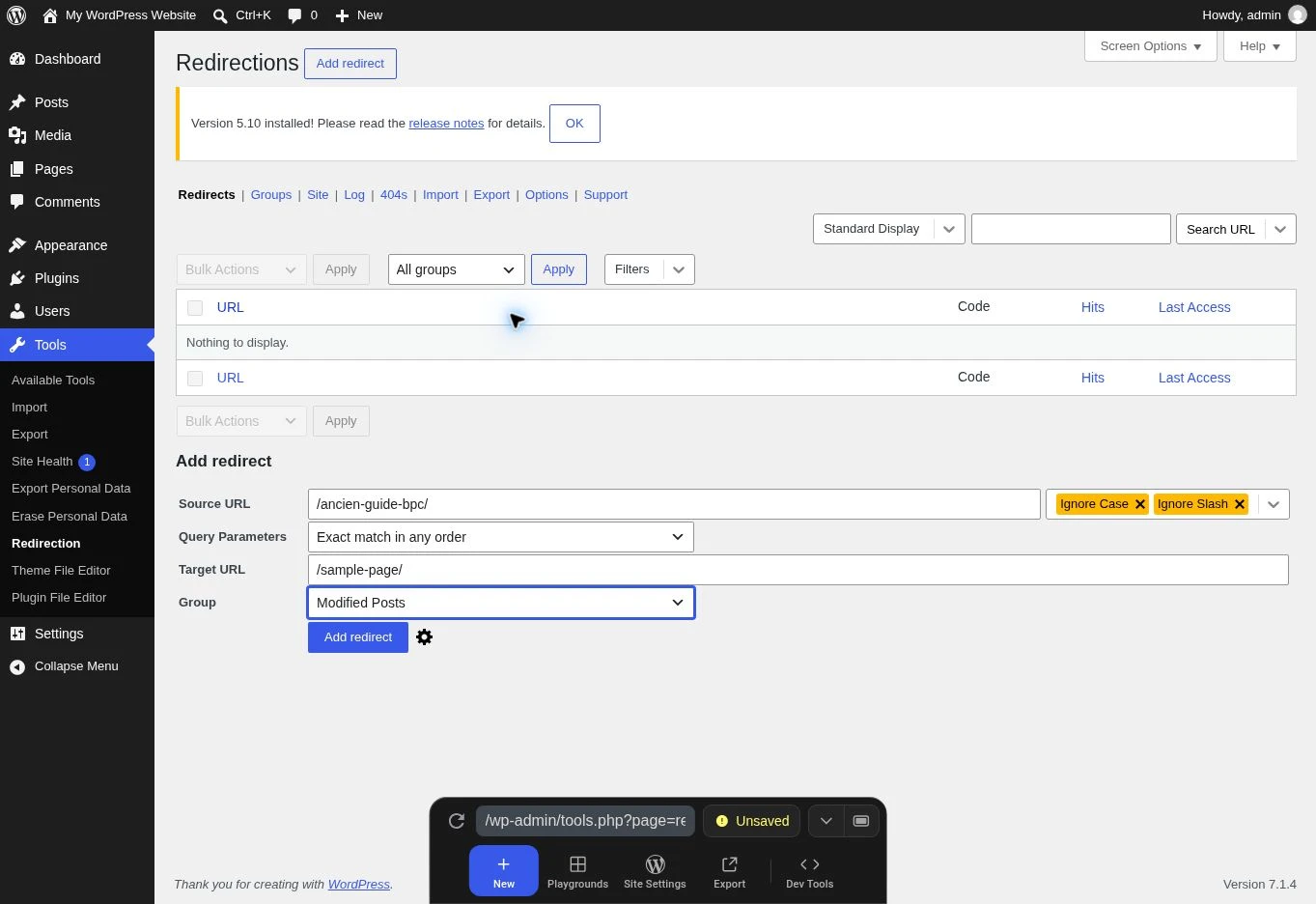
- In the Redirects tab, use Add redirect. In Source URL, enter the old address’s path, for example
/ancien-guide/, without a domain or protocol. - Leave Regex disabled. To strictly limit this first test, disable options that ignore case or trailing slashes and retain exact parameter matching. Do not copy a login parameter or private token.
- In Target URL, enter the replacement’s complete, real HTTPS address. Open the gear icon if needed: check the Redirect to URL action and status code 301 for this permanent move. Save this one rule.
- Open the old address as a visitor with Network open as explained below. Verify the 301, its Location header, and arrival at the correct content without a loop.
- If the rule is incorrect, find its row and select Disable, not a bulk action. Check again without the browser cache; a permanent redirect may have been remembered. Reactivate only the corrected rule.
Verify the result beyond what appears on screen
Revisit every address you recorded at the beginning. For a repaired page, check that the correct content appears and the final address is the expected one. For an old link, check that it reaches its replacement. For an intentionally nonexistent address, make sure the site does not silently return the home page with a success response.
In developer tools, open Network before navigating and select Preserve log to retain the steps of a redirect. Visit the public address, then select its Document request. A normal page generally returns 200; a permanent redirect returns 301 or 308 with a Location header before the destination response; missing content should retain an appropriate status such as 404. The displayed text alone does not reveal that status.
If you still see the old error after a confirmed correction, purge the relevant cache: the page, server, or CDN cache, depending on your installation. Then reload in a private browsing window. Do not confuse a cached 404 response with a cause that is still present. Record which layer you purged so you can explain the difference. To rule out a redirect remembered by the browser, temporarily enable Disable cache in Network during the check, then restore that option’s previous state.
Finally, check your internal links and sitemap. The addresses they announce should lead to current content. Old reports in Search Console may remain visible until another crawl; they do not all update as soon as you make a correction. A repair is established by the URLs’ correct current behavior and then confirmed by later observations. It does not, by itself, guarantee indexing or a position in search results.
Nginx example for one WordPress site at the root
This fragment applies only to a single WordPress site served from the domain root, with a correct root and PHP-FPM handling that already works. It is not a complete configuration. It is not suitable as-is for multisite, WordPress in a subdirectory, or a server sharing this path with another application. The server administrator must compare the existing block before replacing it: do not create two competing location / blocks.
This rule first looks for the requested file or directory; otherwise it passes processing to the WordPress entry point while retaining parameters. It defines neither the certificate nor the PHP socket and does not replace existing protections.
After making a private copy of the configuration, the administrator runs nginx -t using the same configuration file and context as the service. If the check fails, do not reload: restore the previous block and address the reported message. After a successful check, reload using the service-management method intended for that server. Then check a post, an existing image, and an intentionally nonexistent address: the last must remain a genuine 404. If a regression occurs, restore only the modified block, check again, then reload.
location / {
    try_files $uri $uri/ /index.php?$args;
}
Locate Redirection’s fields in a demonstration installation
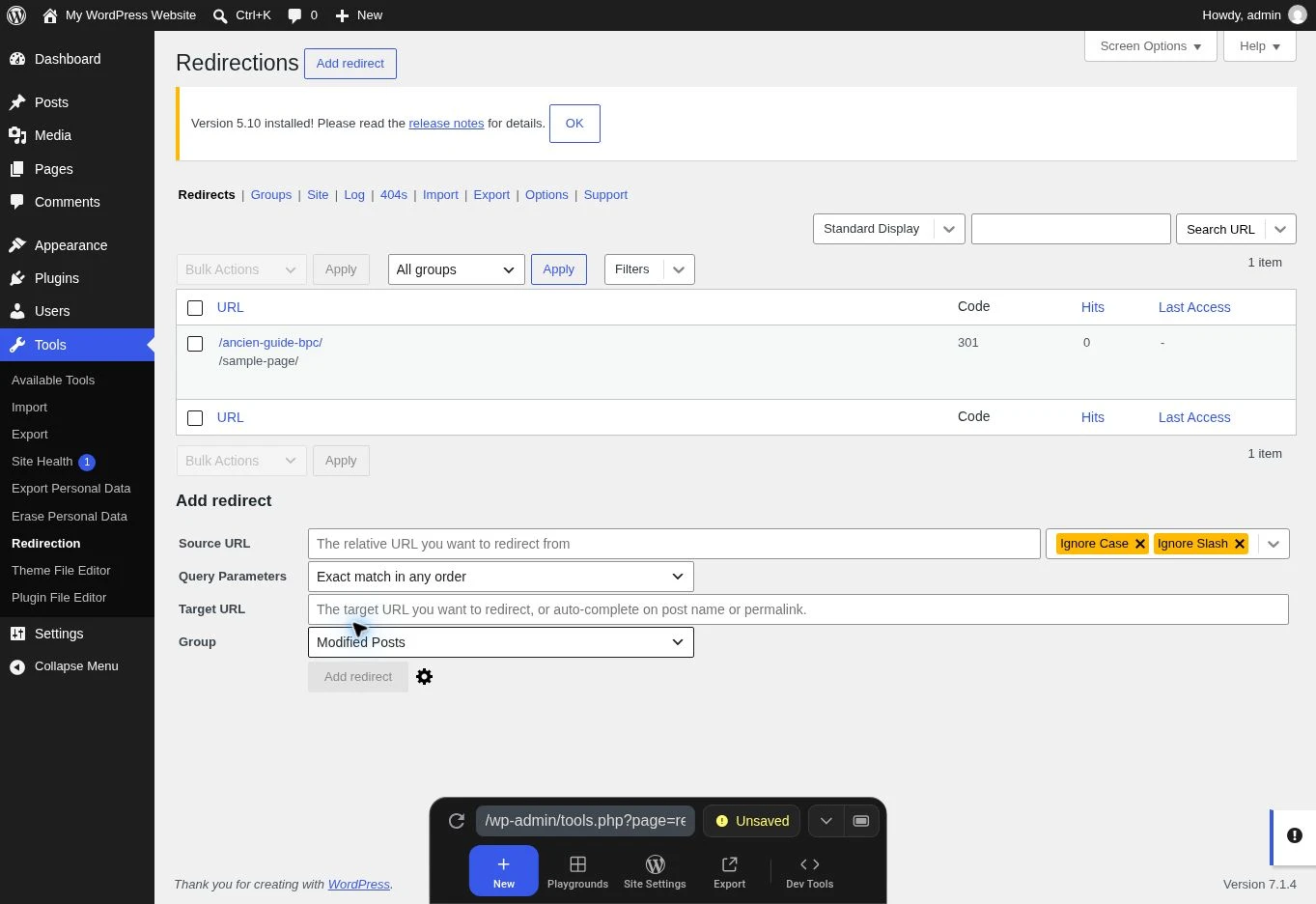
The two screenshots show the free Redirection 5.10.1 plugin installed and activated in WordPress Playground on November 13, 2026, with WordPress 7.1.4 and PHP 8.3.36. Under Tools → Redirection, the Add redirect form contains Source URL for the old address and Target URL for its destination. The example uses /ancien-guide-bpc/ and /sample-page/: replace these with verified paths from your copy rather than reusing the demonstration paths in production.
The subsequent list confirms only that a 301 rule was saved. It does not prove that visitors are redirected. In this lab, our verification request still received 404 without a Location header, so we do not present this test as a successful fix. The cause of this failure was not isolated.
After every rule on your copy, open the old address in a separate session and inspect the first response in Network: the status and destination must match the rule, then the target page must respond correctly. If the source remains a 404, resume diagnosis of routing and matching before adding more rules. To undo this test, deactivate only the rule you created.
Sources and references
Use these references to check the features, requirements and limitations described. Reading documentation is not a practical test.
View 20 references
- WordPress: customizing permalinks ↗
- WordPress: permalink settings ↗
- WordPress: troubleshooting ↗
- WordPress: Apache and .htaccess ↗
- WordPress: Nginx configuration ↗
- WordPress: migration and addresses ↗
- WP-CLI: regenerating rewrite rules ↗
- WordPress: the cost of regenerating rewrite rules ↗
- Google: redirects and search ↗
- Google: HTTP status codes and crawling ↗
- Redirection: features and installation ↗
- WordPress.com: changing a content link ↗
- WordPress: navigation in the Site Editor ↗
- WordPress: the classic Menus screen ↗
- Redirection: creating and disabling rules ↗
- Redirection: matching paths and parameters ↗
- Redirection: actions and HTTP status codes ↗
- Chrome: the Network log, statuses, and cache ↗
- Nginx: try_files ↗
- Nginx: testing and reloading configuration ↗