

Define the scope of lost styles
After a migration or template deletion, several Elementor pages display different fonts and colors. The editor may also report that the default kit is missing. Record the exact warning text and affected addresses. Choose a heading, button, and text block that used shared settings. Note expected values from an old copy, brand guidelines, or reference screenshot. Check whether the loss affects all these elements or only visitors to one page.
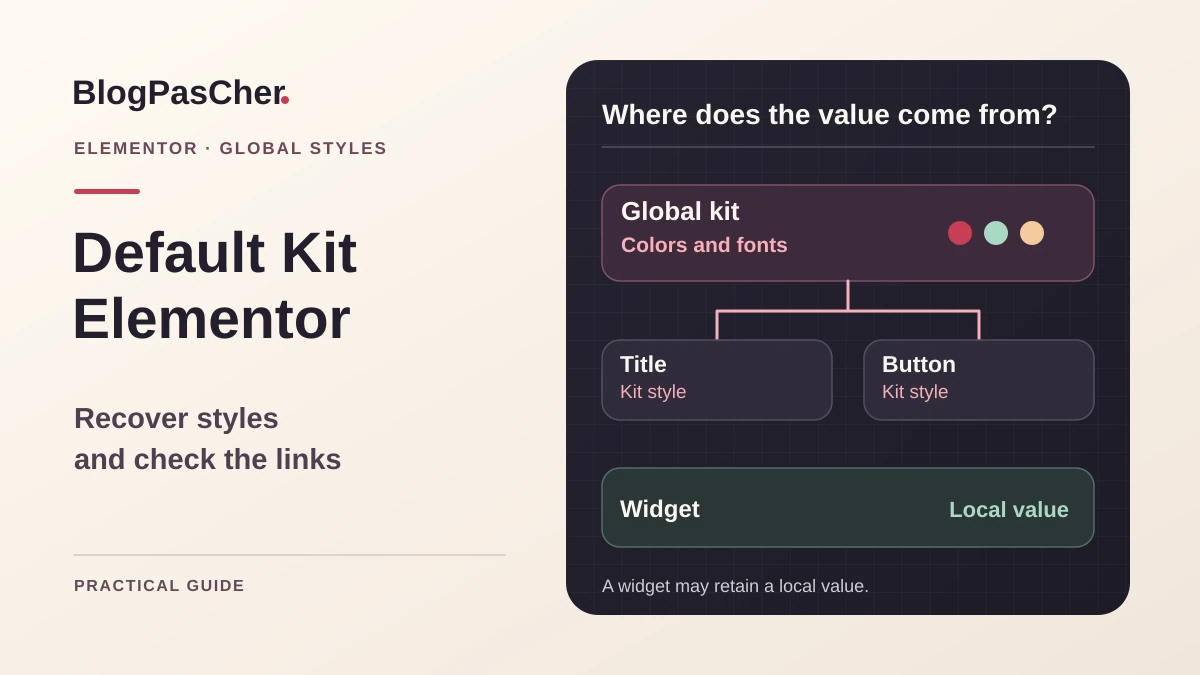
A site kit brings together colors, typography, and other shared editor values. A widget may use a global value or one selected directly in its settings. This distinction explains why some blocks retain their colors while others change. Diagnosis starts with the source of these values. A generated CSS file problem can produce a difference between editor and public page. A missing or replaced kit affects the data read by the editor. Perform both checks separately before editing pages one by one.
Prepare a copy and controls
Use a recent private copy where you have permission to open templates and edit site settings. Keep a rollback point for this copy and record Elementor, theme, and add-on versions rendering important widgets. If you have a pre-failure backup, open it in another copy. You can read old values there without overwriting newer posts, orders, or forms on the active installation.
Choose controls covering different dependencies. One heading uses global typography. One button inherits an accent color. Another widget has an intentional local color. Add a page using a custom value defined by the team and a mobile variant if typography differs. For each control, keep address, widget type, and expected value. If rebuilding a palette, these details prevent correcting only the most visible areas. Restoring identical appearance must also preserve local exceptions decided before the incident.
Check the active kit’s existence and content
In administration, open Elementor, then the editor and saved templates according to the installed version’s labels. Look for the Default Kit template and record its state. Also check whether an old copy is identifiable among deleted items or in a backup. A template with the correct name does not guarantee that the editor reads its values. Open an Elementor page, then Site Settings. Examine displayed global colors and fonts and how they match the controls.
If you have several setting sets, compare their names and values. Avoid deleting a visible kit to expose the recreation option. The documented reset erases the reference global settings. It suits a fresh-start need or rebuilding a genuinely absent kit. If the editor still shows correct values, keep them and compare public rendering. If the panel shows defaults or a missing-kit warning, first seek a usable source before changing the current kit.
Check global references on a widget
Open a control widget in the editor and select its color or typography control. Examine whether the setting uses the global-values selector or a local value. Record the indicated value and compare it with Site Settings. A button may display a familiar name while linked to a different setting. Then check a second widget that should follow the same color. A difference may come from an existing local exception.
Developer documentation explains that controls linked to a global style retain a reference to the kit setting. Two values with the same name in two kits therefore do not guarantee that every link is restored after replacement. On a copy, temporarily change a simple global value and check which widgets follow it. Then restore it. If a widget does not follow the expected value, record its control and state before relinking it. This is particularly useful after importing a kit or recreating custom values.
Recover settings from a known source
If the original kit exists in a restored copy, start by opening that copy’s settings. Record values actually used. If your installation offers site-settings export, choose that scope in the website-template export tool. Keep the file and source version name. Check its components before using it. A complete export may also contain pages, templates, or other settings you do not want to reintroduce.
On the working copy, use website-template import and select site settings when offered separately. Check the summary before confirming. Then open Site Settings and compare values, followed by testing control widgets. Some custom links may need remapping even when the palette looks complete. If the available version cannot limit scope, use the restored copy as a reference to transfer values into the current kit. If import changes unrelated items, restore the copy’s starting point and resume with reduced scope.
Recreate the kit when its absence is confirmed
When the editor reports a missing kit and recovery is impossible, open Elementor, then Editor, Tools, and the General tab according to current documentation. Look for Recreate Kit. The option is intended for missing-kit cases. Record the state before acting, trigger recreation on the copy, and save. Reopen the editor to confirm a starting kit is available. The expected result at this stage is a usable panel with initial settings. Old custom values still need to be restored.
If the button is absent, check version, permissions, and actual kit state instead of deleting the template found. If the action is offered but fails, record the message and time. The maintainer can correlate the error with installation logs and check whether the intended data can be written. Another click after a partial error may obscure the initial state. Keep this record and return to the starting copy if needed. Once the kit exists, restore the palette and fonts in an order that makes verification easier.
Rebuild colors and typography by use
In Site Settings, start with values on which the most widgets depend. For colors, record their code and role, such as primary text, background, or accent. For fonts, record family, weight, and size, plus device variants relevant to your site. Original guidelines help select values, then control pages verify that they apply in the right places. If a custom font depends on a media file, confirm that the file remains accessible on the current installation.
Save one settings group at a time. Then open two widgets linked to the group and one that must retain its local value. If an old custom value was lost, recreate it and link the affected widgets through their own controls. Keep the list of these links with the reference copy. When the same color was applied directly to several widgets, decide whether those settings should remain local. Reconstruction may recover visible appearance while changing how the team edits pages later.
Check theme settings influencing rendering
If the Elementor panel shows correct values but a widget does not use them, check its control and the winning browser rule. The theme, custom CSS, or a local value may supply the visible font and color. Open the control page, select the widget in the inspector, and record the responsible rule. Compare its source with the setting you changed. A theme declaration may continue participating even if the kit is valid.
In Elementor administration, check general options related to default colors and fonts. Record their values before any change. A global change may alter other pages intentionally using the theme. On the copy, change this option only if comparison shows it matches the intended behavior for the relevant set. Check an Elementor page and a page that should retain theme rendering. If only one page or widget is problematic, start with its setting. The result must be visible in the editor and on the tested public page.
Regenerate files once settings are confirmed
When Site Settings and widget controls already show expected values, compare editor rendering with a visitor window. In developer tools, look for stylesheets returning an error, containing an old rule, or pointing to an old domain. Keep the resource address and network result. If a stylesheet is generated from current content, use Elementor’s Clear Files & Data action in its tools. Record the scope indicated by the interface before using it on the copy.
Then reload control pages to allow necessary resources to generate and check responses. If a site cache retains an old page or stylesheet, invalidate the relevant scope according to its procedure. Compare the new rule with the global setting. Regeneration can bring files into agreement with existing values. If source values disappeared, return to recovery or reconstruction. Keep these two states distinct in the report so you know whether correction concerned data or delivery.
Prepare rollback according to the change made
For a manually changed global value, keep its old setting and the widgets using it. If color changes unexpectedly elsewhere, restore that value and open control pages. For a changed link, restore the widget’s reference or local choice. These are different rollbacks. A widget may regain its original color while remaining attached to another shared value. Check the editor control after rollback.
If you imported a kit and changed several settings, use the copy’s consistent rollback point. Keep an inventory of any affected pages or templates. On an active site, prepare targeted transfer of verified values and preserve data received since backup. Kit recreation must be handled with its previous state and associated links. After rollback, check editor opening and then public resources. If only an old file remains visible, correct delivery of that response within the necessary scope.
Validate several uses of the kit
Use the same controls as in the initial record. Include a page mixing global values and local exceptions. An identical onscreen color does not always prove the intended link was restored. Also open the widget control to verify its source.
- Confirm that Site Settings opens without a warning and contains expected values.
- Check global settings on a heading, button, and another widget.
- Verify that an intended local choice remains local and retains its value.
- Compare a public version and the editor on phone and desktop.
- Check stylesheets and fonts that failed or pointed to an old address.
- Keep the export or record used and rollback point. Record widgets that needed relinking and those whose behavior still depends on the theme or an add-on.
Keep a reference for styles and links
Keep a record of global colors and typography, their roles, and control pages. If the team exports site settings, specify the Elementor version and selected components. Retain necessary font or media files within the usual backup scope. A color table alone may recover part of the appearance without reproducing families and variants. During migration, check the kit and its widgets before applying a broader purge.
Elementor documents kit recreation and transfer tools separately. Check option availability and permissions in the installation you maintain. If you find an old kit, keep its copy until comparison is complete. After the next theme or add-on change, revisit one control per style family. Distinguishing global value, local value, and served rule makes diagnosis easier to resume if only one page type deteriorates.
Rebuild a palette without importing an entire site
If you find a backup, begin by copying three values into a record: text color, accent color, and heading typography. In the working copy, open Elementor site settings, then Global Colors and Global Fonts. Transfer one value at a time; do not replace every color at once. Then open a button linked to the accent and one deliberately configured locally. Only the first should follow the global change.
If an old custom accent no longer exists, create a new global value and explicitly reassociate the affected widgets. An identical name does not guarantee an identical internal reference. Keep a record of reassociated widgets so these changes can be undone individually.
Kit recreation supplies starting settings: it does not recover lost old values. A full site export may also affect content and templates unrelated to the problem. When your edition does not offer import limited to the desired settings, manual restoration from the reference copy avoids this effect. No additional styles plugin is needed for this recovery. Success is verified in widget controls and public rendering, not just the visible palette.
Related comparisons
WordPress migration, staging and imports: choose the right tool
Compare staging tools if you need to create a copy of your site for testing.
Sources and references
Use these references to check the features, requirements and limitations described. Reading documentation is not a practical test.