

Recognize the conflict before taking over
Two people opened the same post. One sees that another user is editing it, receives a takeover offer or discovers their correction is no longer in the saved version. The goal is to preserve everyone's contributions and restore one version saved with the correct status.
A document lock protects an editing session; it is not the padlock preventing movement or deletion of a block. A difficulty limited to one block therefore requires another check. Record the warning's exact text, named user and time.
Do not assume two tabs can merge changes because they display the same title. Some environments use a locked handoff; others may provide a specific collaboration mechanism. Its availability and behavior must be confirmed for the actual site.
If someone has already lost a passage, preserve copies still open before looking for a revision. Immediately clicking Take over, Restore or Save can complicate recovery. The priority is knowing what each person has and what WordPress actually retained.
Pause writes and preserve each contribution
Ask everyone involved to temporarily stop saving this document. Each person keeps their tab open and copies useful text into a separate local file. If the menu responds, copying all content may help; check the changed passage and document end.
Name copies with explicit markers: contributor, time and section worked on. Do not replace one copy with another under a vague name. A screenshot preserves presentation and the message, but is insufficient to recover links, blocks and their settings.
Then designate one person to prepare the shared version. Others review or submit contributions without saving the original document. This temporary arrangement prevents a manual merge from being replaced while in progress.
Do not close tabs or clear browser data before preservation. Unsubmitted work may exist only in that session. Autosave is not a record of every keystroke or infinite history. Keep external copies until validation even if the conflict message disappears meanwhile.
Identify the document, accounts and mode in use
Check the site, title and document ID in its edit address. Two posts can share a title. Also note whether it is a post, page, template or shared pattern: their edit scope and history may differ.
Each person must use their own authorized account. Shared credentials prevent proper distinction between sessions and responsibilities; core's lock mechanism compares user identities, among other things. Two people using the same account therefore do not provide a reliable comparison of two distinct authors.
Record the editor, WordPress version and existing collaboration tools. On WordPress.com, confirm actually available features with the service; on an independent installation, consult the configuration and documentation of the component used. A development announcement does not prove a feature is active on your site.
Finally, identify who can edit and publish the content. Permission to write one's own draft does not guarantee permission to update a colleague's post. In multisite, also check membership of the correct network site without broadening every account's permissions to resolve one conflict.
Read the lock from the account holding it
Under Posts → All Posts, find the exact document and open it using the account awaiting handoff. If the editor displays a name, record it with the time and document ID. Text such as ‘is currently editing this post’ indicates the editor detected a recent lock for another account. Ask that person whether they are still working, have saved and retain an open tab. No response or a changed warning is insufficient to decide the text's state.
The native lock uses a user ID. Two tabs under the same account can work on different versions without triggering the alert reserved for another account. If you wrote in two tabs, preserve both texts before closing or refreshing either. Then open the saved state in a new tab and identify which version has useful changes. Tabs sharing a title does not guarantee they read the same state.
Lock renewal depends on exchanges between the browser and WordPress. A logged-out session or tab no longer refreshing its lock may let that lock age while text still exists in the browser. If the warning disappears after interruption, confirm handoff with the first author. Avoid determining work completion by a fixed delay. The validity window may vary, and expiration does not save what the browser never submitted.
Choose between handoff and targeted recovery
Arrange a handoff if both people still have their contributions and only one should continue. If the saved document already lost a passage, gather copies and find the useful revision before reinserting text. In both cases, decide who saves the next version.
This procedure concerns the native lock on a post or page. If your editor uses synchronized coediting, identify that mode with the administrator before interpreting the warning. Preserve versions and coordinate writes from the actually saved state.
Arrange a verifiable handoff with two accounts
This procedure suits text still open when both people can communicate. Each only needs to be able to open the same post with the intended permissions. On a copy, create a fictional draft with a distinct title and log A and B into two separate browser profiles. Ensure each profile displays the correct account. In one profile, a login replacing the other can invalidate the test. Have each record the ID.
On the real document, replace the control sentence with the latest intended change. If editing must return to A, use the same procedure starting from the version B just saved. Avoid reopening an old tab still filled with earlier text and clicking Save. If uncertain, restart from the copies and reviewed server version.
- Have A open and save the draft with a control sentence. A keeps the editor open. B opens the same draft from their list. If B sees the warning naming A, they return to the list or open the offered preview, then wait.
- A copies still-local changes into a private working location. A saves the agreed version, checks status and exits the editor normally. B does not work in the tab opened before that save.
- B reopens the post from their list and looks for A's control sentence. If the warning persists, B asks A to check their tabs and retains the record. If the sentence is missing, both compare copies before another write.
- Once the state is confirmed, B saves a different addition in the draft. A checks the result from the list or preview after leaving the old editor. The expected result is one record containing both sentences and still in Draft status.
Use takeover only with copies available
When the interface offers Take over or an equivalent command, it may remove the other session's ability to continue editing normally. This is not a merge operation. It does not automatically recover sentences existing only in the first author's tab.
Use it only after confirming handoff and preservation of contributions. If someone is unreachable and urgent intervention is necessary, have the editorial lead decide with available information. Explicitly retain uncertainty about unsaved changes they may still hold.
After taking over, first read the saved version and compare it with collected copies. Do not immediately submit an old complete document that would replace already retained work. If the other session displays a takeover warning, it must preserve remaining content and stop concurrent writes.
To reverse the handoff, arrange a new one after saving and comparing instead of repeatedly taking over. If contributions disappeared, use copies or useful revisions. Do not describe simply returning the lock to its former user as restoration of all their changes.
Approach 2: merge contributions in a shared copy
Open the saved version after writes stop and keep it as a reference. Compare authors' copies section by section. For each, record additions, intended deletions and corrections awaiting approval. A newer version may lack a passage remaining in another tab.
For example, one person may have corrected a date while another added a link in the same paragraph. Keeping only the latest paragraph could lose the other improvement. Rebuild the useful passage and have those involved confirm the choices.
First prepare the merge in a control draft or local document without publishing a duplicate. Check links, media and special blocks; copying visible text does not necessarily preserve every setting. Keep starting versions separate from the merged result.
One person then transfers approved changes into the original document. If uncertainty remains about a passage, leave it for review instead of choosing silently. Rollback removes the targeted transfer using the preserved reference rather than replacing the whole post with one competing copy.
Transfer a historical passage without replacing the current version
Use this approach when the saved draft lost a passage and a copy or revision contains it. Designate one person able to edit the document. Ask others to keep tabs read-only and submit their version before closing. If an import or external tool updates the same document, agree on a window when its administrator can pause that write. Keep a copy of the current version with title, content and settings to preserve. For a public page, first prepare the transfer in a control draft or local document.
In the editor, open the Settings → Post or Page sidebar, then the number beside Revisions when shown. The WordPress 7 screen lists revisions and lets you inspect changes. On a classic screen, comparison may show text and markup side by side. Search for the passage by content and context. Also check author and time. An autosave may appear depending on what was retained. Its presence helps locate text, but author and time do not guarantee the text was approved.
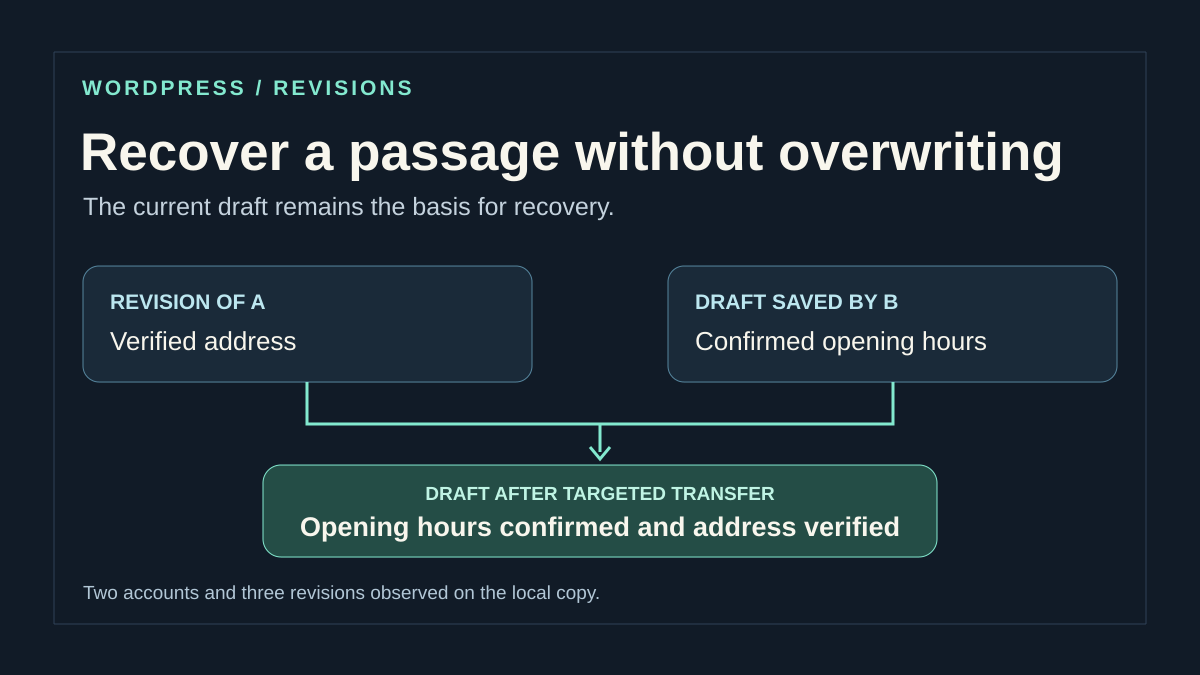
Copy the passage without clicking Restore. If classic comparison shows block comments or HTML, extract the text or identify and rebuild the blocks in the control draft. Check links, media and block settings separately before touching the original. For a missing address sentence, copy the complete sentence with the correct link and insert it where it belongs in the recent text. Retain opening hours changed since that revision. Review both contributions together to eliminate repetition or contradictions.
Return to the original document by reloading its saved state. Compare the relevant paragraph or block with the current copy retained at the start. If it changed during comparison, stop the transfer and review that new version. If it matches, transfer only the approved passage. Before saving, check status, any publication date and settings you did not change. After saving, reopen the document and find both contributions. To roll back, remove the added passage in the editor or return to the saved current copy if several blocks were affected.
To check targeted transfer on the copy, prepare a revision with an address and a newer version with opening hours. Copy only the address into the recent version, then check that hours, status and excerpt remain unchanged. Restoring an entire revision may replace fields tracked by history; it is not the same action. If the required passage is absent from revisions, return to the author's copy. A lock does not recreate keystrokes never saved.
Separate locking from saving in the record
During diagnosis, separately record the lock holder, available autosaves and current content. The wp_check_post_lock() check may return false when the lock belongs to the account performing the read; this therefore does not prove nobody is editing the document.
On a copy, use two distinct accounts and verify handoff from each. Preserve text before examining an expired lock. If an integration writes through REST or import, identify its own conflict handling and pause its writes during merging. These checks are a staging exercise to perform; no test result from another installation replaces your environment's record.
Examine the session and exchanges refreshing the lock
In the classic locking mechanism, WordPress uses periodic exchanges, including Heartbeat, to refresh some editing information. An expired session, interrupted connection or rule blocking a request can prevent the expected interface update.
After copying work, start from a normal login and open the document from the administration list. Compare another browser profile with the same account without maintaining two concurrent editing sessions. If the difference depends on the profile, record it before changing site settings.
Ask the administrator to check affected exchanges at test time and optimizations that could limit them. Do not disable Heartbeat to remove warnings: that removes a useful mechanism rather than demonstrating the conflict is resolved. A protective restriction must be examined for the precise legitimate request.
Do not delete lock data from the database or arbitrarily shorten its duration. Its presence may correspond to other still-active work. If the warning remains inconsistent after a confirmed handoff, send support the document, distinct accounts, times and comparison results without cookies or session tokens.
Validate one version with the correct status
When the merge is ready, have passages with overlapping contributions reviewed. The designated person checks title, content, links, media and settings before saving the original document. Others must not resubmit their old complete copy afterward.
Then reopen the document from the administration list and find the retained corrections. Check the beginning, final sentence and merged sections. A save message or recent date does not replace this content comparison.
Check status before any visible action: a working draft or content pending review must not be published to verify that the conflict is over. For an authorized public update, also examine the preview and actual page. Keep copies until those checks are validated.
If a contribution is missing, stop new writes and resume comparison from preserved versions. Do not restore the whole site to merge two paragraphs. An old backup or complete revision may remove other recent changes; rollback must target the correct document and only necessary elements.
Keep a record and prevent another conflict
Record participants, copies used, retained sections and who made the final transfer. A post's public author and the user saving a correction do not necessarily represent the same information. Keep a work record suited to your organization without changing editorial attribution merely to resolve the lock.
For future reviews, announce handoffs and exit editing normally once work is saved. Separate review from reintegration when no validated coediting mode is planned. An external copy at important stages remains useful even with autosaves.
If the incident recurs, prepare a limited case: document type, versions, accounts, mode used and reproduction steps. State what was preserved and which tests were undone. The expected result is verified shared content with an understood editing mechanism and clear responsibilities; the warning disappearing alone is insufficient.
Choose a free solution suited to simultaneous work
For an occasional correction, native handoff and revisions suffice: one person saves, then the other reopens the retained version. Zero cost comes from existing features here; adding a collaboration plugin is unnecessary to recover two passages.
If the team truly needs to write simultaneously, first decide which tool holds the reference version. An external collaborative document can prepare text, then one person transfers it into WordPress. That transfer does not automatically preserve blocks, custom fields or SEO: explicitly assign their verification to the publisher.
For a developer integrating REST writes or an import, the editing lock must not be treated as universal protection against concurrent writes. Compare the state reread before writing, coordinate updates and report a conflict to the user instead of silently overwriting content. Do not change lock duration to resolve a coordination defect.
Related comparisons
25 WordPress plugins to organize reviews
Check how a review task works alongside the editing lock and document history.
Sources and references
Use these references to check the features, requirements and limitations described. Reading documentation is not a practical test.
View 16 references
- WordPress: document being edited by someone else message ↗
- WordPress: document lock check ↗
- WordPress: lock state and user ↗
- WordPress: refreshing the lock ↗
- WordPress: periodic Heartbeat exchanges ↗
- WordPress: revision comparison and scope ↗
- WordPress.com: partial revision recovery ↗
- WordPress: per-author autosaves ↗
- WordPress.com: separate collaborator accounts ↗
- WordPress: editing and publishing permissions ↗
- WordPress: copying editor content ↗
- WordPress: current work on collaborative engines ↗
- WordPress: backups before rollback ↗
- WordPress: sessions and REST authentication ↗
- WordPress — restore revision fields ↗
- WordPress — REST post-update controller ↗