

Identify what is preventing the action
You can see the block and may be able to edit its text, but the controls for moving or removing it are missing. A padlock may appear in the block toolbar or in List View. The goal is to make the intended change to the right content while keeping useful protections in place and preserving other pages.
A lock may protect the structure against accidental removal, allow editing only the text, or indicate an element that belongs to a template. If an area cannot be selected, check where it belongs before diagnosing a block error.
A warning about unexpected or invalid block content calls for a separate diagnosis. If a third-party block disappears after a plugin is disabled, check which component provides it. Unlocking the block cannot restore the provider.
Describe the action you need. You might want to move a paragraph, remove an image, reorganize a section, or change the header on one page. A clear goal helps you avoid unlocking an entire pattern for a text-only change. Take a screenshot of the selected block and its menu before proceeding.
Find the block and check its scope in List View
Open the affected document, then open **List View** from the document overview icon, usually near the top left. List View shows how the blocks are organized. Expand the groups and select the item by name so you can confirm exactly what you are editing.
Check whether you selected the paragraph, its parent group, a pattern, or part of a template. A group contains other blocks. Moving it can move the whole section, and removing it can delete more than the image you meant to remove.
Note the padlock and the menu labels. A simplified interface may hide part of the structure. If you can see only text and images, the document may be in content-only editing mode. A group can still exist even when this view does not show it.
Record the document and template that are open. A header you see while editing a page may belong to a shared template. Find out where the change will be saved before using a command such as **Edit original**.
Preserve the structure and confirm your permissions
Save a copy of the text and relevant media, and take a screenshot of the block order. Before changing a shared template or pattern, work with the site owner to prepare a restorable backup of the database and affected files. A screenshot cannot restore the settings of a complex block.
Start with a working draft or staging site if the change affects several elements. Keep the test copy separate from the live site. If you are testing an interactive feature, disable real notifications and external integrations on the copy.
Permission to write on a page may leave its shared structure protected. Site rules can also limit who may lock or unlock blocks in a particular context. On a multisite network, a network-wide theme or plugin may need to be checked by the network administrator.
Record the WordPress version and interface you are using. On both WordPress.com and self-hosted WordPress, the menus can vary with the features available. Keep a record of the initial lock settings. Once you have moved the block, you can restore the protection against accidental removal and keep your content change.
Choose the approach that fits the protection
The first approach is for an individual lock that appears in the block’s options. It distinguishes protection against moving from protection against removal. Use it for a local block when you have permission to change its structure.
The second approach is for a pattern in content-only editing mode. A pattern is a prepared set of blocks. It can preserve a layout while allowing people to edit text or replace images. Removing an individual child block’s lock may leave the structural controls unavailable.
The third approach is for a template, a shared element, or a site-wide editing rule. Confirm the scope and permissions before proceeding. A menu may be deliberately hidden for your account. Use a change limited to the relevant element instead of adjusting global settings to reveal the menu.
Start by observing the block and making one small change on a copy. If you find a different protection than you expected, undo the test and switch approaches. Converting to HTML, removing a parent block, and detaching a pattern have different effects. Choose a step that matches the protection you identified.
Approach 1: Check both lock options
Select the exact block in **List View** and open the three-dot menu in its toolbar. If **Unlock** is available, open it and examine the options. The labels may distinguish locking movement from locking removal.
The settings work independently. A block may be locked in place and still be removable. It may also be movable and remain protected against removal. Note which boxes were selected before making changes. The padlock can remain visible as long as either protection is active.
To move the block, turn off only the movement protection and apply the change. To remove it, check the copy first and turn off only the removal protection. Use the setting that matches the action you need.
If the interface offers to apply your choice to every block inside a container, leave that option alone unless your change genuinely needs that scope. An entire section can contain blocks with different functions. If the options are missing or the action is still blocked after applying a change, check the editing mode and the parent block’s rules before continuing.
Move or remove only the intended block
On the copy, use the arrows or available commands to move the block and check its position in **List View**. Move it once and examine the result. A block moved within a group may still belong to that group. Its visual position alone cannot confirm where it sits in the block hierarchy.
Before removing anything, check the selected item’s name and its child blocks again. Use the removal command in the block’s menu. If the child is still protected, leave its parent group in place and review the scope before trying again.
If the result is wrong, use **Undo** while it is available and check that the content returned. Reloading the document may reopen the already saved state. After saving, you may need to compare and restore a preserved copy or an available revision.
Once the correction works, restore the intended protections from the locking options. Check the content, save, and reopen the document. Verify that the structure is correct and that the protections you need are still in place.
Approach 2: Recognize content-only editing
In some patterns you can replace a phrase or image while the options to move columns, add elements, or change presentation settings are unavailable. This editing mode protects the layout. It may also simplify **List View** by hiding containers that do not directly hold text or media.
Select the pattern and look for a command such as **Edit pattern** or **Edit**, depending on the interface. If the command is available and the structure is meant to change, open it on the copy to access the blocks and their controls. Confirm that you are editing the intended instance or the correct original.
Once you can edit the structure, make only the change you need. Preserve the logical order of headings, paragraphs, and buttons. A layout that looks better on a wide screen can become confusing on mobile if blocks move between groups.
If the command is missing or the restrictions remain, have the person responsible identify whether the theme, the pattern, or a site rule sets this editing mode. Ask them to open up the specific part that needs editing. Keep the protections in place for the other templates.
Check whether the pattern is synced
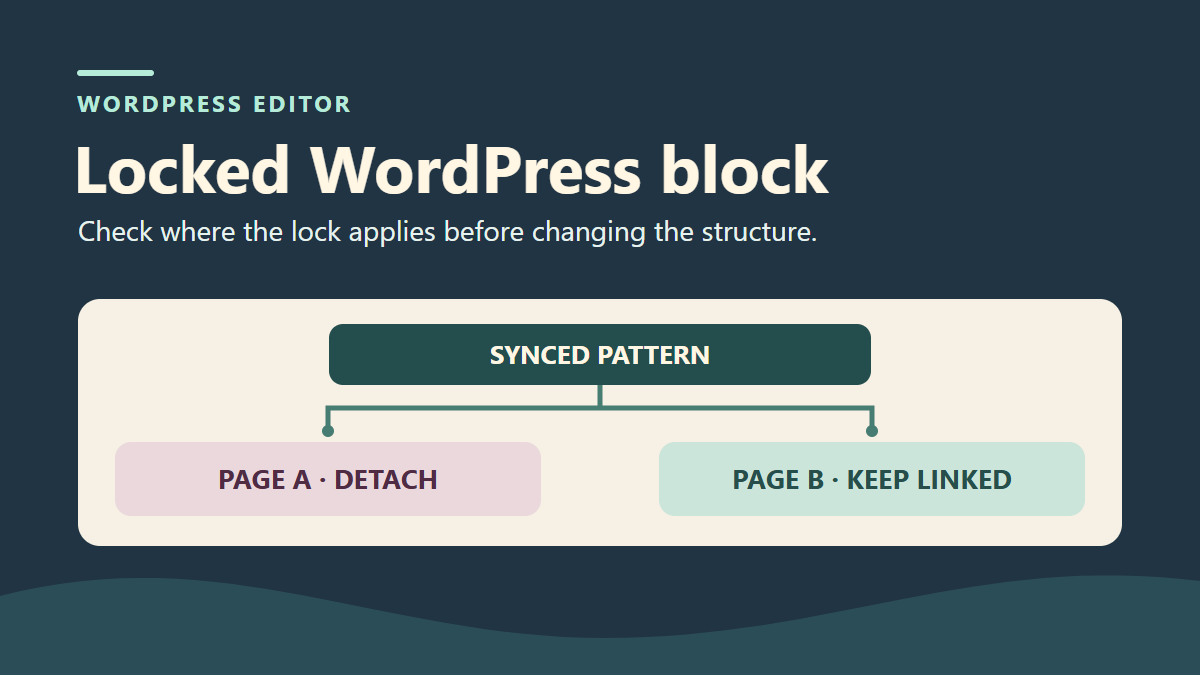
A synced pattern links several instances to the same original. Editing that original can update every place that uses it. Before choosing **Edit original**, decide whether the change should affect all instances or just this page.
For a shared change, work on a test copy with the required permissions, then prepare the update to the original. Check several representative pages that use the pattern and keep a version you can restore. Include pages besides the one from which you opened the pattern.
If only the local instance should change, the interface may offer an option to detach or disconnect the pattern. Detaching turns the instance into local blocks and stops it from receiving future updates to the original. Use this option when you want that change in behavior.
Preserve the original and the local content before testing. A detached instance may need to be reinserted to restore its link. If you undo immediately, verify the link. After saving, prepare to restore the preserved copy or deliberately reinsert the original. To remove a single instance from a page, work on the page itself and keep the pattern in the library.
Open **List View** on two test pages, select the pattern, and record the name of the original. A synced instance holds a reference to that original. After detaching, its blocks belong to the page. If a field supports an override, you can personalize its value while keeping the rest of the pattern linked. Use a paragraph without an override to compare the effects of shared editing and detachment.
On a working copy, insert the same original into pages A and B. In this example its paragraph reads “Atelier à 10 h 30,” meaning the workshop is at 10:30. Put some recognizable text next to it on each page. Record the original content, both instances, and the neighboring text. In the saved markup, linked instances use the same ref attribute value on the pattern block. Two paragraphs that look identical can still be independent blocks.
Change the time in the working original and save it. Reopen A and B as a visitor. If both instances are still linked, both pages show the new time even though you made no further edits to the pages themselves. Before applying a shared correction more widely, check other representative pages that use the original. Two test pages are enough to check the mechanism on your copy.
To make A independent, open its **List View** and select the pattern itself. If the menu offers **Detach**, use it on A and verify that you can edit the paragraph directly on the page. If the option is missing, check your selection, permissions, and the pattern lock. Change the time in A, save the page, and change the time again in the original. A should keep its local value and B should follow the original. The two neighboring texts should match your initial record.
The WordPress 7.1.4 test compared the following states in the saved content and on both pages served over local HTTP.
To undo an accidental shared change, first restore the content of the working original on the same identifier. Use a revision of the pattern if available, or restore the exact fragment you saved. Check the result on B. If A has been detached, its local content should remain in place at this stage.
To restore the link on A as well, restore the version that contains the original instance if doing so preserves your other edits. Otherwise, replace only the detached blocks with an instance of the same original. Reopen both pages and check the time, the link to the original, and the neighboring text. In the test, a content revision for A restored its reference and neighboring text exactly.
The local test saved changes with WordPress core functions. It simulated detachment by replacing the reference with the original blocks, then compared the saved content and the rendered pages. Verify the labels, permissions, and the detachment workflow in your own interface.
- At the start, A and B both showed 10:30 and used the same reference. The first change to the original updated both A and B to 11:00.
- After the reference in A was replaced with local blocks and its paragraph was edited, A showed 12:00 and B showed 11:00. A later change to the original updated B to 11:30. A stayed at 12:00.
- Restoring the original brought B back to 10:30 while A stayed at 12:00. Restoring A’s reference brought both pages back to 10:30 and linked both to the same original. Both neighboring texts stayed the same throughout the test.
Read the reference in the saved markup
On the copy, open the code editor and compare the corresponding block on both pages. Leave the code view without saving changes. In the test, B kept its reference to the pattern. After detachment, A held its own paragraph. Your site will use its own reference number.
<!-- Page B : occurrence synchronisée -->
<!-- wp:block {"ref":1} /-->

<!-- Page A : paragraphe local après détachement -->
<!-- wp:paragraph {"className":"atelier03-horaire"} -->
<p class="atelier03-horaire">Atelier à 12 h 00</p>
<!-- /wp:paragraph -->
Approach 3: Open the correct template and limit the change
An element can be visible on the page you are editing while belonging to its template. This often applies to structural elements around the content. Check the document settings and the template name before concluding that a local block is refusing the action.
With a block theme and permission to manage appearance, go to **Appearance**, **Editor**, and **Templates** to find the template. Template parts and patterns have their own areas in this interface. Verify where a header is used before opening one with a similar name.
Choosing **Edit original** for a shared element can affect more than the current page. For a one-page change, ask the site owner to prepare a separate variant or assign an appropriate template. Keep the global protection in place when the change is local.
Before saving, review the summary of changed items and leave unrelated templates and content intact. If something is wrong, undo the targeted change or restore the version you preserved. Resetting an entire template can erase other customizations and goes beyond restoring a single block.
When the padlock belongs to the theme’s pattern library
Under **Appearance**, **Editor**, and **Patterns**, the theme may protect some of the patterns it provides from direct editing. That padlock applies to the definition in the library. A paragraph on your page can have its own separate movement lock.
If **Duplicate** is available and you intend to customize the pattern, create an editable copy in your patterns. Give it a name that distinguishes your variant from the theme’s original. This preserves the supplied pattern and avoids editing theme files that would be harder to maintain.
Check how to use this copy in the test document. Its presence in the library alone does not show that the current page uses it. Compare the structure and content before replacing anything, and keep access to the original.
To undo the test, return to the instance you preserved. Remove the variant only after checking that it is no longer used. Deleting a synced pattern can affect its instances, so verify where it is used first. If the library or template does not offer the action you expect, confirm which workflow applies to your theme and version.
Have someone check a protection enforced across the site
If your account can edit text but cannot see the locking controls, ask the site owner to have an authorized person check the same block. The aim is to identify the rule while keeping credentials private and each editor’s role limited to their work.
A theme, plugin, or site configuration can determine which actions are available and which blocks may be inserted, moved, or removed. Some protections are inherited from a container or a template. The settings on an individual block may show only part of the site’s editing policy.
Report the content type, template, block, and action you need. Request a limited exception or a documented change to the structure. Whoever maintains the rule should preserve its configuration and check its other uses before changing it.
Keep the internal markup comments and existing protection attributes intact while diagnosing the rule. Leave security components and page-building plugins active. Removing those protections or disabling a plugin can affect permissions and layouts far beyond the block in question. If the protection is still needed, have the authorized person move the block.
Check the structure and keep a reliable way to undo the change
After changing the copy, check **List View** and the preview. The block should sit in the correct group with the text, links, and media you need. Check heading order, readability on mobile, and keyboard access to any buttons or links that moved.
Save and reopen the document. Check that the correction persists and that the intended locks are still active. For a shared pattern or template, inspect several pages that use it. For a local change, confirm that the other instances stayed the same.
If the result is wrong, compare it with the copy or an available revision and restore what you need. A post revision may leave a separate pattern or an edited template untouched. Restore the affected item so a block move does not require a full site rollback.
Keep your copies until the changes are approved. Record which lock you removed, why, and which protection you kept. If you need help, provide a screenshot with private details removed, the WordPress version, and the names of the theme and block provider. Say exactly which action is still unavailable. This record helps distinguish an intentional protection from an interface problem.
English translation assisted by AI. Menu labels can vary with your WordPress version.