

Two sites, one command, and uncertainty about the target
Confirming the path, database, and prefix is necessary before a command that modifies data, regardless of provider. The OVHcloud–Monarobase comparison concerns access and tools facilitating this check. A clone or another subscription does not remove the need to prove which installation receives the command.
A team is preparing a new version of an association’s WordPress site. The copy and public site share hosting and the same SSH access. Both display the same name. Before modifying a setting with WP-CLI, the technician locates the copy’s directory. Yet a configuration error left by cloning can connect that directory to the live database. The command will then succeed on production data.
Acceptance testing consists of confirming three elements in the same session. Identify the actual installation path, database used by WordPress, and targeted table prefix. Keep the URL as an additional clue. A recent copy may still carry the same site values as production. To remove uncertainty, compare results with an inventory prepared before the test and a marker specific to the copy.
OVHcloud Pro Web Hosting documents each name’s root directory in its panel and SSH access. Monarobase WordPress Classic advertises preinstalled WP-CLI and documents cloning to a subdomain. In both cases, file access and the database selected by configuration are two things to check. The scenario concerns two standalone WordPress installations on the same hosting account.
Compare before you choose
The offers at a glance
Find the use case and budget that fit, then read the details to see the limitations and any components you may need.
On smaller screens, the table scrolls horizontally. With a keyboard, press Tab to focus the table, then use the left and right arrow keys.
| Offer | Best for | Pricing and billing | Renewal and support |
|---|---|---|---|
 OVHcloud Pro Web HostingRead the details | A team managing directories and several databases from the panel. | €23.88 excluding VAT for the first twelve months French public offer over twelve months at €1.99/month excluding VAT. Offer displayed excluding VAT. Check the total including VAT in the summary. | €9.99/month excluding VAT at recording. Equivalent to €119.88 excluding VAT over twelve months at this rate. |
 Monarobase WordPress ClassicRead the details | A small team using Installatron and WP-CLI on a separate copy. | From €5.95 excluding VAT for one month Displayed monthly price. €71.40 excluding VAT for twelve months at this reference rate. Displayed price excludes VAT. | Confirm any separate renewal rate and the rule linked to the payment method. |
Compare plans and coexistence terms
On OVHcloud’s France page, Pro lists €1.99 excluding VAT per month for the first twelve-month period, or €23.88 excluding VAT. Renewal listed at €9.99 excluding VAT per month amounts to €119.88 excluding VAT for twelve months at the same rate. The card advertises 250 GB SSD storage, one vCore, 2 GB memory, and ten 2 GB databases. SSH access is included. The documentation specifies that this remains access as a shared-hosting user.
At Monarobase, the WordPress page lists Classic from €5.95 excluding VAT for one month. At that reference rate, twelve months amount to €71.40 excluding VAT, subject to the cycle and price offered. The plan advertises 50 GB NVMe SSD, 2 GB memory, one CPU, 20 MB/s I/O, and 1 TB transfer per month. According to the card, it includes a cPanel account with two add-on sites, a test environment, and preinstalled WP-CLI.
Check the periods during which the team needs to keep the copy and public site accessible. The Classic page does not present a separate renewal rate. Monarobase’s terms describe automatic renewal by card and a cancellation ticket at least seven days before renewal. The general FAQ also describes a route without tacit renewal and renewal on request. Have the price, duration, and rule applying to the chosen payment method confirmed.
For OVHcloud, record the renewal mode and related services in the panel. The domain and hosting may have different expiry dates. The November 11, 2026 prices help compare coexistence costs. For technical acceptance testing, also check space available in the plan and in each database. The 2 GB per-database limit at OVHcloud Pro matters even when web storage capacity has room to spare.
Prepare a reference before the SSH session
Note the hosting name, SSH account, staging domain, and root directory as declared in the panel. Also record the directory actually containing WordPress. It may be a subdirectory of the served directory. Give the copy a separate database and, if the panel allows, a user with no permissions on the live database. This separation limits the effects of an incorrect setting and makes acceptance testing easier to verify.
Prepare a mapping table for production and the copy. Enter the absolute path, database server, database name, table prefix, and expected addresses. Databases with the same name can exist on two servers. A hosting account can also contain two table sets in one database. Check both levels. Keep a distinct marker for each site, such as a staging option value on the copy and the current tagline on the live site.
The domain name and execution path are decided separately. WP-CLI documents the global --path option for selecting WordPress files. The --url option simulates a request context and selects a site in a WordPress multisite network. By itself, it does not select another directory or connection credentials for a standalone installation. A hosting panel’s Multisite label may simply mean several domains attached to the same space.
Choose a marker already present in a copy you have identified. If you need to create one, add it while preparing the staging database, before connecting it to the site. You can also record a known difference in an imported backup. Keep the expected value outside the installation. Writing a new marker in the session whose target you are trying to identify would undermine this preliminary check.
Read the installation actually loaded by WP-CLI
In the terminal, put the copy’s absolute path in a variable you will reuse. The wp config path command with --path gives the configuration file found. Compare this result with the expected directory and check the physical path. A symbolic link or current directory retained from a previous session can lead to another installation. If WordPress was deployed in a subdirectory, use the path to its files.
Then record the values visible with wp option get home and wp option get siteurl, always with the same --path. These values may be fixed by WordPress configuration and remain identical after cloning. Continue checking with a read command displaying the active database, prefix, and, where relevant, site identifier in the network. The wp-config.php file may obtain values from the environment. Therefore also compare the effective connection, not just the file text.
The attached command sheet gives an example querying the database with SELECT DATABASE() and displaying the WordPress session’s prefix. Also check the server declared in the effective configuration. A database name alone is insufficient if it can be reused elsewhere. If hosting does not permit the query, use evidence available in the panel and a read-only marker specific to the copy. Without evidence for the database or prefix, postpone writing.
OVHcloud Pro: connect the domain to the correct directory
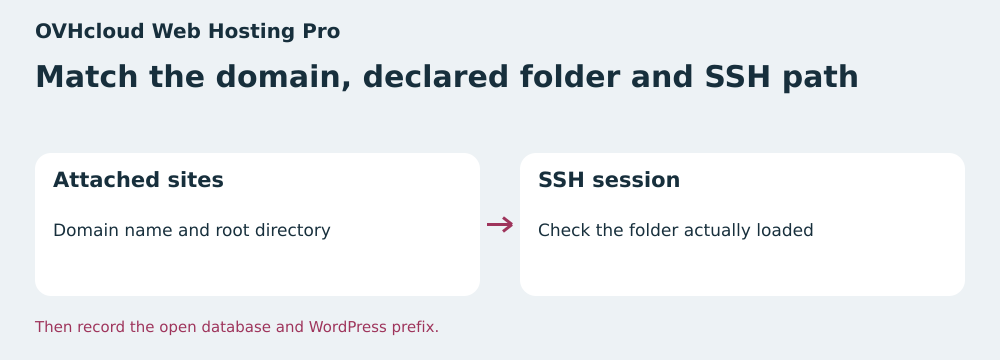
In the control panel, open the hosting account and its list of attached sites. The OVHcloud guide requires selecting a root directory for each name. Compare the public domain’s root with the copy’s. Two names may intentionally serve the same files. If you find this when the sites were supposed to be separate, create or correct the copy before continuing. The subdomain name alone does not guarantee a different directory.
The SSH guide shows where to find the server, port, and authorized user in the control panel. Once connected, check that WP-CLI is present in this session. The Pro plan advertises SSH, while command availability and the command-line PHP version must be checked in the environment used. If using a WP-CLI executable already authorized on this account, record its version and keep the same command for checks and the planned operation.
Match the copy’s database with the hosting databases in the panel. The number of databases offered facilitates data separation. Check space for the copy and its user permissions before importing a large site. Keep an inventory of the production root and database to identify crossed connections. Repeat configuration reading whenever the clone or its environment variables change.
Monarobase Classic: check the clone destination
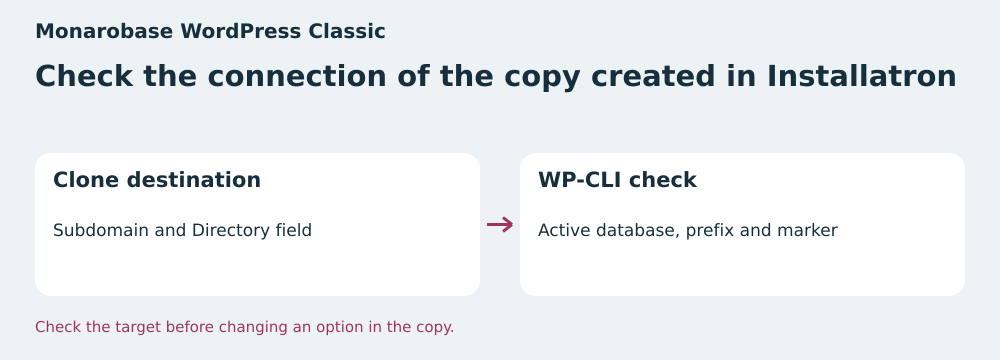
The Monarobase guide describes cloning through Installatron in cPanel. It requires the site to be installed or imported into the tool and the destination subdomain to exist. When selecting this destination, record the Directory field. The guide says to leave it empty if the clone should occupy the subdomain root. After cloning, check the effective root, database, and prefix, even when the copy’s page opens.
The Classic card advertises preinstalled WP-CLI. The SSH guide describes key-based connection. In the account, check granted permissions and the connection path in the open session. Classic’s add-on sites may share the same cPanel account. If staging-site operators do not need to touch production, ask how to separate their access and database permissions.
Compare the copy’s values with production markers before changing a setting. An old configuration file, shared environment variable, or prefix reused from an export can misdirect the target. If something differs, correct the copy through the documented process and repeat all checks. A staging address displaying the correct screen does not replace this verification.
Change one marker and check both sites
Keep the setting’s initial value and choose a reversible change on the private copy. In this example, the WordPress tagline serves as the marker. Before writing, reread the path, database, prefix, and initial value from the same session. If someone has just worked on the clone, pause to compare the new configuration with the record. Pass the same explicit path to the write command.
Then reread the setting on the copy and verify through a read that production retains its value. A page cache can delay the tagline’s appearance in the browser. Use option reading to verify the write before interpreting public rendering. Note the result and time of both checks in the acceptance-test record.
To restore the initial tagline, reread the current value. If it matches the marker you set, restore the retained value and check it. If someone changed it in the meantime, record the conflict before restoring the old value. On a shared site, a read followed by a write is not an atomic operation. Reserve the copy or coordinate the intervention to avoid a simultaneous change.
Repeat incorrect targeting in a local mock-up
The ZIP creates two directories and two temporary SQLite databases. The fictional installations share the same URL. The copy’s database contains two prefixes, each with a tagline. The first attempt names the production directory. The second targets the correct directory but the live database. The third targets the correct database but the table set carrying the production prefix. A fourth fails on an unexpected marker.
After validation of the three identifiers and marker, the mock-up changes the copy’s tagline. It rereads the new value, then restores the old one. A more recent change introduced before a second rollback remains intact because SQLite checks the expected value in the write statement. The report also checks that neighboring tables and the live database file remain unchanged.
Rejections and writes are observed in SQLite. The exercise models values a technician must read in WP-CLI. It launches neither WordPress nor an SSH session. The attached read commands help repeat the check in an authorized staging installation. On that site, check the effective path and behavior of its plugins, which may act during WordPress loading.
Choose the plan that lets you check the target
OVHcloud Pro suits a team that can map domains, directories, and databases from the control panel and then use SSH to verify the loaded installation. The ten 2 GB databases provide separate locations for several copies. A database exceeding the limit requires different sizing even if web disk is far from full.
Monarobase Classic suits a team using cPanel, wanting to clone through Installatron, and having WP-CLI in the intended SSH session. The single account may suffice for a small team managing all sites. If access needs separation by project, check the plan’s arrangements before making the copy accessible to others.
Before expanding the work to an update or import, record the match between the panel inventory and the session that writes. Require confirmation of the root, effective database, prefix, and marker. After every clone or permission change, repeat this check starting with reads. Plan cost and cloning convenience do not substitute for this evidence.
- Record both roots and both databases before opening SSH.
- Confirm the configuration file, effective database, and prefix with an explicit path.
- Write and then reread the copy’s marker.
- Check the live site’s state and retain the rollback value.
Further reading
Sources and references
Use these references to check the features, requirements and limitations described. Reading documentation is not a practical test.
View 14 references
- OVHcloud Hébergement Web Pro — Displayed Pro plan price and renewal ↗ — Documentation consulted:
- OVHcloud Hébergement Web Pro — Pro plan SSH access ↗ — Documentation consulted:
- OVHcloud Hébergement Web Pro — Associated site and root folder ↗ — Documentation consulted:
- Monarobase WordPress Classic — Displayed price, cPanel and WP-CLI for Classic ↗ — Documentation consulted:
- Monarobase WordPress Classic — Renewal and cancellation terms ↗ — Documentation consulted:
- Monarobase WordPress Classic — WordPress cloning with Installatron ↗ — Documentation consulted:
- OVHcloud, service renewal ↗ — Documentation consulted:
- Monarobase, SSH connection ↗ — Documentation consulted:
- Monarobase, renewal help ↗ — Documentation consulted:
- WordPress, reading an option and WP-CLI parameters ↗ — Documentation consulted:
- WordPress, configuration-file path ↗ — Documentation consulted:
- WordPress, PHP evaluation in WP-CLI ↗ — Documentation consulted:
- WordPress, database connection class ↗ — Documentation consulted:
- WordPress, updating an option ↗ — Documentation consulted:
Uses, prices and what to check
2 offers in detail
Compare the features you need and the terms of each offer. The order of these entries does not indicate a ranking.
OVHcloud Pro Web Hosting
 Link the domain to the SSH session’s folder. — BlogPasCher editorial illustration.Open full-size illustration ↗
Best forA team managing directories and several databases from the panel.
French shared hosting with a root directory per attached site and SSH access.
Offer pricing
€23.88 excluding VAT for the first twelve months
Billing: French public offer over twelve months at €1.99/month excluding VAT.
Renewal and support: €9.99/month excluding VAT at recording. Equivalent to €119.88 excluding VAT over twelve months at this rate.
Offer displayed excluding VAT. Check the total including VAT in the summary.
Checked on .
Strengths
- SSH access and root directory declared by name
- 250 GB of SSD storage
- Ten 2 GB databases
What to consider
- Check WP-CLI availability and version
- Individual database limit
- Shared SSH access without superuser privileges
Pricing terms and compatibility
Understanding the offer
- Price at the time of review
- €23.88 excluding VAT for the first twelve months
- Currency
- EUR
- Billing
- French public offer over twelve months at €1.99/month excluding VAT.
- Renewal and support
- €9.99/month excluding VAT at recording. Equivalent to €119.88 excluding VAT over twelve months at this rate.
- Taxes and fees
- Offer displayed excluding VAT. Check the total including VAT in the summary.
- Commitment and terms
- Promotional price displayed for twelve months. Record the service’s renewal mode.
- Date checked
Compatibility and components
- Standalone WordPress
- SSH access
- Several attached sites
Monarobase WordPress Classic
 Check the clone’s connection and tables. — BlogPasCher editorial illustration.Open full-size illustration ↗
Best forA small team using Installatron and WP-CLI on a separate copy.
French WordPress hosting with advertised WP-CLI and documented cloning in cPanel.
Offer pricing
From €5.95 excluding VAT for one month
Billing: Displayed monthly price. €71.40 excluding VAT for twelve months at this reference rate.
Renewal and support: Confirm any separate renewal rate and the rule linked to the payment method.
Displayed price excludes VAT.
Checked on .
Strengths
- WP-CLI advertised as preinstalled
- Installatron cloning documented
- 50 GB NVMe SSD and two add-on sites advertised
What to consider
- Sites may share the cPanel account
- Validate the database and permissions after cloning
- Confirm renewal terms and amount
Pricing terms and compatibility
Understanding the offer
- Price at the time of review
- From €5.95 excluding VAT for one month
- Currency
- EUR
- Billing
- Displayed monthly price. €71.40 excluding VAT for twelve months at this reference rate.
- Renewal and support
- Confirm any separate renewal rate and the rule linked to the payment method.
- Taxes and fees
- Displayed price excludes VAT.
- Commitment and terms
- Duration according to the quotation. Terms specify a ticket at least seven days before renewal.
- Date checked
Compatibility and components
- WordPress
- cPanel
- Installatron and SSH