

A confirmation can show the previous day while the booking is correct
The discrepancy described concerns the time zone used to present the booking. The Hostpoint–OVHcloud comparison helps locate the PHP context; it does not replace correcting the formatter in the component producing the date. First check that component and the stored instant on the existing copy.
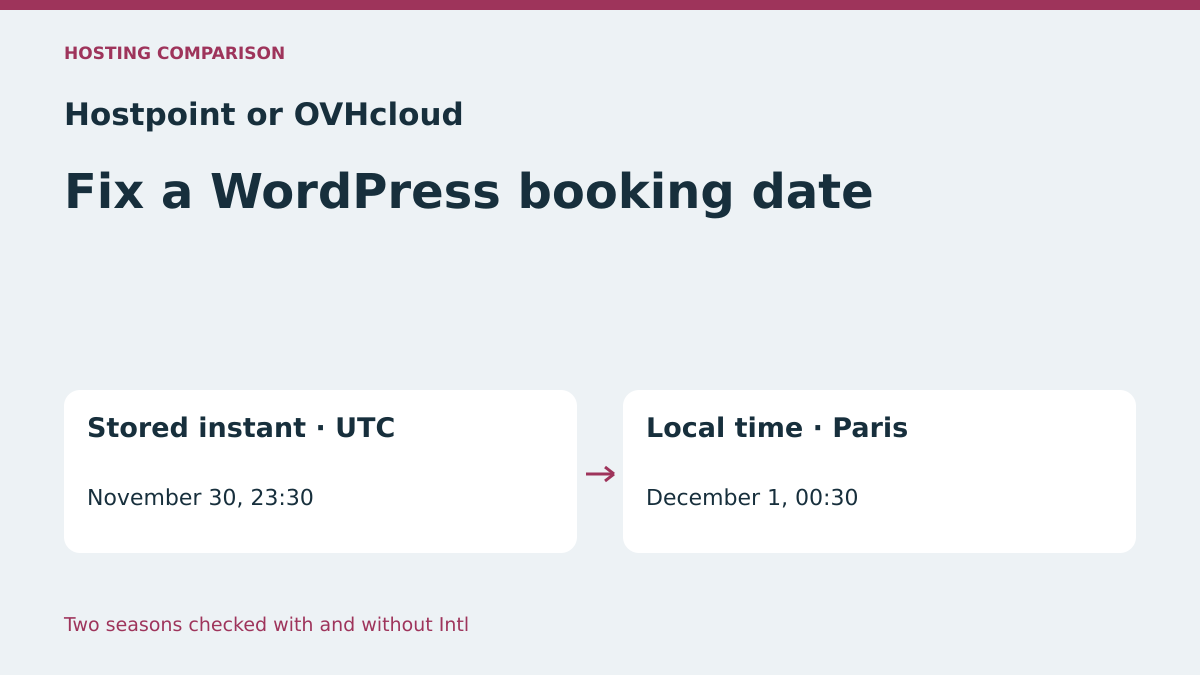
A customer chooses December 1 at 00:30 for an event in Paris. The booking page and appointment record show the expected slot. Yet the confirmation preview changes the date to November 30 at 23:30. Before changing the appointment, record the stored instant and intended display time zone. In this example, both dates can identify exactly the same instant. The confirmation simply used a different local time.
The case concerns a WordPress plugin or template delegating date display to IntlDateFormatter. Even if the PHP object passed to the formatter has already been converted to Europe/Paris, the format() method uses the formatter’s configured time zone. If the constructor receives null for that time zone and no explicit Intl calendar is involved, it uses PHP’s default time zone. A UTC test configuration then suffices to reproduce the discrepancy without modifying the stored value.
Compare the confirmation preview with a page displaying the same appointment. If the screens differ, note the generation context of each. The confirmation may be produced during a web request or by deferred processing. The right place to observe settings is the process generating the incorrect date. The comparison covers two documented paths for finding the PHP context at Hostpoint and OVHcloud, followed by a correction choosing the time zone in display code.
Compare before you choose
The offers at a glance
Find the use case and budget that fit, then read the details to see the limitations and any components you may need.
On smaller screens, the table scrolls horizontally. With a keyboard, press Tab to focus the table, then use the left and right arrow keys.
| Offer | Best for | Pricing and billing | Renewal and support |
|---|---|---|---|
 Hostpoint StandardRead the details | A team able to check site settings from the Control Panel. | CHF 15.90 per month including VAT, equivalent to CHF 190.80 over twelve months 6, 12 or 24 months depending on the hosting contract VAT included in the Swiss catalog | Automatic for the same duration. Cancel no later than 30 days before expiry. Renewal rate to confirm. |
 OVHcloud Perso, Eco rangeRead the details | A team able to check which environment executes the confirmation template. | €2.99 excluding VAT per month and €35.88 excluding VAT over twelve months at the displayed rate Initial rate displayed over twelve months €3.59 including VAT per month displayed initially | €5.99 excluding VAT per month displayed, equivalent to €71.88 excluding VAT over twelve months at this rate |
Record the instant and business time zone before correcting
On a private site copy, create a fictional appointment near midnight. Record the booking identifier and stored instant with its explicit offset or UTC equivalent. If the plugin stores a date without an offset, first identify the time zone giving it meaning in the documented format. A string such as 2026-12-01 00:30 can represent different instants depending on the reading context. Avoid converting it a second time after another component has interpreted it.
Record the event location’s time zone, WordPress site time zone and confirmation time zone. For a local booking, the business time zone may come from the location record. If all site bookings follow the same time, it may be the time zone configured under Settings → General. For a team organizing events in several countries, also specify whether recipients should see the venue’s time, their local time or both. The same UTC value can legitimately display as several dates.
Finally, check whether the difference concerns a single label or the instant actually booked. Compare the record’s UTC instant with the one the confirmation uses as input. If identical and only the text differs, change the formatter. If already different, trace back to when the plugin interprets the selected time and stores the booking. This distinction avoids moving an appointment to solve a display problem.
- Create a fictional booking and record its identifier, UTC instant and expected business time zone.
- Compare the record, confirmation preview and, if necessary, deferred process generating the text.
Observe the formatter in the confirmation’s actual context
Ask the maintainer to record the PHP version, execution context, presence of the intl extension and value returned by date_default_timezone_get() for the test appointment. If the component uses IntlDateFormatter, also record its time-zone identifier with getTimeZoneId(). A PHP diagnostic run from the terminal shows that command’s settings. For a confirmation produced by a web request, check the same information in the web context. For a background task, also check the process handling it.
An implicit value can appear correct because the development server or test date gives the same offset as the venue. Repeat with winter and summer instants near midnight. Europe/Paris applies the named time zone’s rules. A fixed +01:00 offset can give the correct date in winter and the previous day in summer. Choosing a language does not fix this problem. A French label can still show UTC time or a date on another day.
During testing, use a preview, private log or test destination reserved for the team. Record only the fictional identifier and values needed for diagnosis. After correcting the formatter, check that both labels match the expected local date and that input timestamps remain unchanged. Also check an ordinary daytime slot to ensure the format change has not introduced another discrepancy.
Hostpoint Standard: locate the site’s PHP environment
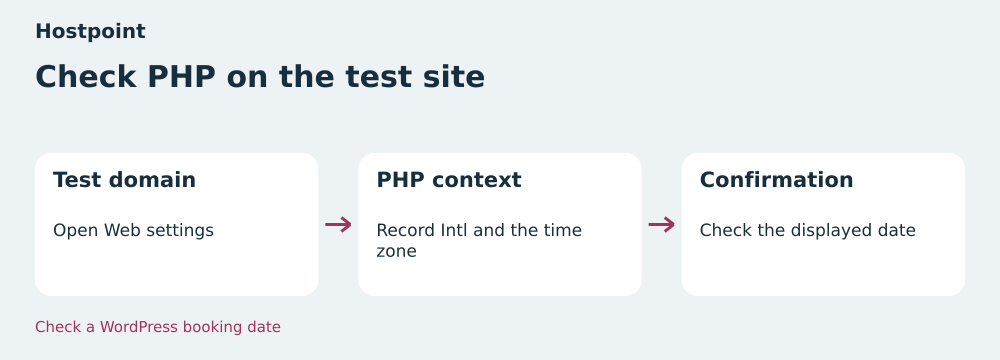
In the Hostpoint Control Panel, select the hosting account and test domain. Open Websites → Web settings, then PHP configuration. Hostpoint also documents per-directory settings and says site PHP options are saved in .user.ini at the document root. For this diagnosis, start with a read. Note the site and PHP version running the preview, then compare them with the process generating the confirmation.
Hostpoint lists intl among generally installed extensions and says availability may vary. A documentation list therefore does not replace extension_loaded('intl') in the test context. If this read is true, examine the formatter’s time zone. If false, first check that the module is actually missing in the relevant process. An SSH command running with another PHP may give a different result. An incident affecting only one site warrants a targeted check before any shared change.
If changing a PHP setting for testing, keep the domain configuration first and revisit an ordinary page afterward. For an incorrect date with intl already present, correcting the formatter is more precise than changing the PHP profile. The plugin may also provide a booking time-zone option. In that case, check that the preview and confirmation-producing process both use it.
OVHcloud Perso: identify the domain’s execution context
In the OVHcloud customer area, open Web Cloud → Hosting plans and select the hosting account serving the test domain. The documentation describes PHP version and environment settings through the customer area and .ovhconfig. It specifies that php.ini cannot be customized on shared hosting. Record the PHP engine and version applying to your domain. If using a copy in another directory, check which file and configuration apply before comparing results with the main site.
In authorized test code, check for intl and the time zone in the same process type that generates the confirmation. If the module is absent, ask which environment and version combination is compatible with the WordPress plugin, or use WordPress’s built-in date display if the code allows. Changing PHP version can change other site behavior. Test on the copy and record the configuration to restore before trying another version.
If the input UTC value is correct and the formatter displays it in an unexpected time zone, correct display in the plugin or template. A general configuration change can affect other dates and processes. Conversely, correcting only the formatter lets you repeat both fictional bookings and compare results before touching another task or neighboring site.
Plans, prices and renewal as of November 11, 2026
Hostpoint Standard is displayed at CHF 15.90 per month. The catalog states VAT-inclusive prices. Twelve months at that reference rate total CHF 190.80. The help states web-hosting durations of 6, 12 or 24 months, then automatic renewal for the same duration unless canceled at least 30 days before expiry. Check the amount actually due and renewal rate for the chosen contract. The plan advertises 100 GB NVMe, ten domains and ten MariaDB databases.
OVHcloud Perso in the Eco range displays €2.99 excluding VAT per month, or €3.59 including VAT per month at the displayed public rate, and a total of €35.88 excluding VAT for twelve months. The stated renewal price is €5.99 excluding VAT per month, or €71.88 excluding VAT over twelve months at that rate. The plan advertises 100 GB storage and five databases of 1 GB each. The order summary lets you check the cycle, tax treatment and renewal date. An existing contract may have its own terms.
Compare the first-cycle and renewal amounts separately in each provider’s currency. If several domains share hosting, check that a private copy can reproduce the relevant domain’s settings. Disk space and database count help size this copy. For the incident studied, the decisive information remains the formatter’s effective time zone in the request or process composing the date.
Choose an explicit time zone in the formatter
In a custom template already using Intl, pass the event’s time zone to the constructor. For the fictional Paris event, pass new DateTimeZone('Europe/Paris') to the timezone parameter. Keep the actual instant from the booking, for example as a Unix timestamp or an object representing it. The attached test uses the same object for implicit and explicit formatters. Only the presentation setting changes. You can retain the expected French date format while choosing the time zone separately.
When the plugin always follows the site’s time zone, it can read it from WordPress. For a service displaying times for several locations, choose the booking’s time zone and check that its value exists in the location configuration. The confirmation date must match the convention announced to the customer. Keep the time zone in the test record, especially if the same template is used for events in several cities. If the booking time zone is missing, display the date only under the fallback rule approved by the team.
Test two bookings near midnight, one in winter and one in summer, and compare them with a daytime slot. Record the time-zone identifier returned by the formatter. If confirmation and preview use different code, apply the correction where the text is actually produced. To roll back, restore the previous template from the saved copy. Control bookings can retain the same instants for rollback checks because the change concerns display formatting.
- Pass a named time zone to the formatter and retain the Unix timestamp as input.
- Compare displayed summer and winter dates with the recorded time-zone identifier.
Use WordPress date display when the template allows
If the template only needs a localized date in WordPress, use the documented wp_date() API. It accepts a genuine Unix timestamp and explicit time zone. In a template loaded by WordPress, a rendering example is wp_date('l j F Y H:i', $timestamp, $fuseau), with $timestamp from the booking and $fuseau as the venue’s DateTimeZone object. If the site is the reference scope, the function can use its default time zone. Prepare the expected format and language in the context where the template renders.
The PHP pattern used by wp_date() and ICU pattern used by IntlDateFormatter have different syntax. Recreate the desired format and check a reference label before replacing the call. The PHP exercise also includes numeric output using DateTimeImmutable when intl is absent. It serves as a control to verify day and time. If the product expects day and month names, validate the template’s localized rendering or display the numeric result only under the chosen convention.
In a third-party plugin, check whether the publisher provides a time-zone setting or customizable confirmation template. Directly modifying a plugin file risks having the change overwritten at the next update. On the copy, validate replacement through the intended extension point and repeat the preview after reinstalling or performing a test update. Keep a template copy and restoration procedure. This gives the team a way to return to the previous rendering without reinterpreting already-stored appointments.
Two boundary dates retested on the local PHP server
The first control is November 30 at 23:30 UTC. With PHP in UTC and the formatter’s time zone left implicit, the result remains November 30. Specifying Europe/Paris changes it to December 1 at 00:30. The second control is June 30 at 22:30 UTC. In Paris, it becomes July 1 at 00:30. A fixed +01:00 offset gives June 30 at 23:30. Both starting dates are fictional and make the day change visible.
The acceptance test used Python 3.14.4, PHP 8.4.8 and ICU 75.1. It makes real requests over loopback with and without the Intl extension loaded. The eight checks pass from the extracted ZIP. The report shows effective time zones, labels and timestamps. The test exercises the PHP class and numeric fallback format. Hostpoint and OVHcloud workflows and the use of wp_date() rely on their public documentation.
Hostpoint Standard provides a reference in the site’s web settings and documents Intl among generally available modules. OVHcloud Perso provides a path for checking the PHP environment, with different settings on shared hosting. In both cases, confirm behavior from the code composing the preview or confirmation. Choose the plan whose execution context and rollback procedure you can verify, then approve the result on both control dates and a daytime appointment.
- Extract the ZIP and run
python recette.pywith PHP and its Intl extension loadable. - Compare labels, time zones and timestamps in the summer and winter cases.
Further reading
Sources and references
Use these references to check the features, requirements and limitations described. Reading documentation is not a practical test.
View 11 references
- Hostpoint Standard — Displayed Standard price ↗ — Documentation consulted:
- Hostpoint Standard — Durations, cancellation and renewal ↗ — Documentation consulted:
- Hostpoint Standard — PHP configuration and general module list ↗ — Documentation consulted:
- OVHcloud Perso Eco — Displayed twelve-month price ↗ — Documentation consulted:
- OVHcloud Perso Eco — PHP context, environment and .ovhconfig ↗ — Documentation consulted:
- Hostpoint, price list and VAT ↗ — Documentation consulted:
- PHP, IntlDateFormatter::format ↗ — Documentation consulted:
- PHP, IntlDateFormatter constructor ↗ — Documentation consulted:
- WordPress, wp_date ↗ — Documentation consulted:
- WordPress, site time zone ↗ — Documentation consulted:
- PHP — IntlDateFormatter::format and formatter time zone ↗
Uses, prices and what to check
2 offers in detail
Compare the features you need and the terms of each offer. The order of these entries does not indicate a ranking.
Hostpoint Standard
 Check PHP on the test site — BlogPasCher editorial illustration.Open full-size illustration ↗
Best forA team able to check site settings from the Control Panel.
Hostpoint lets you record PHP settings from the domain in its Control Panel. Its general list mentions Intl. Check the module in the process generating the confirmation, because an SSH command may use another context.
Offer pricing
CHF 15.90 per month including VAT, equivalent to CHF 190.80 over twelve months
Billing: 6, 12 or 24 months depending on the hosting contract
Renewal and support: Automatic for the same duration. Cancel no later than 30 days before expiry. Renewal rate to confirm.
VAT included in the Swiss catalog
Checked on .
Strengths
- Site PHP settings documented
- Intl mentioned in the general extension list
What to consider
- Actual module availability to check
- Contract-specific renewal rate
Pricing terms and compatibility
Understanding the offer
- Price at the time of review
- CHF 15.90 per month including VAT, equivalent to CHF 190.80 over twelve months
- Currency
- CHF
- Billing
- 6, 12 or 24 months depending on the hosting contract
- Renewal and support
- Automatic for the same duration. Cancel no later than 30 days before expiry. Renewal rate to confirm.
- Taxes and fees
- VAT included in the Swiss catalog
- Commitment and terms
- Duration and total depend on the order
- Date checked
Compatibility and components
- WordPress
- PHP
OVHcloud Perso, Eco range
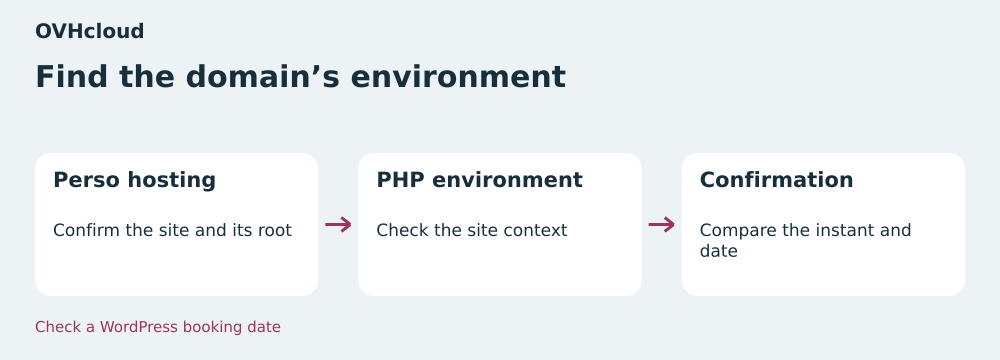 Find the domain’s environment — BlogPasCher editorial illustration.Open full-size illustration ↗
Best forA team able to check which environment executes the confirmation template.
OVHcloud documents version and environment settings in its customer area or through .ovhconfig. Record the configuration of the domain serving the confirmation. The php.ini file is shared on shared hosting.
Offer pricing
€2.99 excluding VAT per month and €35.88 excluding VAT over twelve months at the displayed rate
Billing: Initial rate displayed over twelve months
Renewal and support: €5.99 excluding VAT per month displayed, equivalent to €71.88 excluding VAT over twelve months at this rate
€3.59 including VAT per month displayed initially
Checked on .
Strengths
- PHP settings documented for web hosting
- Renewal rate displayed
What to consider
- Global php.ini on shared hosting
- Intl availability to check in the actual context
Pricing terms and compatibility
Understanding the offer
- Price at the time of review
- €2.99 excluding VAT per month and €35.88 excluding VAT over twelve months at the displayed rate
- Currency
- EUR
- Billing
- Initial rate displayed over twelve months
- Renewal and support
- €5.99 excluding VAT per month displayed, equivalent to €71.88 excluding VAT over twelve months at this rate
- Taxes and fees
- €3.59 including VAT per month displayed initially
- Commitment and terms
- Cycle and total to confirm in the summary
- Date checked
Compatibility and components
- WordPress
- PHP