

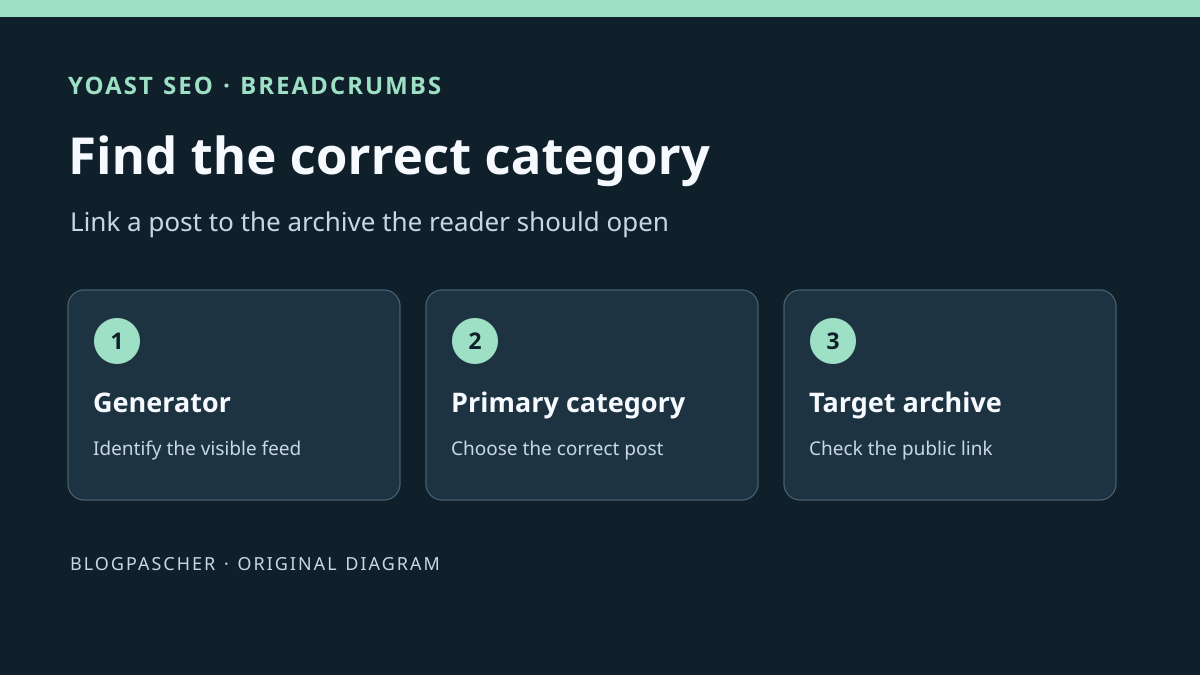
Locate the breadcrumbs showing the wrong path
A post belongs to two categories, but its breadcrumbs show a different category from the one the team selected. Start by opening the post directly and recording the visible path. Breadcrumbs generally contain a sequence of links describing the path to the page. A menu, the category list below the title and a search engine snippet are different elements. Describe the one causing trouble and record the intermediate link's destination, not just its label.
Choose a control post showing the correct path and another showing the discrepancy. Compare their assigned categories, page language and template if you can see it. Open both posts with a staging visitor profile. A page opened from the editor may use a preview or a session whose cache differs from the public route. If you have only editorial access, give the address, observed path and expected path to the theme or plugin manager.
Also distinguish visible breadcrumbs from structured data that may describe a path to a search engine. Correcting the visible text does not guarantee that the same component supplies structured data. In this guide, the first expected outcome is a consistent public path and links leading to the correct archives. If the problem concerns only a search result, record the observed page and markup separately.
Check which component produces the visible path
A theme, SEO plugin or builder can each produce its own breadcrumbs. Yoast's presence in the administration area does not establish that the visible breadcrumbs come from Yoast. With a block theme, ask the maintainer to open the template applied to the control post and identify the relevant block. With a classic theme or builder, look for the breadcrumb setting in the component managing the template. Two templates on the same site may use different generators.
On the copy, record the initial path and compare two posts rendered by the same template. If breadcrumbs appear twice on one page, record each location and its generator before acting. One trail may be added in the header and another in the content. Changing the primary category may affect one without affecting the other. If you temporarily change a setting to isolate a generator, work in the staging template and record what must be restored.
For a post assigned to several categories, prepare an easily recognizable test value. Change the primary category on a dummy post and reload the page. If the visible path follows the change and its link leads to the expected archive, you have a useful control for the generator that follows this setting. If it does not move, return to component identification or taxonomy selection. No change, by itself, does not establish that Yoast is broken.
Another staging control is to temporarily change the separator in Yoast settings. Choose a character distinct from the original and reload the same post. If only one of the two visible trails adopts the separator, you can identify which follows this setting. If neither changes, record the result and check whether the theme imposes its own presentation or an old response is still being served. Restore the separator before testing the primary category. This is a shared setting and must not remain changed for other pages.
When a manager cannot open the template, give them the post pair and the control result. The maintainer can then find the component without blindly changing categories across the site. Also note whether the first and second breadcrumb trails start at different levels. Their difference may be intentional in two navigation areas, although a duplicate display deserves checking in the relevant template.
Approach 1. Choose the post's primary category
In the post editor, open post settings in the sidebar, then Categories. Select the desired category if it is not already part of the intended classification. When several categories are assigned, open the primary category selector added by Yoast and choose the expected one. Save, then reload the editor. Keep the category list and original value. If the desired category was already assigned, selecting it as primary does not require changing other assignments.
Take a dummy post in “Actualités” and “Tutoriels”. If its breadcrumbs should lead to “Tutoriels”, select that category as primary. Reopen the staging post with the visitor profile and click the intermediate link. Check the archive title and that the post belongs there. Then open another post that should continue to display “Actualités”. A targeted correction should move the first path without changing the second.
If the desired category is a subcategory, also check its parent category in the administration area. The expected path may include an ancestor before the selected category. Compare the structure actually defined and the link order. A category with the same name under another branch does not produce the same route. Record archive addresses before changing their hierarchy.
Approach 2. Check the taxonomy feeding the breadcrumbs
With configuration permissions, open Yoast SEO > Settings > Advanced > Breadcrumbs. In the settings group for content types, locate the Posts row and check that the selected taxonomy is Categories. A setting that displays tags, or no terms, will not follow the primary category in this path. Check the row for the relevant type before changing the value. A product may use a different taxonomy from posts.
Do not confuse this setting with the one for breadcrumbs on a taxonomy page. On a post, you choose the taxonomy that may appear between the homepage and content. On a taxonomy archive, another setting may display a content type archive. Therefore, record whether the discrepancy occurs on the individual entry or category page. The same word “category” on two screens does not mean they govern the same route.
If the displayed taxonomy does not match the need, record its value and change it only on the copy. Compare at least two posts belonging to the same type. The setting may change breadcrumbs for several content items at once. If only one post needs to change, return to its individual setting or template. A global change is useful only if it matches the intended navigation structure for that entire type.
Approach 3. Correct the template if the generator is different
When the theme produces its own path, check that theme's settings first. It may choose a category using its own logic and ignore Yoast's preference. Ask the maintainer which generator the team wants to retain and on which templates. If the theme exposes a navigation setting, use it for the control. If the site chooses to display Yoast breadcrumbs, the maintainer must integrate the designated component and remove the competing display from the same location on the copy. Enabling Yoast settings does not place new breadcrumbs in every template.
With a block theme, open Appearance > Editor > Templates and locate the template actually used by the control post. Keep its initial layout. To check integration for a single staging post, use the Yoast Breadcrumbs block, or its translated name, from that post's block inserter. Compare its destination with the theme's breadcrumbs. Remove this control block after comparison. For a shared correction, then configure the selected generator in the staging template and check two posts using it. With a classic theme, give the confirmed template to the child theme maintainer.
After the change, check that the page presents one breadcrumb trail in that location and that the chosen category appears when the control is changed. If breadcrumbs disappear entirely, return to the original template and identify the missing integration. Also check an archive using another template. Replacing a navigation element in the single-entry template must not remove the path from a page of another type.
Check links and the post address
Under Settings > Permalinks, record the structure and the post's final address before the change. If the structure contains %category%, Yoast documents that changing the primary category may change the permalink after saving. Open the old and new addresses from a staging visitor session. If the address must remain stable, implement the change only after confirming this result. If the move is intentional, the owner must be able to check incoming links and the old address's behavior.
Check the link leading to the archive. An archive with the correct title may exist at two addresses, for example when several languages or branches use the same name. Record the path and language actually opened. If the link returns to an old address, examine the redirect or archive configuration before changing the breadcrumb text. A correct label with an incorrect destination is still a navigation fault.
If comparing structured data, find the path described for that same page and match it to the selected template. Structured data and visible links must be examined separately when several components are involved. Google decides what appears in search results. Validate a WordPress correction first on the site and in the markup it outputs. A search result changing is not the only proof that navigation works correctly.
Test two posts and a hierarchy control on the copy
Create two dummy posts using the same template. Assign both “Actualités” and “Tutoriels” to each. On the first, select “Tutoriels” as primary. On the second, retain “Actualités”. If your site uses several languages, start in one language so the template and archives are comparable. Record categories before testing and check that both archives are accessible in staging. This avoids attributing to Yoast a discrepancy caused by different categories.
Open the posts directly, then from a list in their category. The selected breadcrumbs must match the site's logic and each post's selected category. Arriving from a different archive must not be used as proof that the post has a new primary category. Click each intermediate link, record its destination and check that the second post does not change when you adjust the first. If the path changes with the template, record the template name alongside the observation.
Add a hierarchy control if the target category has a parent. On the copy, create a simple branch unused by other tests. Assign its subcategory to the control post, then compare the displayed path and links to the parent and subcategory when present. Do not change a shared site branch merely to see whether breadcrumbs change. A staging branch lets you observe the expected relationship and easily restore the previous classification.
Prepare rollback according to the correction's scope
For a change to one post, restore its previous primary category and check that the other categories have not moved. Reopen its address and check the breadcrumb link. If you changed a taxonomy in Yoast settings, restore the recorded value, then check both posts and an archive for the relevant type. A global action requires several controls, including a page where no change was expected.
For a template change, restore its previous layout or version in the environment where the test ran. Check that other templates remain assigned to the correct pages. If the staging page still shows an old path, ask the owner to compare the cache and origin rendering before concluding that rollback failed. Repeating a template change while uncertain can make the result harder to interpret.
In the handover, state the confirmed generator, content type, primary category, taxonomy setting and two archive addresses observed. Specify whether the post address changed and whether you checked markup as well as visible links. The next check can reuse this pair of controls after a theme or Yoast update.
Integrate Yoast breadcrumbs into an identified classic template
If diagnosis confirms that the classic theme does not call Yoast breadcrumbs, the maintainer can insert them into the child theme template actually used, in the intended navigation location. Back up that file and remove or disable competing breadcrumbs in the same template. The following snippet is template PHP; it must not be pasted into post text or an HTML block.
The guard prevents calling a missing function when Yoast is deactivated. It does not choose the primary category for you: retain the taxonomy settings and per-post selections described above. Check two posts with different primary categories and their link destinations. On a block theme, favor the Yoast block intended for this purpose instead of creating an unsuitable PHP file. To undo, restore only this template and check that one breadcrumb trail appears in the intended location.
<?php
if (function_exists('yoast_breadcrumb')) {
    yoast_breadcrumb('<nav aria-label="Fil d’Ariane">', '</nav>');
}
?>
Sources and references
Use these references to check the features, requirements and limitations described. Reading documentation is not a practical test.