

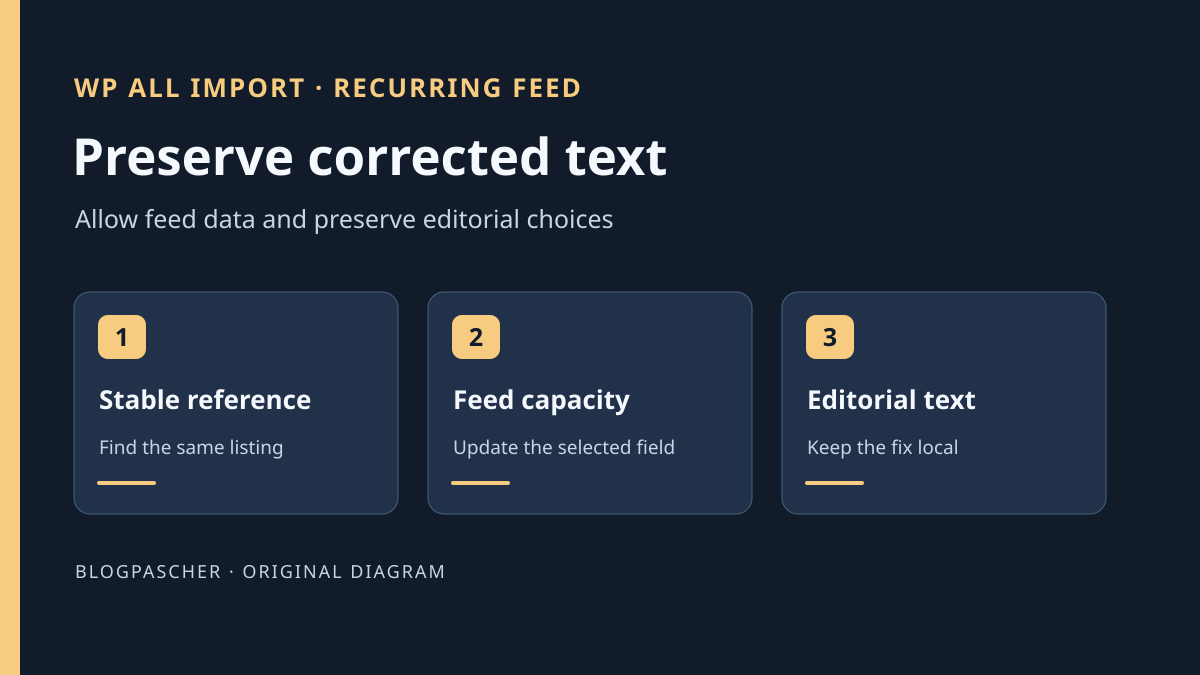
Confirm that the correction disappears during the same import
An editor adjusts an entry's title or description. The correction is visible after saving, then the old version returns after the overnight import. Start by checking the entry in administration. Compare its WordPress ID, modification date, and text displayed in the editor. If the correct value remains in administration while visitors see the old one, examine caching or the page template. If the value itself changed in the editor, record the time and find which operation wrote to this entry.
With editorial access only, record the value before and after, date, and affected entry. On a copy, choose distinctive test text absent from the feed. Ask the person responsible to identify the import processing this entry and provide the corresponding run record. The proximity between returning text and import time provides a lead. To attribute the change, compare the correct import's log, reference entry, and contents of the file used.
This guide concerns a recurring import that must continue updating certain data. For example, a feed supplies workshop capacity while the title and description are written in WordPress. If new entries multiply instead of replacing values, record that symptom separately. It may involve another task or incorrect matching. Changing allowed fields does not automatically merge duplicates.
Define which fields belong to the feed and which are editorial
Create a list with the file owner and editors. For each field, state who supplies its value, whether a blank field may be applied, and what should happen when the row disappears. For a workshop, the feed may own capacity and schedule while title, description, and photo stay with editors. An empty cell may represent intentional deletion or temporarily unavailable data. The update rule must account for this difference.
Also identify data the feed should write only on creation. For a new entry, an initial description may be useful. After review, editors must be able to change and retain it through the next run. Check that your import options can actually represent this distinction. When creation and updating should follow different rules, test both flows separately and compare values after each run.
Avoid protecting only the title if content, image, or terms are also managed manually. An image setting may remove previously associated files. A taxonomy setting may change classification in lists. Include fields that must remain unchanged and those that must actually change in the control. If the team cannot decide who maintains a value, first agree on the rule before changing the import.
Approach 1. Find the existing import and check its identifier
With an account able to manage WP All Import, open All Import > Manage Imports. Identify the task from its content type, source, and latest log. Two entries may download similarly named files. Record task ID, configured source, record filter, content type, and last-run date. Retain this information without copying private-link parameters or feed access credentials.
For a task creating its own posts, WP All Import uses a unique identifier specific to that import to find its records on a new run. It must remain stable when capacity, price, or label changes. A source-provided workshop reference suits if unique and durable. An edited title or changing capacity does not fulfill that role. Configuring an identical identifier in a new task does not automatically give it access to entries created by the old one.
A task configured to match existing content uses a separate criterion. Check which field it uses to match the file with WordPress entries. Look for empty or repeated identifiers in both file and site. Documentation states that if several existing entries share the same matching value, only the first found is updated in the standard case. If matching remains ambiguous, stop the write test and have identification corrected before changing protected fields.
Select the data allowed to change
On the copy, open the confirmed task's settings under All Import > Manage Imports. Enable updating existing posts, then select Choose which data to update. For the example, check Custom Fields, then the option restricting updates to listed keys, and enter capacite_atelier. Leave Title and Content unchecked, along with images, taxonomies, and other manually managed data. A column absent from the template does not alone protect a value if the import is configured to update everything.
Record separately options creating new items and those changing or removing items missing from the file. An incomplete export may omit entries that remain valid. For a test limited to updates, leave creation and missing-record processing disabled when the task and objective allow. If the team wants to process these cases in production, validate their behavior in dedicated tests. A successful capacity test is insufficient to justify automatic deletion of absent entries.
The developer presents targeted updates and custom-field management in its Pro offerings. Check the installed edition and visible options before applying this approach. For a few entries, a capacity record in a file and targeted manual updating through administration may suffice. If the option is missing or a provider manages the task, give them the allowed-field and editorial-field lists. Avoid directly changing the plugin's internal configuration to reproduce an unavailable screen.
Approach 2. Verify two runs with a reduced file
Use a copy containing the task and associated entries if the goal is reproducing an existing import's behavior. Have that copy's automation isolated before launching a manual run. If the feed and trigger are managed elsewhere, ask the person responsible which schedule can reach this copy. Disabling a local trigger does not guarantee an external service can no longer call the import. Leave the public site and its scheduler outside the test.
The CSV below creates three dummy entries in a staging task. Save it as UTF-8. In the template, map titre to the WordPress title, description to content, and capacite to the capacite_atelier metadata. Select reference as the unique identifier. If reproducing an existing task, instead prepare a file with the same structure using stable keys of dummy entries already associated with that task on the copy. Check mapping in the preview before launching a write.
For a new dummy task, allow creation on the first run, then record the three WordPress IDs. Manually replace A01's title with “Céramique corrigée en rédaction” and A02's content with “Description corrigée en rédaction”. In a copy of the CSV, change A01's capacity from 12 to 14 and A02's from 8 to 11. Keep the feed texts so they differ from both corrections made in WordPress. Leave A03 unchanged.
Return to All Import > Manage Imports > Settings on the same staging task. Load the second CSV as that task's new source. Disable creation and missing-record processing, then retain only the update of capacite_atelier. Use Run Import on that same entry. A01 should retain the corrected title and move to 14. A02 should retain corrected content and move to 11. A03 should retain the same values, and all three WordPress IDs should remain identical. A log reporting capacity updates distinguishes a protected correction from an entry the import did not process.
reference,titre,description,capacite
ATELIER-A01,Initiation céramique,Présentation source de la céramique,12
ATELIER-A02,Atelier du samedi,Présentation source du samedi,8
ATELIER-A03,Émaillage découverte,Présentation source de l’émaillage,10
Interpret a skipped control or values still overwritten
WP All Import offers to skip entries when file data has not changed. According to the developer, this choice compares a fingerprint depending on file data, the template, and Function Editor code. A manual WordPress correction does not change the supplier's file. A test with an identical second file may therefore avoid all writes and hide the defect. That is why the test actually changes an allowed value on entries whose text must be preserved.
When the supplier changes its file, open the task preview and check expected columns. For the control, confirm all four columns and the title, content, and capacity previews. A renamed column or new delimiter may distort reading before any update. Compare an expected value and an empty field in the preview. If the key no longer appears, have the expected format restored or prepare new mapping on the copy. Keep the previous file to repeat the first test.
Changing a template, settings, or import code may also invalidate existing fingerprints. Leave the option in the state intended for your test and record task changes. If A03 is reread after a settings change, its being processed does not prove an error. Check final values and the log. The decisive control is an entry whose capacity the import actually updated while preserving corrected text.
If the title is still overwritten, check the task that actually ran, its update options, and whether another task processes the same content. If the log reports creation instead of updating, return to the key and matching before continuing. Duplication and overwriting may happen in the same cycle, but require different corrections. Keep observed IDs instead of repeatedly rerunning to see whether the error disappears.
Validate values and effects on the staging site
After the second run, reopen all three entries from administration. Compare WordPress ID, title, description, capacity, and other values your team maintains. Also check the public staging page if it displays capacity. A correct value in the editor and an old value on the page call for rendering or cache diagnosis. The import report confirms operations it counted. It does not replace observing the field and entry relevant to the team.
If the real feed may be incomplete, next prepare a staging file omitting A03 with missing-record processing disabled. Check that this entry retains the same state and URL after the run. If an empty capacity should preserve the previous value, create a separate test with an empty cell and compare the result with the intended rule. Make only one such change at a time. An omitted row and an empty value in a present row use different parts of the import.
Before restoring a schedule, ask the maintainer to check which runner will be authorized to execute the task. Repeat the representative scenario on the copy using the intended source and agreed test data. Record time, import ID, number of updated entries, and control results. When the person responsible approves going live, choose an observable first run and a simple control to check. Retain the ability to suspend that task's next run if the result differs.
Restore configuration and recover only affected values
If the test fails, suspend the staging task or ask the person responsible to stop it in the mechanism launching it. Check that started processing has finished before changing settings again. Restore previous options and the expected source file from the record. Restoring settings prepares future runs. It does not automatically restore old titles or descriptions already overwritten.
For a few entries, recover text from a WordPress revision when the relevant type and field are covered. Compare what the revision restores before applying it. For metadata or an image, use the record or targeted backup prepared by the person responsible. If much data changed, first restore the backup point in another copy to identify values to recover. Avoid overwriting the active site with a database predating other legitimate updates. After recovery, reopen an editorial control and a control whose capacity must continue following the feed.
Pass on the task name, key used, allowed fields, and results of both runs. Add the state of creation and missing-record processing options. The next person changing the file can check the same data agreement before rerunning the task.
A free check for the three-entry batch
If the installed edition lacks the necessary field selection, batch A01–A03 can be handled manually without buying a tool for this test. First suspend the recurring run on the copy; otherwise it may erase the correction while you check it. Open each entry using its WordPress ID, then change only capacity in its usual input screen.
| Reference | Final capacity to verify | Text to preserve | | --- | --- | --- | | ATELIER-A01 | 14 | Editorially corrected title | | ATELIER-A02 | 11 | Editorially corrected description | | ATELIER-A03 | 10 | Original title and content |
Reread all three entries after reloading and record their IDs. The check requires three openings and three readings after saving; do not assign it a guaranteed duration. It suits a small occasional batch but becomes difficult to maintain for a large catalog or frequent updates.
This alternative demonstrates the expected data agreement and provides a reference result to compare with automated importing. It does not repair the overnight task: that task must remain suspended on the copy until its allowed fields are corrected. To roll back, restore capacities recorded before testing without replacing editorial text. Reactivate the task only after a run that actually preserves those texts.
Sources and references
Use these references to check the features, requirements and limitations described. Reading documentation is not a practical test.
View 8 references
- WP All Import — Rerun an existing import ↗
- WP All Import — Import-specific identifier ↗
- WP All Import — Match existing content ↗
- WP All Import — Skip unchanged records ↗
- WP All Import — Missing-record processing options ↗
- WP All Import — Pro features ↗
- WordPress — Compare and recover a revision ↗
- WP All Import — File structure changes ↗