

Establish a baseline before reviewing the batch
You received a list of alt text to apply to a WordPress post. The suggestions read well and the table says every image was processed. Yet this is the moment to check what the page already communicates. A suggestion may add noise, replace accurate information with an error or remove the only name that helps someone choose a link. The work is to decide which occurrence to change and prove that the rest still works.
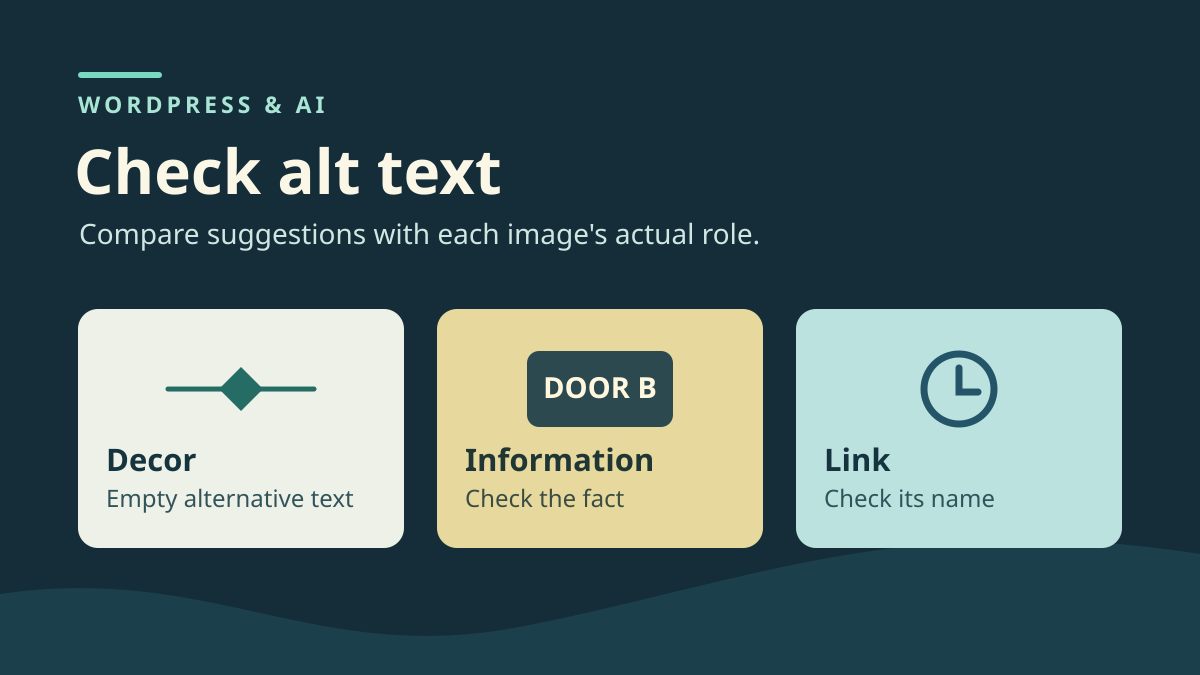
Take the fictional “Retrait à l’atelier” page. A line with a diamond separates two sections. A visible sign says “PORTE B” for collection. A clock alone opens opening hours. A pictogram accompanies “Plan d’accès” inside the same link. The four images and two destination pages can be created for the exercise. A proposal supposedly from AI is enough to test the method: no text, file or page excerpt needs to leave your environment.
Keep three things before touching the post: a revision or exact body copy, the current browser preview and the actual destination of both links. Record the page title and revision, plus each occurrence's location. “Clock below the collection sign” is more useful than “image number 3” if blocks are reordered. If the same file is also used in the footer, add another row for that occurrence. Both uses may have different requirements.
Make a working copy without visitors. The baseline must have an expected result someone can explain. If a link is already unclear or leads to the wrong page, record that as a preexisting fault and decide how to handle it separately. The raw copy remains valuable for rollback but is insufficient to decide whether a suggestion is correct. For this exercise, the baseline already provides both destinations and both expected names. Only one informative description can be improved.
Define an expectation for each image and link
For the diamond, the expectation is that the image is not announced as content. The initial HTML contains an alt="" attribute. “Motif bleu au centre” describes the pixels but imposes unnecessary information on someone reading the text. Write “keep empty” in the review sheet. An empty export cell may mean “data not retrieved” or “no suggestion”. State the decision explicitly so a fill rule does not overwrite it.
For the sign, the decisive information is door B. The old “Porte B” value already conveys that fact. Reject “Entrée principale, porte A” by reading the image and neighboring paragraph. The correction “Retrait des commandes : porte B” retains the fact and clarifies its use. It is useful only if that information is not already written fully alongside. If unsure which door is correct, keep the existing text and have the information confirmed before changing the block.
For the clock, the expectation belongs to the link: “Consulter les horaires”. In this scenario, the image is its only content. Removing alt or writing “Horloge bleue” does not help someone choose the action. A checklist must therefore include the expected name and hours destination. If the link already had a visible label or another valid accessible name, check that name before deciding what to retain for the image. A link's existence and its name are different measurements.
For the directions, the pictogram shares a link with the text “Plan d’accès”. The icon provides a visual cue here. The alternative “Plan d’accès” would repeat the label in the computed name. Retain visible text and the pictogram's empty alternative. Check the structure: if the theme created one link around the image and another around the text, the check differs. Examine both links then. Visual proximity does not guarantee they form one control.
Read suggestions without applying them to baseline content
For each row, record position, current value, suggestion, verified fact and decision. Add a column for the link name and another for destination when the image is clickable. For the sign, retain both the raw incorrect proposal and your wording. For the clock, explicitly record “attribute absent from test proposal”. For directions, state that the suggested value would be added inside a link already containing text. This record stays understandable even when the original export is unavailable.
To observe the batch's effects, reproduce its four changes on a second copy or use a local preview reproducing the same markup. Compare that copy with the healthy version. Keeping an erroneous state shows that the check can detect errors. Both versions looking identical is normal: all four images load and both destinations exist. The altered information mainly resides in attributes not displayed on the page.
Treat a list of images associated with files as a clue, then confirm every match. In an old post, the header image may come from the template, a body Image block may have its own alternative and a synced block may be used elsewhere. First identify what produces the HTML. If the source is a template or synced block, establish other affected pages before touching the shared element. If uncertain, leave the row pending instead of applying a global value to complete the table.
Leave new or moved images outside the first pass if their roles have not yet been established. A targeted test is easier to interpret: with the same post, files and links, a name difference comes from the tested change or rendering that interprets it. Use a second pass for content additions. Four documented decisions are better than many filled fields without evidence.
Check HTML, computed names and navigation
Open the visitor-side preview. In Chrome, inspect the element from the page. In Elements, find the image tag and move up to its surrounding link when present. Check whether the attribute is present, empty or populated. Also compare the link address and text inside it. For the directions image, a minimal structure resembles the example below. Keep your actual address if checking another page.
Then switch to DevTools' Accessibility view. Examine each link's role and computed name. The clock should be announced by the link's function, and directions only once. For the separator and redundant pictogram, check whether the image is ignored in the tree. If an unexpected name appears, examine its source: child text or an attribute on the link, for example. Do not conclude that removing an image attribute produces the same result in every browser. A filename-derived fallback, empty name and real label do not have the same usefulness.
Also check destinations. Return to the start of the tested area, keyboard-navigate to the link, then activate it. The opened page's title or content must confirm the destination. Repeat for both links. A link may remain activatable while its name becomes inaccurate. Conversely, a well-named link may lead to the wrong page. Ask the reviewer to record these observations separately. In a real workflow, also try finding the action using the screen reader employed in your usual checks.
<a href="/plan-fictif/">
  <img src="/pictogramme-fictif.svg" alt="">
  Plan d’accès
</a>
Apply the correction to the authorized occurrence
Start again from the healthy copy. In the WordPress editor, select the sign's Image block and find its alt-text setting. Replace “Porte B” with “Retrait des commandes : porte B”. Leave the image address and neighboring content unchanged. Preview the post and find the new value on the sign image, then check that both decorative images and both links retain their baseline state. If the preview shows the block depends on other content, find the source before repeating the manipulation.
The block setting applies to this use. The media library setting provides a default for insertions. This distinction helps with batch corrections: changing the default to improve only this post might suggest unsuitable text on a future page where the sign is illustrative. For a post displaying an image through a template or plugin, preview and HTML remain decisive. Block documentation cannot predict another component's behavior.
If you already applied the batch to the working copy, first restore baseline values for the diamond, clock and directions. For a decorative Image-block image, use the option marking it decorative if available. Check that the empty attribute appears in the rendered output. If editing custom HTML in a dedicated block, retain the link and its text. Avoid converting an Image block to Custom HTML to change one setting. You would lose block controls for future corrections and introduce a second difference to review.
If a plugin automatically applies suggestions, find the setting suspending application or holding suggestions pending in the working environment. Preview again after reopening the post. If the change returns despite correct saving, identify what reapplies it. Add that limitation to the review and keep the healthy post until the change can be isolated.
Interpret the local control's four states
The baseline contains two empty alternatives, a sign named “Porte B” and the link “Consulter les horaires”. The proposed state makes the separator and pictogram detectable as images, announces the wrong door and changes both link names. The directions link repeats the same label twice. The hours link no longer retains “Consulter les horaires”. Yet both links still reach their destinations. This is a useful control: merely opening links misses faults revealed by computed names.
In the expected corrected state, the sign has its new alternative. Other attributes and destinations remain at baseline. To reproduce staging checks on your copy, save the blocks in WordPress, load the page and images, then record attributes, roles and computed names in the browser. Activate each focused link with Enter and check the destination title. Finish by restoring a revision and comparing saved content and HTML. This protocol describes checks to perform; it is not a report of tests executed on your site.
Inspecting the accessibility tree alone does not describe screen-reader pronunciation. Nor does it validate a plugin's automatic application of suggestions. Examine the preview with your usual styles: links must remain keyboard-usable and visible context must confirm the chosen text. If several themes or rendering modes are involved, record a result for each.
Return to baseline and know when to stop
Before handing the correction to someone else, rehearse rollback on the copy. Restore the revision containing “Porte B”. If restoring the entire body would remove an independent correction, use the old block copy to restore only the sign's alternative. Compare the title, surrounding content and link addresses afterward. If other blocks evolved since baseline, choose a recent revision or copy only the needed value. Avoid restoring an entire post while someone else edits it.
Check the same elements after rollback. The diamond and pictogram remain empty, the sign announces its original value and both links retain their names and destinations. If an empty value disappeared from the tag, restoration did not recover everything expected. Check whether the difference is saved in the block or produced during rendering. When body copies are identical but HTML differs, investigate the template, shared content or plugin acting after saving. Keep both rendered outputs to locate the first divergence.
Consider the batch ready for review when the proposed value matches the visible fact, links identify themselves without guesswork and rollback restores the agreed state. An automatic warning about an empty alternative warrants examining its role. If intentional and the link name stays clear, document that result. If the name depends on text varying with language or template, check versions actually used. Choosing image text and reviewing a batch thus each have their evidence: the first rests on what the image contributes, the second on what changes in the user flow.
For the next batch, reuse the same register with a new baseline. Ask the reviewer to first check one accepted row and one rejected row. If they can locate occurrences, reproduce decisions and restore the previous state, the record is sufficient to resume work without the service that proposed the text.
Distinguish missing alt text from a decorative choice
A free browser-integrated checker suffices for initial sorting: in the inspector, select each image in the passage and record whether alt is missing, empty or populated. These three states have different consequences. A decorative image can legitimately have alt=""; deleting the attribute does not provide the same signal. A plugin counting missing attributes cannot independently decide whether “Porte B” is the correct information.
Then apply the WAI decision tree to the image's use on this page. An image containing essential text must convey that text; an image alone in a link must explain its destination or action; decoration already accompanied by useful information can remain silent. For the link already containing “Plan d’accès”, examine the entire link before adding a redundant icon description.
Record one row per image with its role, selected text and reason. Validate the link name in the accessibility tree and its destination using the keyboard. If a correction removes useful information, restore only the previous alternative and repeat this check. No subscription or alt-text generator is needed for these four cases.
Sources and references
Use these references to check the features, requirements and limitations described. Reading documentation is not a practical test.