

Confirm the origin of the report with the owner
The fictional Maison des Saules site appears with a warning in a Google result. The person responsible for the site keeps the message already received, then opens Search Console through their usual access. To verify the report, they rely on the property’s report and the hosting provider’s findings. They leave browser protections enabled.
The owner coordinates follow-up with two separate contacts. The maintainer or hosting provider confirms what they checked and corrected. The service displaying the warning examines the request concerning its own report. The case record must make it possible to track each of these outcomes.
The examples use the reserved domain saules.example and invented reports. Rehearse the decisions from a written record. If you check WordPress features, use an isolated local copy and fictional data.
Identify who displays the message and what it says
Keep the exact wording, the name of the browser or protection software, the displayed address and the time with its time zone. Start with the existing screenshot or text already supplied. Hide private parameters before sharing outside the authorized team.
A dangerous-site warning concerns issues such as phishing or malicious content. An error stating that the connection is not private or that the certificate is incorrect initially calls for a different diagnosis. Fixing the certificate does not necessarily remove a reputation warning, and the reverse is also true.
A message placed within the page may also imitate a security warning to make you call a number or install software. Do not use its contact details or download its supposed repair tool. Record what was already visible, then close that tab. Have your known contact confirm the nature of the message.
Check the domain, environment and responsibilities
Compare the reported domain with the site concerned, including the subdomain and path. A warning may target an old address, an external resource or a specific download. An apparently intact homepage does not cover all these paths.
Identify the available access: the owner’s WordPress account, hosting account and site property in the search engine’s tool. Record the WordPress version and known recent changes. Site administration permissions do not automatically grant the right to manage a Search Console property or security service.
If you lack this access, pass the findings to the person responsible rather than creating extra accounts or properties. On WordPress.com or a Multisite network, support or the network administrator may be needed. Server methods presented in other tutorials are not all available in these environments.
Choose the case route according to the issuer
- If the screen mentions a non-private connection or an incorrect certificate name, open the hosting panel. Request a check of the presented certificate, exact name, validity and configured destination. Receiving this diagnosis determines the next step.
- If Google or Chrome flags a dangerous site, open the corresponding property in Search Console, then the Security Issues report. Record the report’s status. Request a review after documented handling of the listed issues.
- If Search Console shows only a manual action, read its reason and follow the Manual Actions report process. This report concerns Google Search policies.
- If the screen explicitly names Microsoft Defender SmartScreen, follow Microsoft’s process after having the site’s condition established. For Firefox, start from Mozilla’s help to find the form for the relevant category. For internal filtering, send the case to the person responsible for that filter.
Read the Security Issues report for the correct property
- Open Search Console from an organizational bookmark or official help. Choose the property covering the reported hostname. For a URL-prefix property, compare the protocol, subdomain and any path prefix. If no authorized access covers the site, ask the property owner to provide appropriate access or handle reading the report.
- Under Security & Manual Actions, open Security Issues. Record the property name, category label, displayed status and reading date. If the report supplies example addresses, keep them in the private ticket with sensitive parameters hidden in working copies. Examples guide remediation and may be incomplete.
- If the report says Google has detected no issues, record that exact state. Compare the service issuing the warning, property scope and report time. The absence of a report in this property leaves open the possibility of a warning from another service or scope.
- If a category is open, ask the maintainer to confirm the cause, affected scope and correction using authorized dashboards and records. To track the incident, record the cited examples, affected component and findings established by the person responsible.
Assess a possible false report without assuming one
A classification may be disputable, but first match the exact URL, warning category and site condition. The owner may not see behavior limited to certain visitors. A resource displayed only on mobile or a rotating advertisement may also explain an intermittent result.
Ask the maintainer what was examined and under what conditions. The record must specify the reported page and associated resources identified in authorized settings. If the site was recently taken over or migrated, record known history without treating it as proof that the issue is already resolved.
If no cause has been established, record that limitation and continue analysis with the hosting provider. A useful dispute describes checked evidence and uncertainties. The owner keeps protections enabled.
Have the real problem contained and corrected
If dangerous behavior is confirmed or the incident remains plausible, open a ticket through the hosting provider’s known customer account. Request preservation of files, the database and useful traces, then containment limiting exposure. Decisions must account for other sites and business functions.
The intervention report must specify the identified cause, affected components and access addressed. An update or page removal may form part of the correction but does not automatically close every means of modification. Avoid broad deletions, open permissions and restorations without preserving recent data.
A local verification copy uses a separate database, fictional data and neutralized outgoing integrations. Once the cause is corrected, the person responsible must be able to explain the checked scope and remaining limitations.
Check embedded resources and less visible paths
Deceptive content may come from an advertisement, image, script or external integration. Removing only one site page does not correct a resource reused elsewhere. Have the loading component and other affected pages identified through the inventory and authorized dashboards.
An advertisement may vary by time or device. Seeing nothing during one visit therefore does not prove the problem is absent. Give the provider the conditions already reported. Targeted suspension of the integration may be necessary, with its owner and expected consequences identified.
After correction, check legitimate functions on the local copy with fictional data. If an integration was removed to contain risk, do not automatically reactivate it as soon as the warning seems to disappear. First confirm its origin, applied correction and the access it uses.
Distinguish a technical check, a security report and a decision
The hosting provider’s record, report status and supplier’s response address different questions. Document the scope and date of each finding.
Search Console URL inspection is not a substitute for a security assessment either. A favorable indexing status does not validate the absence of malicious content or another problem. Use each tool for the question it can address, without collecting green screenshots as universal proof.
The Manual Actions report addresses yet another situation: a decision linked to search policies is different from a browser security warning. Check the exact report and reason before submitting a request. Link every acknowledgment to the service and category in the case record.
Request a Google review after correction
- Before submitting, assemble one line per reported category. For each, state the understood problem, the responsible person’s intervention and what their check showed. The owner verifies that every issue in the report has been addressed before proceeding.
- Return to the Security Issues report in the relevant property, then select Request a Review. Describe the facts and corrections. In the fictional case, maintenance disabled a reported integration, checked the settings of pages using it through administration and recorded the checks performed on the copy.
- Keep the submission date, property and category. Record any acknowledgment separately from the decision. Follow messages in the authorized account and the report’s status. If Google requests clarification, supplement the case based on the response received.
- When the report confirms a favorable decision, compare it with the initial report. Warning updates may take time. If a message received after the decision names another provider, hostname or category, open a corresponding tracking entry.
Use the warning issuer’s procedure
In Edge, first confirm that the screen already observed actually names Microsoft Defender SmartScreen. If the owner’s analysis supports a dispute, Microsoft’s documentation describes a reporting link under More information on the blocking screen. This action addresses the report. Wait for confirmation from the reputation team and keep the case reference. If you only have a report of the warning, use the official portal specified in Microsoft’s documentation.
For Firefox, Mozilla’s help page on phishing and malware protection links to different processes depending on the warning category. Identify the wording in the received record and open the form designated by official help. In both cases, keep the reported address in the private case and summarize the correction or documented grounds for the dispute.
For a warning from antivirus software or a corporate filter, give the service owner the exact wording, time and observed scope. Keep separate references for each provider. The site owner can then connect a decision to the correct warning.
Adapt follow-up to WordPress.com and Multisite
On WordPress.com, use site support and the tools actually available to understand the warning. The activity log may help connect an intervention with a change, but its visible history and retention depend on the service context. Do not turn the absence of an event into proof of security.
Identify platform-provided components separately from integrations added to the site. Managed hosting does not remove the need to check third-party content or access. The owner must coordinate correction with support and retain responsibility for review requests they can submit.
In Multisite, confirm the subsite, its domain and affected shared resources. A problem may be confined to one page while originating in a shared component. The network administrator must examine this scope before a collective change. Avoid presenting the correction of one subsite as validation of all network domains.
Track correction and decision separately
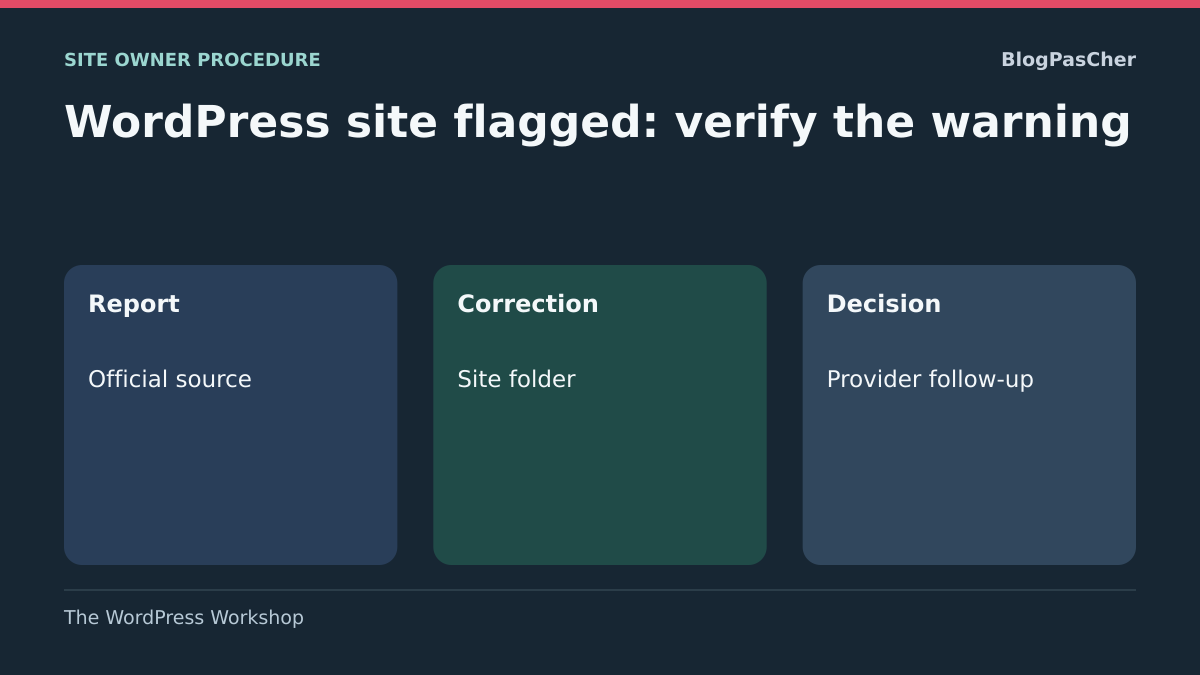
In the fictional case, the maintainer first records the correction in the panel, then the team repeats the legitimate action on the local copy. The owner then compares the official report and provider messages. The tracking sheet displays three separate lines: “documented correction,” “function check on the copy” and “provider decision.”
Also rehearse two situations. If the property’s report is empty and the warning comes from SmartScreen, the case stays with Microsoft. If the report mentions only the certificate, the case starts with the hosting provider and the security review entry remains not applicable. These exercises use fictional reports and an invented property.
When the received decision concerns the correct service, record its date, scope and what remains to be checked. If the owner receives a new warning, compare the information already supplied, then request more detail from the maintainer or provider through the authorized panel.
Build a case record that supports reliable follow-up
Keep a brief record: initial message, provider, affected URL, first observation, identified cause, interventions and request dates. Distinguish technical evidence, provider responses and functional checks. A submission acknowledgment must not be recorded as a favorable decision.
If a response asks for more information, prepare only the necessary material through the official channel. Do not send a full database export, a log containing personal data or a screenshot with secrets. If you cannot document a point, say so rather than turning a hypothesis into an analytical finding.
No provider can guarantee in this guide a universal deadline for removal from every list. Assign a follow-up owner and keep each case reference. If a new detection occurs, compare it with the corrected state and any recent changes before announcing that the old warning is simply persisting.
Prevent another warning without reducing protections
After resolution, retain the list of administrators and owners of monitoring tools. Review provider and integration access at the end of engagements. A poorly controlled search engine or hosting account can complicate warning management as much as a lost WordPress account.
Document third-party resources and significant content changes. Maintain components through a backed-up process and provide a test environment for risky changes. Keep a separate recovery copy and verify its use in a local exercise.
Finally, keep warnings enabled. Removing the browser warning, changing domains to evade the report or hiding pages from checks does not address their cause. A useful resolution is an explained, corrected and tracked situation, with honest review requests and the ability to resume investigation if the problem returns.
Address a security category even without an example URL
Search Console may report an issue category without supplying an example URL. This does not mean no page is affected. Keep the category, first detection date and property scope, then ask the maintainer to supplement the diagnosis using authorized records.
When an example list exists, do not treat it as an exhaustive list of pages to clean. The review request covers all reported problems and must explain the correction and its verification. If some categories remain open or undetermined, make that limitation visible before submission. After a favorable decision, keep the dated report and separately continue any cases with other providers. Failing to reproduce a warning in your browser does not replace tracking that category in the relevant property.
Sources and references
Use these references to check the features, requirements and limitations described. Reading documentation is not a practical test.
View 9 references
- Google Search Console — Security Issues report ↗
- Google Search Console — Owners and permissions ↗
- Google Search Console — URL-prefix property ↗
- Google Search Console — Manual Actions report ↗
- Chrome — Connection error messages ↗
- Microsoft — Disputing a SmartScreen block ↗
- Mozilla — Phishing and malware protection ↗
- WordPress.com — Site activity log ↗
- Google: incomplete examples and security issue reviews ↗