

Start with a phrase found only in the PDF
A brochure contains the phrase “ateliers du samedi en septembre,” but WordPress search finds only its presentation page when you enter its title. Choose a short, distinctive passage present in the PDF and check that it does not already appear in the page, its excerpt, or the media title. Then compare searching by title with searching by passage. Use the same form and record each result's destination.
Native search examines the stored title, excerpt, and content of the posts it queries by default. A PDF visible in the middle of a page remains a separate file. The engine does not automatically read the sentences displayed by the embedded viewer. A result found using the page or media title shows that the engine can find that information. It does not confirm extraction of the text inside.
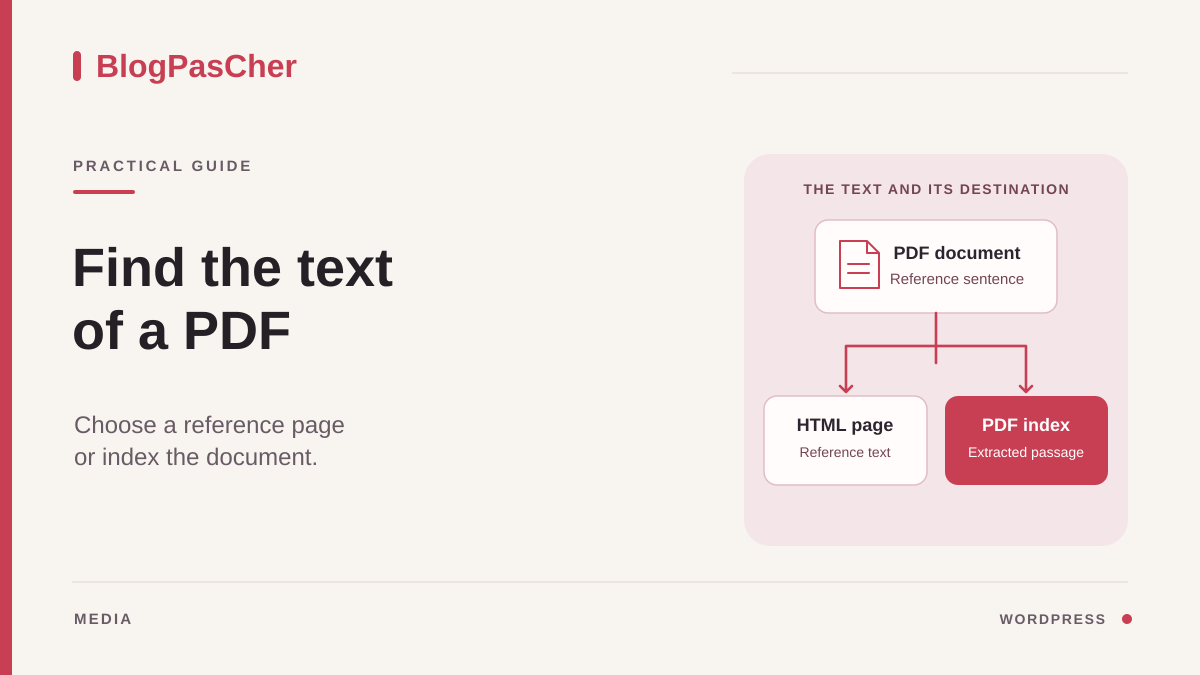
Choose what the reader should obtain. For a brochure changing each season, an explanatory page may be the reference destination. For hundreds of public documents where precise passages must be found, document search may be preferable. If the results page does not react to usual terms, first check the form and results loop. A page returning the same posts for every search has a different problem.
Prepare a copy and two dummy documents when you need to change settings or use remote extraction. Keep a reference document with selectable text and a search that already worked on the site. You can judge the benefit separately from its effects on ordinary search.
Check that the file has a readable text layer
Under Media > Library, open the details of the PDF actually used. Compare its filename, URL, and the version stated on the page. Two files may have the same visible title and different contents. Then open the PDF in a reader and try selecting a sentence on the page containing the expected term. Copy it into a working note and check the resulting characters.
If you can select only the whole page as an image, the PDF may come from a scan without a text layer. If selection produces incorrect characters or words in an inconsistent order, a layer may exist but remain difficult to use. Check several pages if the document mixes scans and digital text. Some readers provide their own on-screen recognition. Check that text is actually saved in the exported file before relying on it for site search.
Relevanssi does not perform character recognition on a scan. To obtain searchable text, request a text version from the source or perform optical character recognition with a tool authorized for this document. Proofread the result, especially numbers, names, and columned passages. Keep the original file and corrected copy separate. A PDF with selectable text may still have reading problems for assistive tools. For essential information, also provide a readable HTML version.
If the file is protected, corrupted, or produced by a particular application, record the observed result and request a usable version from its owner. Opening in a reader does not guarantee that an extraction service can read the same content.
Approach 1. Create a reference page with text and the file
For a few PDFs or practical information to maintain, create a reference page. Open Pages > Add New or edit the page already presenting the document. Write a precise title, then summarize information visitors search for. For a workshop brochure, state the intended audience, periods, and important arrangements in the page body. Choose wording a person might naturally type.
In the block editor, add a File block, then select the PDF in the Media Library. Give the link an explicit label. If several editions coexist, indicate the relevant period or version in the text. With a classic editor or builder, add an ordinary link to the document and check access. The reference text stays in the page and the file allows consultation of the complete document.
Save a draft and examine the preview. On the copy, make the page available to the intended test profile, then search for a sentence from the summary. The result should lead to the page and the link should open the expected file. Also check a phrase present only in the PDF. With native search, this second phrase may still find nothing. It defines the coverage of this method.
If a summary is insufficient, prepare a fuller HTML version of the parts visitors need to find. Maintain a single reference page when the PDF is regularly replaced. To roll back, restore the page's previous content and link, then check the public destination. Keep the old document until links using it have been identified.
Approach 2. Define the reading scope in Relevanssi Premium
If the need involves many passages across many PDFs, check what the site's search engine can do. Relevanssi Premium offers reading and indexing of attachment contents. Having the free Relevanssi edition is insufficient for this workflow. The developer also states that a PDF without a text layer must be prepared beforehand because this feature does not perform character recognition.
Reading uses an external service. By default, the service receives a URL from which it retrieves the file. Under Attachments > Configuration options, File Access Method sends the file itself. Both modes require the site to reach the service. On a protected copy, use file upload if that mode is authorized for staging. The service can then read the document without you opening its URL. Record the automation setting before pausing it during testing.
Check which documents are involved, what they contain, and which visitors can view results. Extracted text may become searchable and supply excerpts. Searching for a phrase may then reveal information not shown by the title or starting page. Keep restricted documents outside this public workflow. A file linked from a private page may be accessible at its own URL depending on configuration. Check file access separately from page visibility.
If you cannot transmit the document to the intended service, keep the HTML route for public information or ask the person responsible for an approved solution within the authorized scope. An extraction access error may signal that the document should remain protected. Avoid opening file access solely to facilitate a test.
Read a reference document, then choose the result to index
On your authorized copy, create a test PDF from a text document containing “Le phare fictif porte le repère luciogenèse”. Reserve the word “luciogenèse” for the file's text and choose a title, filename, and description without it. Prepare a second PDF containing “cartolunette” as an untreated control. With automatic reading paused, upload both PDFs and check both searches before reading. Both terms must be absent using the staging form.
Under Media > Library, open the first PDF's full edit screen and click Read the attachment content in the document's Relevanssi controls. Check for “luciogenèse” in Attachment content. If reading fails, record Attachment error before touching the index. Keep the second PDF without extracted text during the test. This pair distinguishes targeted reading from a change that processed both files.
In Relevanssi settings, open Indexing. For the media item to appear as a separate result, check Media or attachment among the types to index. For search to return the parent page, use the setting attaching the file's text to its parent content's index and check that this content type is indexed. Documentation calls it Link files to parent posts in the relevant settings. If you enable both, check whether the site should offer both results.
Check the file's parent in the Media Library. The “Uploaded to” field in details or corresponding list-view column provides a reference. A link to the PDF from a page does not necessarily create this relationship. If the document is reused on several pages, choose the reference page before changing the association and check its other uses. Changing this relationship may affect features already relying on it.
Save indexing settings. If you changed types or indexing rules, rebuild the staging index and wait for processing to finish. If rules were already correct, try searching before rebuilding. From the same form, “luciogenèse” should lead to the expected result and “cartolunette” should remain absent. Open the result to check that it leads to the parent page, media page, or PDF according to configuration. Repeat with the intended visitor access level.
Isolate the failing step when search returns nothing
If extracted text is empty or incomplete, return to the file. Check that it is the expected version, the passage is selectable in a reader, and reading completed for the reference media. A download error, unexpected server response, or image-only PDF may produce the same search result. The document-reading error is more useful than result count for choosing the next check.
If extracted text contains the passage but the result is missing, check index construction. Check the Media type or parent page's type, document relationship, and exclusions. Also check types allowed by the form. A search limited to posts cannot display a Media result. If the result appears without the passage in its excerpt, examine generated-excerpt settings and use of custom-field text, then check that the template displays those excerpts. Try a distinctive passage word, then a short phrase. Very common words, punctuation, or language rules may change matches. Keep the same form to compare these tests.
If the main search finds the page but suggestions do not show it, check the suggestion component's engine. A form may display a preview supplied by another plugin, then send users to the main search. Inspect both paths and identify which needs correction. A plugin correctly indexing the PDF may leave an independent search unchanged.
If reading is refused by the service or host, record the message and layer that issued it. Use available staging traces or ask an authorized person to check. Avoid reading the entire Media Library to diagnose one file. A complete rebuild or extraction reset affects a broader scope than the reference document.
Check what visitors find and open
On the copy, run three searches from a visitor session. Search for the unique passage in a public PDF, the title of a page that already worked, and a dummy term placed in a document that must remain excluded. For each result, check title, excerpt, and final URL. A PDF may appear alongside its parent page. Decide whether that serves visitors or whether a single destination explains the document better.
Check access to the file and page text in this same profile. For a restricted-access document, also check the absence of revealing matches and of the passage in anonymous excerpts. Use only dummy controls for this check. If a result reveals data that must remain restricted, have the scope corrected and index cleaned before going live. Removing the result and protecting the file's direct URL must be checked separately.
For a replaced PDF, choose a passage unique to the old version and one unique to the new version. After the intended update procedure, check both searches. If the media retained the same ID, use Reread the attachment content where the interface offers it. This command may replace extracted text that was manually edited. Keep that text before testing if it needs to be reused. The old excerpt may remain if the engine has not reread the document or the results page was cached. Compare the served file, extracted text, and displayed result before changing other rules.
On a phone, check that the destination identifies the filename and lets users return to search. If the PDF opens in a separate application, the reference page may provide better orientation for visitors.
Prepare maintenance and rollback
Before changing an existing index, record indexed types, parent relationships, file access method, and automatic reading state. At the end of the isolated test, remove both dummy media items and the parent page if created for staging. Restore initial settings before bringing the index back into sync. Check that “luciogenèse” has disappeared and a reference search continues finding documents already indexed. If you reread existing media, separately restore the original extracted text where you saved it, then refresh the index.
Removing a document from search and deleting its extracted text are separate operations. If the plugin should no longer retain the text, ask the person responsible to use the intended cleanup mechanism. A global reset may remove extractions from legitimate documents. Establish the scope before using it, then check excerpts and cached responses. Do not delete the original file from the Media Library to correct a search setting.
If you added an HTML summary, restore only the changed text or link when rollback is needed. Check that the reference URL retains the correct content. For future updates, record who replaces the PDF, who updates the page, and the order for rereading and reindexing the document. Prepare an example phrase unique to the current version.
Pass on the form name, reference document, expected destination, selected method, and excluded cases. State which step was checked on staging. A useful result combines an actually found phrase, an expected link, and a response consistent with visitor permissions.
Prepare a scan for free with local OCR
For a scanned PDF, OCRmyPDF is a free, open-source external option working on your computer or server without sending the file to a search service. It does require technical installation, Tesseract, and its French language data. After installation for your system, check your version's options with ocrmypdf --help, then work on a copy without overwriting the original.
This command requests French recognition and avoids reprocessing pages that already contain text. It therefore does not repair an existing but incorrect text layer. For that case, use a dedicated procedure after examining the file. A missing-language message calls for installing Tesseract's French package, not blindly replacing fra with eng.
Open brochure-ocr.pdf, select a sentence, then check a proper name, an amount, and the reading order of a columned page. Keep the original file until validation. This processing prepares the document; it does not give native WordPress search the ability to read PDFs. For a few brochures, copy the proofread text into the reference HTML page, a free solution. For document indexing, then resume the workflow compatible with your engine. Rollback means restoring the old file and link, then updating the index separately if it was changed.
ocrmypdf -l fra --skip-text brochure-originale.pdf brochure-ocr.pdfSources and references
Use these references to check the features, requirements and limitations described. Reading documentation is not a practical test.