

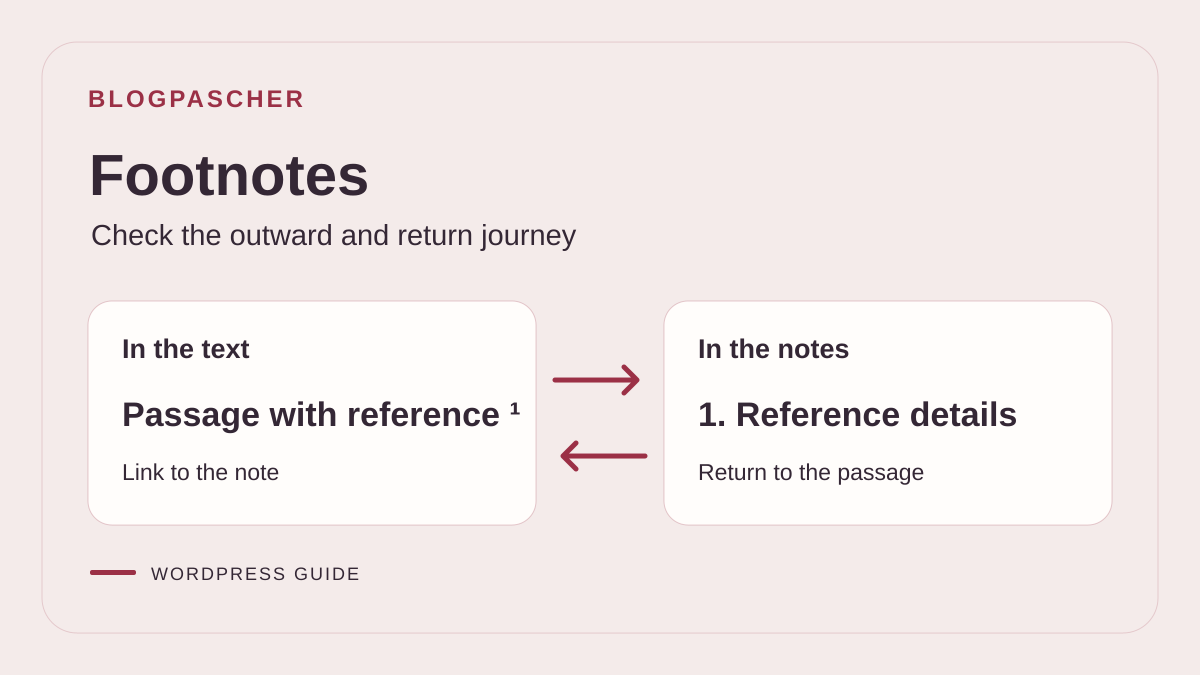
Choose which details deserve a footnote
A footnote adds information to a passage without lengthening the sentence. In WordPress, a numbered reference leads to a footnotes block within the document. Readers can consult a reference, a secondary definition or a methodological detail there, then return to the text. Start by checking whether the detail can be separated from the passage without making it harder to understand. An enrollment condition or an instruction needed for a step must remain visible when the reader needs it.
Consider an article comparing two bookbinding techniques. The name of a book consulted can appear in a footnote. If a technique requires specific equipment, put that information in the procedure. For a simple reference to another page, an inline link can be more direct. Use a footnote when the additional information contains more than a destination, or when the main sentence reads better without the full reference.
The native block was introduced in WordPress 6.3 and is used in the block editor. You must be able to edit the document. Available commands may depend on the version and content type. On WordPress.com, check which editor your site provides. In a multisite network, open the document in the correct dashboard. If the site uses the classic editor or builder fields, make a copy before trying to convert existing footnotes.
First record two passages to annotate and their references. If the document is already published, also identify where footnotes appear and how readers return to the text. The expected result is a clear reference, a footnote that matches the passage, and a return link to the correct place. A list of unlinked numbers does not provide the same reading path.
Add the first footnote from the relevant text
Open a draft or a copy of the page. In a compatible text block, such as a Paragraph, select the passage that needs a footnote. Open the text formatting options menu in the block toolbar. It may appear as an arrow or a rich-text options menu. Choose Note de bas de page, or Footnote in an English interface. This menu differs from the general three-dot menu used to move, duplicate or delete the block.
WordPress inserts a reference in the text and adds the Footnotes block when you insert the first footnote. Locate this block near the end of the content. Enter the footnote text in the new entry. If the editor took you there directly, check the first sentence of the passage after writing the footnote. The marker must appear near the detail it explains. Also check punctuation against your team's conventions.
Next, add a second footnote to another paragraph. Write text readers can understand even when they arrive at it directly. For example, ‘The measurements were taken on two-millimeter cardboard’ explains the context of a value. If the footnote contains a reference, provide a title and date when they help identify it. If it contains a link, choose a label that explains the destination.
Open the preview and activate each reference. The first must lead to the expected first footnote and the second to the next. Also check the return link provided by the block. To undo the first insertion, return to the text and remove the reference, or use Undo if you have just created it. Deleting only the footnote's text can leave a number that no longer explains anything.
Correct a footnote without breaking its links
In the editor, open List View and select the Footnotes block. Find the footnote by its text and the passage it refers to. Edit its content in the block. If your version allows you to open an existing footnote from its reference, you can also use that shortcut. Make sure you are editing the correct item when several footnotes begin with the same title. You can correct a name or address without recreating the number.
If you move a paragraph containing a footnote, move the entire block with List View instead of retyping its number. Numbering may be recalculated according to the order of references. After moving it, compare the passage, displayed number and footnote text. If you move a group of paragraphs with several references, check each one. Previously recorded numbers may have changed even if the footnotes retain the correct content.
When a correction requires copying the passage into another document, also check what the destination editor retains. Copying a reference alone may not recreate its corresponding footnote in the destination document. On a copy, open the new post's preview and test the link. If the entry is missing or points to the wrong place, remove the old reference in the destination document and add a native footnote with the copied text. Keep the original intact during this check.
To return to an earlier version, use Undo if the latest operations only concern the footnote. After saving, restore the previous text or compare a revision before restoring it. Check the links for the references surrounding the corrected footnote again. A successful correction preserves the other passages and consistent numbering.
Distinguish references in an AI-generated passage
On a copy of the post, keep a native footnote that already works. It will serve as a control. Next, prepare a fictional suggestion that expands a sentence about bookbinding. In the first version, the number after ‘carton réemployé’ is only superscript. In the second, the number is an HTML link to a detail farther down the page. That detail may be useful, but its appearance and the presence of a link do not establish that it is a footnote managed by WordPress.
In the staging fragments, the number 2 is a simple <sup>2</sup> and the number 3 contains a link to #a03-fausse-note. The native control is in the preceding paragraph. A native reference's identifier connects it to an entry in the document. The demonstration identifiers are specific to the staging exercise.
Paste the passage into the copy and record what was retained. The result depends on the clipboard source and how the editor interprets the paste. Simple superscript is formatted text. It provides no destination. An HTML pseudo-reference may even open an existing target while remaining independent of the Footnotes block. In the control, this manual target offers no return link. A native footnote associates a reference in the passage with an entry in the same post's footnotes block.
Compare the new number with the control footnote. Click the control reference and check the destination text. Then activate the return link and verify that it leads back to that precise reference. For the suggestion, record the number's appearance, any destination and the presence of a return link separately. Keep useful details as text to review. You can reinsert them without keeping a number or identifier created for another document.
Here are two fragments of the fictional passage after pasting. The first displays a number without a link. The second leads to a manually created target. You can identify them in the copy's HTML before recreating the footnotes in the editor.
<sup class="a03-exposant">2</sup>
<sup><a class="a03-pseudo" id="a03-faux-appel" href="#a03-fausse-note">3</a></sup>
Recreate the reference with the document's footnote command
In the copy, paste the passage again as plain text if the editor offers that option. Remove the suggested number and the pseudo-reference. If you have already pasted the formatted passage, check in the preview that the manual link and its target no longer remain after removal. Keep the sentence that provides useful information. Also review the detail before turning it into a footnote. In the exercise, the ‘Reliure A’ entry is fictional. In a real article, verify the source with the editorial team before citing it.
Select the words ‘carton réemployé’ in the block where the reference should appear. Use the Footnote command in the block's rich-text options. Enter the detail in the new entry, then return to the passage. The destination document already has a Footnotes block for the control. Check that the new entry joins the existing one there. You do not need to retain the number suggested by the AI. WordPress manages reference order from the document's native references.
If pasting appears to have imported a native reference, still check that its corresponding entry exists in the destination post. A number and a link are not enough to confirm that the document received the footnote data. When the entry is missing, recreate the reference with the editor command and enter the text in the footnotes block. Correcting a manually entered number or anchor is not enough to restore that association.
Repeat both paths and restore the copy if needed
In the visitor view, activate the new reference and check that the destination displays the bookbinding detail. Then activate its return link and confirm that it targets the new reference in the passage. Repeat both paths for the control footnote. If a number looks correct but its link leads to the other footnote, compare reference and return-link destinations. In the exercise, each target must exist only once in the document. The visual order of footnotes alone cannot distinguish two similar targets.
Prepare four states to compare: the control footnote alone; the pasted superscript and manual link; the correction with a second native footnote; and restoration of the reference state. Save each state on your copy and record references, targets and return links. This protocol does not predict what every clipboard and editor will retain, and does not provide a test result executed here.
To undo the repair, restore the copy's revision and check the passage, footnote list and links. Check that the revision restores both the text and footnote data. If your installation or content type does not recover that data, use the reference record to reinsert the missing footnote from the passage. Before restoring the entire document, compare other changes made since the save. A targeted restoration avoids losing unrelated corrections.
Remove a reference or restore the footnotes block
If only one footnote needs to go, find its reference in the text. Select the number or marker precisely and delete it. The native procedure then removes the corresponding footnote. Reread the sentence to check that neither the annotated word nor its punctuation was deleted. Look at the footnote list and compare the remaining references. Their numbering may update.
Deleting the Footnotes block has a different effect. WordPress may display a warning because references in the text may remain. If you intended to remove just one footnote, undo the deletion and return to its reference. If the block was removed accidentally and references still exist, reinsert the Footnotes block when your version allows it. Check whether entries return and try every link before concluding that the document is repaired.
To remove all footnotes, first copy any details that are still useful. Incorporate them into the text or a references section if they need to be kept. Then delete the references in the content. Open List View and remove the footnotes block if it remains empty. Check the preview to ensure no isolated number is still visible and that the page ends in the intended order.
If you are considering restoring a revision, compare changes across the entire document. Returning the post to an earlier state may also restore other passages and old addresses. For a single footnote, reinsertion or a targeted correction is often enough. For several inconsistent links, prepare a copy with a list of footnotes to rebuild, then check their correspondence one by one.
Position and style footnotes so they remain readable
The footnotes block can be moved within the document. In List View, place it after the last annotated passage and before an area covering another subject, such as recommended posts. If the team wants a ‘Notes’ heading, add one in the content at a level consistent with the rest of the page. Check that readers can distinguish the start of the list from the end of the main text.
Look at the styles available in the block settings. Depending on the version and theme, you can adjust colors, text size or spacing. Keep text comfortably readable and links visibly identifiable. A small-print list may be difficult to read on a phone. If you change a block style on a global screen, check its effect on other pages. For a local correction, use that page's block settings when available.
Check the return to the text when the site has a fixed header. The reference or passage may land too high, behind the header, on return. Check what visitors can read without repositioning the page themselves. If this problem affects other anchors, address the offset in the theme or page layout instead of adding blank lines to every footnote. Also check focus and keyboard reading.
If page breaks divide the article into several parts, check references at the addresses containing the annotated passages. A link cannot reach a target absent from the loaded part. An essential detail can be incorporated into the chapter. For other cases, check the behavior before keeping a single block at the end of the document.
Choose an alternative for classic content or an unsupported type
If the footnote command does not appear, first try a Paragraph block in an ordinary post draft. Check the WordPress version and whether the rich-text menu is present. On a custom content type, the block may be unavailable or display a notice in the editor. If the document was built with an older editor or in a third-party field, examine that field's actual output before pasting footnote references from another post into it.
For a few references, you can write a short section at the bottom of the content and create explicit anchor links. Give each target a unique identifier and link the relevant passage to that target. Add a return link when readers need to resume at the same place. This method requires maintaining links and markers if references change order. Keep the list short and use useful labels instead of a manually entered sequence of numbers.
Another possibility is to incorporate the reference directly into the sentence or add a nearby callout. This arrangement works when the additional information is something many readers should see. Test the page without opening the references. If the passage remains incomplete, move the information into the main text. A source link can remain at the end of the sentence or in a separate paragraph.
If the text comes from a word processor, compare visible references with the reference list before pasting the document into the editor. A superscript number or imported link may look correct even though it does not correspond to a native WordPress footnote. On a copy, retrieve each footnote's text, insert native references in reading order, and remove the old references after comparing them. Pay particular attention to passages that cited several references together.
Before converting existing content to the native block, keep the version that works. Identify old anchors and incoming links. Recreate one footnote in a draft and check its reference, content and return link. Convert the other footnotes only if this first path produces the expected output.
Make a final check on the public page
In the preview or authorized public version, start with a reference in the middle of the text. Activate it with the mouse, then repeat the path with the keyboard. Check the footnote text and return to the reference. Repeat for the first and last references. If a footnote contains its own link, open the intended destination and check the return label separately. On a phone, check that the footnote remains readable without zooming in.
If a number opens nothing, check whether the footnotes block still exists in the document. If a reference leads to the wrong footnote, compare the current version with your record. A copied passage or conversion may have retained an old link. Recreate the problematic reference in the destination content and test it before changing the others. If both links work but the text is hidden, examine the position reached on screen.
Document where the team should add future footnotes, which block displays them and how to check return links. After substantial reorganization, read through the footnote list in the order of the text. This check takes a few minutes for a short article and avoids publishing a reference to the wrong source after moving a passage.
Provide a complete manual reference when the native block is unavailable
The native block remains the first free choice for compatible content. If your older field cannot use it, here is a minimal manual example for a single reference, to place in a field that accepts HTML. The identifiers are fictional and must be unique across the entire page.
This markup includes an outward and return link; it does not create a native footnote or automatic renumbering. Replace the demonstration text with a genuinely verified source. Test both links in the rendered page and with the keyboard, then check that a fixed header does not hide the destination.
If you add several references, change both identifiers and their destinations for each one. To undo the change, remove the reference and its footnote together after keeping any useful text. Do not mix these manual numbers with native references in the same post without a clear editorial rule: moving a paragraph could leave misleading numbering.
<p>Cette mesure suit la méthode décrite dans notre source
  <a id="appel-source-reliure" href="#note-source-reliure">[note 1]</a>.
</p>
<section aria-label="Références">
  <p id="note-source-reliure">1. Référence de démonstration à remplacer.
    <a href="#appel-source-reliure">Retour au passage de la note 1</a>
  </p>
</section>
Sources and references
Use these references to check the features, requirements and limitations described. Reading documentation is not a practical test.