

Confirm that the rejection affects only one subsite
An author can no longer add a small image on a WordPress subsite, while the same file works on another site in the network. Record the administration address, time and exact message. A storage space exhausted message points to a total quota. A file too large message may come from the per-file limit. A type rejection, server response or missing button needs a different check. Record what WordPress displays before asking the host to increase a limit.
With editorial access, try a small dummy file accepted by network policy, such as a staging image prepared for this purpose. Keep the same account and file when comparing two subsites you can already access. You can also ask an authorized colleague to perform the second test. Avoid using a real client file as a control. If the upload button is missing on both sites or the account lacks permission to use it, establish the account's permissions first.
Ask whether the problem occurs under Media > Add New Media File, in the editor or in an integration using the API. A rejection during an API upload may also indicate a subsite quota. A fault limited to a form or image-resizing component may follow a different path. Keep a comparison with the standard media library to isolate the ability to add a file.
Distinguish the network quota, per-file limit and server space
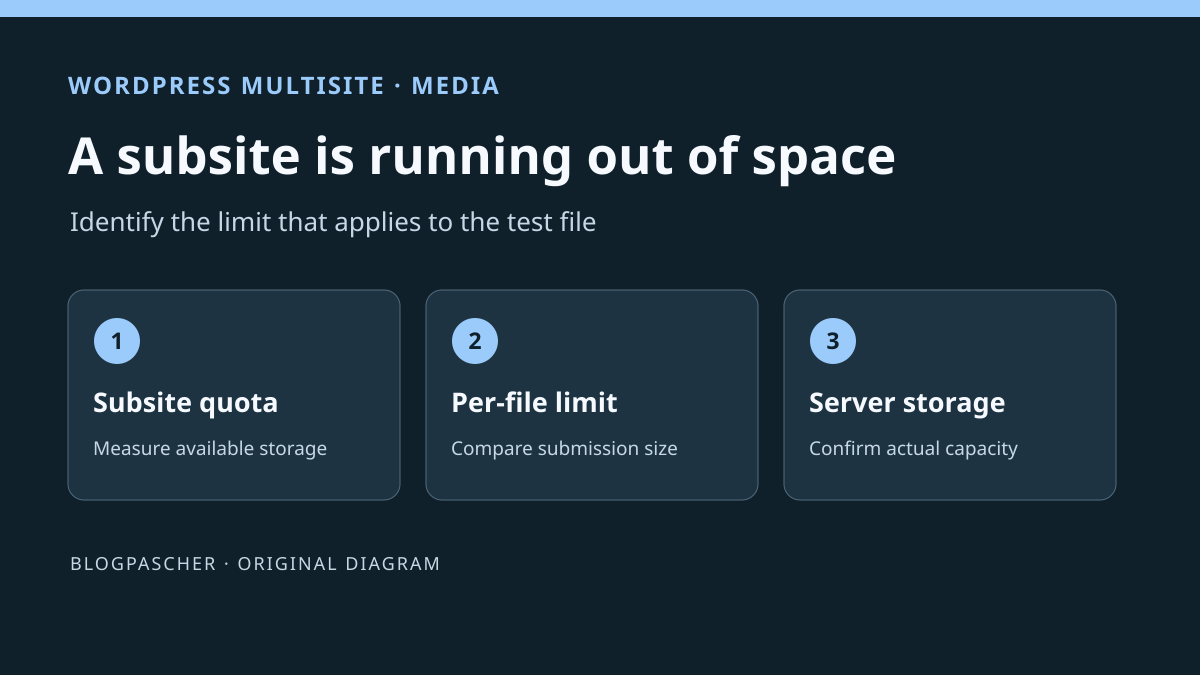
The total quota concerns the upload volume counted for the subsite. It fills up with retained files and their derivatives, depending on the storage setup. The per-file upload limit concerns the size of the current upload. A subsite can have space available and reject an oversized video. It can also reject a very small image if its remaining capacity is insufficient. The host's disk is another separate limit. A larger WordPress quota does not free space on that disk.
In the subsite dashboard, look for the quota indicator if WordPress displays it for your role and the check is enabled. Separately record the per-file limit in network settings. The maximum size displayed by the media library may already have been reduced by WordPress to the remaining space. It may therefore decrease while the network's per-file limit stays unchanged. An absent dashboard quota indicator is not enough to establish that checking is disabled. The number of media items also does not measure the space used by files and their generated sizes.
With the hosting team, separately check whether the server account can still write and whether its volume has room. If several subsites stop writing at the same time, retain the possibility of a shared problem. If the disk is healthy and only the capped subsite fails, record its settings before acting. An offloaded media directory may require a check adapted to the plugin or external storage's operation.
Approach 1. Read the network rule and the subsite rule
With Network Admin access, open My Sites > Network Admin > Settings, then the upload settings section. Record whether space checking is enabled, the default quota and the maximum file size. Leave other values unchanged during this check. Copy the initial setting into the work record. A request affecting only one subsite does not justify increasing every other site's default quota.
In Network Admin, open Sites > All Sites, then Edit for the affected subsite. In that subsite's Settings tab, find Site Upload Space Quota or its translated label. A specific numeric value overrides the network quota. Leave the field empty to inherit the network value. Avoid using zero to mean inheritance. It is a numeric value and the code may retain it as the site's quota. Also record the control subsite's value.
If the value is surprising, check the site ID before saving. Two subsites may have similar titles or share a domain name with different paths. Also record where the setting comes from. A specific override, plugin filter or hosting panel may explain a difference between the field and the effective value. If another service manages the setting, give it the record instead of changing several layers at once.
Approach 2. Adjust space only for the site that needs it
If the subsite's use justifies more storage and the hosting account has room, choose a specific quota with the administrator. Base it on the measured volume and need, such as a campaign adding a set of documents. Leave headroom for generated media versions. On the copy, change only the subsite's field, save and reload its network record. Check that the control subsite's value has not changed.
If the quota reflects a deliberate limit and the site contains unnecessary files, start with an inventory before deleting anything. Check usage in pages, theme settings and external links that must keep working. Media with no parent shown in the library may be linked from a page or reused in another context. Prepare a targeted backup and have the owner approve deletions. On the copy, remove a single demonstration item and compare the measurement after reloading.
If the maximum file size remains below the control file's size, correct that limit separately with the appropriate owner. The network setting, PHP limits and server capacity may affect the same upload. Do not disable quota checking to resolve an isolated rejection. If a small file works but a large file fails, retain that result. It shows that correcting the quota is not enough to validate every campaign file.
Read effective values with WP-CLI when the interface is ambiguous
This snippet is for a maintainer who already has WP-CLI on a staging network. It reports the subsite ID, the calculated quota limit and, if checking is enabled, the remaining space. The limit is displayed in MiB and remaining space in bytes. The snippet changes no settings. WordPress may, however, traverse the media folder and cache its size. Limit the read to the affected subsite and avoid repeating it unnecessarily.
Save the snippet in a private file outside the served directory tree, for example /srv/diagnostics/quota-site.php. On the staging network, use wp --path=/srv/recette/wordpress --url=https://recette.example/ateliers/ eval-file /srv/diagnostics/quota-site.php with your paths and address. In multisite, the address option selects the subsite. Compare the returned ID with the network record before using the figures. Accidentally reading the main site may explain a quota difference.
Available space below the file's size points to the quota if it is enforced. A higher result does not rule out other limits. The snippet displays the calculation WordPress sees in this context. It does not measure the host's disk or confirm an external storage tool's behavior. To remove the diagnostic, delete only the temporary file created for this test.
<?php
if ( ! defined( 'WP_CLI' ) || ! WP_CLI || ! is_multisite() ) {
    return;
}

printf( "Site %d, plafond de quota calculé : %s Mio\n", get_current_blog_id(), get_space_allowed() );

if ( get_site_option( 'upload_space_check_disabled' ) ) {
    WP_CLI::line( 'Contrôle de quota désactivé.' );
    return;
}

printf( "Espace disponible : %d octets\n", get_upload_space_available() );
Interpret a difference between the record and observed space
If the panel quota differs from the technical result, first confirm the subsite and network used. Ask the maintainer whether a filter changes the quota or a plugin manages media measurement. WordPress code can apply a filter to the effective value. An installation offloading its files may also present a different view of hosted space. Keep the figure from WordPress's check separate from the host's report.
If the quota was increased but rejection persists, record the new message using the same file. A changed message helps establish which limit now applies. If a space rejection becomes a type error, check the permitted format. If the upload starts then fails while writing, have the server path examined. For a rejection limited to uploading through an integration, compare that result with the standard media library on the same subsite.
After a change that removes files or restores a folder, let the maintainer confirm how this installation recalculates the measurement. Do not delete folders manually to obtain an expected figure. Compare a selected file, its media library entry and the subsite's values. If you need before-and-after measurements, also retain operation dates to distinguish a real change from an old reading.
Test a synthetic file and two staging sites
Choose two staging subsites, one with a specific quota. Record remaining space and the per-file limit before importing anything. Prepare a small dummy image compatible with the allowed file types. On the first subsite, find a case where the file is below the per-file limit but larger than the remaining space. On the second, retain enough room for the same file. The figures should be modest and appropriate to the copy's volume. Demonstrating the difference without filling the disk is enough.
For example, take subsite A with about 800 KiB available and a per-file limit, measured on a site with room, allowing 2 MiB. A valid image of about 1 MiB should hit A's quota without exceeding the per-file limit. Check that B has several MiB available for the same file. Leave sufficient headroom for rounded values and generated sizes. If A's media library displays a limit near 800 KiB, compare it with the remaining-space calculation before assuming a configuration difference.
If the staging network cannot reproduce this situation with a small file, ask the owner to temporarily lower the specific quota of a demonstration subsite that already contains a few media items. Record the initial value and restore it after the test. This method avoids creating an artificial load on the storage volume. It also verifies that the changed override applies only to this site.
Test with the same role through the standard media library. The first upload should encounter the space check, and the second should create a visible media item. Then increase only the first site's specific quota if that is the correction being checked. Repeat the same test. The file should appear in the correct media library and open at its staging address. Also check that the second site's quota remains at its initial value. If the image is created but its derivatives fail, keep the exact message and result instead of declaring the entire workflow successful.
To check the per-file limit, use another valid control file on a subsite with enough space but a limit below the file's size. It should still be rejected even after the total quota is increased. Then, if the real requirement calls for it, check the same role in the editor or integration used. Record which route was tested, because success in the library does not validate every integration.
Restore the original rule without touching other sites' media
To undo the override, restore the previous specific value. If the subsite inherited from the network, return the field to the state that enables inheritance in the interface. Check the site ID, reload the record and compare the effective limit. Restoring the previous quota may prevent new uploads if space becomes insufficient again. Plan this rollback if useful files were added in the meantime.
Remove the test media you created on the copy after checking their names and owning subsite. For deleted files that were already in use, use the approved targeted backup and check the links that used them. Avoid restoring the entire network for a quota change. That could overwrite writes in other subsites without resolving the hosting limit involved.
Leave the subsite address and ID, network quota, override, per-file limit and results of both controls in the record. State whether the problem came from total volume, the server path or another check. Also specify when to revisit the override if it meets a temporary need. The administrator can then track actual volume used and choose the right time to reduce it.
Read a quota report without mixing units
Here is a fictional report to enter in your work record: subsite 12, calculated limit 100 MiB, available space 20,971,520 bytes. Since 1 MiB equals 1,048,576 bytes, 20 MiB remain here; the volume counted is therefore about 80 MiB if both readings come from the same moment and checking is enabled. This calculation does not describe free space on the host's disk.
Suppose the network limits each file to 2 MiB. An 8 MiB video still fails despite 20 MiB being available: the per-file limit needs investigation. Conversely, a small JPEG may fail if insufficient space remains for generated variants. Compare three distinct values: the site's quota, calculated available space and the displayed per-file maximum.
Do not install a media cleaner to lower a figure without inventorying usage. The native subsite setting and approved deletion suffice for the usual workflow. Keep the initial quota so you can undo the override without changing other sites.
Sources and references
Use these references to check the features, requirements and limitations described. Reading documentation is not a practical test.
View 9 references
- WordPress — Network settings ↗
- WordPress — Individual quota in the network ↗
- WordPress — Effective subsite quota ↗
- WordPress — Available upload space ↗
- WordPress — Checking the quota through the media API ↗
- WP-CLI — Load a snippet on the selected subsite ↗
- WordPress — Dashboard quota indicator ↗
- WordPress — Calculating the size limit ↗
- WordPress — Calculating the space used by the subsite ↗