

Recognize a normal multisite restriction
You administer a WordPress subsite. You can manage its pages and settings, but the Add Plugin button is missing or installation access is refused. First check that the site belongs to a self-hosted multisite network. The network team can confirm the site, its address and your role’s scope. Under My Sites, a subsite administrator may see that site without access to Network Admin. The Administrator role name then refers only to permissions on sites where that account is assigned.
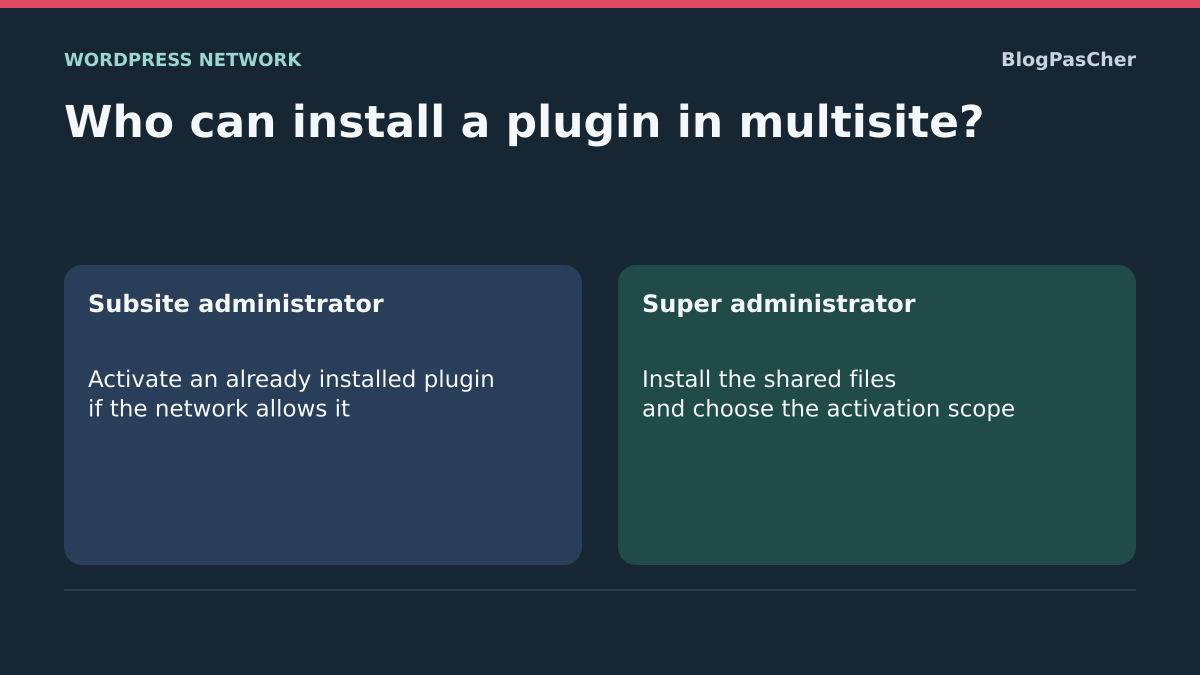
Installing a plugin adds files to the shared WordPress installation. In multisite, this operation is reserved for the super administrator, subject to deployment restrictions. A subsite administrator can manage some configuration and, if network policy allows, activate certain already installed plugins on their site. Therefore check the desired result. If the plugin is already installed, the request may concern only activation or access to its settings.
Record the subsite name, missing screen and exact action wanted. A request such as “I want a gallery with captions on Atelier A” helps find a more precise solution than “give me installation permission”. Keep a second reference subsite when the action may modify the network. Accounts and rules on an individual WordPress site or hosted plan have another scope. This guide concerns self-hosted multisite networks.
Distinguish installed files from activations
An installed plugin exists in the shared directory. It may remain inactive. When a compatible plugin is activated on one subsite, its code loads for that subsite according to its design. When network-activated, it loads for sites in that network. A local administrator generally cannot deactivate a network-enforced plugin for their site. Some plugins support only network activation. Consult the required plugin’s documentation before deciding scope.
To check status, the super administrator opens My Sites → Network Admin → Plugins. They can verify whether files are installed and the plugin is network-active. Then check the affected subsite’s Plugins screen if available. The first screen describes the shared inventory. The second shows what that site can manage according to permissions. A network-active plugin may already load even when the local administrator sees no control for it.
Keep initial activation states. For example, record “installed, active only on Atelier A, inactive on Atelier B, no network activation”. Later removal or modification requires this starting point. Do not use file deletion as deactivation. Other sites may use the same component or require a specific version. Prepare rollback at the scope where activation occurred.
Use an existing feature if it meets the need
If your goal is a common layout or editorial feature, test existing tools. For a simple gallery, open a draft page, add the Gallery block and select a few demonstration images. Check presentation, captions and narrow-width use. The test requires permission to edit the page and use site media. If suitable, reuse the layout after validation. To undo, remove the test block or discard the draft.
If an active plugin already provides the requested function, check its subsite settings and the permissions your account needs to open them. Network activation does not automatically give every local administrator access to every screen. The plugin may have its own network setting or per-site area. Ask precisely which setting should be accessible and to whom. Check its effect on a draft or reference page before editing public content.
When a feature is genuinely missing, give the network administrator an example of the expected result and what existing tools do not cover. They can propose an already approved plugin, per-site activation or another editing method. Network access should not become a prerequisite for the editorial task.
Activate an installed plugin on one subsite
This approach applies when the network already installed a compatible plugin and the feature is needed on only one subsite. Verify with the super administrator that it is installed, not network-active and supports individual activation. If Plugins is available, open it in the correct subsite’s administration. Identify the plugin by name and publisher, then choose Activate for this site. If the menu is missing, ask the administrator to perform this targeted activation if approved. You do not need to change policy for every subsite for a one-off intervention.
The super administrator can check the delegated menu under Network Admin → Settings → Network Settings, in menu settings. Allowing the Plugins menu lets local administrators manage installed plugins according to network capabilities and restrictions. Installing new files remains reserved to the network. This option has collective scope. Before enabling it, verify whether the network genuinely wants to delegate this management across subsites.
Test the feature on the selected subsite, then check a second site without activation. To undo the first activation, deactivate from the same subsite or ask the administrator to do so. Keep settings and content created during the test while checking rollback. Deactivation may hide a feature or block without erasing plugin-stored data. Check affected pages after removal.
Request targeted installation from the super administrator
For an absent plugin, supply the need, subsite, proposed plugin’s official source, multisite compatibility and desired activation scope. Add an example page and the result to verify. If the plugin handles forms, accounts or external services, describe intended use so the administrator can assess configuration. Installing code in the shared directory belongs to the network team even when activation concerns one site.
On a copy, the super administrator opens Network Admin → Plugins → Add Plugin. They follow the host’s authorized distribution method and select the verified source. They then separate installation from the activation decision. If the feature concerns only one site and the plugin allows it, they open that subsite and activate there. If activation is genuinely needed for every site, they choose the network action and also check a site that did not request the feature. If the network account cannot install despite its permissions, check whether file modification is disabled or managed through deployment. The hosting administrator can then apply the intended procedure.
Note the version, affected sites and possible rollback before deployment. Network-wide activation may start tasks or create settings on several sites. Check deactivation steps and data handling in plugin documentation. Delete files only after verifying no site still depends on the plugin and rollback remains possible.
Compare both roles and scopes on a copy
Prepare two fictional subsites sharing one installation and two accounts: local administrator and super administrator. Compare installation capabilities. The network administrator can install a demonstration plugin without immediately activating it. Then check the Plugins menu’s effect on local activation: allowing it must not be interpreted as permission to install new files.
Activate the demonstration plugin only on Atelier A and check that reference text remains absent from Atelier B. After local deactivation, test network activation on the copy and compare both sites. Then restore the menu rule and activation states. Deactivation does not automatically delete installed files. Record administrative states and actual rendering: the menu alone does not show where the feature loads.
Check effective permissions if the menu is confusing
If the administrator already uses WP-CLI, they can read capabilities on a copy by specifying the subsite and account to check. Replace the fictional address and ID in the example. This read should display installation, activation and network management separately. Repeat with the authorized network-administration account for comparison. Account and subsite selection matter, because a read under the administrator’s identity may hide the local account’s lack of permissions.
If installation remains refused for the network account, first examine deployment mode and restrictions applying to file modification. If only local activation is missing, check the delegated menu, role on that site, plugin’s network state and any requirement for network activation. An administration command run by the host with its own permissions does not represent what a local administrator can do in their dashboard.
wp --url=https://reseau.example.test/atelier-a/ --user=42 eval 'echo wp_json_encode(array("installation"=>current_user_can("install_plugins"),"activation"=>current_user_can("activate_plugins"),"reseau"=>current_user_can("manage_network_plugins")));'If the feature must remain limited to one site
A plugin supporting only network activation must be examined with the administrator before being selected for one site. Check whether it offers per-site configuration, a setting genuinely disabling the feature elsewhere or another edition suited to the scope. Effects still need checking on a second site. If no compatible mode exists, choose a native feature or already approved plugin supporting individual activation. A local need alone does not justify changing the entire network’s rules.
If your network has installations managed by its technical team, frame the request accordingly. A response may be “the code is installed through deployment, then the feature is activated on Atelier A”. This respects separation of files and activation. To roll back, request removal of the targeted activation and a reference-site check before modifying the shared package. Keep request history and setting ownership for future updates.
Check the result and return to the intended scope
On the requesting subsite, check a demonstration page as a logged-out visitor. Open a page on the second site to confirm the expected effect. In administration, then record plugin status at both levels. If you changed the collective menu setting, confirm it matches the chosen policy after testing. A temporary intervention must be reversible without inadvertently leaving the menu enabled.
If testing fails, restore previous activation and settings at their original scope. Before removing a plugin from the network, check subsites using it and known dependencies. After rollback, repeat the same page and menu checks. Finish by telling the local administrator where the feature is available, which settings they can use and whom to contact for the next installation request.
Check when the same menu exists on two subsites
An administrator may be assigned to two sites without the same responsibility on each. Open each dashboard and verify its name in the admin bar before clicking. If plugin lists look identical, they may simply reflect shared files. Check whether the offered action is Activate, Deactivate or an indication of network activation. Record this state before testing. On a copy, then open the same page type on each site to check whether the feature actually appears. Button state alone does not show whether additional configuration is necessary for that site.
If a plugin appears on neither site despite working, ask the administrator to confirm how it loads. It may be network-active, supplied by the host or automatically loaded as a must-use plugin. In the latter case, management belongs to the deployment that installed it. The delegated menu cannot disable that mechanism. Document where the feature is needed and desired behavior. If its owner cannot limit its effect to that site, return to a native block or another plugin compatible with local scope.
Plan shared-package updates after local activation
Activation on one subsite limits current plugin loading according to its design, but files remain shared. When the network updates that package, every subsite using it receives the new version. The local administrator therefore does not automatically have an independent version to retain.
Add the subsites using the plugin and one reference page per use to the installation request. The administrator tests the next update on this selection before deployment. If rollback requires an older version, it must account for every site using the same files and any data migrations. Deactivating only on the affected site may be a targeted measure, but restores neither files nor previous data. Document this distinction from the first activation to avoid surprises at the next maintenance cycle.
Sources and references
Use these references to check the features, requirements and limitations described. Reading documentation is not a practical test.
View 10 references
- WordPress: multisite network administration ↗
- WordPress: roles and capabilities ↗
- WordPress: network settings and administration menus ↗
- WordPress: multisite capability rules ↗
- WordPress: local or network plugin activation ↗
- WordPress: plugin Network header ↗
- WordPress: file-modification restrictions ↗
- WordPress: Gallery block ↗
- WP-CLI: evaluation and site/user selection ↗
- WordPress: network administration and updates ↗