

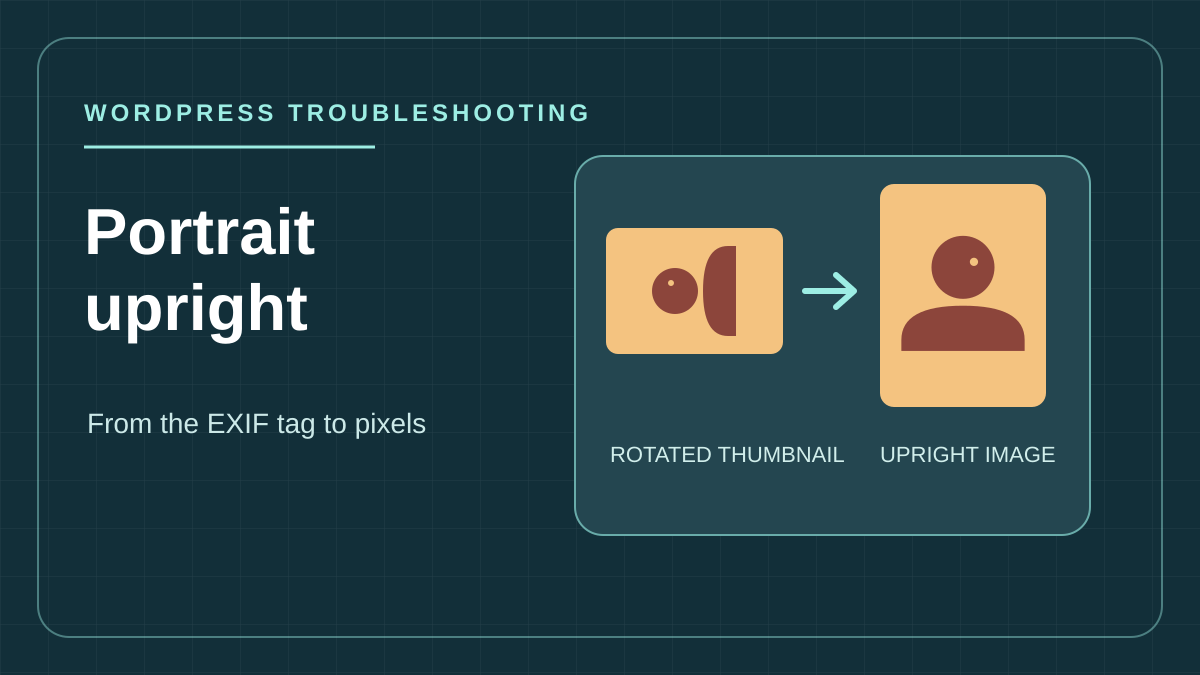
Distinguish rotation from an aspect-ratio problem
The large portrait opens correctly, but the same face appears sideways in the grid. The file uploaded successfully and the thumbnail exists. The question is whether the small file was created in the wrong orientation or the page transforms it only during display. An upright portrait whose forehead is cut off by a square is a cropping issue; a portrait tilted 90 degrees is an orientation issue. Widening the thumbnail or removing cropping may help in the first case without straightening the pixels in the second.
In some JPEGs, pixels are arranged for a landscape photo while EXIF data indicates how to present them. Software reading that data displays the portrait upright. A tool resampling pixels without applying the transformation, then discarding the data, may produce a sideways small image. Conversely, an image whose pixels have already been rotated may receive a second rotation if its old marker remains. A value other than 1 is therefore a clue; compare the file with the scene as it should appear.
The goal is to recover one reference portrait and check the chain displaying it, from file to grid. Start on a copy or test page. Record the image's site location, caption, alt text and link destination. If clicking opens an enlargement, also record that reference. You can then restore the original media after testing and identify views still using it.
Find the file actually loaded and the thumbnail generator
On the problematic page, inspect the small image in the browser. If the element is an img, see which resource it actually loads, for example under Network > Images after refreshing. A srcset attribute may select a different size from the one in src. If the grid uses a background image, inspect the computed background-image value. Copy a thumbnail address and the large-display address into private notes. Avoid sharing temporary or signed URLs. If the thumbnail looks correct when opened alone, return to the page and check whether the theme applies transform, rotate or cropping to it. Regenerating an already-upright file will not change that rule.
Next compare the thumbnail in Médias > Bibliothèque with the site's. If the native Image block and library show an upright portrait while a plugin's Gallery block shows it sideways, determine whether that gallery uses the media library or its own library. Record the block name in List View and open the item in the corresponding library. A gallery may maintain thumbnails separate from WordPress's even with the same source file. WordPress size settings are not a switch for every generator.
WordPress core already attempts to correct JPEG orientation when creating subsizes, when it can read the necessary data and the image editor supports it. This attempt proves nothing about a file existing before import, an independent gallery cache or a version served by a delivery network. Identify where the fault appears before blaming the server's image editor. A new comparison JPEG on a page using the same block often suffices to locate that step.
- Select a sideways image, then an upright image from the same set. If possible, choose two files from the same series and retain a copy of each.
- In the grid, open the small resources actually received, then the large ones. Record visible orientation and displayed dimensions. A small image remaining sideways outside the grid identifies a file to examine.
- Compare at a narrow and wide viewport after reloading. If only one width is affected, record the size selected there: just one subsize may be affected.
- If the image is upright everywhere outside the grid, stop this conversion workflow. On the copy, temporarily disable the style declaration applying rotation and check the result before requesting a permanent change.
Route 1: create a new JPEG from the source file
This method suits cases where you have the original file and can replace the image in a block or gallery. Test outside WordPress: the export should produce a JPEG that looks upright even in software ignoring the orientation tag. Image software that automatically applies the transformation on opening can produce this export. Check its output: reopening the original in the same software and seeing it upright does not prove that its pixels changed.
If you prefer a reproducible method on your computer, the next section's script reads the pixels and Orientation tag, applies the transformation and creates a new JPEG without EXIF metadata. It preserves the ICC profile when present and accepts only RGB or grayscale JPEGs. This workflow handles one file; it replaces neither original-file management nor color-space conversion for CMYK images. JPEG compression also changes pixels slightly: start from the best available source instead of recompressing a thumbnail.
The script does not copy EXIF, IPTC or XMP data. This may remove useful fields, such as attribution or capture date. Keep the original intact, check usage rights and restore credit in the appropriate editorial location before replacing a published image. WordPress alt text and captions are not automatically transferred to new media. Record them separately from file metadata.
If the marker indicates a transformation while the pixels are already upright, do not blindly apply this script: it follows the tag and may rotate the portrait the wrong way. Return to a reliable original or visually correct a copy in a local editor. If no tag describes orientation and the source appears sideways in all your software, you must also manually rotate a copy before exporting.
Run the script on one control file
On your computer, prepare a folder containing a copy of the JPEG. In a local Python environment with Pillow installed, save the code below as portrait-droit.py. If Pillow is missing, use python -m pip install Pillow in that environment. This library is installed neither in WordPress nor on the server. The destination file must have an unused name and a JPEG extension. Do not use an already-distributed media filename.
The command python portrait-droit.py "portrait-source.jpg" "portrait-droit-test.jpg" displays the read value and pixel dimensions before and after. For a file with 1,200 × 800 pixels and orientation 6, the expected result is 800 × 1,200 with clockwise rotation. For values requiring mirroring, checking dimensions alone is insufficient: use an asymmetric detail, such as lettering or an object's position on the left of the frame.
- Open the result locally and compare it with the original displayed as intended. Check orientation, frame edges and color rendering. Viewing the original in an EXIF-aware viewer provides a reference if that metadata is correct.
- Under
Médias > Ajouter un fichier média, import the new file on the copy if the block uses the WordPress library. With a standalone gallery, import it through that gallery's tool; do not assume both libraries share the thumbnail. - On the control page, select the Image block and use
Remplacer > Ouvrir la médiathèquewhen available. In a gallery, replace just one entry while retaining its position. Reenter necessary editorial information and check the link destination. - Compare new addresses by opening the grid and large display. To undo, reselect the old media or restore the initial entry. Keep the original file and old URLs; another page may still use them.
from io import BytesIO
from pathlib import Path
import sys

from PIL import Image, ImageOps

if len(sys.argv) != 3:
    raise SystemExit("Usage : portrait-droit.py SOURCE.jpg NOUVEAU.jpg")

source, destination = map(Path, sys.argv[1:])
if destination.suffix.lower() not in (".jpg", ".jpeg"):
    raise SystemExit("La destination doit se terminer par .jpg ou .jpeg.")

with Image.open(source) as original:
    if original.format != "JPEG" or original.mode not in ("RGB", "L"):
        raise SystemExit("JPEG RVB ou niveaux de gris uniquement.")

    tag = original.getexif().get(274)
    if tag is not None and tag not in range(1, 9):
        raise SystemExit("Balise Orientation inconnue : vérifiez le fichier.")

    before = original.size
    with ImageOps.exif_transpose(original) as upright:
        after = upright.size
        result = BytesIO()
        upright.save(
            result,
            "JPEG",
            quality=95,
            exif=b"",
            icc_profile=original.info.get("icc_profile"),
        )

try:
    with destination.open("xb") as stream:
        stream.write(result.getbuffer())
except FileExistsError:
    raise SystemExit("Destination existante : choisissez un nouveau nom.")

print(f"EXIF Orientation : {tag}; pixels : {before} -> {after}")
Route 2: regenerate the thumbnail only if its source is healthy
If the version used as the generator's source is upright and only an old thumbnail causes trouble, you can often retain the media reference. This is useful when the photo is called from several pages or a gallery manages its own entries and captions. First check that the generator uses the upright source you opened: on some sites, the enlargement link and file used to calculate thumbnails do not refer to the same file. If the generator recreates the same sideways thumbnail from the same source, change the source or address the generator incompatibility.
Do not start with global regeneration. On the copy, back up the gallery, media and variant state. Open settings or the image list of the gallery that produced the small file. If it offers thumbnail recreation for a selection, choose only the control portrait. Labels and scope vary by gallery; some tools expose only album-level processing. In that case, create a test album with one file before touching the real album. If no targeted regeneration exists, replacing the entry on the copy gives a safer test than operating on every image.
For a WordPress-generated subsize, first identify the media ID. On a copy already equipped with WP-CLI, wp media regenerate 123 --skip-delete targets this media: replace 123 with the recorded ID and run it from the copy's root. The flag preserves old thumbnails that might be called elsewhere; it does not prevent overwriting a file generated at the same path. It must therefore not be treated as a backup. Do not choose the mode processing only missing sizes: the sideways size already exists. This command does not update gallery-specific thumbnails or a manually configured background image.
The expected result is an upright image at the previously failing small size, with the large display unchanged. If the new preview remains identical, check that the file supposed to be rebuilt is actually the one received by the browser. A correct local file and old CDN response call for a purge limited to the relevant URL after comparison. To roll back regeneration, restore that media's files and attachment or gallery metadata saved before the operation on the copy, then check the old thumbnail. If you cannot restore these elements together, first test new media on a control page.
Check the result without confusing the grid and file
A reference portrait is repaired when the image received by the browser is upright at every tested size and clicking still opens the correct image. Use at least one width that reproduced the error and one loading another file. A square frame cropping a portrait may remain desirable; check that important content fits inside and retain the setting if cropping suits the layout. If the photo is upright alone but sideways in only one composition, return to the component style and do not recompress the file further.
Compare old and new alongside an unchanged control image. The title, caption and alt text must match the image actually presented. Also check the link to the enlarged size or linked page according to block settings. In a gallery using a lightbox, test moving to the next image and back to the portrait: an added entry may change order or the large file without the grid revealing it.
- New entry correct, old entry sideways: record their IDs and determine which references need replacing before extending the correction.
- Original thumbnail corrected, old public display in one view: compare received resources, especially the size chosen by
srcset, before purging anything. - Normalized original correct, fresh thumbnail sideways: keep the example and dimensions; isolate the gallery generator or style processing before handling more files.
- Portrait upright and frame too tight: adjust cropping only in the component controlling it. A new EXIF marker will not change the crop choice.
Extend the correction only to the group with the same cause
After a conclusive test, group problematic images by device, export or gallery. Portraits from one device may carry orientation data while others are already arranged correctly. Even within one series, a copy sent through messaging may have undergone different processing. Run a second portrait test and keep a landscape control before applying an operation to several entries. Exclude images whose tag contradicts the observed orientation.
Keep a simple mapping of source, new media and modified pages. If a replacement affects a view you had not recorded, this list lets you restore the old reference without reinstalling the gallery or restoring the entire site. Testing is complete when you know which component produced the rotated thumbnail, which file is now served and how to restore the old version if another page depends on it.
Visually correct a copy with GIMP
GIMP is a free alternative to the terminal for preparing a single portrait. Download it from its official site, then open a copy of the original. If the software offers to apply orientation on opening, examine the result before rotating again. Readable lettering and an asymmetric detail let you check both orientation and possible mirroring.
If pixels remain sideways, use Image > Transform to rotate the entire image as required. Export under a new JPEG name with File > Export As, without replacing the source. Check export metadata options and decide which should be retained; removing EXIF can also remove useful information. Reopen the exported JPEG and compare its orientation, colors and framing.
Import only this new file on the WordPress copy, then replace one gallery occurrence. If the new small size is upright, record the references to replace; if it still rotates, look for the generator or CSS rule. Keeping the old media lets you undo by reselecting it, without regenerating the entire library.
Sources and references
Use these references to check the features, requirements and limitations described. Reading documentation is not a practical test.
View 8 references
- WordPress.org — Support thread: rotated portraits in thumbnails ↗
- WordPress.org — Additional thread: incorrect thumbnail orientation ↗
- WordPress — Creating image subsizes ↗
- WordPress — Orientation in the image editor ↗
- Pillow — ImageOps.exif_transpose ↗
- WordPress — Image block ↗
- WP-CLI — wp media regenerate ↗
- Official documentation — Visually correct a copy with GIMP ↗