

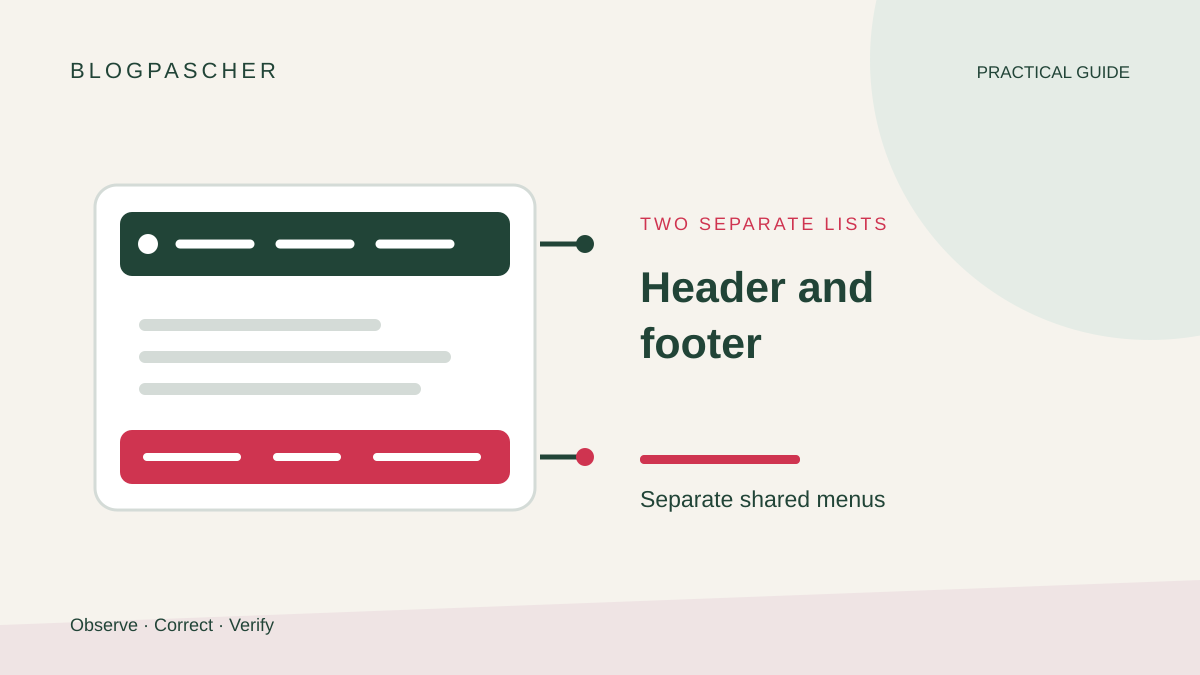
Recognize a change shared between two menus
You remove a link from the footer and it also disappears from the main navigation. Or you rename an item at the bottom of the site, then find the new label in the header. The problem to resolve is the scope of that change: two locations you intended to keep independent may use the same link list, template part or shared assignment.
Start by distinguishing content from its display. A menu describes destinations and their order. The Navigation block or a theme location decides where that menu appears. Two different presentations can therefore use one list. Changing its color in one block does not prove that its links are independent. Conversely, two menus with similar names do not prove that the blocks actually select them.
The following workflow addresses a change reflected in another location. A mobile button that will not open, a link returning an error or a missing menu needs a different diagnosis. Also retain the distinction between observation and cause: a shared menu is a hypothesis to check, not a certain explanation for every theme.
Prepare a record and a way back to the initial state
Work first on an authorized site copy if changes must be saved. Identify a header, footer and three control screens: the homepage, an internal page and a post. Choose pages already present in this copy; there is no need to publish new ones for this test. Record which template produces each screen.
If several people work in the editor, agree on a short editing window. An assignment saved from another session can mimic unexpected sharing. Do not continue until you know whether someone else is changing the same header or menu.
- Capture or record the order of header and footer links, their labels and destinations. Hide internal information before sending a screenshot to anyone.
- Record the active theme and the tool actually editing these areas: Site Editor, classic Menus screen or builder. Record the menu name selected in each location before any change.
- Keep the current menu available. The correction should create or select another list for the footer, rather than immediately deleting the list used by the header.
- Plan rollback: reassign the original menu, restore the control label and remove only items created for the test. A recent backup complements this record without replacing targeted restoration.
Choose the workflow matching your access
With a block theme, open Appearance, then Editor. Navigation may be managed through the Navigation entry or directly in the template and its header or footer part. Depending on the version, menu options are split between List View and block settings. Look for the selected list's name, not just the block name displayed on the canvas.
With a classic theme, the starting point is generally Appearance, then Menus. Locations have names defined by the theme, such as Primary and Footer. A hybrid theme may offer this screen as well as certain blocks. Do not switch themes to make a screen appear: identify the tool that actually controls the visible menu.
If your account can edit only pages, your access may not allow global navigation changes. You can nevertheless prepare the three-screen record and desired change. Give the owner the two affected destinations and expected result. They should make the assignment using their own access; sharing an administrator account does not make the diagnosis more precise.
For a header builder, use its assignment panel and documentation. A widget called Menu may select a WordPress menu, a builder-specific list or different navigation on phones. Do not apply native block command names to an interface that does not use that block.
Read the menu actually selected in each Navigation block
Open the relevant template in the Site Editor, then List View. Expand the header part down to the Navigation block. Select that block, not an individual link. Record the menu indicated by its options. Repeat for the footer block on the same screen. If their names are identical, examine the available menu list to confirm that they are the same selection.
If the marker appears in both areas, you have a usable reproduction. If it remains limited to the footer, sharing has not been demonstrated for these two blocks. Then compare the template actually used by the page where the fault was observed, without randomly changing other site menus.
- On the copy, choose an easily recognizable footer link. Change only its label by adding a temporary marker, such as “Contact témoin”. Keep its destination unchanged.
- Before saving, read the summary of changed items. Note whether a menu, template part or several items are listed. Saving a shared menu can affect other places even if you edited only one visible block.
- Save only the expected changes, then open a fresh view of the homepage. Look for the marker at the top and bottom. Also compare an internal page.
- Immediately restore the original label and save. The control is for observing sharing; it must not remain as a permanent navigation item.
Create an independent list for the footer
Once sharing is confirmed, retain the main list. Under Appearance > Editor > Navigation, select the existing menu, then open the three-dot actions menu beside its name and choose Duplicate. The duplicate provides a starting point for the footer. If you want to start with a few links instead, select the footer's Navigation block and use the new-menu option when offered. In either case, return to the footer block to assign the new list.
Duplicating a Navigation block on the canvas must not be treated as proof that its menu was duplicated. Check the selection after copying any block. Two separate lists and the control result demonstrate the intended independence.
- Create the new list and give it an explicit name, such as “Footer — information”. Merely renaming the shared menu does not duplicate it: check that two distinct entries now exist.
- Add or retain only the necessary destinations in the new list. Check custom-link URLs, especially after copying the site. Do not create an empty page when you only meant to add a link to an existing page.
- Return to the footer's Navigation block and select this new list. Leave the header assigned to the original menu. Record the two names side by side before saving.
- Repeat the control-label change in the new list. It should appear only at the bottom. Then restore its final label and retain the new assignment.
Check template parts and page variants
A template part can be used in several templates. Editing its footer on the homepage can therefore update footers on posts and pages. This sharing is often desirable. The aim is to separate the two lists with different uses while retaining consistency across reused areas, rather than making every page independent.
Return to your three-screen record. If internal pages retain an incorrect assignment, open their template and identify the footer part actually inserted. It may be a different variant from the homepage's. Correct its Navigation block only if that template should use the new list. Do not replace every template part over a simple menu issue.
Consider broader sharing if the text, logo and other blocks change together. In that case, check whether you are editing the same template part in several locations. Before creating an independent variant of that part, record its other uses: copying an entire header has more effects than merely creating a new list of links.
If the change affects assignments even though the two lists are distinct, first record the template, block name and selected menu before and after saving. On the copy, the maintainer can add a fresh Navigation block in the footer and assign the independent list to it. Compare both areas before replacing the original block. If the discrepancy persists, restore the block and its assignment, then pass the observations to the theme or builder owner.
Separate locations with a classic theme
Under Appearance, then Menus, start by selecting the menu currently shared. Record its locations and links. Several selected locations may explain why a content change appears in multiple places. Location names depend on the theme: they are not interchangeable with the names of menus you create.
If no footer location exists, do not invent its name in code. The theme may offer a widget, a builder or no corresponding menu area. Identify this capability before adding a plugin. An additional menu manager is unnecessary when two native assignments suffice.
- Create a second menu for the footer. Add its links and save the list without first unassigning the main menu.
- Under Manage Locations, assign the new list only to the intended footer location. Check that the primary location retains the old list.
- If the footer instead contains a menu widget, open that widget and select the new list there. A location assignment does not necessarily affect this separate choice.
- Check a public page on the copy, then apply the label control in the second menu. The header should stay identical. Then restore the intended label.
Do not confuse a saved menu with an automatic page list
The Navigation block can start with a Page List. This represents published pages and may automatically include new pages. Its behavior differs from a list of links you have explicitly organized. A page added at both the top and bottom therefore does not by itself prove that you changed a shared saved menu.
In List View, check whether Navigation still contains a Page List. If you want to choose links individually, the block offers conversion into editable page links. Perform this conversion only for navigation that should become manual, after the initial record. The list will then stop automatically following newly added pages; this consequence must be intentional.
To check the result without publishing unnecessary content, compare the resulting list with pages already present on the copy. Temporarily remove a link from this manual list, then restore it. The page itself should remain accessible at its direct address. Removing a menu entry and deleting its content are different operations: do not trash the page to correct its presence in navigation.
Check phones, keyboard access and actual destinations
Successfully separated lists must remain usable. At a phone width, open the main menu and then the footer menu if it has a button. Compare labels with their desktop versions. A theme may display a different header part at this width; if content differs, record that variant instead of immediately concluding that the correction was lost.
- Navigate links using the keyboard, from the start of the header through to the footer. Check that focus remains visible and every link can be reached without pointing with the mouse.
- Open submenus used on the copy and check their destinations. The copied hierarchy must retain its meaning; a link under the wrong parent can become hard to find.
- Check all three control screens through fresh navigation. If the editor shows the correction while the public view shows an old version, first compare the correct page and template before purging a targeted cache.
- Test contact, privacy and other selected essential destinations. A correct appearance is insufficient if their URLs were copied from an old domain.
Roll back and hand over a reproducible fault
If the new list has an unexpected effect, reassign the footer's original menu. Save this single change, then revisit the three control screens. Restore the temporary label if necessary. Keep the test list until you have checked that no other block uses it; deleting it can wait until checking is complete.
To request targeted help, prepare the names of the templates, template parts and both menus, along with the exact actions reproducing the fault. State whether the result appears in the editor, on a freshly opened public page of the copy or only in an old session. A short before, change, after and restoration sequence provides more than a list of plugins deactivated without an order.
Final validation is straightforward to state: changing a label in the footer list no longer alters the header, the intended templates use the correct assignment and essential destinations remain accessible. Keep the final record of both lists for the next intervention. This small record prevents accidental sharing from being recreated when a block is duplicated or a template changes.
Keep a short record of the two assignments
Before duplicating anything, fill in four lines: “Header: template used, menu name”; “Footer: template used, menu name”; “Control link: label and destination”; “Expected result: only the footer changes”. For example, the header uses “Main navigation” and the footer “Legal information”. Names are reference points, not technical proof of independence.
After creating the second list, change only its Contact label to “Contact — essai”, save, then open the homepage and an internal page. If the marker also appears at the top, both blocks still reference a shared list or the wrong template was edited. If only one page remains incorrect, record its footer variant. Restore the label immediately.
This native check is free and enough to demonstrate separation. Adding a menu plugin does not resolve a wrong assignment and introduces another source of configuration. Keep the original menu until the three screens and mobile menu have been checked.
Sources and references
Use these references to check the features, requirements and limitations described. Reading documentation is not a practical test.