

Find an old link in the page actually served
The homepage opens the new domain correctly, but a Contact button still points to the old site. Start by recording the link address before clicking. The browser lets you copy its address from the context menu or read its href attribute in developer tools. Note the source page’s address, link text, saved URL and final address after clicking. A button may contain the correct address and reach the old domain because of a redirect on the target page. In that case, fix the redirect at its source.
Use a sample covering navigation and content. Check the homepage, a page containing an editorial link and an internal page using the same menu. Also inspect a button, footer or reused block if the error repeats there. On a multilingual site, choose a page with an equivalent in another language and keep each expected address. An identical path can correspond to different content depending on the domain or language.
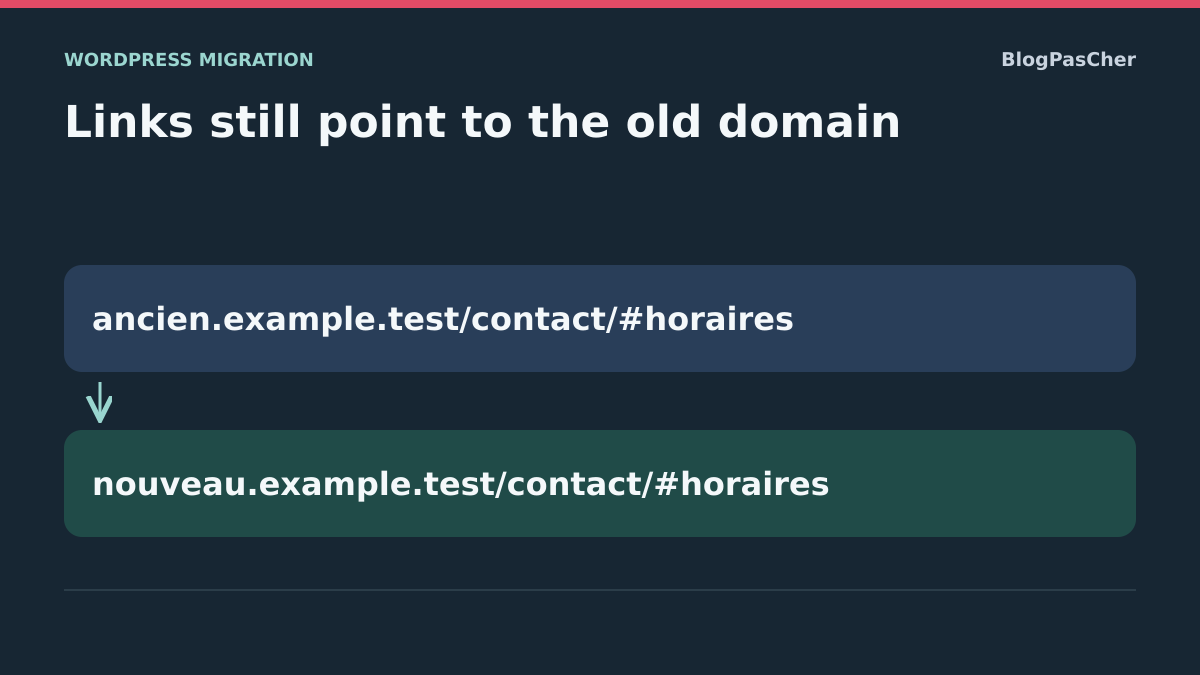
In the example, https://ancien.example.test/contact/#horaires must become https://nouveau.example.test/contact/#horaires. Preserve /contact/ and the #horaires fragment, then check that the fragment still identifies a page section. A third-party address such as https://ancien.example.test.prestataire.test/aide belongs to another domain and must remain unchanged. Occurrences of the old name in a third-party address or archival text do not justify replacement.
Distinguish a saved link from a generated address
A single button with an old URL first points you to its block or menu. If every WordPress-generated link still uses the old name, compare address settings instead. On a self-hosted site, open Settings → General with an authorized account. The WordPress address identifies the installation location and the site address its public entry point. Record them as they are. If the fields are locked, check with the configuration administrator whether WP_HOME or WP_SITEURL enforces them. Some deployments define these values outside the form. Preserve any intentional subdirectory.
On WordPress.com, check that you are viewing the correct site and that its primary domain is the one visitors should use. If the domain is correct and only a button or navigation link is wrong, act in the editor. Switching the primary domain to fix a button would affect the entire site. On a site with a plugin or builder generating the destination, find the field its interface allows you to edit. A copy of the displayed HTML does not by itself reveal where that address is stored.
If the link appears corrected in the editor but visitors still see the old one, reread the public response in a logged-out session. Compare with another page using the same component. Check the cache only once you have established that the saved value is correct. If the source page contains a correct URL and the destination’s redirect is faulty, record the first hop. This distinction avoids replacing links that are already correct.
Correct a few links in the right place
For a link in a paragraph, open the page or post in the editor, select the link and choose the edit action. Copy the initial value, then replace only the address. Check the path and any language, filter or campaign parameters before saving. For a button, select the block and check its destination in the link controls. Save, then open the public page while logged out and follow the link to its final destination. To undo, restore the initial value in the same field or use the content revision containing it.
If the address comes from a menu, open the Navigation block in the Site Editor for a block theme, or Appearance → Menus if the classic theme uses that screen. A custom link contains an entered URL. An item attached to a page may be generated from that page’s address and permalink. Identify the item type before acting. Check at least two pages using the navigation after editing the menu. A shared navigation change may affect the header and footer.
To isolate storage locations on a copy, use a page and menu containing the same old link to opening hours. Correct only the page, then compare its HTML with the menu and a reference option. Unchanged components must retain their initial values. Record each location before preparing a bulk correction.
Prepare a targeted replacement on a copy
If the same prefix appears in many content items and fields, work on a restorable copy. You must have authorized access to WP-CLI and the database copy. From that installation’s directory, check that wp option get home and wp option get siteurl return the expected environment values. On a multisite network, also verify which site is targeted. The commands below apply to a single-site installation and three explicitly selected tables. A multisite network or a plugin with its own tables requires a separate inventory and test.
Back up the copy’s database immediately before testing. Use the backup or export mechanism supported by its host. Confirm that the archive can be restored and identify its timestamp. An XML post export can serve as an editorial record, but alone it does not recover the metadata, options and other data needed for this rollback. For a compatible MySQL or MariaDB database, wp db export depends in particular on available system tools and installation configuration. Use a protected backup destination outside public files.
List the exact forms of the old prefix. There may be http and https variants, with and without www. Analyze them separately. In the example, the slash after the name delimits the destination to replace and leaves the third-party subdomain intact. It also excludes an address written without a slash after the name. If a root URL without a slash or another format exists, record its presence and handle it separately after verification. Avoid replacing the bare name across every field.
Run a dry run, check the scope, then execute
In the following commands, replace fictional domains and the three table names with those confirmed on the copy. wp_ is an example prefix. The first call reports possible replacements without writing those values. Examine the count by table and column. If a result appears in an option configuring another service, identify that field before continuing. The command selects tables, but it cannot know whether every string corresponds to a link your team wants to change.
WP-CLI handles PHP serialized data. The --precise option forces PHP processing and may slow the operation. The guid column is excluded because these identifiers may retain the old domain after migration. The second command writes changes. Run it only on the copy after checking the record, then repeat the dry run for the same prefix. If the old name remains in columns or tables outside the scope, determine their role before broadening the search.
wp search-replace 'https://ancien.example.test/' 'https://nouveau.example.test/' wp_posts wp_postmeta wp_options --skip-columns=guid --precise --report-changed-only --dry-run
wp search-replace 'https://ancien.example.test/' 'https://nouveau.example.test/' wp_posts wp_postmeta wp_options --skip-columns=guid --precise --report-changed-only
Check a page, a menu and a serialized value
On the copy, record the count reported by the dry run and confirm that values remain identical. After an authorized write, check the HTML link, custom menu link and serialized value within the selected scope. The similarly named partner and the guid must remain intact. A second dry run must report zero for the processed pattern within that scope. Finally, check that restoring the saved database restores the initial values.
On your copy, check the starting pages again in a logged-out session, along with navigation on two pages. Follow the link to the new domain and check the path and fragments. Also reread components using parameters, reference external links and your plugin options if you targeted its data. Zero in the dry run concerns only the selected values and tables. A template, translation, theme file or external service may still generate an old address.
If a step breaks a link or makes an option unreadable, stop the test and restore the copy’s backup. Do not run the reverse command across the whole database. Some links already used the new domain, and reversing the replacement would change those too. Note the component that failed to define a narrower scope, then repeat the comparison from the backup.
Handle what the replacement does not cover
If an old link remains in the HTML after testing, identify its owner again. In a block theme, check the template and template part used. If the link belongs to a synced block, open its source to check where it is used. For a page builder or plugin, consult its migration procedure and use its tool if it handles the relevant format. A prefix may also be stored with escaped characters, in file configuration, a remote template or a generated stylesheet. Do not extend replacements at random to reach these forms.
Some signals are unrelated to navigation links. A canonical tag pointing to the old domain requires identifying the SEO generator or configuration producing it. A missing image file must be found or reimported if its destination address is correct but returns an error. Payment-provider addresses, partner links and URLs used by external systems require their own validation. Keep examples of URLs that must continue to use another destination.
After each correction, check a small number of pages sharing the component. For a template, test at least two pages using it and one outside that group. For a plugin, check the destination in the interface and public response. If the latest change produces out-of-scope effects, return to the component’s previous value or the copy’s backup before continuing.
Repeat the correction on the public site with rollback planned
For a few links, repeat the manual change in the validated fields. For a bulk correction, plan a window appropriate to site writes. Take a fresh backup of production immediately before starting and rerun the dry run on the current database. Counts may differ from the copy if content has been published since. Check scope before any write. In a store or a site where other people write, agree how to suspend those writes during the change and verification, or choose a targeted editorial correction that does not require restoring the database.
Once changes are applied, purge only the cache still serving old HTML if you have confirmed its source. Check the menu, button and chosen pages from a logged-out window. Verify that reference external links remain correct and main resources load from the right destinations. For a link with a fragment, reach the intended section and check that it appears in the expected language.
If you need to roll back before reopening writes, restore the saved fields or a consistent production backup according to the correction’s scope. If new orders or publications have already arrived, record those writes and plan their preservation before any restoration. The backup that validated rollback on the copy is not the production backup at the time of intervention.
Check the role of old addresses that must remain
If you still control the old domain, a redirect to the corresponding path can help visitors using a bookmark or a link shared elsewhere. Keep this process separate from correcting internal links. On the new site, an ordinary click should reach the correct page directly when you control the link. On the old site, check that useful paths reach their equivalents and a URL without an equivalent receives the intended response. Avoid indiscriminately sending every path to the homepage.
Keep a record of the source page, link text, generating component and verified address. Note handled variants and legitimate exceptions, including a partner domain or archival link. This lets someone else repeat the check after a theme update or new import. If a link returns to its old value, first compare that source with the record. You can then determine whether an old template was restored, an import recreated the link or the public page still serves an old copy.
Check backups and logs before a bulk replacement
The search-replace dry run counts matches in selected tables but does not distinguish an active link from old content retained in a revision, log or plugin backup. If the reported count greatly exceeds visible links, examine the affected columns and the data’s purpose before writing.
A historical record may need to retain the old address while active data must change. Prefer correction through the owning component when it provides a documented migration format. For other cases, define a narrower scope with the maintainer; do not automatically replace across every server table. After the operation, check an active link and an intentionally preserved external reference. Zero in a new dry run confirms only the absence of the exact pattern in that scope; it guarantees neither complete coverage of escaped forms nor correction of files and external services.
Sources and references
Use these references to check the features, requirements and limitations described. Reading documentation is not a practical test.
View 9 references
- WordPress: address changes and migration ↗
- WP-CLI: search-replace and dry runs ↗
- WP-CLI: export the database ↗
- WordPress: address constants in wp-config.php ↗
- WordPress: database and file backups ↗
- WordPress.com: edit a link in the editor ↗
- WordPress.com: set the primary address ↗
- WordPress: Navigation block ↗
- WordPress: Menus screen ↗