

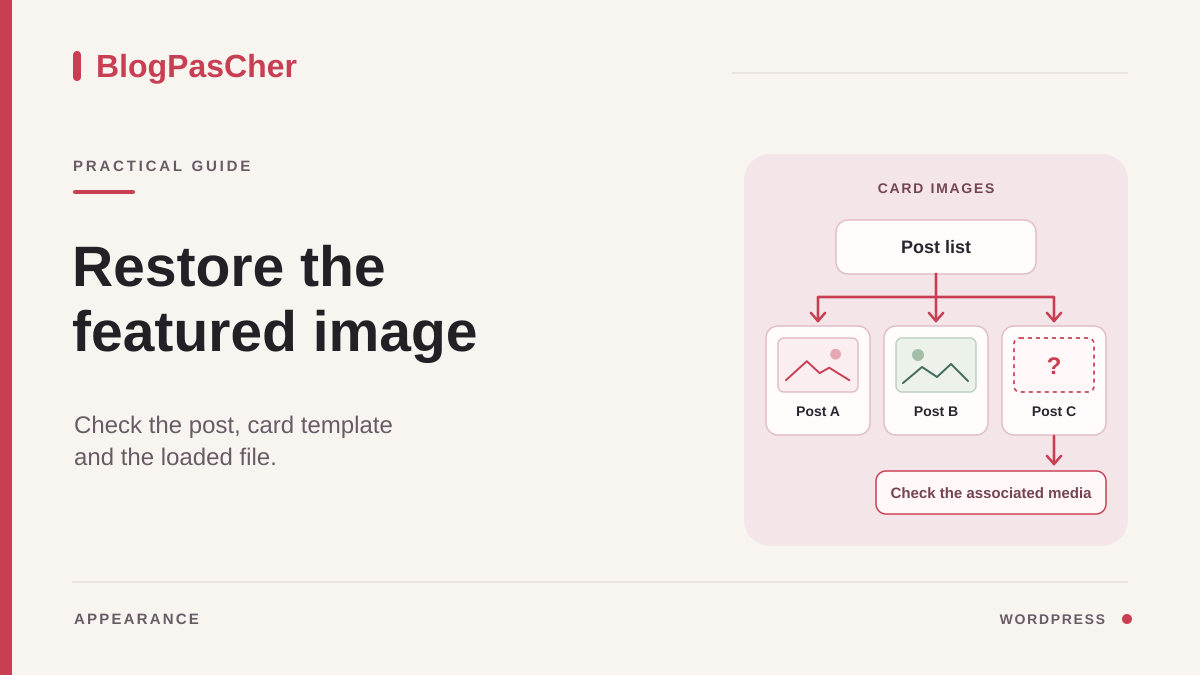
Identify the affected card and list
On the public page, choose a card whose title appears but whose image is missing. Open its title and record the post's URL and the list's URL. Compare it with a neighboring card that displays a thumbnail. Also check whether the affected post appears with an image in another list, such as a category page. These comparisons help distinguish a post setting from a setting specific to one list.
Note how the problem appears. An empty space the same size as the other images may indicate a failing file or a frame without an image. A card that starts directly with its title may come from a template that renders no image. The same photo on every card indicates a fixed image or a component incorrectly linked to each result. If the whole card is missing, first examine the list's criteria and the post's publication status.
Check the same location on a phone and computer. If the thumbnail disappears only at one width, compare the behavior of neighboring cards. The layout may intentionally hide images on small screens. If only one card is affected, also record its content type and category. Lists may show pages or other content alongside posts, with different data.
Keep three reference examples if possible: a working card, an affected card, and another list where the same post appears. Take screenshots or record their state before editing. After the correction, you can check that each card retains the right title, the right link, and its own image.
Check the image assigned to the post
Under Posts > All Posts, find the content by its title and click Edit. Check the content's URL or ID if several posts look similar. Open Settings > Post and look for Featured image. An Image block in the body and a featured image are two separate selections. A good photo at the top of the text can therefore coexist with an empty featured image setting.
If no media is assigned, choose Set featured image and select an existing media item appropriate for the post. Check its cropping and provenance before confirming. When you have permission to update, check the preview, then save the intended change. Return to the list and check this card. Also check the post page, because some templates display this image above the content as well. A photo already inserted at the start of the post may then appear twice.
If you cannot find the section in the block editor, examine the document settings and hidden panels in Preferences. With a classic theme or a different editor, look for the post's panel and the available screen options. Some content types or themes do not provide this feature. If the panel remains absent, tell the person responsible which content type and theme are in use instead of replacing its role with an image in the body.
If an image is already assigned, open it under Media > Library and check that the media is accessible. Record its dimensions and name. Its existence in the library is an initial check. The card may request a different file or lack any instruction to display it.
Open the document or template that produces the cards
Find the list's actual location. A grid inserted into an ordinary page opens from Pages > All Pages > Edit. A list corresponding to the blog homepage or an archive may be produced by a template. With a block theme, open Appearance > Editor > Templates and identify the one corresponding to the public list. Check whether the tested URL is an archive, a blog page, or an ordinary page before choosing a template.
Open List View and look for the Query Loop. Expand it, then select the Post Template inside. This container repeats the structure for each result. It may contain a group, an image, the title, and the excerpt. The dynamic thumbnail must be inside this repeated structure, at the level intended by the layout.
If you see an ordinary image in this repeated template, check whether it was added as shared decoration or mistakenly replaces the dynamic thumbnail. An ordinary image chosen from the Media Library keeps the same file for every card. If the goal is to display each post's own image, add the appropriate dynamic block inside the repeated structure and preview two different posts.
For a classic theme or a list created by a plugin, List View may show a single component without card details. Identify that component's name and the page where it is configured. This distinction prevents changes to an individual post template when the image is missing only in the blog or archive.
Restore the dynamic block at the correct level
In a native loop, open the inserter inside the Post Template and search for Featured Image or Post Featured Image, depending on the translation. Select the dynamic block, then place it before or after the title according to the card design. Use List View to confirm that it is under the Post Template and inside the card's group if there is one. Outside this container, it will not repeat for each result.
Examine the preview with at least two results that have different images. Each image must follow its post. If the editor shows an empty placeholder in the template, check with a preview of the list and a post that actually has an assigned image. A generic thumbnail in the editor alone does not confirm that the media match.
In the block settings, examine dimensions, cropping, and the link option where these controls are available. If you make the image clickable, check that it leads to the post from the same card. Keep the title usable as a way to open the post if the card may contain a post without an image. Also compare proportions across a row of cards to prevent a very tall thumbnail from unbalancing the grid.
If the block was already present, check its parent group, height, and the layout's visibility options. A block may sit in a narrow column, inside a hidden group, or behind another element. First restore its visibility in a working copy. When the structure is shared, record the other URLs using this template before saving.
Handle a classic list or one produced by a page builder
In a classic theme, look for blog or grid options under Appearance > Customize if that menu exists, or in the theme's documented panel. An option for displaying post images may target the blog page, archives, or cards in a particular layout. Record its state and check its scope. The option for the image at the top of a post may be independent of the list option.
For a page builder or grid plugin, open the page in the editor that provides the component. Select the grid, then examine the card layout. Check whether the image source is dynamic and points to the current result's featured image. If a fallback image is provided for results without media, also test a post without an image. Make sure the rule does not force this fallback image onto every result.
When the classic theme renders the card in its code and offers no control, give the list and reference posts to the theme maintainer. WordPress documentation distinguishes support for featured images from their display in the loop. An image can be assigned without the list template requesting it. The maintainer can check thumbnail rendering in the active loop and, if necessary, adapt the maintained theme in a test environment.
An account that can edit the post but not the appearance can adjust the media assignment. For the template, give the person responsible the URL, the component used, and the card comparison. These details make the request reproducible without requiring a general theme change or an additional plugin installation.
Identify a failing file request
If the dynamic block is in place and the post's image is assigned, open the browser tools on the public list. Inspect the card and look for its image element. Scroll to the card if loading begins as it approaches the screen. In the Network tab, filter image requests and reload. Compare the affected card's request with a working card's request. Record the file actually requested and its response status.
If no image is produced inside the card, return to the template and the post data. If the browser requests a file that cannot be found while the main media works, the card may be requesting a missing variant. Compare the sizes and public response. An older variant may be missing after a configuration change. Confirm the case on one image before requesting targeted regeneration.
A refused response or a file served from a different domain calls for checking the service that hosts or delivers the media. Record the URL and status obtained in your usual session. Leave the configuration check to the person responsible. If the image responds correctly and opens on its own but remains invisible in the card, inspect the card's styles. Zero height, hidden visibility, or stacking may explain the difference.
If a fallback image appears, check which component selected it. This replacement may hide an assignment or retrieval problem. The expected outcome is for posts with an image to display their own media, and for the intended fallback behavior to apply only to those without one.
Check the result on lists and posts
Preview the list after the correction. Compare the repaired card with one that already worked and with a post without an image. Check that images differ when their posts differ, links lead to the right posts, and the intentional absence of an image does not leave a disproportionate gap. If the list is paginated, open another results page to check that the change repeats in the correct template.
Open a narrow window and check cropping and element order. An image may reappear while taking up excessive height. If you change its ratio for a grid, use several subjects and check that a person or important object is not cut off. In a shared template, compare another archive or another page where the grid is used.
Once the change is validated and saved, return to the public list in a visitor session. Also check the post itself if its image changed. If the old version remains visible only in the list, compare its saved state and cache. If only the photo remains old while the structure is new, examine the media cache or file instead. Use the site's targeted controls where available.
To undo an assignment, select the old media again or remove the featured image from this post's settings. To undo a card change, return to the repeated structure and restore its original block or dimensions. For a theme or builder setting, restore the value you recorded. Then check the reference card and another instance sharing the configuration.
Compare two cases that produce the same empty space
In the first case, three cards appear and only the one for a recent post has no image. Open that post and check its Featured image panel. If the panel is empty and the other cards are using their images correctly, set an appropriate image. After validation, the card should change without changing its neighbors' design. If the new photo also appears in the post, check that this presentation is wanted.
In the second case, every card in an archive starts with the title, while the same post displays its image in another grid. Open the archive template and examine its Post Template. If the dynamic block is missing and the design should include photos, add it inside the repeated structure. Two different images in the preview confirm that the card is reading each result's data correctly. A fixed photo identical across all cards would indicate a different block selection.
These two paths may overlap if some posts have no media and the list has also lost its dynamic block. First correct the structure in a draft using reference posts that already have an image. You can then decide how to handle posts without media individually. Keep the two interventions separate in your notes so you can roll back one without undoing the other.
Classic theme: display the thumbnail inside the loop
This correction is intended for the maintainer of a classic theme working on a copy. Find the card file actually called by the loop and override it in the child theme according to the parent theme's structure. In the portion executed after the_post(), at the desired thumbnail location, a minimal display is:
This fragment displays the current result's image; do not paste it directly into functions.php, where it would not have the same loop context. It does not make the image clickable: keep the title linked to the post to provide access. First check that the theme declares support for featured images; enabling this support and displaying the image are two different operations.
Preview two posts with different images, then a post without an image. The third must not reuse the previous post's image. Also check pagination and mobile. If a missing image file caused the problem, this code does not recreate it. To roll back, remove the fragment from the child theme override or restore its previous version. The native thumbnail block remains the appropriate route for a block theme.
<?php
if ( has_post_thumbnail() ) {
    the_post_thumbnail( 'medium_large', array(
        'class' => 'bpc-vignette-article',
    ) );
}
?>
Sources and references
Use these references to check the features, requirements and limitations described. Reading documentation is not a practical test.