

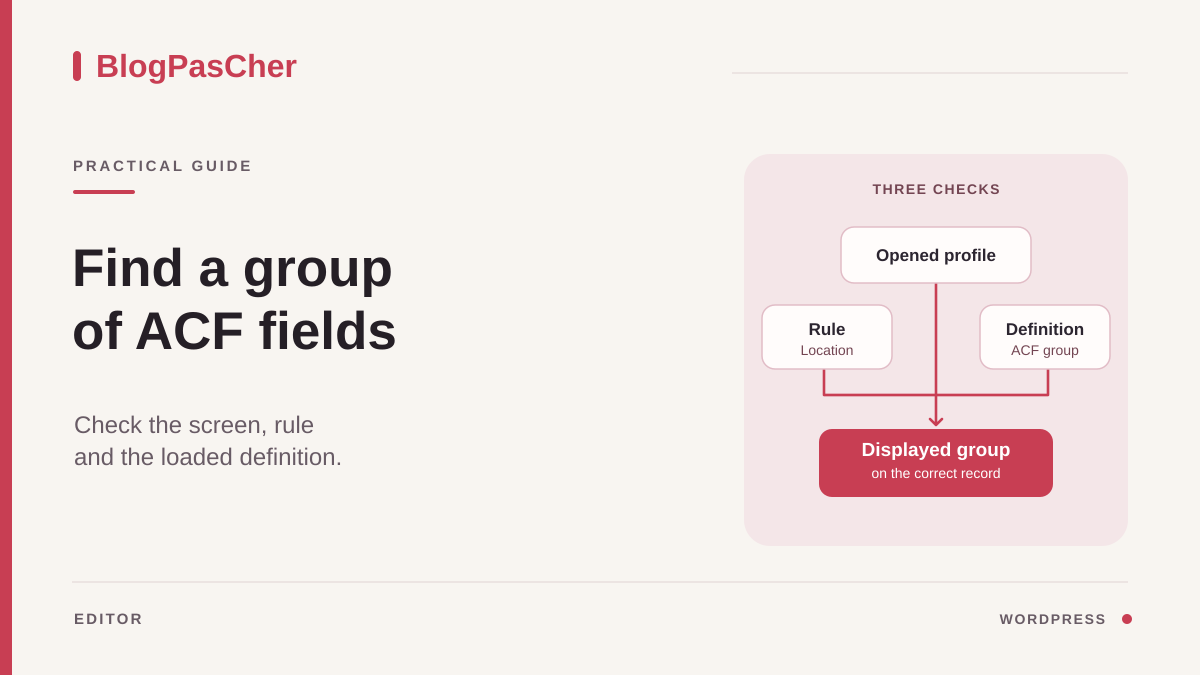
Distinguish a missing group from an empty field
You open an entry and the “Workshop information” panel has disappeared. Start by confirming what is missing. If the group title and several fields remain visible, examine the missing field and its conditional logic. If the entire panel is missing, examine the screen used, preferences, and group location rules. If the panel appears in administration and only the value is missing on the public page, record the template or dynamic tag displaying the entry. That last case requires rendering diagnosis.
Open the entry from its content-type menu in the dashboard. Record its ID if visible in the edit URL, its type, and any template. Compare it with an entry that displays the group correctly. An ordinary page titled “Workshop” and an entry of the Workshop type may have the same name. Their actual type, template, and categories may nevertheless make them match different rules.
Also keep a counterexample: an entry where the fields must remain absent. This reference prevents fixing the first case by displaying the group across the entire site. If you need to change a setting, prepare a copy containing the group and dummy data. Record reference entries' values before changing them.
WordPress's native “Custom Fields” panel and ACF groups are two distinct interfaces. Displaying the native panel restores neither the ACF group's rules nor its fields. A group missing from the screen does not establish that its data was deleted. Start with configuration and selection checks. Avoid immediately recreating the group, changing field names, or re-entering values already present.
Approach 1. Check the screen, preferences, and account
Open the entry in the WordPress editor using the Edit link. If you were in a builder or the Site Editor, return to the screen that edits the content itself. A template organizes the presentation of several entries. An entry's screen lets you edit that content's values. A builder may provide its own controls for reading values while leaving entry of those values to the WordPress editor.
In the block editor, expand the content area and also look below the blocks and in the sidebar. An ACF group may appear in a box below the editor or elsewhere depending on its presentation. Open the three-dot menu, then Preferences. If the interface offers a setting for this panel or additional boxes, check that it is enabled. Visible controls depend on the version, editor type, and how the plugin presents the group.
In a classic screen with Screen Options, open that panel and look for the panel name. If the panel appears after re-enabling it, close and reopen the entry to check that the preference was retained. If the group is offered nowhere, move to its definition. A display change that reveals no control can be returned to its initial value before the next test.
If possible, compare with another authorized account on the same entry. If the group is visible to one person and absent for another, compare their preferences, editing permissions, and account-based rules. An editor may edit an entry without access to ACF definitions. Request a targeted record from the site manager before considering a role change.
Approach 2. Check group activation and rules
With the appropriate permissions, open ACF > Field Groups. Search for the title used in administration. A title shown to editors may differ from the group's name in this list. Open the definition corresponding to the expected fields, then check a few fields' technical names and the content type they target. If several groups look similar, also record the group key where available.
In group settings, check the Active setting. An inactive group may remain accessible in the group list without appearing when an entry is edited. Before reactivating it, ask why it was disabled. It may be an old group that was replaced or a definition suspended during migration. On the copy, reactivate only the identified group if that action matches the intended behavior.
Examine the Presentation tab. Depending on configuration, a location or title change may have moved the group or made it unrecognizable. Record its position, displayed title, and order before changing them. Look for the panel under that title on the reference entry. If present under another name, correct only the label confusing editors.
If only one field is missing while the group is visible, open that field in the definition. Check its conditional logic, then compare the values of fields triggering its display. For example, a room address may appear when “On site” is selected. Try the intended value on a staging entry, then return to the original value. The rule for the entire group can remain unchanged.
Compare location rules with both reference entries
In the group's Location tab, record current conditions. Conditions joined by AND in the same set must all be true together. Sets joined by OR provide alternative paths. Copy the rules into a private note using the values actually displayed in the interface. For each reference entry, indicate which condition is satisfied and which fails.
Consider a group intended for the Workshop type and Ceramics category. If these conditions are joined by AND, a Workshop entry categorized as Woodworking does not receive the group. If they appear in two sets joined by OR, another content type categorized as Ceramics may also receive it. This difference explains why a group is missing or why its scope expanded after a correction.
Check the entry's selected template if a condition uses a page template. A name displayed in the Site Editor is insufficient to confirm the value examined by the rule. Compare the selector value in ACF, the document setting, and a case where the rule works. If the condition relies on a term, open the entry and check the term actually assigned. Two similarly named terms may belong to different taxonomies.
Also check conditions added by another component. If unavailable on the copy, record this absence before editing the rule. A test where the component providing the condition has disappeared does not reproduce the original situation. Prepare a representative case with the maintainer.
Correct one condition and check its scope
On the copy, change the condition explaining the discrepancy. If the reference entry belongs to the correct type and the group targets a retired template, choose the intended template or replace that condition with the rule the team wants to maintain. If the group should appear for two specific templates, define alternatives that retain the other necessary conditions. Avoid turning an exception into a general rule for every page.
Save the definition, then reopen the reference entry. Check that the group appears in the right place and existing fields show expected values. Then open the counterexample entry. If it also receives the group, reread the AND and OR sets before adding an exclusion. A more precise rule may resolve both cases with a single change.
For a condition depending on a category, template, or another document setting, check the state after saving and reloading on the copy. A newly selected value on a screen may not produce the same result as an already saved entry. Test an existing entry, then a new dummy entry of the same type if editors encounter the problem during creation.
Check the test value in a simple field and, if the site displays it publicly on the copy, also check that rendering. This step distinguishes the panel's reappearance from correct use of its value. Restore the previous value at the end of testing. To undo the correction, restore the initial condition and check both entries again.
Approach 3. Check the definition loaded from files
If the group is missing from the ACF list, or the change visible in administration does not match what you observe, ask the maintainer where the definition is managed. ACF can load definitions from Local JSON files or PHP. Groups and fields registered through code can appear on entries. ACF does not display them in its group-editing screen. Do not recreate the group to make that panel editable.
For Local JSON, record the active theme and loading locations used. The default folder is named acf-json, and a site can configure other paths. Compare the group key, rule list, and version with the environment where the group works. A file's presence is insufficient to prove that ACF loads it from that path. After a theme change, check particularly that the expected folder is still included.
Loading a Local JSON file and synchronizing it to the database are two distinct operations. ACF offers import if the definition is absent from the database or the JSON modification value is newer. Synchronization imports the group definition. It does not restore entry values. A newer file may therefore replace an intentional local rule without resolving the observed problem.
On your authorized copy, back up the database definition and corresponding file, then record the group key, its field keys and names, and the rule that should differ. Also note whether the group was absent from the database. If ACF offers synchronization and this file is the version to test, select only that group, run synchronization, and reload its settings screen. Confirm that the expected rule is present. With the intended editorial account, check that a dummy entry of the correct type displays the group and an out-of-scope entry does not. On the dummy entry, enter a recognizable value such as “Repère atelier 27,” save, and reopen the entry to verify persistence.
After testing, delete the dummy value and restore the definition and file to their original state if you are closing staging testing. If the group did not exist in the database, restore the absence of that definition using the targeted staging backup. Check both entries again and verify that opening the editor again loads the restored version.
For PHP maintained by the site, the person responsible examines the code registering the group, its loading conditions, and key. Two definitions using the same key can replace each other. Correct the authoritative definition and keep existing keys while the need concerns display.
Preserve names and values during correction
A location rule determines whether a group appears on a screen. Names and keys identify fields and their values. Separate the rule change from any field migration. To restore a panel, keep the keys, technical names, and types already used. Changing a visible label and changing a technical name have different consequences. A template, plugin, or import may read the name.
If the group is missing only after copying a site, compare the elements needed for its definition before copying values. The content type must exist under the expected name. Rules must be able to recognize the targeted template, term, or entry. A JSON file transferred without site dependencies may load correctly while matching no entry. Record the missing element on the copy, then restore it through the method maintained by the team.
If fields are visible and some values disappear only after saving, observe the change using a dummy entry. Check document saving, displayed messages, and differences between a simple entry and a very long one. This lead may require diagnosing the edit form or its request limits. Changing all location rules cannot establish why some values were not saved.
For a definition change already saved, compare values before and after using the same IDs. If values remain missing, stop write tests on affected entries and request comparison with the targeted backup. A global restoration may overwrite other changes made in the meantime.
Validate the correct screen and record rollback
Reopen the intended entry using the account that reported the problem. Check the group title, location, existing values, and fields whose presence depends on a condition. Then open the entry where the group must remain absent. If the group targets several types or templates, choose a control for each rule branch. For a new entry, check behavior before and after the first save on the copy.
Try a simple change on a staging entry, save, then reload. The expected check is to find the saved value in the same place on the correct entry. If the public template uses this value, compare its rendering on the copy. Restore the control value after testing. Perform this check with a representative editorial account, because an administrator and editor may open different screens.
If the test fails, restore the setting actually changed. Restore the group condition for a location change. Restore the maintained definition and its previous version for a file correction. Return to account preferences for a display correction. Check the group and counterexample after rollback. Entry values must remain available after this return.
In the handoff, state the group name, its key if useful, content type, responsible condition, and both reference entries. Specify which file or screen is authoritative. The next person can find the correct setting and check that a theme, rule, or template change has not moved the fields.
Read a PHP location rule without recreating the group
For a group already registered through PHP, the following condition represents “Post Type is equal to atelier.” This is a definition fragment to integrate into the existing group's location key, not a second group to activate alongside it.
The maintainer then uses this value in the definition passed to acf_add_local_field_group(). atelier is the type's technical name, not the plural label shown in the menu. In this structure, adding a condition in the same inner array imposes AND; adding another inner group creates an OR branch. Compare the brackets as carefully as the values.
For a beginner, the same rule can be adjusted free in the ACF interface when the group is actually managed there. There is no need to buy a plugin to repair a simple location rule. After correction, open a Workshop entry and an ordinary page: the group should appear only on the former. Then reopen an existing entry and confirm its values. Keep group and field keys unchanged; rollback means restoring the initial rule without deleting entry data.
$location = array(
    array(
        array(
            'param' => 'post_type',
            'operator' => '==',
            'value' => 'atelier',
        ),
    ),
);
Sources and references
Use these references to check the features, requirements and limitations described. Reading documentation is not a practical test.