

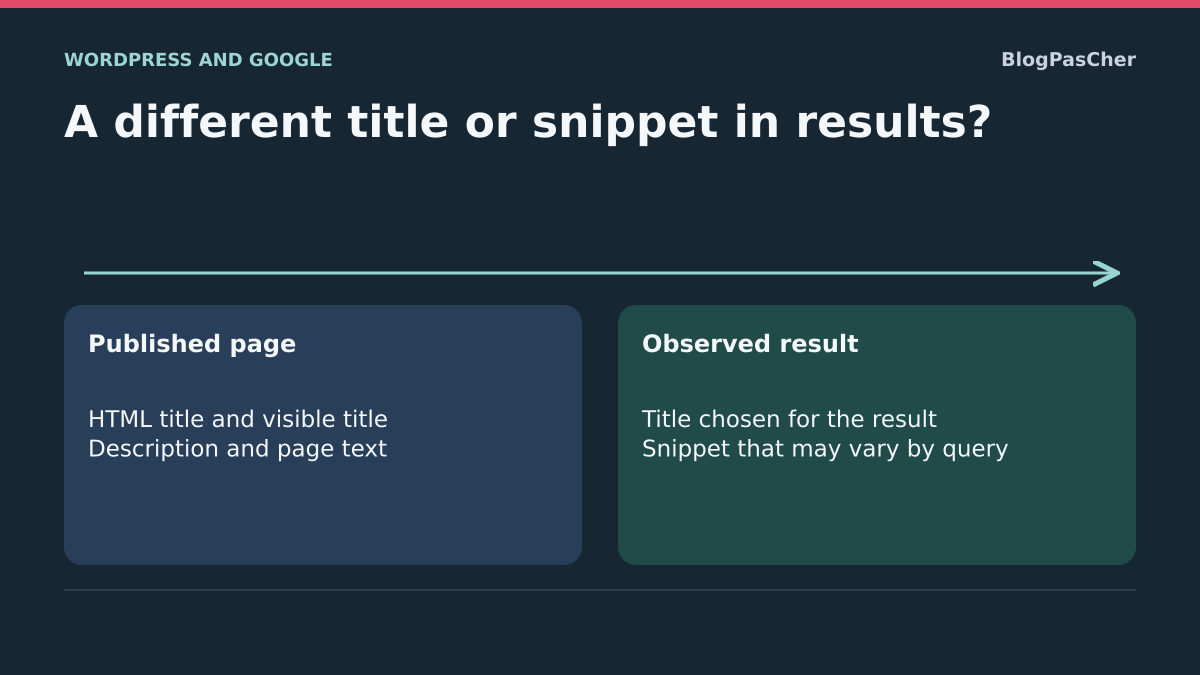
Distinguish the page title from the displayed result
Google displays wording different from what you prepared in WordPress. This discrepancy may come from an old version still known, a forgotten SEO field or a search-engine choice. The goal is to send accurate, consistent information and monitor its adoption. No WordPress checkbox guarantees word-for-word reproduction in every result.
Several texts coexist: the visible page title, the HTML title also shown in the tab, an optional meta description and the snippet selected for search. The site name displayed above the link is another separate element. Changing the tagline solely to fix one post’s description may therefore affect too many pages.
Start with one important URL. Record what is wrong: old service, incorrect city, outdated year or merely different but faithful wording. A factual error deserves correction at its source. A relevant presentation variation may require only observation.
Keep a comparable record before any change
Open the relevant result and record the page’s final address. A redirected old URL or domain variant may explain a misleading comparison. Keep the entered query, language, date and device type. A screenshot is a reference; it does not prove every internet user sees the same result.
Also copy values currently in WordPress before replacing them. For an SEO field, retain its exact value, including when empty and leaving a template in control. For a title or paragraph, preserve initial text in your working note and consult available revisions. An appropriate backup remains necessary before intervention beyond content.
Then define a verifiable correction: remove an old brand from the HTML title, describe an offer actually present or replace an introduction that has become false. Avoid using “get exactly my sentence in Google” as the sole criterion. That result also depends on processing outside the site.
Read what a visitor actually receives
Open the published page in a window where you are logged out. Use the browser’s view-page-source function. Search for the title element, then a meta tag whose name attribute equals description. Read complete values: searching only for “description” may find a script or another field.
Compare this HTML with the visible title and editor fields. If the desired text is absent from the public response, wait before asking Google: its generation must first be corrected. If several titles or incompatible meta descriptions appear in the header, identify their producers before randomly changing one.
A field named Excerpt in WordPress serves, among other things, summaries displayed by the theme and feeds. It does not automatically become a meta description in every installation. A theme or plugin may establish that link; check the actual response instead of assuming similar labels imply identical uses.
Understand rewrites without promising to block them
Google automatically constructs title links from several signals, including the HTML title, main visible title, other prominent text and links. An incomplete, repetitive or page-inconsistent title may be replaced. Consistency between these elements helps more than mechanical keyword repetition.
The snippet is also automatically selected for the search performed. It often comes from content and may use the meta description when more suitable. Two queries can therefore produce different descriptions for the same URL. A sentence displayed elsewhere on the page does not necessarily indicate an SEO manager malfunction.
Classify your case before acting. An old name still present in HTML calls for a local correction. An accurate but unrepresentative passage invites improving surrounding content. Faithful text differing only from your preference does not justify daily changes. Retain this classification in your record to choose an action and assess its effect.
Fix title and content with native tools
If the visible title contains the error, open Pages or Posts, find the content by its address and choose Edit. Replace the title-field text with wording precisely describing this page. Preserve the subject and destination the reader expects. A troubleshooting page should state its actual problem without accumulating names of every service you offer.
Save the change to already published content with Update or Save according to the editor. Do not change its permalink solely for this correction. Then open the public address and compare the visible and HTML titles. An SEO template may continue producing another value: this check determines whether the next step is needed.
If the theme already displays the main title, do not add another identical heading block at the start of the text. Instead correct a misleading subheading or old name in the introduction. To roll back, restore initial text or a relevant revision, then also check SEO fields, which may have their own storage.
Reserve general settings for site identity errors
Is the name or tagline wrong on many pages? On a self-hosted installation with required permissions, consult Settings, then General. First copy the Site Title and Tagline values. Correct only the erroneous identity, save and check the homepage and two different kinds of page.
These fields have general scope. Replacing the site name with one post’s complete title may make other titles inconsistent. Keep a recognizable identity and use page settings for its specific wording. The search-displayed site name also has its own signals; its presentation is not controlled solely by a post’s HTML title.
If the name is correct in these fields but outdated in HTML, find the template or manager replacing it. Do not change WordPress and site addresses to fix a textual brand. Retain initial values to restore this setting alone if the test affects unrelated pages.
Fill page fields with Yoast SEO
If Yoast SEO already manages the site’s SEO, use its fields in the relevant content editor. Open its panel, for example through the Yoast icon at the top of the block editor, then Search appearance, translated according to your interface. Social appearance settings concern another preview. Retain initial SEO title and Meta description values, enter faithful wording and save the content.
The SEO title can clarify the subject without copying all visible text. The description should summarize what the page actually enables. Remove an old promotion or availability claim that has become false. Then check both values in public source code; the panel preview does not replace this verification.
These manual fields do not require AI generation. The documentation check for Yoast SEO 28.8, published by Yoast, indicates WordPress 7.0 and PHP 7.4 minimum, with declared testing up to WordPress 7.1.4. Check your environment before installation. Keep the existing manager if it offers these functions; activating a second may multiply tags.
Repair a common template without making every title identical
If several pages repeat the same incorrect formula, examine the shared template instead of manually correcting each page. With Yoast, open Yoast SEO, Settings, Content types and the relevant type. Search appearance lets you define title and description templates. Taxonomies have their own settings family.
Copy the entire template before changing it. Preserve useful variables inserted through the interface: content-specific title, site name, separator or pagination information where relevant. Replacing every variable with fixed wording would give the same information to many different pages. Correct the actually outdated part, then use Save changes or its translated equivalent.
Check two distinct items in this family and a page outside it. A manually saved value in content may override the template; do not confuse this with a saving failure. To undo the test, restore the initial template, then recheck public responses and any individual exceptions.
Handle the homepage according to its display mode
The homepage deserves a specific check because it may display a static page or latest-post list. Consult Settings, then Reading, and record configuration without changing it for this diagnosis. Record any page designated as homepage. Editing content merely named “Home” does not guarantee it is used publicly.
With Yoast and a static homepage, open the actually assigned page and correct its SEO fields in the editor. For a latest-posts homepage, corresponding fields are in Yoast SEO, Settings, Content types, Homepage. Save in the interface actually owning the values, then reread the public root’s HTML.
Do not switch homepage mode to reveal a field. That would change site presentation and exceed the title problem. Keep old values from the correct screen. If the title remains outdated, continue investigating its producer or cache instead of filling every available screen simultaneously.
Improve the passage that actually describes the page
When the snippet uses an awkward sentence from body text, reread its context. A generic introduction, old promotional box or unexplained city list may create a different impression from the offered service. Rewrite that passage to help visitors opening the page too. Clearly state the subject, important conditions and answer provided.
Avoid adding a hidden paragraph or repeating the SEO description in several places hoping to impose a snippet. Retain useful information with understandable vocabulary and verifiable facts. A date, price or condition must match the visible current offer; do not invent them to make the result more attractive.
Save this change separately from a complete redesign. Then check that section headings, introduction and SEO fields concern the same object. If your theme uses an editorial excerpt for archives, also review that summary. Its display role remains separate from description selection in results.
Use WordPress.com fields already available
On WordPress.com, additional SEO tools are advertised for Premium, Business and Commerce plans. This condition concerns those native tools; it does not by itself describe plugin access. An installed SEO plugin replaces their functions. Therefore identify the already active system before seeking two competing screens.
When these tools are available, open Jetpack → SEO → Content in the WordPress.com dashboard. Find the page, then use the pencil in the SEO editing column to enter SEO title and Meta description. From the page editor, you can also open the Jetpack icon, then SEO, and edit SEO Title and SEO Description. Record old values and save. General title-format settings and homepage description are in the Settings tab of Jetpack → SEO.
Then check the published page and its HTML. A missing screen does not justify immediately changing plans: first check the selected site, your permissions and any SEO manager. Do not install Jetpack on a self-hosted site solely to reproduce this hosted-service workflow. Return to old fields if the correction produces inaccurate text.
Resolve a difference between the editor and public response
A saved field absent from HTML indicates another production layer. First compare logged-in and public viewing. If only the latter retains the old version, identify the page cache or CDN actually used, then purge the relevant page through its usual interface. Check after purging; purge success does not prove the original text is correct.
If several competing tags are present, have their owners identified on a site copy: theme, SEO plugin, customization or old header addition. Remove duplicate output at its source with a backup and one change at a time. Adding a third tag or universal PHP snippet would make attribution harder.
Also check that the visited URL and its canonical identify the correct page and domain. An old domain needs its own diagnosis. After correction, check another page for unexpected global effects. Code intervention must target the identified component without editing WordPress core files.
Interpret previews and length limits
A plugin preview helps prepare readable wording. It is not a guaranteed copy of the future result. A length indicator or green color evaluates the tool’s rule; it proves neither that Google will use the sentence nor that better ranking will follow. Read text for meaning before trying to satisfy every indicator.
Google sets no universal character limit guaranteeing complete display of a title or meta description. Presentation may be truncated according to available space. Therefore place distinctive information early enough without turning this precaution into a rigid quota. Keep a natural sentence instead of an incomprehensible assembly designed to fit a gauge.
Technical directives can limit or suppress snippets but cannot impose exact wording. Do not add them to resolve a simple editorial disagreement. If a snippet disappeared after a known restrictive setting, examine that setting separately with its owner, retaining its initial rationale and affected pages.
Monitor adoption without multiplying changes
In Search Console, inspect the final URL under the correct property. Distinguish the version known from the latest crawl from a current test. An old reading may explain persistence of previous text. The current test helps verify access and the received page; it does not predict the exact title or snippet chosen for every search.
Once public sources are corrected, request indexing for this important page if the tool and your permissions allow. Record the date and avoid repeated requests: they do not necessarily accelerate processing. A new crawl and processing may take time, without guaranteed timing or display result.
Then compare the same URL and documented queries. The technical check is satisfactory when HTML contains accurate information without conflicting producers and visible content confirms it. Keep observation of the Google result separate. If a local change harms meaning or other pages, restore its initial value and check the public response before continuing.
Compare the HTML title and visible title on a specific page
Consider /reparation/ on the fictional Atelier Rivage site. The page offers bicycle repair. From its public response, record the document title between <title> and </title>, the first significant visible heading, the meta name="description" value if present and the opening text explaining the service. Also record the final address and any canonical. An address variant or incorrect page opened after a redirect distorts comparison.
Before correction, imagine the tab displays “New collection — Atelier Rivage” while the visible heading already says “Bicycle repair.” If the old title comes from a page-specific SEO value, replace only that value. Wording such as “Bicycle repair | Atelier Rivage” gives the subject and site name. Keep the visible heading if accurate. For the description, use a sentence matching displayed conditions, such as “Have your bicycle repaired at Atelier Rivage. Explore available repairs and prepare your visit.” Record old values before changing them.
Check the reference page and a page that must not change
In /reparation/ source code, check that the title appears once and the expected description replaced the old one. Also examine the visible heading, final address and canonical. Then open /contact/ and compare its title with your initial record. If it changed when you corrected only the service, check whether you edited a common setting. Restore the previous template or values, then resume in the page panel.
On your copy, compare the native title and response produced with Yoast SEO fields. Check that the document title and description change without modifying the visible heading or address. Keep a contact page as a control. Restore starting values and check the return of old tags. This protocol verifies served HTML; it does not predict Google’s chosen result.
Monitor a rewrite under stable comparison conditions
Suppose the HTML title is now accurate and Google displays “Atelier Rivage – Bicycle repair” for a brand search. Consider whether the difference changes meaning. A different order still identifying the same service mainly requires observation. If the snippet still states an expired offer, look for that sentence in published text and public-version tags. Have the passage corrected if found and record the last crawl in Search Console before judging the effect on Google.
To compare a result after correction, record query, date, device type, language and clickable URL. Repeat the same conditions and first check that the result points to the tracked page. For a snippet, also compare another relevant query. Google may select two different passages from one page. If the public page and tags are accurate after the next observed crawl, keep values stable while the result remains faithful to content.
Isolate a sentence that should not contribute to a snippet
If a passage useful to the page, such as an administrative notice, should not appear in a Google snippet, the data-nosnippet directive can exclude it. This does not make text private or force Google to use the meta description. Adding it requires control of the relevant component’s HTML; do not change every paragraph on the page.
Start by correcting false or outdated information: hiding erroneous text from snippets does not fix what visitors read. If the passage must remain, have the attribute added to the appropriate container through its producing theme or block, then check published HTML. Rollback removes only that attribute. A free SEO plugin can manage title and description, but excluding a specific passage belongs to this markup and the component emitting it.
Sources and references
Use these references to check the features, requirements and limitations described. Reading documentation is not a practical test.
View 17 references
- Google: generating title links ↗
- Google: generating snippets and meta descriptions ↗
- Google: site name distinct from page title ↗
- WordPress: calculating the document title ↗
- WordPress: site title and tagline settings ↗
- WordPress: post settings and excerpt ↗
- WordPress: the role of excerpts ↗
- Yoast: Search appearance panel ↗
- Yoast: title and description templates ↗
- Yoast: static homepage or latest posts ↗
- Yoast SEO: author and compatibility ↗
- WordPress.com: available SEO tools and manual fields ↗
- Search Console: known version and current test ↗
- Google: request recrawling ↗
- WordPress: content revisions ↗
- WordPress: backups ↗
- Google: snippet controls and data-nosnippet ↗