

Identify a contradiction rather than simply a missing display
A page displays the correct information, but its markup still declares an old organization, an unrelated image or an unsuitable content type. Conversely, the markup may be correct while the visible text has become wrong. The goal is a consistent description of the actual page, produced by the right component.
Structured data gives machines organized information about content. It may contribute to eligibility for certain search presentations without guaranteeing their display. The absence of stars or another enhancement therefore does not prove a contradiction. Start by naming the incorrect fact and its expected value precisely.
This guide concerns a page you are authorized to edit. The first method uses its content and existing fields. The second targets the already active SEO manager. Editing a manual addition is appropriate only if you have identified its location. Self-hosted WordPress, hosted services and multisite do not always offer the same script permissions; do not bypass this difference to force new markup.
Prepare a record limited to one page and one piece of information
Choose a published final URL, then keep three dated items: the visible text, the structured value at issue and the location that appears to generate it. Also note the theme and relevant plugin names and versions. An old screenshot of a Google result is not enough to describe what the server sends today.
Determine which fact is authoritative in your organization. For an identity, verify the public name actually used. For editorial information, consult the content and its history. For an offer, have its current terms confirmed by the person managing them. Do not invent a value simply because a tool reports a missing field.
Keep the initial fields and an appropriate backup before touching a global setting or code. A working copy lets you compare one change at a time. If it includes ordering or sending functions, disable their real effects before testing. Diagnosing structured data requires no purchase, payment or form submission to a customer.
Read the values received in the public response
Open the URL without an admin session, then view its source in the browser. Look for scripts whose type is application/ld+json. They often contain JSON-LD, a structured data format. Read the type indicated by @type, then the specific property at issue: name, title, image or identity. A single page may contain several linked objects.
The absence of this format does not prove that all markup is absent: microdata or RDFa may also be used. If a tool detects an item you cannot find in the initial source, examine the rendered code it presents. A script may generate it after initial loading.
Associate the value with the correct object before judging it. An organization’s name is not necessarily the article title. An @id identifier may link two objects and should not be read as visitor-facing text. Copy the useful fragment into your record without manually replacing the HTML received in the browser: that local change would not fix the server.
Find the component that generates the information
Under Plugins, then Installed Plugins, identify the SEO manager and any specialized modules already active. Also consult known theme customizations and documented code additions. A class name or comment in the HTML may provide a clue without being sufficient proof of who owns each property.
Compare two pages: the affected one and one describing other content. If the same old organization appears everywhere, a global setting is plausible. If only one page declares the wrong type, investigate an individual override or manual block. This comparison avoids changing the entire site’s representation to fix a single post.
On a backed-up copy, make a targeted change in the suspected generator and compare the received property. If it does not change, restore the initial setting before testing another cause. Do not disable all components simultaneously: you would lose the ability to attribute the result. The confirmed owner determines which screen or file to correct.
First correct visible content that has become inaccurate
If the public content itself is wrong, open Pages or Posts, then Edit for the correct content. Correct the title or relevant passage in the editor without changing its address for this operation alone. Save with Update or Save depending on the interface, then reread the public page. The correction must first remain understandable to readers.
Then check the corresponding structured property. Some generators calculate it from the content; others use a separate field or template. Do not assume a visible title change has replaced every text. If an old SEO override remains, correct that field in the manager already responsible.
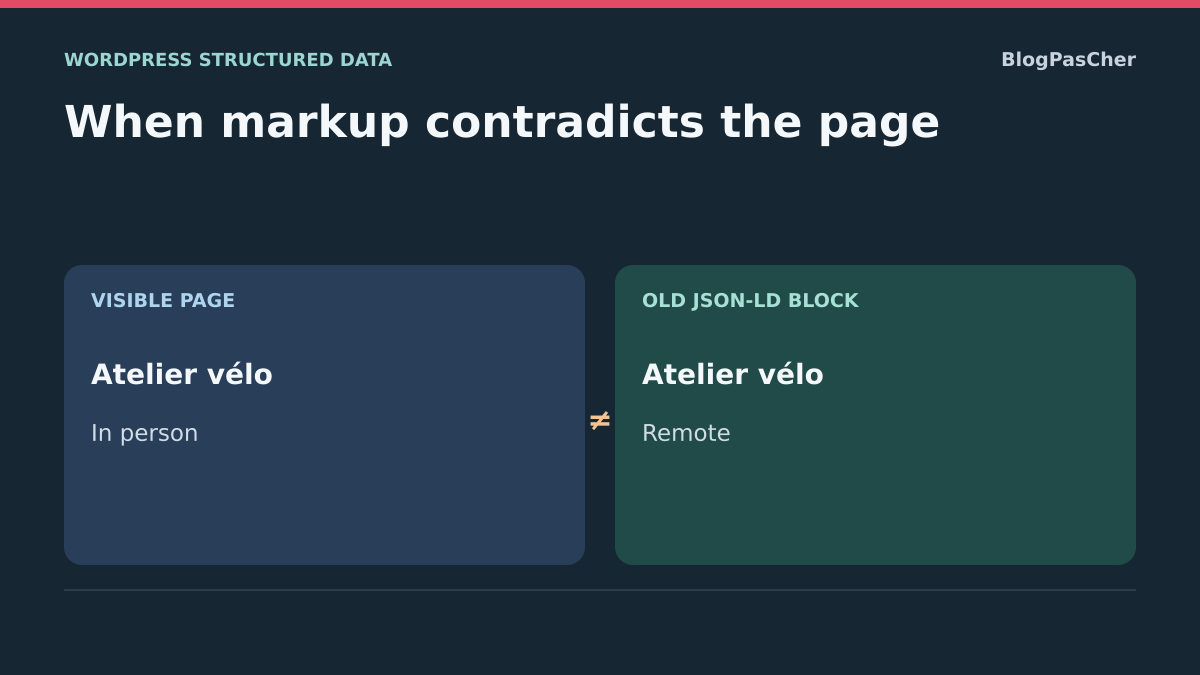
Rollback applies to the initial text or a selected revision, with another check of separate fields. Do not make visible content incorrect to match old markup. In a fictional example, a page now presenting an in-person workshop must describe that reality; retaining an old declaration of a remote course requires fixing its source, not hiding current information.
Compare images and editorial information
An unrelated structured image may come from an old selection or manual override. In the editor, open the post or page settings, then Featured image. Record the current selection and replace it with an image that genuinely matches the content if this is indeed the field that needs correction. Save, then check the page and the value sent.
Do not assume every generator necessarily uses this image. The Article graph documented by Yoast includes a headline, description, dates, an author and references to other objects. The image may be linked through an identifier. Follow that reference in the output before concluding that it is missing.
For an author or date, distinguish an erroneous value from a different presentation. An initial date and a modification date may have different roles. Do not artificially update a date to make it look more recent. Keep the initial information and correct only its identified owner; an image change must be reversible by selecting the original again.
Correct the individual type in Yoast SEO
If Yoast SEO already produces this data, open the affected content and its Yoast panel, then Schema. Record Page type and Article type when available. Choose the type that genuinely describes this content, or restore the default if an unjustified override was added. Save the content and compare the generated objects.
An ordinary page does not become a genuine FAQ because you select the corresponding label. The content and expected properties must exist. Some options depend on the content type or an integration. For an isolated problem, do not change values for all posts under Settings, Content types, Schema. If a group-wide defect is confirmed, record its old value, correct only the affected group and check several pages.
The documentation check for Yoast SEO 28.8, by Yoast, lists a minimum of WordPress 7.0 and PHP 7.4, tested up to WordPress 7.1.4. These settings do not require adding a second SEO manager. To undo the change, restore the initial choice at the same individual or group level; an individual exception may continue to override the default.
Correct a global identity in the existing manager
When the error concerns site representation, open Yoast SEO, Settings, then Site representation. Record the Organization or Person choice, name, logo and associated profiles. Correct the identity actually represented, then use Save changes. A company and a personal blog are not described in the same way.
For Organization, check the name fields and logo, along with the profiles actually associated with it. For Person, check the selected user and the public information in their profile. Do not change the represented identity simply to fix one article’s author: these objects have different functions. A global change must be checked on the homepage and two internal pages.
Compare the public content presenting this identity with the resulting graph. The setting does not guarantee a panel appearing in Google. To roll back, restore the saved values on the same screen and, if necessary, those of the edited profile. Avoid replacing the logo with an improvised image that does not represent the person or organization.
Handle business information at its actual source
Prices, availability, events or reviews may come from a specialized module. They are not universal WordPress core features. If the contradiction concerns one of these items, first find the business record and the component managing it. A post title or SEO description does not replace a stock field or event date.
Distinguish an old value retained in markup from a difference in context: selected variation, language, validity period or offer terms. In your record, keep the exact combination observed publicly. Do not apply one value to every variation simply to obtain an error-free test.
If this data is outside your responsibility, prepare a limited correction with its owner: URL, property, current value, confirmed value and owning screen. The rest of the diagnosis can continue on a copy. Never add imaginary reviews, ratings or terms to complete a form. After correcting the actual business field, compare the visible content and its structured output again in the same context.
Remove a confirmed manual addition in an HTML block
This method is suitable only for an old addition you have located in the content. On a backed-up copy, open the page, then the editor’s List View. Select the relevant Custom HTML block and use Edit HTML or Edit Code depending on the version. Recent editors may open a dedicated window. Compare its text with the incorrect fragment received publicly.
Keep the entire block content before acting. If it contains only an old structured data script now replaced by the active generator, remove only that block through its options menu. If it also contains visible content or other functions, do not delete everything: have the person maintaining the code correct only the identified declaration.
Save, then check that the contradictory value has disappeared and the page remains complete. To undo the change, reinsert the saved original block with the required permissions. WordPress may filter scripts according to account capabilities and the environment; do not broaden permissions to force their retention. Do not paste a generic example in place of a graph that depends on your site’s data.
Manage several generators without deleting the entire graph
Several objects on a page are not necessarily faulty duplicates. A page description, article and breadcrumb may have complementary roles. Instead, look for two incompatible declarations of the same fact: a different identity, outdated title or contradictory business value. The number of scripts is not enough to decide what should be removed.
If an old manual addition repeats information already generated correctly, favor its targeted removal. If a theme and a specialized plugin overlap, look for their documented integration setting or output option. Keep the initial choice and test one generator at a time on a copy. Do not remove all JSON-LD scripts with a global search-and-replace rule.
After each test, also check references between objects: deleting a piece used elsewhere may leave an incomplete description. The expected result is a consistent representation, not necessarily a single object. If the test removes useful information or affects other pages, restore the tested setting before continuing to attribute the conflict.
Test the corrected response without confusing testing with truth
Open Google’s Rich Results Test and choose URL for a public page. Enter its final address and run the test. Expand the affected item, its properties and any messages. Use the displayed rendered code to find the exact value. A protected page is not a good candidate for this public test; do not submit a preview address containing private access.
Code mode lets you check a fragment, but it does not prove that the server publishes that version. After testing on a copy, checking the public URL therefore remains a separate task. The tool checks the rich result types it supports; detecting no item does not necessarily describe all possible Schema.org uses.
Finally, compare the value with the visible page. Accepted syntax may still contain an incorrect name. Resolve reported technical errors without inventing missing recommended fields. Keep the dated test result and the human consistency record: they are complementary checks, with no promise of future display.
Distinguish the current correction from the historical report
In Search Console, open the report corresponding to the detected type, when one exists. Reports appear under Enhancements, among other places, and product information under Shopping. Select the issue and an example URL, then record the last crawl. Counts describe items, and lists do not necessarily provide an exhaustive inventory of all your pages.
Inspect the URL to compare the known version with a current test. An old report may retain a problem already corrected in the public response. Conversely, an error-free manually tested fragment is insufficient if the published page still sends the old value. Check the identified public cache after fixing the source, with a targeted purge if needed.
When the reported problem is actually fixed throughout its scope, use Validate fix if the report offers it. This starts a check; it neither repairs the site for you nor guarantees an immediate result. If a manual action is explicitly reported, follow its specific reason and procedure; do not infer a penalty from a simple field warning.
Preserve consistency after a future change
Add structured output checks to changes affecting identity, editorial templates or business information. After a migration, also compare referenced addresses and images. A page may remain visually correct while retaining an old value in a separate field.
Document the owner of each data group: content, SEO manager, specialized module or manual addition. Keep the reason for an individual override and where it is configured. When a new component replaces an old one, plan what happens to manual declarations instead of accumulating generators whose roles nobody understands.
The final check covers the exact value, visible page, other affected pages and general operation. If a change degrades the site, restore only the saved field, block or setting, then check the public response. Preserve evidence of the contradiction so diagnosis can continue without starting over. The repair is sufficiently established when correct information comes from an identified source and remains consistent after saving, regardless of the search engine’s presentation choice.
Reproduce a contradiction with an old HTML block
On a copy, take a demonstration page whose title and text present an in-person bicycle workshop. Open the source and record the canonical address and JSON-LD objects describing the page. An example conflict to look for: a WebPage object named “Atelier vélo en présentiel” and an old HTML block adding a second WebPage named “Atelier vélo à distance”, both with the same @id. Record the values on your copy before concluding that this case applies.
Compare the type, identifier and name property to establish that these are two descriptions of the same object. The published text confirms which one describes the page. If two different names belong to different identifiers and roles, such as the page name and organization name, check each one’s context. Recording the name alone is insufficient to attribute the contradiction. Keep a copy of the suspect block and a record of the other objects before editing.
Remove the outdated source and check the remaining graph
In List View, identify the HTML block corresponding to the second object. If the block contains only this outdated declaration, remove it from the copy and save. If it also contains something useful to readers or an integration, request a correction limited to the declaration. Then reread the source of the same URL, searching for the old value, and check the page title and text in a logged-out tab.
On the copy, remove only the contradictory block and verify that “Atelier vélo à distance” disappears. Compare the visible text, canonical and objects in the Yoast graph; a modification date may change after saving. Also check the reference contact page. Put the block back only on the copy to confirm that the contradiction returns. If other useful objects disappear, restore the initial state and resume diagnosis of their identifiers and references.
Check the public version and Google’s processing
Revisit the final URL after authorized publication of the correction. Check that the public HTML contains the corrected properties and that the visible text is accurate. In Google’s Rich Results Test, URL mode lets you examine the accessible page version and supported items. For a generic object such as WebPage, a Schema.org validator can help read its structure even without a specific rich result. An outdated name can be perfectly valid JSON while continuing to contradict the page.
If a Search Console report exists for the affected type, record its last crawl and the issue’s status. Compare this record with what the page now serves. Local object validation and comparison with visible text establish the correction’s effect in WordPress. The version retained by Google and any rich display remain separate observations. If the old value is still in the public response, first resume source attribution and cache checks before starting another validation.
Also check availability of the declared image
An image may be correctly referenced in JSON-LD while being inaccessible to the crawler or unrelated to visible content. Open the exact image URL while logged out and check the returned file, not just its presence in the media library. Also examine storage or CDN restrictions when they apply to that address.
If the file is intentionally protected, do not make it public to satisfy the validator: choose an appropriate public image or review the markup with its generator’s owner. A temporary signed URL may work during the test and then expire; use the provider’s intended stable mechanism for public media. After correction, check the structured property and visible page in the same context. Valid syntax and an accessible file are still insufficient: the image must honestly represent the stated subject.
Sources and references
Use these references to check the features, requirements and limitations described. Reading documentation is not a practical test.
View 18 references
- Google: structured data and scope ↗
- Google: markup quality and accuracy ↗
- Google: Rich Results Test ↗
- Search Console: reports and validation ↗
- Search Console: current and known inspection ↗
- Yoast: structured data graph ↗
- Yoast: page or article type ↗
- Yoast: site representation ↗
- Yoast: article properties ↗
- Yoast SEO: author and compatibility ↗
- WordPress: content and image settings ↗
- WordPress: Custom HTML block ↗
- WordPress: revisions ↗
- WordPress: backups ↗
- Schema.org: Article ↗
- Yoast: WebPage node properties ↗
- Schema.org: how the markup validator works ↗
- Google: structured data accuracy and access ↗