

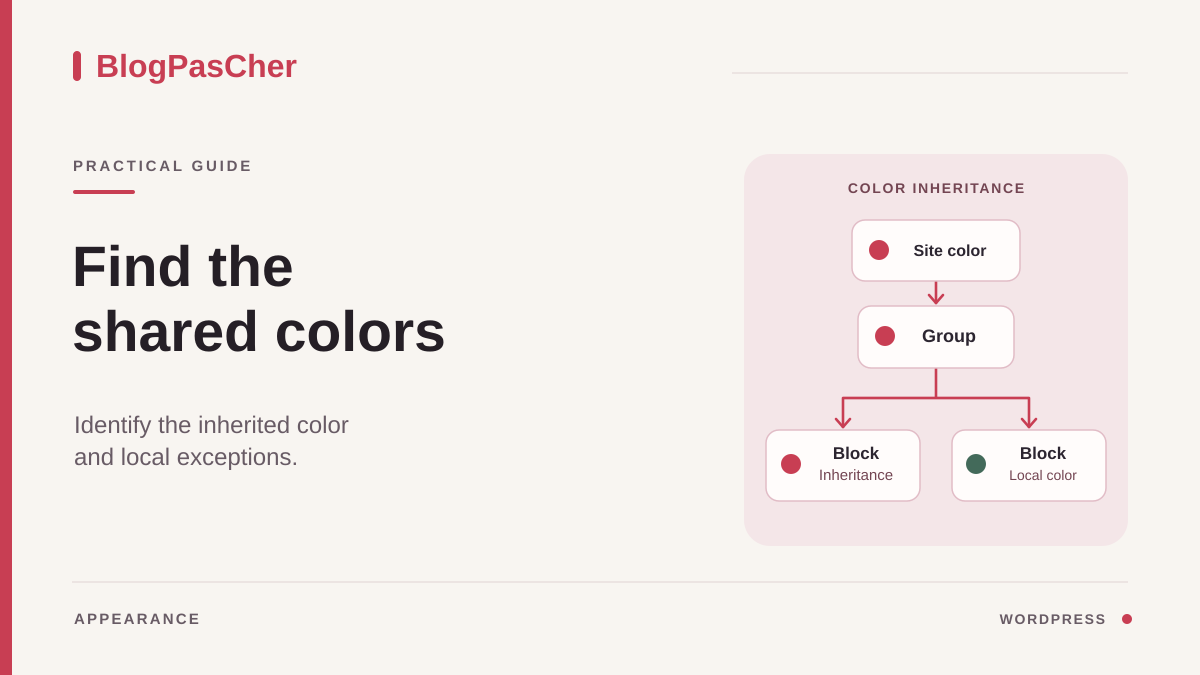
Choose an expected color and a reference block
You change a shared color, but a few paragraphs, headings, or buttons keep the old shade. Start by comparing two specific elements. Open one page where the new color is correct and another where it persists. Record the block type, expected color, and affected area: text, background, link, or button. Text and link colors may have different settings, even within a single paragraph.
Take a screenshot of each example before changing settings. If the visual identity uses known values, record the desired color code. A subtle difference between two blues may be hard to judge by eye. Also choose the background against which the text must remain readable. Correcting only the shade without observing that background risks creating a difficult-to-read combination.
In administration, open the document through Posts or Pages and then Edit. Use List View to select the resistant block. Check whether it belongs to the page’s own content, a synced pattern, a template part, or a template. Changing a shared element can affect several addresses; you must understand its location before saving.
Keep the value’s initial state: a palette color name, a custom code, or no local choice. The last situation is significant because the block may receive its color from a higher level. The intended result may be to follow shared styles or retain a deliberate exception. Decide this behavior before replacing the old color everywhere. A useful exception, such as light text on a dark banner, must not be removed without examining its context.
Examine the block and colored words separately
Select the block and open Settings > Block. Depending on the version, look for Text, Background, and Link in the Color section, or separate controls under Typography for text, Background for the background, and Elements for links and nested elements. Visible controls also depend on the block. Expand sections and their additional controls menu if necessary. The control’s name matters more than its exact position.
Read the chosen text value. A custom color entered directly is a local choice. A palette color is also a specific choice, but may correspond to a named theme role. Record its designation and check what you actually changed in shared styles. Changing the general text color does not necessarily change every color definition in the palette.
Then click inside the passage that persists. A few words may have received highlighting or a color directly from the text toolbar. If the rest of the paragraph follows the new color correctly, examine this limited formatting. Use the highlight or text color control when present and remove only the value for the affected words. Preserve links, emphasis, and the text itself.
In a working copy, compare the paragraph after removing this choice with the reference block. If the words take on the expected color, you have identified an override at this level. If the entire block remains different, move up to its container. Avoid selecting the whole page to clear formatting: you would lose useful editorial distinctions and no longer know which value was responsible.
Move up to groups and shared areas
In List View, select the group containing the affected block. Open its color settings and record text, background, and nested elements when offered. A group can define a color passed to its children when they have no value of their own. Two identical paragraphs placed in different groups may therefore display differently without a WordPress fault.
Compare background and text together. A dark banner may deliberately impose light text on all its children. If you remove this text color, immediately check that the text remains readable against the background. The right choice may be to retain the group exception while updating its palette. Clearing all child settings without examining this container does not guarantee successful consistency.
If there are several nested levels, move up one parent at a time. Record which changes the result when its color is removed in the working copy. Do not change the paragraph, group, and global style simultaneously. This gradual approach makes it easy to restore a value and understand which level should carry the shared rule. Undo an ineffective change before continuing.
A header, footer, or synced pattern requires a scope check. If you edit a shared area, also open another page using it before saving. The expected result should be consistent across all its intended occurrences. If only one page needs a special banner, prepare a local variation suited to how the site works instead of changing an area common to every page.
Check what was changed in shared styles
With a block theme and the necessary permissions, open Appearance > Editor > Styles. The exact navigation may begin with a site overview. In colors, distinguish general text, links, and other offered elements. In the Blocks section, then choose the relevant type, such as Heading or Button. A rule shared by this type may explain why it differs from general text.
Return to the reference block and compare its family with that of the resistant block. A paragraph following the new color does not prove headings should follow it: the theme may assign them their own role. If you want all headings to change, examine their shared setting. If you want only one particular heading, keep a clearly chosen local change. The scope must match the visual intention.
The palette and applied colors are related without being interchangeable. A custom shade entered directly in an old block does not automatically become a palette role because it resembles a theme color. Likewise, replacing a general color does not replace every identical value in specific styles. Choose a named role when the block should follow that role, or clear its local value when it should inherit.
With a classic theme, Appearance > Editor may not provide access to Styles. Look for the theme’s documented options under Customize or in its own panel. Some themes do not offer an editable global palette in the interface. In that case, correct available blocks locally and refer a shared rule to the theme owner. The absence of this control does not justify activating another theme on the production site.
Remove an override or retain a useful exception
To make a block resume its inherited color, open its color control and look for the Clear button in the palette or the reset icon associated with the value, depending on the interface. Clear only the intended text color. The panel may indicate that no color is selected while text remains visible: it is using another rule from the site or its parent. This absence of a local choice is not a transparent color to apply manually.
Immediately compare the result in the preview. If the block matches the expected reference, keep this targeted removal. If the result becomes unsuitable, restore the recorded value and examine the parent or shared styles. Do not proceed by replacing every color with one code before understanding the responsible level. You would create a new series of local values that are difficult to maintain at the next visual identity change.
When an exception must remain, give it a clear scope. For example, an alert group can retain a specific background and text while its paragraphs impose no additional color. The children then follow the group’s choice. If the theme offers a section style or variation matching this function, examine that solution in a copy before using it repeatedly.
For several older pages, start with one representative occurrence. Check the result before manually extending the correction to blocks with the same cause. Visually searching for a shade is not enough to identify all identical values stored in content. Do not perform a global database replacement for this diagnosis. A limited correction, described by its level and value, remains easier to verify and undo.
Examine a specific style or persistent theme rule
If no obvious local color explains the result, check whether the block uses a style variation. An outline button, quote, or styled group may receive a specific presentation. In block settings, compare the active style with the default style in the working copy. Record what changes and restore the initial style if the test does not meet your need. A particular style may be intentional.
Also examine additional CSS classes when entered in the Advanced section. Their presence does not prove that they impose a color, but gives the theme owner a clue. Copy their names into your notes without systematically deleting them. A class may manage both layout and appearance; removing it could fix the color while breaking another useful behavior.
If you are comfortable with browser tools, inspect the element on the public page and examine the color property actually applied. The styles tab shows active and overridden rules. Record the rule, its selector, and its origin, such as the theme or a plugin. Temporarily disabling it in this tool is a local test: it saves no correction on the site.
Send this information with the affected address and block if a theme adjustment is needed. Avoid adding a broad new rule that forces every color with excessive priority. It would hide the editor settings’ effects and could make banners unreadable. The fix must target the responsible component, with verification across its different uses. If the site uses a page builder, consult its own global color system and local values before adding external CSS.
Check the public result and readability
Open a preview of the corrected page, then examine text against every background it encounters. A block moved over an image or dark background may need an exception that the reference block did not. Also check links, buttons, and their hover or focus states. A correct default color does not guarantee other states remain readable. Editor contrast warnings are useful when they appear, but do not cover every context.
In a narrow window, make sure text does not move over another background area when the layout reorganizes. Contrast may become insufficient only on a phone if a cover image is cropped differently. Check a long sentence and a button with its full label. If a color conveys information, also retain text or another cue expressing that information.
After saving only validated changes, open the public address in a visitor session. If the editor shows the new color and the public page shows the old one, first check that you are visiting the correct address and that saving completed. Reload the page and then compare any site or delivery service cache, using available targeted purge controls. Avoid changing colors again during this comparison.
Finally, check representative pages within the changed scope. For a local value, the page and its display variants may be enough. For a shared heading style, check several pages and an example of a banner or card using that type. The expected result is deliberate consistency with readable, explainable exceptions, not uniformity achieved by removing every visual nuance.
Prepare a rollback limited to the right setting
For each change, keep the level, initial value, and chosen value. A note such as “paragraph in the Pricing section: custom color removed” describes a precise rollback. If you need to go back, reselect that paragraph and reapply its old value. For a group, return to the group; for a shared heading style, return to Styles > Blocks > Heading. Do not restore the entire site for a single shade.
Before saving, Undo can restore a recent document change. After saving, a content revision may help with a color stored in that content, if revisions are available. Do not assume it covers every global style. For a change in the Site Editor, use the history and restoration controls provided by that area, reading their scope before confirming.
A general style reset may remove several useful customizations. Reserve it for an explicit decision to roll back globally, with a backup and comparison prepared. If the problem is limited to one block’s color, the right rollback is its setting. Then restore the associated background and states if changing them was part of the same test.
Finish by opening the corrected block one last time. Check that its panel reflects the chosen behavior: inherited value, palette color, or custom exception. This consistency between the panel and result helps future authors understand how the site should evolve. Document the rule with a concrete page example. At the next visual identity change, you will know which blocks should follow shared styles and which areas need a particular check.
Connect a component to a palette color with CSS
For a custom component maintained in your child theme, use the palette role actually declared instead of an old hard-coded color. Suppose accent is the slug of the desired color. Add the bpc-accent-suivi class to the relevant component and place this rule in the child theme stylesheet already loaded or in the additional CSS provided by the theme.
The second argument is a fallback color, not a preset definition. Check the slug in theme.json or in the browser’s computed variables. If this preset does not exist, the rule uses the fallback and will not follow any palette change. Adapt the name to your theme.
First remove a conflicting local choice in the block when the goal is inheritance. If the rule does not win, inspect the cascade before adding excessive priority. Check a light background, a dark background, and nested links, which may have their own color. To undo, remove only this rule and the added class. Native controls remain preferable for ordinary blocks.
.bpc-accent-suivi {
  color: var(--wp--preset--color--accent, #1d4ed8);
}
Sources and references
Use these references to check the features, requirements and limitations described. Reading documentation is not a practical test.