

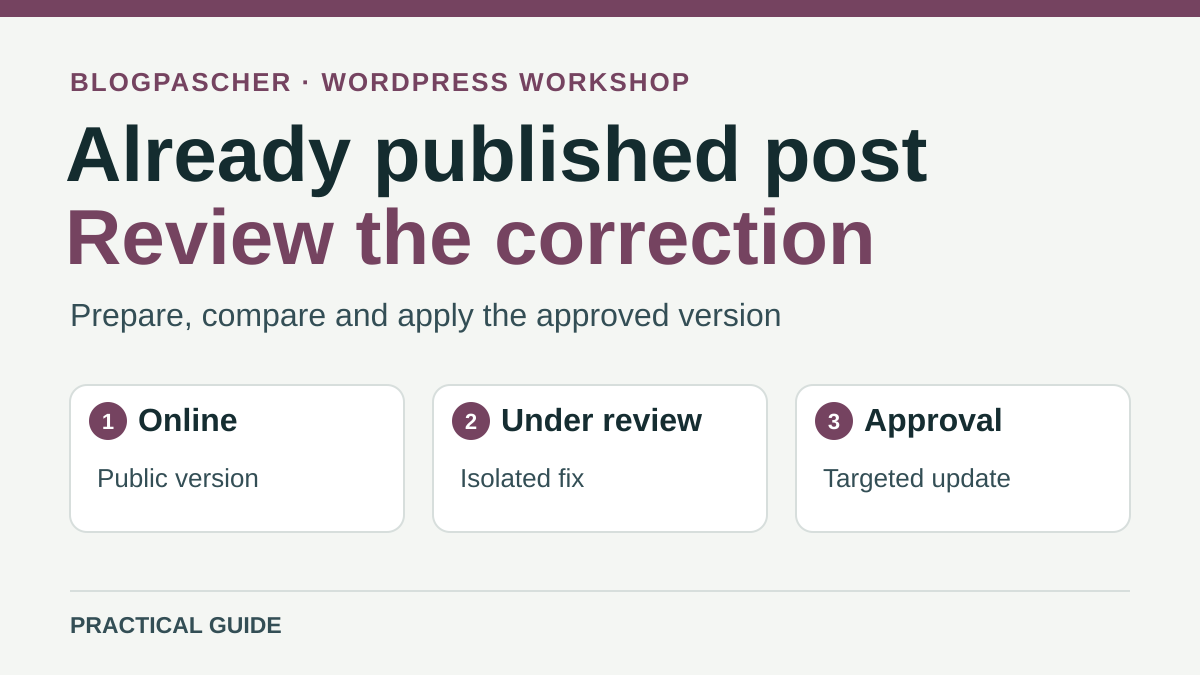
Check that the request concerns an already public post
Open the post in a visitor window and record its URL, title, and passage to correct. In administration, find the same post and check its status. If already published, saving the original may put the new version online immediately when the account has the necessary permissions. A button labeled “Update” or “Save” may vary by interface. Rely on document status and the nature of the workflow, then confirm the visitor-side result. A new-post draft awaiting first publication follows a different editorial stage.
Define the expected result with the reviewer. The current post must remain available at its URL during preparation. The reviewer must be able to compare an identifiable proposal with the online version. After approval, the correction must join the same post with its history and references. Copying an entire post and publishing it elsewhere may create two URLs and histories. Keep the same post as the change destination unless the request genuinely involves publishing new content.
Also record the change's scope. A number in a paragraph, replacement image, and taxonomy change require different checks. If the correction concerns a synced pattern, template, or shared media, establish which other pages may change. To preserve the public version while waiting, first prepare a local copy of affected elements or an independent proposal. Then check whether the review mechanism actually covers every element that must change.
Keep a reference state before proposing the change
Identify the current version and record date, title, and elements that must remain identical after correction, such as URL or existing links. If WordPress revisions are available, open history and identify the saved version closest to the online state. Core revisions compare and restore saved content. An autosave may help recover working text. Both mechanisms may be useful for rollback, while a proposal awaiting approval requires an organized workflow before updating the original.
For a textual correction, prepare a note showing the original passage, proposed passage, and reason for change. For an image, record the file used, location, and alt text if necessary. For a correction involving metadata, keep a list of fields to check separately. Depending on theme or plugin, some values are absent from core revisions. Ask the content manager to confirm which must be restorable.
Keep this record in the intended workspace. Avoid copying private data unnecessary for review. Add the approver's name and context for examining the proposal. If several corrections are being prepared for the same post, agree which needs approval first and record changed areas. You can then identify a concurrent change before putting a version online again.
Approach 1. Prepare a one-off correction manually
For a few sentences, prepare the change in an internal document or independent WordPress draft. In the latter case, give the draft a clear internal title and associate the URL of the post to correct in your notes. Keep the proposal in Draft status and check that the reviewer account can open its preview. The manual flow then uses a targeted update to the original by the authorized account. If your installation provides no preview usable by the reviewer, compare text in your internal material. The reviewer must identify the original and proposed passage without saving the live post.
If the original and draft use different editors, provide a change list with final text and link destinations. Copying only the intended passage into the original editor avoids converting the whole document for a minor correction. For a link, check URL, visible label, and expected behavior. For an image, have rendering checked at the original location because the draft may use a different template.
On a staging copy, compare rendering when the correction changes a link, block, illustration, or interaction. Synced patterns may retain shared references in a draft. To assess a local change without affecting other uses, work on an independent block on the copy. Also keep existing media during comparison. Replacing the file of media used elsewhere may change several pages even if the post itself retains the same status.
After approval, the authorized account opens the original, checks that the baseline has not changed, and applies only approved passages. They check preview, URL, and neighboring elements before final saving. If someone else changed the same area meanwhile, compare both contributions and request fresh approval of the resulting version. Then reopen the URL as a visitor. Keep the working draft until the result is confirmed, then organize it according to the editorial workflow. The separate draft is not intended to replace the original.
Approach 2. Submit a revision with PublishPress Revisions
If several people regularly propose corrections to published posts, a revision queue may make the flow easier to verify. PublishPress Revisions offers submission, comparison, and approval in its free edition for common uses. Before trying it, check WordPress and PHP prerequisites and documented integrations on its official listing. If your installation already uses an equivalent workflow, start with the existing one. A role change or new plugin may alter buttons and responsibilities on other posts.
On the copy, ask the account managing users to create or designate one staging account for proposals and another for approval. The plugin's Revisor role allows preparing revisions that pass through moderation. With a broader editorial or administration role, a person may also be able to write directly to the public version. Check permissions with the two accounts actually intended. The team workflow must remain understandable to a user seeing several possible actions on the same post.
In the post list, open the “New Revision” action associated with the reference post. Depending on the interface, this action also appears in the editor. Edit the copy opened for revision and choose the submission-for-approval command. In an English interface, labels may include “New Revision” and “Submit.” Leave the proposal in the queue. Return to the public URL as a visitor to confirm that the initial reference text is still served. If text already changed, check the opened post and command used before continuing.
Compare and approve from the reviewer account
With the authorized account, open the PublishPress revision queue, called Revisions Queue in English documentation. Identify the proposal by title, author, and original post. Use Compare to read differences, then check title, passage, links, and other intended elements. Use the proposal preview if rendering depends on the theme. Keep the original's visitor page, accessible on the copy, in another session to distinguish what is still pending from what is already served.
If the post has fields added by another plugin, test the fields actually involved on the copy. PublishPress documents specific integrations in its Pro offering, including certain fields, SEO tools, or builders. Clear comparison of body text is insufficient to establish that these fields follow the same workflow. Prepare a control for each or separate text approval from the setting intervention. If results differ, keep the proposal pending and ask the maintainer to confirm support for this installation.
When changes are approved, use the intended approval action. Immediate approval may put the correction online. If the team needs another time, check status and destination before using the site's scheduling option. If the proposal needs more work, use rejection or pass corrections to the editor through the intended workflow. For a scheduled correction, record the displayed time and time zone and check the post again after that deadline. When several proposals await action for the same post, record which is scheduled and who must check the others. A second correction approved before the first may change the comparison baseline. After approval, check the public post, its URL, and absence of changes to other reference content.
Reproduce all three outcomes on an authorized copy
On your authorized copy, prepare a staging post containing “Repère public 27” in the passage to correct. If the plugin sends email, redirect it to the staging mailbox before submissions. Designate a proposing account, approving account, and visitor session without a WordPress login. Record post ID and URL. On a cached copy, also compare what the authorized account sees to distinguish a version still pending from an old page served to visitors.
Use two separate proposals, “Repère proposé 41” and “Repère approuvé 52”. Keep a neighboring paragraph unchanged as a control. Repeat comparison with media or an additional field if the intended correction depends on one. For rejection and approval cases, record the queue decision and text actually served at the original URL.
- Submit “Repère proposé 41”. The proposal must appear in the queue and the visitor page must continue displaying “Repère public 27”.
- Reject or withdraw this proposal using the available action. It must leave proposals awaiting application while the starting text remains visible.
- Submit, then approve “Repère approuvé 52”. The approved passage must appear at the same URL and under the same post ID. The neighboring paragraph must remain intact.
Handle a mismatch between the queue and live post
If the proposal is absent from the queue, return to its editing screen and confirm submission. Compare site, content type, role, and active queue filters. An identical title may identify the original and revision. Compare their IDs or parentage indicators provided by the interface. Missing email is insufficient to conclude the proposal is absent, because the workflow log and message receipt are separate checks.
If the reviewer approves but still sees old text, first open the original in administration and record its status. Check whether the revision was applied immediately or awaits a scheduled date. When administration contains the correct value, compare the visitor-side response to identify an old cached version. Reopen the final link and check a passage that actually changed. For a translated site, also compare the language and entry to which correction should apply.
If another update was saved during review, compare the proposal with the now-public version before approving it. A proposal based on an old state may overwrite corrections made since. Apply only differences still approved or have the proposal recreated from the latest state. This check also applies to manual drafts and scheduled updates.
Restore the useful version and close the test workflow
While the proposal is pending, use the tool's rejection or withdrawal action. Then confirm the original remains accessible and the proposal is no longer awaiting application. If the correction was already published by mistake, precisely record the changes that appeared. Compare an available revision or the initial record and restore only parts needing correction when other work has since been added. Check separately managed fields and media and the public state after rollback.
After rollback, also recheck the neighboring paragraph, changed link, and version served without login. Record whether the change was undone in the original or only the proposal was withdrawn. This distinction helps another reviewer find the correct version when a correction is proposed again.
On the copy, remove proposals, accounts, and reference content according to team rules. If the plugin was added only for testing, examine pending or scheduled proposals before removing it. Restore roles changed for the test. On the site actually used, keep a record of the reviewed version, approver, and selected rollback method. The reviewer must be able to find the approved passage without examining the entire history.
For a change affecting only one sentence, a note with the passage and approved version may suffice. For a change affecting several fields or a template, document every check. The expected result remains the same: the public reads a stable version during review, then the approved correction on the same post.
Install the free version and prepare both accounts
For a first test, open Plugins > Add New Plugin on the copy, search for “PublishPress Revisions,” and verify the author PublishPress. Install and activate this plugin; another plugin from the same brand does not necessarily create the revision queue. Record the version displayed in Installed Plugins.
Under Users, prepare two distinct dummy accounts: the proposer with the Revisor role and the approver with a role authorized to approve. Also keep a visitor window without login. Configure staging notifications before submitting: they must not contact real collaborators. Then perform the “Repère public 27” passage test described above.
The free edition covers the workflow for ordinary WordPress content. Do not infer that Pods, WooCommerce, ACF, or builder fields will follow correctly: the developer reserves several integrations for Pro. If correction concerns only a few sentences, the manual draft remains a plugin-free solution. Before deactivating the tool after testing, remove scheduled or pending proposals and restore temporary roles.
Sources and references
Use these references to check the features, requirements and limitations described. Reading documentation is not a practical test.
View 6 references
- WordPress — Revisions and autosaves ↗
- WordPress — Status and visibility in the editor ↗
- WordPress — Roles and editing capabilities ↗
- WordPress.org — PublishPress Revisions and free-edition features ↗
- PublishPress — Role permissions and the Revisor account ↗
- PublishPress — Approve changes to published content ↗