

Define the document to convert and keep a reference
Converting to blocks helps you obtain separate elements that are easy to select in older content. It is not about changing the appearance of the entire site. Choose a single post or page, then record its address, title, and status. Preferably start with a short, representative document containing a subheading, a few paragraphs, an image, and a list. More complex older content can follow this first check.
Open its public page in a tab and keep a reference of its state: screenshots, text, and an inventory of important functions. In particular, record links, captions, tables, forms, and downloads. This reference will help you spot a subtle disappearance. A visually similar result may have lost a link or caption; a different-looking result may simply reflect a theme style.
Before saving any change, check that a usable backup exists and that document revisions are accessible. In Post or Page settings, look for Revisions when available. Their presence and retention depend on configuration. If you have no reliable rollback method, work on a draft copy prepared by the person responsible for the site. Duplication commands are not identical across installations.
A working copy must remain unpublished. Give it an explicit title to avoid confusing it with the original, and keep the public document’s address. Copying only visible text does not necessarily reproduce settings, associated images, or plugin data. For a critical page, use a test environment with the same configuration. The initial goal is a controllable conversion with a clear reference and a way back.
Recognize the classic editor and the Classic block
Under Posts > All Posts or Pages > All Pages, open Edit below the chosen document. If the screen shows the old visual interface with its tabs and formatting toolbar, a plugin or site configuration may be retaining the classic editor. The Classic block’s conversion command does not appear in this full interface. Look for an Edit with block editor action in the list, or ask the owner how to open this document with blocks.
Do not disable the classic editor site-wide to access a single post without evaluating the effect on other authors. Depending on configuration, the editor choice may be allowed per content item, set globally, or restricted to certain roles. If no choice is offered, prepare to open it in a test environment. Missing access is not solved by randomly pasting the public content into an empty page.
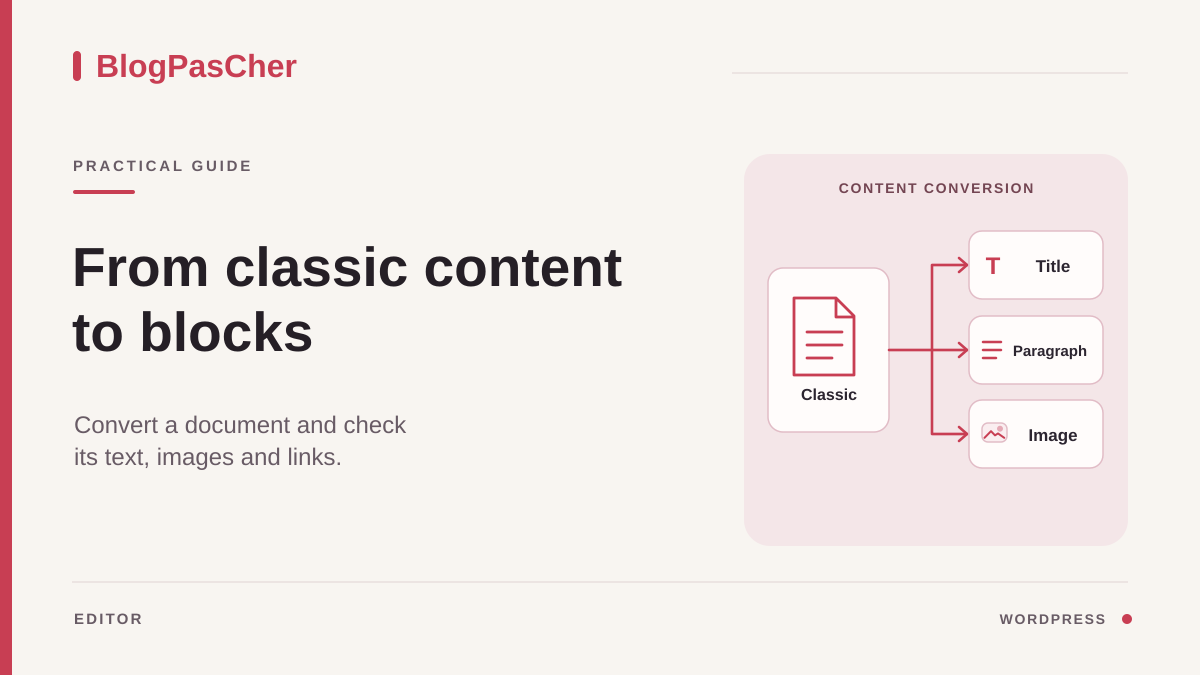
In the block editor, an older document may appear as one large block named Classic. Click inside it, then open List View to confirm its name. Several paragraphs and images may belong to this single block. Seeing an old formatting toolbar inside it therefore does not mean you have returned to the full old editor.
Also check whether the document already contains a mixture: a few native blocks and a Classic block retained for an older section. In that case, only this section needs to be examined for conversion. Keep blocks that are already correct. The expected result at this stage is knowing which element will be transformed and how to select it without affecting its neighbors. If you see no Classic block, the conversion you want may already have happened.
Convert the block and inventory the immediate result
Select the Classic block. In its toolbar, use Convert to blocks; depending on the width and version, also look for this command in the block options. Wait for the transformation before clicking again. Open List View: recognized elements should now appear as a sequence of blocks, such as Paragraph, Heading, List, or Image. This tree provides an initial view of the result.
Do not immediately click Update for public content. First review the beginning, middle, and end of the document. Compare the number of sections with your reference, then look for a distinctive passage near the end. This helps detect a cutoff that the first screen does not show. A conversion must preserve useful content before a new organization is justified.
Some passages may remain in a Classic block or become Custom HTML. A shortcode may remain a shortcode instead of becoming a functional block. Conversion does not automatically replace plugin components with native functions. Record these exceptions and check their preview. If a warning reports an invalid block, do not run recovery repeatedly without comparing what it will preserve.
If the immediate result is poor, use Undo before making further changes. You should recover the Classic block and its initial content in the session. Verify this rollback instead of assuming it succeeded. If the result is usable, retain this first step in your working copy and continue checking element by element. The expected benefit is an editable structure, not a fully reformatted document in one action.
Check headings, paragraphs, and lists
Select subheadings one by one and read their type in List View or their toolbar. Text that was previously enlarged may remain a paragraph, while a real HTML heading is more likely to be recognized as a Heading block. Compare the structure against the document’s meaning. The main post title is generally still managed by the document and its template; do not recreate it in the body merely because conversion produces subheadings.
For each section, check that the heading properly introduces the paragraphs that follow. Adjust its level using the block control when the resulting level is inappropriate. Choose the level according to hierarchy, then the presentation according to style. Making every heading large does not fix an incorrect structure. Keep a sample of short and long sections to check consistency.
Examine paragraphs containing line breaks. A line break inside a paragraph is not necessarily a new block. Keep it when it serves a purpose, for example in a short address. Separate paragraphs if the text really contains several ideas. Avoid creating empty blocks to recreate old spacing: margins and spacing can be adjusted later in presentation.
For lists, check bullets, numbering, and nested levels. A three-step list must still contain three items in the correct order. A manually typed number may remain ordinary text; rebuild a real list if it improves editing without altering meaning. Reread accented words, quotations, and special characters around block changes. These targeted checks are more useful than uniformly changing every style.
Check images, captions, and link destinations
For each important image, compare the file and crop with the reference. Select the Image block and check its origin in the library when the interface allows it. An image still loading from an old domain is not fixed by conversion. Record this dependency to handle separately; replacing the file without checking its destination may break a gallery or a link to an enlarged version.
Read alternative text and captions as two separate pieces of information. The caption is visible around the image; alternative text provides a relevant equivalent when an image conveys information. Conversion may preserve existing values without assessing their quality. Provide a relevant equivalent for an informative image. For a purely decorative image, leave the alternative text empty. If the image alone forms a link, its equivalent must indicate the destination or action.
Check alignment and the behavior of text around the image. An old float may produce a different presentation in blocks. If a small image must remain beside specific text, examine a Media & Text block or an appropriate layout in the working copy. This is an additional reorganization: do it after validating content preservation and keep a before-and-after comparison.
Click links in the preview, including those on images, download buttons, and internal anchors. A visually underlined link may point to an incorrect address that was already old. For an anchor, also check that the destination identifier remains after conversion. Record links that worked before and no longer work; they point the correction toward the transformation. Links that were already broken require a separate repair, to be recorded so not every defect is attributed to this operation.
Handle tables and plugin-provided content
An older table deserves a row-by-row comparison. Check headers, any merged cells, captions, and links. If conversion retains HTML, that may be preferable to a transformation that loses complex cells. Do not rebuild a data table in decorative columns to achieve a quick resemblance. Reading and the relationships between data must remain understandable.
For a shortcode, identify the plugin or function that interprets it. Its text may be preserved in the document while still needing the same component to work. Open the preview and check the expected result: a form, gallery, list, or other function. The absence of an equivalent native block does not mean the code should be deleted. If the component is no longer maintained or available on the site, prepare its replacement as a separate operation.
A form must retain its fields and messages. In a test environment, use fictional data and check the intended effects before trying a submission. A purchase or booking page may trigger real actions; its validation belongs to the owner of that function. Merely displaying the form does not prove that transmission or recording works after the changes.
If a section does not convert correctly, undo that transformation or restore the passage from the reference in an appropriate block, then check it. You can retain a Classic block for a complex area and use native blocks elsewhere. This gradual solution avoids making the entire document depend on one problem. Document the remaining exception with its reason and the check still needed instead of presenting a partial conversion as fully validated.
Compare previews and decide on the update
Open a preview of the converted copy in a new tab. Compare it with the reference in a wide window and then a narrow one. Check the beginning of the post, sections containing images, and the end. Differences in margins or fonts may come from the new blocks’ styles; assess them without confusing presentation with content loss. Complete text with spacing to adjust does not necessarily require undoing the entire conversion.
On a phone, check tables, images beside text, and buttons. Make sure words are not clipped beyond the screen and the order remains logical when elements stack. For a long page, use internal links and navigation back to sections. A missing anchor can break navigation even when every paragraph is present.
Review document settings before updating the original: title, status, address, category, featured image, and template. Converting the body does not require changing these parameters. If the working copy does not reproduce all of them, do not publish it as a new original without a replacement plan. You could create two addresses for the same content or abandon existing links.
When checks are satisfactory, apply the chosen conversion to the intended document or use the site’s approval process to transfer the content. Review the final preview again before updating. Then open the public address in a visitor session and check the essential elements. Keep the reference until validation is complete. The expected result is the same useful content at the same intended destination, now organized into editable blocks.
Return to the previous version and continue gradually
If an issue appears before saving, use Undo to return to the previous step, then check the block and its preview. If other useful corrections have been made since, proceed carefully: several actions may need to be undone, and their order matters. Keep a copy of corrected passages so you do not lose them by going back too far. Avoid closing the tab until you understand the working state.
After saving an update, open Post or Page settings and then Revisions, if available. Compare versions and select the one preceding conversion. The comparison interface varies with the WordPress version; read the content and date instead of relying only on the slider position. On a published document, restoring a revision may directly change public content. Confirm the version and intervention time, then restore the revision and check the public page. A content revision does not necessarily restore media files or all plugin data.
If no usable revision exists, use the prepared reference or backup according to the scope of the defect. Restoring an entire database for a single page could overwrite other recent changes. Request recovery limited to the document when possible. The rollback choice depends on what actually changed and the backup tools available on the site.
Finish with a conversion note: document handled, resulting blocks, retained exceptions, links checked, and rollback method. For subsequent content, repeat the same inventory while choosing something slightly more difficult. You do not need to convert the entire document collection in one session. Progressing through checked posts helps identify special cases, improve the method, and maintain reliable editing as work continues.
A reference document for checking conversion
In a draft copy, prepare a Classic block containing, in order, a real level 2 heading, a paragraph with a link, a three-item list, and an image with a caption. This set is deliberately simple. Record the link and image file, then use Convert to blocks.
In List View, look for the Heading, Paragraph, List, and Image blocks corresponding to the content. The exact result may depend on the initial HTML: text that is merely enlarged is not equivalent to a heading tag. Check that the list retains its three items and the caption remains associated with the image. In the preview, open the link and check its destination.
If your real document also contains a complex table or a form shortcode, do not assume conversion will reproduce its behavior. Keep that area in an appropriate block and validate it separately. Before saving, Undo should let you recover the Classic block. After saving, use the prepared revision if available. No paid plugin is needed to convert recognized content; native conversion does not replace the functions of a plugin that interprets a shortcode.
Sources and references
Use these references to check the features, requirements and limitations described. Reading documentation is not a practical test.