

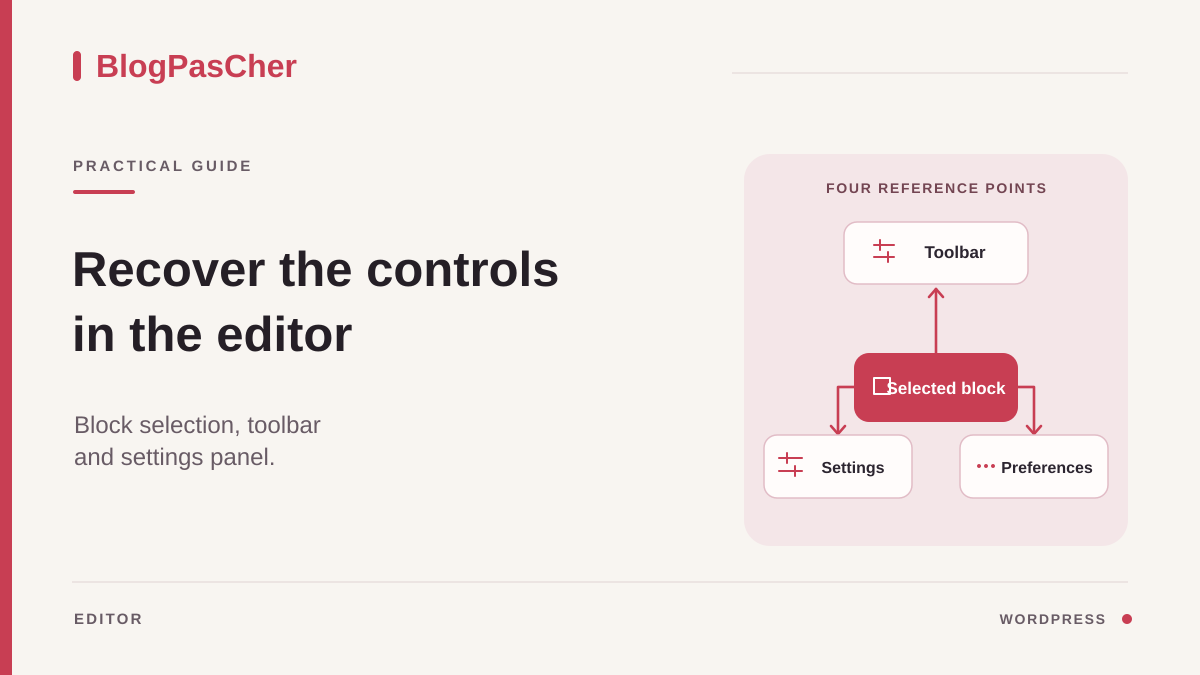
Identify exactly which controls are missing
Text remains visible in the editor, but the link, color, or alignment buttons seem to have disappeared. Start by naming the control you need. A link in a paragraph belongs to the block toolbar. That paragraph’s dimensions are found in its sidebar. The publication date belongs to the document settings. These three areas can open independently; finding one does not automatically restore the other two.
Open Posts > All Posts or Pages > All Pages, then Edit below the content concerned. Check its title. Note whether you are editing its content, a template under Appearance > Editor, or an interface supplied by a page builder. This workflow covers native blocks. A builder may have its own panels, accessible through its own controls, and require a different diagnosis.
Preserve work in progress before reloading the window. For a draft, use Save draft when available. On already published content, saving may make changes public: if they are not ready, copy modified passages into a local note and first continue checking the interface. A disappearing toolbar does not justify rushing publication.
Take a screenshot of the initial screen and record the control you need, the block type, and the browser. For example: “link missing in a paragraph, sidebar settings closed.” This observation avoids changing several preferences without knowing which solved the problem. If the central area is entirely blank, the symptom goes beyond a hidden control; use the workflow for a blank editor. If blocks are readable, continue with their selection.
Select the right block and find its toolbar
Click once in a paragraph’s text. A border, cursor, or block name should let you recognize the selection. For an image, click the image itself. The toolbar that appears belongs to the active block: it changes when you move from a paragraph to an image. A crop control will therefore not be found on the group containing that image.
For a nested layout, open List View from the editor’s top bar. Expand the group, then select the paragraph or image in this tree. This method is particularly useful when clicking the page always selects a container. Read the block name in the panel or breadcrumb trail when displayed. The expected result is a single, identifiable selection corresponding to the element you want to edit.
Then look at the top of the workspace. The Top toolbar option moves block controls to the top of the editor. An absence of buttons immediately above the text may therefore be normal. Open the editor’s three-dot menu at the top right and look for this option. Depending on the version, it appears directly in the menu or under Preferences > Appearance. Turn it on or off once, then select the same block again.
In a paragraph, select a few words to reveal useful text actions, such as linking. In a narrow window, some actions may be grouped under an additional menu. Hover over an icon or move keyboard focus to it to read its label. Do not apply a block transformation to look for a control: changing a paragraph into something else modifies content without explaining where its toolbar was.
Reopen the sidebar and choose the right tab
Find the Settings button in the top bar near the save controls. Its appearance varies by interface: a gear or panel symbol. Its accessible name lets you identify it independently of its shape. Click it to open the sidebar. If it closes the sidebar, click again; you have simply observed its toggle behavior.
The sidebar offers document and block settings. The Post or Page tab concerns the entire content. The Block tab concerns the selected element. In the Site Editor, the document may be a template and have another name. To change a paragraph’s color, select the paragraph and then Block. To find a post category, return to the Post tab. A category is not a paragraph setting.
Expand the panel sections before concluding that a setting has disappeared. Some blocks separate general options and styles into two subtabs. A Color, Typography, or Dimensions control may therefore be on the styles side. Also look for the section’s three-dot menu: it may offer controls that are available but not displayed. Options depend on the block and theme; not every block has every control.
Compare two different native blocks in the same draft. If an image displays its options while a Classic block does not, this difference may reflect their normal behavior. Do not copy a CSS rule or reinstall a plugin to create a control the block does not provide. The right result is finding the documented settings for the actually active block, with its name and scope clearly visible.
Reenable a document panel in preferences
If the sidebar is open but an expected section is missing, open the editor’s three-dot menu and then Preferences. Look for document settings options, generally under General in recent versions. Sections can be enabled or hidden separately. Reenable only the one you need, then close preferences and return to the Post or Page tab.
Take a missing featured image panel as an example. First check that you are in post settings, then see whether its panel is hidden in preferences. After reenabling it, the section should reappear in that column. If it remains absent, the content type, theme, or site configuration may not offer the feature. The test does not allow you to conclude that the image file was deleted.
Preferences also include choices for blocks in the inserter. A block disabled in this list may no longer be offered in an insertion search. That does not mean blocks already in the document have disappeared. Reenable the block you need if this preference explains the symptom, then search for its name in the inserter. Keep access to a new block distinct from the settings of an existing block.
Avoid a general reset when you have identified a single hidden panel. Record the name of the setting changed and its initial state. Rollback consists of returning that toggle to its previous position. This preserves the account’s other working preferences. WordPress normally saves these preferences for the account and uses browser storage as a fallback. If you are helping a colleague, compare settings from their own account.
Exit modes that simplify the interface
Distraction free mode can hide much of the interface while writing. Move the pointer to the top of the editor or bring keyboard focus to that area. A limited bar should let you reach the options. Open the three-dot menu and disable Distraction free. Depending on the version, the same choice is available under Preferences > Appearance. Then return to the block you want to edit.
Fullscreen mode affects the administration environment: the dashboard sidebar menu may be hidden while the editor works. To restore it, change the Fullscreen option in editor options. This setting differs from the browser’s fullscreen mode. If even the address bar has disappeared, also examine the browser’s display mode through its menu. Correct the level that actually matches what disappeared.
Spotlight mode dims blocks other than the active one. A grayed-out block is therefore not necessarily disabled. Click it and check whether its readability returns. If this presentation interferes with work, disable the mode in options or appearance preferences. Keep the same selection during comparison to see the effect of changing only the mode.
After these checks, you should have a workspace where necessary controls are stable and easy to locate. You do not have to display every panel permanently. You can keep the top toolbar if it is easier to reach, or the toolbar near the block if you prefer it. Simply record your choice so you know where to look next session. None of these display settings requires changing text, switching themes, or publishing the page.
Adjust the window and use accessible labels
In a small window, the sidebar takes up much of the space and some actions change presentation. Enlarge the window, then check browser zoom in its menu. If an unusual zoom was applied by mistake, restore a value suitable for working and compare. If you need magnification to read comfortably, keep it and use collapsed menus or the keyboard; the solution must remain usable for you.
In preferences, look for the option that displays button labels if icons are difficult to recognize. It appears among accessibility settings in versions that offer it. A label such as Settings or List View is a more reliable reference than an approximate description of an icon’s shape. Look for these same names when moving to another version or a translated interface.
With the keyboard, use Tab to move through controls and Shift with Tab to go back. Observe the focus outline and listen to the announced label if you use a screen reader. The shortcuts window, accessible from editor options, describes the combinations available in your environment. Prefer that list to a memorized shortcut that the browser or operating system might intercept.
Close an inserter panel or media selection window covering your work before continuing. An open dialog may capture focus and make other buttons seem unresponsive. Use its close button and return to the document selection. The expected check is simple: you can reach a control by name, activate it, and return to the block without losing the text in progress.
Distinguish a preference from a malfunction
If controls are still missing, open another draft of the same type without modifying the first. Select a native paragraph. A working toolbar in this second document points toward a particular block, layout, or selection context in the first. The same absence in every document calls for examining the interface, browser, or account permissions. Record the result before changing anything else.
Then check the same screen in another browser window with authorized access to the same account. This comparison isolates the browser context. Log in again with the same account and check that modes and panels are in the same state before comparing. Account preferences may follow the login. Do not clear all browser data as your first action: you could lose sessions or useful information without establishing the cause. Start with a limited comparison and preserve your work.
If the toolbar is present but a specific action is grayed out, the explanation may be selection, a lock, or editing permissions. A locked block remains visible and may retain settings while preventing movement or deletion. An author account may also lack functions available to an administrator. A panel disappearing and an action being forbidden are two different observations, to report with precise wording.
To report the problem, provide the content type, selected block, expected control name, modes checked, and result on another draft. A screenshot showing the top of the editor and sidebar is often enough to guide assistance. Hide unnecessary personal data. Tests involving plugin deactivation or theme changes must be prepared in a test environment with the person responsible for the site.
Verify the correction and keep a targeted rollback
Return to the original document and repeat exactly the action you needed. For a link, select the words and then open the link control. For a color, select the block and then its Color section. For a category, open post settings. Success is measured by access to the right control, not the number of visible panels. Close and reopen the panel to check that you can find it deliberately.
If you changed a content value during testing, undo that specific change before leaving. An accidentally applied color or a block inserted for testing should not remain on the page. Undo lets you reverse a recent document action. Interface preferences, however, are restored by reversing the toggles you recorded; do not rely on post revisions to restore them.
Check the save state and open a preview if a useful content change should be retained. A reappearing panel does not guarantee text changes have been saved. On a published page, reread what will be updated before saving. If you only changed preferences, no content update is needed for the toolbar to be accessible again in your workspace.
Finally, keep a short note: “block toolbar fixed at the top,” “Featured image section reenabled,” or “exited Distraction free mode.” This gives the next person editing the site a reproducible method. If the problem returns only with a plugin-provided block, add its name to the note and continue with its documentation after confirming that native controls remain accessible.
Go directly to the control matching the symptom
Use these mappings before changing several preferences:
Perform this test in a draft without changing its text. Deliberately close the panel you found, then reopen it: you should know how to reproduce access. If only a plugin block’s controls are missing, compare with a native paragraph before reporting a general failure. These actions are free and native. Adding CSS to show buttons hidden by a preference would unnecessarily complicate the interface and would not fix a missing permission.
- Link missing above the text: select the words in a Paragraph block, then check the block toolbar; it may be fixed at the top.
- Color missing on the right: open Settings, choose Block, and select a block that provides this control.
- Category cannot be found: choose Post, not Block; a native page does not have the same settings as a post.
- Administration menu disappeared: check Fullscreen; if the entire address bar is missing, also check the browser’s fullscreen mode.
- Almost all controls are hidden: bring the pointer or focus to the top, then disable Distraction free.
Sources and references
Use these references to check the features, requirements and limitations described. Reading documentation is not a practical test.