

Identify the list recommending the wrong products
A mug's product page shows seemingly unrelated products below its description. Start by recording the address, block title and a few suggested products. Depending on the theme, the title “You may also like” can refer to several mechanisms. It could mean WooCommerce related products, upsells selected by the manager or a list built into the template. A product displayed in the cart belongs to yet another location. Describe the exact position before changing settings.
With viewing access, open the same product page and a neighboring one using a staging visitor profile. Note whether recommendations change with the main product, address or cart context. An identical list across several product pages may come from a shared manual collection. A changing list may depend on the product, a block or another engine. These observations guide the next steps. They do not identify the generator on their own.
With catalog access, open both product pages and record their categories, tags and linked products. If you cannot access the template, ask its maintainer which list is displayed and where. Take two redacted screenshots if the location is difficult to describe. Keep the theme or builder name and template type. A customized product page may not use the same block as a standard one.
Distinguish related products, upsells and cross-sells
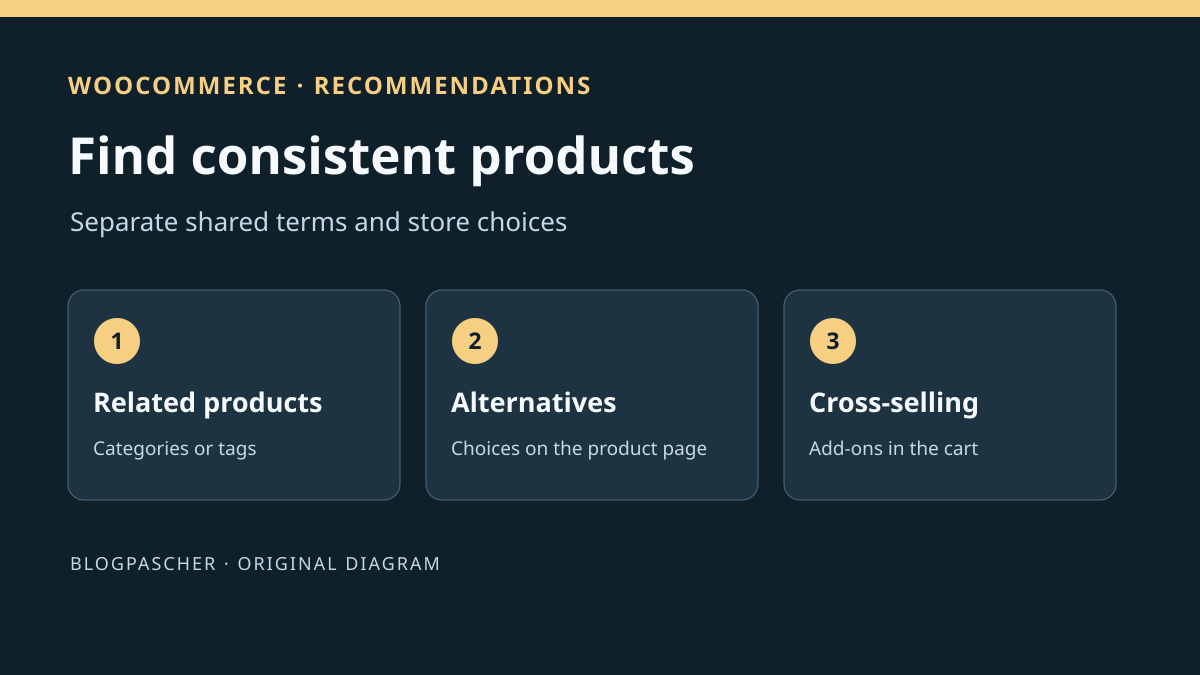
WooCommerce generates related products from categories or tags shared with the product being viewed. The theme or block then determines where and how to display them. The linked products you choose in the product editor do not thereby become the automatic related products. Upsells may be presented on the product page as an alternative choice. Cross-sells are complementary products recommended through the cart.
Suppose a mug and a notebook have the “Gift” tag. They may appear in the same automatic recommendation even if their categories differ. Conversely, if the manager chose a gift set as an upsell in the editor, look for that set in the upsell list displayed by the template. The correct setting depends on the goal. Finding similar products through classification and choosing two specific items require different mechanisms.
Start by naming each list in your record. Note the recommendation type, the product providing context and the source of candidates. If the interface shows both related products and upsells, check both headings. An overly generic title may make the manager think there is only one list. Correct the appropriate source first. Changing the heading can then make the distinction clear to teams and visitors.
Approach 1. Compare the product's categories and tags
Under Products > All Products, open the control product and an unexpected product. Compare the categories and tags actually assigned. Check a category's parent and the product's assignment to that parent separately. Two categories belonging to the same branch does not prove that both product pages have the same terms. Also look for a broad tag added during a campaign. A tag used across an entire collection can create an association broader than the product page needs.
On the copy, choose a product whose classification can be changed without affecting a real catalog. Temporarily remove just one shared term that you suspect explains the association. Keep a screenshot or list of the original terms. Check whether the unexpected product still shares another term with the product page. Then reopen the template displaying recommendations. A useful test changes only one relationship and retains a product whose association should remain valid.
If the category or tag serves filters, archives or a product feed, do not remove it solely to change a recommendation. In that case, document the connection and use an explicit selection if the template must present a specific list. Improving recommendations must not damage the classification paths visitors already use. To roll back after the test, restore the removed term and also check its archive page.
Approach 2. Choose upsells on the product page and check their display
Under Products > All Products, open the staging product. In the classic editor, open Product data > Linked products and record existing choices. In Upsells, or its translated equivalent, search for the specific items you want to present on the product page. Cross-sells are configured in a separate field. Save the product and check the upsell list in its visitor view. The choices will appear only if the template displays that list.
If nothing changes under “Related products,” return to the template. The automatic list does not use upsells as a manual candidate list. With a block theme, locate the relevant block or product collection in the product template. WooCommerce documentation distinguishes a related products collection, an upsell collection and a hand-picked product selection. The maintainer can set up upsells to display in the product's context. A fixed selection in a shared template may instead be identical on every product page using it.
If the requirement concerns accessories to add to the cart, use the product's cross-sells and check the cart block or template displaying them. Verify the expected result after adding the product to a staging cart. A list visible on the product page does not prove that the cart displays the accessories. Separate the two decisions. If the theme does not show cross-sells in the interface being used, ask the maintainer to identify the template before changing the linked product list.
Approach 3. Change the collection or template producing the list
With a block theme, open Appearance > Editor > Templates and choose Single Product, or the specific template assigned to the control product. Select the Product Collection block rendering the list. Check whether its type is Related Products, Upsells or a manual selection, depending on the options available in that template. The first follows the product's terms. The second follows the upsells defined for each product. A fixed manual selection in a shared template may suggest the same items on every product page using it. Record the template and its scope before changing it.
With a classic theme or builder, the setting may be in its product template. Ask the maintainer to record the lists present and their locations. Disable or replace only the problematic list on the copy. If several components display the same group, the first expected outcome is being able to attribute each list to its generator. Changing a title in the wrong template may make the old list seem resistant when it actually comes from another location.
After a shared change, open a product that should receive the new list and a product using another template. Also check the mobile version and card links. A collection can display the correct title and lead to the wrong product page if its products or links are incorrect. Keep a version of the previous template so you can roll back if the display changes on unintended pages.
Interpret a list that stays outdated or changes order
Compare the administration area with the staging visitor page before changing terms again. Check the saved categories and tags, the active template and the list displayed. If the change is saved correctly and only one profile sees the old result, first inspect the response served and the cache layers. Have the target page checked instead of purging every store page. Another list retaining the same heading may also explain why the result seems outdated.
For an automatic list, check the association logic through several visits and simple controls. The number of products displayed depends on the template's layout and settings. An eligible product may be absent from the displayed selection without classification necessarily being wrong. Record the number of available slots. To test a specific relationship, reduce candidate numbers on the copy or compare products sharing just one known term.
If the desired product is missing from the manual list even though it is selected, open its own product page. Check its status, catalog visibility and purchase flow. Perform the same check on a product that appears. A product accessible to a manager in the administration area does not always represent what a visitor can see. If the selected product is unavailable to the staging profile, ask the owner whether its recommendation should remain visible in that situation. A visibility change may affect the entire catalog.
Also keep editorial choice and display order in separate columns in the record. Selecting two items in the editor does not guarantee their visual order if the block or theme applies different sorting. If order matters, check the settings of the list being used before saving linked products again.
If the result comes from a recommendation plugin or builder, check its own rule before changing the catalog. A list filtered by a third-party component may use a different selection or context. Give the maintainer the product, list, template and any shared term. These details make comparison with native behavior possible on an equivalent copy.
Run a synthetic test with four staging products
On an authorized copy, create four simple products with comparable visibility. Give mug A the category “Céramique test” and the tag “Cadeau test”. Mug B shares only the category. Notebook C shares only the tag. Gift set D shares neither term. Avoid all four products inheriting a common category on the copy, for example because a default category remains assigned. Record the terms actually present after saving.
Open product A as a visitor in a template displaying related products with enough slots for the staging candidates. B and C are the expected candidates; D is the control outside the classification. Remove only the “Cadeau test” tag from C, save and repeat in a new session. B must remain a candidate and C must leave the scope if no other term is shared. If C remains visible, confirm the generator and saved terms before examining the recommendation cache or the page served. When the template displays fewer cards than there are candidates, reduce the staging dataset before comparing results.
Add D as an upsell for A and check that D appears in A's upsell location. Check that B does not inherit this choice. To test cross-sells, select C, for example, in A's cross-sell field, then add A to the staging cart. In a block-based cart, locate the Cross-Sells collection. C should appear in this block if the cart uses it. Stop the test at the cart after recording the products displayed on A, on B and in the cart. Empty the staging cart at the end.
Restore the previous classification and display
If you changed a term, restore its value on the exact product and check its category and tag list. Also open the relevant archive if it was part of the comparison. If you changed linked products, restore the previous upsells and cross-sells. Keep the initial record to distinguish the two link types. Remove staging products according to the copy's procedure after checking their dependencies.
If the correction affected the template, restore its previous version and reload the two control product pages. A fixed collection in a shared template can affect many products. Do not restore the entire site to undo a block or list change. If an old response remains visible, have the page cache or session context checked before repeating the operation. Also confirm that the cart returns to its intended list if you changed that template.
In the handover, provide the main product, list type, template name, the term explaining the association and the controls that behaved as expected. State where upsells are configured if they replace an automatic list. The next manager can then correct a new product without changing a term used throughout the catalog.
Remove only one product's automatic list in a classic theme
When the business rule requires a manual selection for a single product, retain its categories and use the free upsells already available in WooCommerce. If the classic theme also displays the automatic list through the standard hook, the maintainer can remove only that display for the control product. Replace 123 with its confirmed ID, in a site plugin or the child theme's PHP file.
This code does not choose products or delete any catalog relationship. It acts on the classic hook; a Product Collection or builder rendering its own list needs a template setting. Check that selected upsells still appear on product 123, that the automatic list disappears there and that another product retains its behavior. To roll back, remove this snippet. Do not hide an entire area with CSS without identifying its generator: this could leave another list in place or hide the desired upsells.
add_action('wp', static function () {
    if (function_exists('is_product') && is_product() && 123 === get_queried_object_id()) {
        remove_action(
            'woocommerce_after_single_product_summary',
            'woocommerce_output_related_products',
            20
        );
    }
});
Sources and references
Use these references to check the features, requirements and limitations described. Reading documentation is not a practical test.
View 7 references
- WooCommerce — Related products and linked products ↗
- WooCommerce — Customizing product pages ↗
- WooCommerce — Product collections ↗
- WooCommerce — Product editor settings ↗
- WordPress — Site Editor and templates ↗
- Official documentation — Remove only one product's automatic list in a classic theme ↗
- WooCommerce — is_product() ↗