

Stop rerunning imports and identify the importer
You import a file intended to change prices or descriptions, then discover new products instead of the expected updates. Before rerunning the file, keep the import report and record the IDs of the affected products. A second run with the same incorrect matching can make cleanup harder.
This guide covers the native tool under Products, All Products, Import. A plugin such as an import suite or supplier connector may use its own columns, rules and options. CSV describes a file format, not a universal procedure. Check which menu you actually used before correcting your document.
The visible product name is not a reliable matching key. Two products can have the same name, and a title change does not mean a new item should be created. The procedure must rely on an identifier from the target store or a correctly saved stable reference.
Also distinguish created, updated, skipped and failed rows. A row skipped because its SKU already exists is not a newly created duplicate. Compare the report with the catalog state before deleting a product that might be the long-established original.
- A small number of products to correct: native editing sometimes avoids another import.
- A batch of existing products: start with an export from the target store.
- Data from another store: match references and do not reuse its IDs without checking.
- New variations mixed with updates: process them separately to control creation.
Prepare evidence and an appropriate recovery point
This procedure requires an account authorized to export and edit products. Keep the received CSV intact, the first operation's report and a current export of affected products. Add the import date and the columns that were actually supposed to change. These items will help distinguish intended corrections from accidental effects.
A product export is useful for comparing fields, but it does not replace a tested full backup. Before significant processing, arrange a working copy or an environment recovery point. On an active store, a full restoration could erase orders received since the import; a targeted product correction is often more appropriate.
Choose two or three representative products: a simple product, one with a SKU containing a leading zero and, if needed, a variation. Record their IDs, references and a value that must remain unchanged. Define the expected result for each row before creating the test file.
If external synchronization feeds the catalog, coordinate its operation. A manual import may be overwritten on the next run, or a connector may recreate a deleted reference. Keep the WooCommerce catalog distinct from the source that rewrites it.
The expected result is a limited test batch and a record that supports field-by-field rollback. Do not prepare a deletion file until the duplicates' identities are established. The first goal is to make future updates reliable, then address the consequences of the previous operation.
Method 1: start again from a target-store export
Under Products, All Products, use Export. Choose the relevant types and categories and the necessary columns; include custom metadata only if it is part of the requirement and you know how to handle it. Download the CSV, then keep an untouched copy as a reference.
Work on a second copy. Keep the ID column for this installation and, if you use the SKU, its exact value. Remove rows outside the test batch. Limit modification columns to the intended ones, such as Regular price. A file containing the whole catalog may carry old stock, status or image values that you do not intend to reapply.
In your CSV editor, preserve references as text. Automatic conversion can change leading zeros, large numbers and hyphens. Save in UTF-8, then reopen the file as text or through a controlled import to check headers and values. A document that looks correct on screen may have been saved with a different delimiter.
If the data comes from another store, numeric IDs identify its records, not necessarily the same products here. First build a mapping between its stable reference and the target's SKU. Do not import a foreign ID assuming it will find the product with the same name.
The expected result is a small file in which every row targets a known product. To undo this preparation, return to the untouched exported copy. No site data needs changing to verify this matching.
Choose a matching key without conflicting values
To update an existing product, the native importer uses the supplied, recognized ID or SKU. Find the ID in the product list or edit address, and the SKU under Product data, Inventory. A variation has its own identity; the parent's SKU does not identify all its variations at once.
Avoid supplying an ID targeting one product and a SKU belonging to another. Even if one field takes priority in a particular procedure, this file is ambiguous for its preparer. Correct the mapping before importing and check for duplicate references in your source. Do not change the original's SKU simply to let a duplicate reuse its reference.
In WooCommerce 11.2 and later, the importer can also match a row by GTIN, UPC, EAN or ISBN when both ID and SKU fields are empty and that column is mapped correctly. A populated ID or SKU retains priority; a failed match does not automatically trigger a second attempt using the global code. Check the installed version and mapping before using this mechanism.
For an initial diagnosis, a single known key makes the result easier to check. The example below contains only a SKU and a price. The reference and amount are fictional: replace them with an existing test product's reference and the approved price. Do not upload this example unchanged to a store.
The expected result is a row whose identity depends on neither its title nor its position in the file. This example illustrates the structure; it does not guarantee the SKU exists in your store.
SKU,Regular price
ATELIER-DEMO-001,24.90
Enable updates and check mapping before running
Under Products, All Products, Import, select the prepared small CSV, then check Update existing products. This option is essential to the update procedure. Do not assume that the filename or the presence of a price column activates this mode automatically.
Continue to the column-mapping screen. Check that ID maps to ID, SKU to SKU, and Regular price to the expected price field. For every unnecessary column, choose Do not import. Correct automatic detection for a previous file does not guarantee mapping for the new document.
Also inspect the product type if you import it. A simple, variable or variation value affects the object being processed. For a price-only update, carrying an incorrect type can cause a broader change than intended. Keep the necessary identity fields and only the data to change.
Run the small batch on the test copy and wait for completion. Keep the detailed report, including skipped rows. Then compare the product ID before and after, its reference, the new value and the control fields that should remain identical. The product count alone is insufficient: the wrong product may have been updated without any creation.
The expected result is an update to the correct product with its identity preserved. If the report says a row could not be found, fix the matching; do not uncheck updates to force it through. To roll back, apply previous values only to the identified products, then check the result again.
Handle the new-variation exception separately
Update mode no longer means that no new rows can appear in every recent version. Since WooCommerce 11.1, certain variation-type rows can create a variation under an existing variable product. In versions 11.2 and later, a usable global reference can also play a role depending on the file's conditions.
In particular, the new variation must not impose an ID, must identify an existing variable parent, and must have a key that can find it afterward. The supplied attributes and their values must match those offered by the parent. A row supplying a nonexistent ID cannot be used to choose that variation's future number arbitrarily.
If you need to change only existing variations, export their own identifiers and isolate those rows. Exclude new references and rows with an uncertain parent from the batch. You can then prepare a second file dedicated to creation, with a commercial review of every combination.
Do not copy the parent's SKU into every variation's SKU column. The parent relationship belongs in the Parent field, using the expected reference or an ID reference in the schema's required format. Every variation tracked independently must be unambiguously identifiable.
The expected result is an explicit separation between updates and new variations. After importing, check the parent's variation count and new entries in the report. If a variation was created accidentally, identify it before deleting anything and check that no order or synchronization already uses it.
Test parent assignment with two variable products
On a copy, create two fictional variable products, ATELIER-A and ATELIER-B. Give them the same local attribute values, for example ‘Bleu’ and ‘Rouge’ for ‘Couleur’. Leave one blue variation under each parent. Use ATELIER-A-BLEU and ATELIER-B-BLEU as distinct SKUs. Giving both parents the same values makes the test more demanding. An incorrect parent can exist, accept the attribute and produce an apparently successful import.
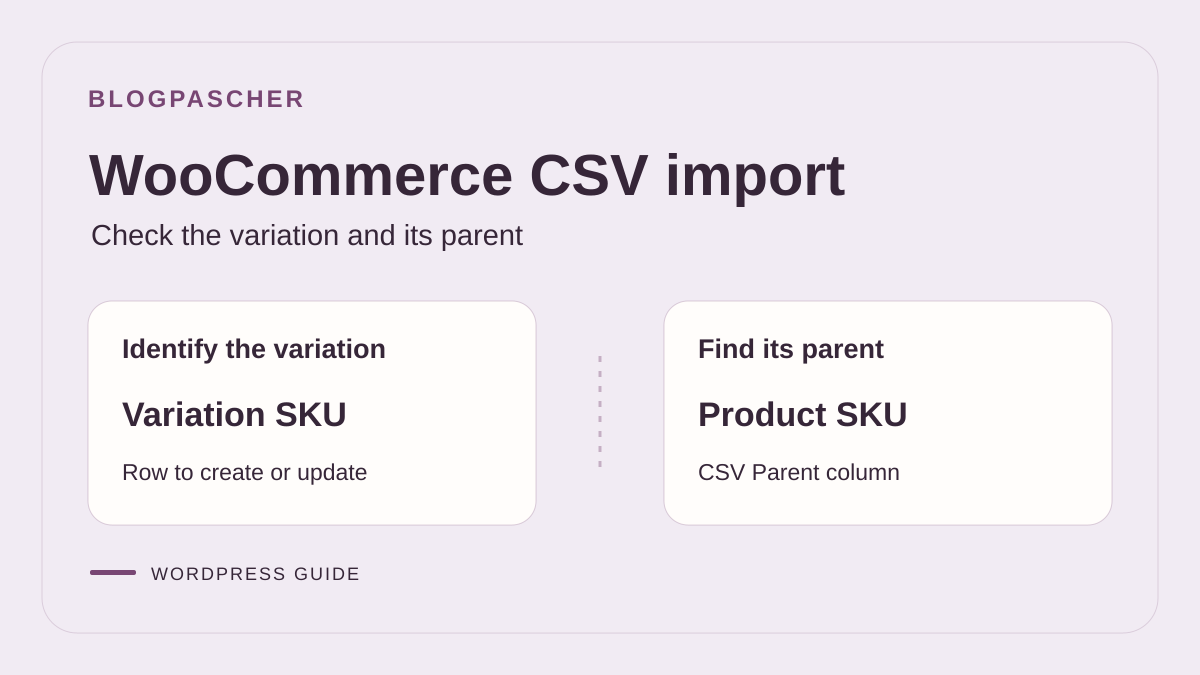
Export these products from the staging store. Record each parent's local ID and, for each variation, its own ID, SKU, parent, attribute value and price. Keep an untouched copy. The variation row's SKU field identifies the variation. The Parent field identifies the product that should contain it. To specify the parent by SKU, use its exact reference. To specify it by ID, use the id:123 form and replace 123 with the parent's ID in the target store. A variation row's ID column targets the variation itself. For creation, leave this column empty or absent.
The CSV below assumes both parents already exist. Its first data row is intentionally incorrect. It assigns the new variation whose SKU starts with ATELIER-A to parent ATELIER-B. Under Products > All Products > Import, run the test on the copy with Update existing products unchecked. Check every column mapping, particularly Type, SKU, Parent and attribute fields. Review the detailed report, then open both parents' Variations tabs. A reference's name does not determine its parent. Compare the saved relationship with the pre-import record.
Type,SKU,Name,Parent,Regular price,Attribute 1 name,Attribute 1 value(s),Attribute 1 global
variation,ATELIER-A-ROUGE,Temoin rouge,ATELIER-B,27.00,Couleur,Rouge,0
Separate import mode from parent selection
To test a price-only change, start with a copy of an export from the target store and keep only the variation's SKU and new price. For example, select ATELIER-A-BLEU with a distinct price. First check the report when creation mode is selected. Rerun the same file on the copy with the update option checked. In the second case, check the variation's identity, parent and changed value. The variation price under B serves as a control. A correct price on the wrong product is still a failure.
When testing creation, try a missing row with a new SKU, type variation and an explicitly specified existing parent. Run this test separately. Behavior depends on the version and row data. In versions supporting this exception in update mode, a valid new variation can be created. The same mode can skip an ordinary row whose ID or SKU does not exist. Therefore check the count of new variations and details of processed rows. If the parent has no reliable local ID, use the SKU validated in the target export.
If your only access is the dashboard, keep the report and both Variations tabs side by side. Record each variation's ID in the editor and compare it with the target export. If you receive an export from another store, request the parent SKU mapping before reusing IDs. With technical access, also record the actual saved parent ID and each product's child list after importing. The same total variation count can hide reversed assignments. To repair a supplier import, correct the mapping table at the source, then rebuild the small file from it. An adjustment in WooCommerce does not fix the supplier's next file delivery.
To roll back, first restore the previous price on the existing variation using its verified identifier, without including a Parent column. In staging, remove only the new fictional variation created under B if it has no use. Check that the two original variations, their parents and their prices still match the record. For a variation already used in a real store, preserve its ID, order references and synchronizations before deciding to reassign or remove it. Avoid deletion to correct a price or resolve uncertain identity.
Method 2: correct a small batch without importing again
If only a few products need changing, open them individually under Products, All Products. Check their IDs and references, then edit the relevant fields in Product data. This approach avoids repairing a complex file for a very limited intervention and lets you compare the value directly before saving.
For the same change applied to several products, select their checkboxes in the list, choose Edit under Bulk actions, then Apply. Review the products included in the panel. Leave other fields set to No change and save only the intended rule. Results spread across several list pages are not all automatically selected by this action.
Individual variation prices are not edited like simple product prices in this native bulk editor. For a variable product, open its Variations area and use the appropriate variation actions, or prepare the targeted CSV described above. Also check sale dates: a bulk price change can erase an existing schedule.
The expected result is correction of the identified products without new creation. Open one product of each type and check the public result where applicable. Rollback relies on values retained before editing, not an approximate inverse rule.
This method does not fix the source CSV that caused the problem. Keep the file pending review and prevent automatic reuse until identifiers and mapping are reliable. A small manual correction must not create the impression that the import workflow is now valid.
Examine duplicates before removing them
For each suspicious pair, compare ID, SKU, creation date, public links and variation relationships. Determine which product is the original and which was created during the import. An identical title can also represent two legitimate references; do not delete search results based only on this similarity.
Check whether the new product has already been used by an order, public link, campaign or connector. If so, deleting it immediately may break a reference. Preserve the data and prepare an appropriate correction with the catalog manager. The goal is more than reducing the product count.
For a confirmed duplicate with no usage to preserve, remove it from the catalog according to the chosen procedure, for example by changing it to draft before a later approved deletion. Record its ID and keep the export. Do not transfer its SKU to another product without checking uniqueness and the synchronizations relying on it.
If the wrong existing product was overwritten, deleting a duplicate fixes nothing. Restore its fields from the pre-import record, accounting for legitimate changes made since. A complete store restoration remains a separate decision, especially when recent orders must be retained.
The expected result is a traceable list of corrections: products retained, products removed and data restored. Keep the faulty CSV as evidence, separate from the corrected file, to prevent someone else from rerunning it.
Validate the workflow before increasing the batch size
After the small test import, compare identifiers before and after along with the report. Check at least one changed value and one value that should remain intact for each product type. Also check any new variations and the reasons rows were skipped; a completion screen without a general error does not prove that every row produced the intended result.
Then expand processing in limited batches, keeping the same mapping and a copy of every executed file. Record the WooCommerce version and import tool used. A procedure written for the native importer must not be copied unchanged into a connector with different rules.
The issue is resolved when rows match the correct products and creation is limited to explicitly planned items. Keep reference exports and the targeted rollback plan until the catalog is verified, then correct the process that produces future CSVs.
Check a minimal CSV before opening it in WooCommerce
For a batch limited to prices by SKU, this small Python check reads a comma-separated UTF-8 file. It rejects an empty or repeated reference within that file without contacting WordPress. Save the script in the same folder as a copy named prix-recette.csv.
A favorable result confirms neither the existence of SKUs in the store nor the commercial validity of prices. Compare every reference with the target export and preserve leading zeros. This check is intentionally limited to the two-column file shown above; it is not suitable unchanged for a variation catalog.
The free native importer remains the writing method. First run two rows on a copy with Update existing products enabled, then check the resulting IDs and prices. The script makes no writes; import rollback relies on the previous prices you retained.
import csv
from pathlib import Path

with Path("prix-recette.csv").open(encoding="utf-8-sig", newline="") as source:
    reader = csv.DictReader(source)
    if reader.fieldnames != ["SKU", "Regular price"]:
        raise SystemExit("Attendu : SKU,Regular price, dans cet ordre.")
    seen = set()
    for line, row in enumerate(reader, start=2):
        sku = row["SKU"]
        if not sku or sku != sku.strip() or sku in seen:
            raise SystemExit(f"SKU vide, espaces parasites ou doublon : ligne {line}")
        if None in row or row["Regular price"] is None:
            raise SystemExit(f"Nombre de colonnes incorrect : ligne {line}")
        seen.add(sku)
print(f"{len(seen)} références distinctes dans le fichier.")
Sources and references
Use these references to check the features, requirements and limitations described. Reading documentation is not a practical test.
View 8 references
- Native CSV importer and exporter ↗
- Official 11.2.1 code: imports and matching ↗
- Product editor and SKU ↗
- Variable products and attributes ↗
- Native bulk editing ↗
- WooCommerce status and requirements ↗
- WooCommerce forum — Variable Product Import with CSV not linked properly ↗
- WordPress — SQLite Database Integration ↗