

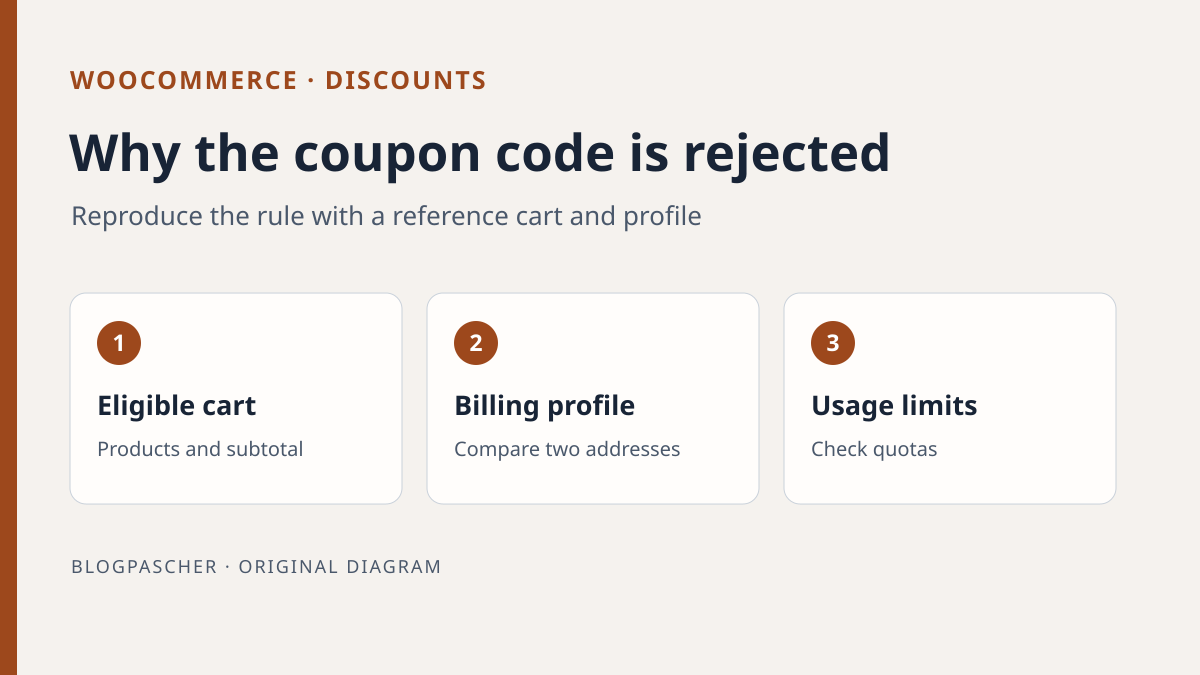
Identify the rejection before changing the coupon
A customer enters a supposedly active code and WooCommerce rejects it. Record the exact message, time, and stage of the flow. An absent coupon field, an unrecognized code, and a code rejected because the cart is ineligible are three different cases. If the discount appears but its amount is unexpected, record coupon type and discounted lines. If the cart stops responding when the code is applied, the message alone cannot attribute the problem to a restriction.
With visitor access, check the campaign-provided code and advertised cart requirements. Compare the cart at rejection with a dummy cart meeting known conditions. Record variation, quantity, visible subtotal, and discounts already present. Send a reproducible record to the store team. Keep private codes and customer addresses in the channel intended for their handling. A staging control can use a dummy code and addresses.
With WooCommerce management access, open Marketing > Coupons and find the relevant code's record. Compare the saved code with the supplied code. Two campaigns may have similar names and different conditions. Also check the store or subsite owning the code. An order entered on a copy or another network store does not automatically benefit from the same coupons. Once you identify the correct code, record its state before changing anything.
Separate coupon availability from its usage conditions
First check that coupon use is enabled under WooCommerce > Settings > General. If the field is missing everywhere, compare a standard WooCommerce flow with the site's checkout page on a copy. The form may hide or move the code-entry area. If only one coupon is missing, return to its record. General activation permits code entry. It does not make every saved code eligible.
In the record's General tab, check publication status, type, amount, and expiry date. A scheduled campaign may not be open at test time. WooCommerce documentation states that a coupon cannot be used on its configured expiry date. For a campaign ending around midnight, compare the expected date with the site setting and test the boundary in staging. A code visible in administration is not necessarily usable at the time of testing.
Also take a reference coupon that works with a simple cart on the copy. If both coupons fail, the problem may concern activation, the form, or the flow. If the control works, focus on the rejected coupon's record. Keep each test's exact message. It is often more useful than merely saying “active code.”
Approach 1. Reproduce restrictions with a reference cart
Under Usage restriction, record minimum and maximum spend, included products or categories, exclusions, and Individual use only. Compare with the subtotal of the cart used, not the amount paid after shipping. For minimum spend, WooCommerce documents using the displayed subtotal including taxes if the cart presents tax-inclusive prices. Record that display mode. An offer may appear to meet a threshold when you compare a total containing elements the rule does not count.
Prepare a cart satisfying one condition at a time. Start with an eligible product, known variation, and sufficient quantity. Apply the coupon alone. Then remove one unit to fall below the minimum or add the product intended to be excluded. If the difference concerns a category, check the classification of the product actually purchased. Match the variation selected in the cart with the product record browsed in the catalog before changing the restriction.
If the offer excludes sale items, check the price applied at test time. A scheduled price may change the cart's nature. For a fixed-cart coupon, a mixed cart may still receive a discount on eligible items. Check the actual discount and affected lines instead of concluding from the mere presence of a sale item. For Individual use only, temporarily remove the other coupon from the reference cart and repeat the same calculation.
If several discounts are allowed, record their application order and the sequential-discount calculation setting in general options. First compare the same cart with the code alone. Then add a second compatible staging code and record both amounts. An accepted coupon with a smaller discount is not a rejected coupon. If the second code disappears from the list, review each one's Individual use only and restrictions before changing their order. Keep this case separate from the threshold control to avoid attributing a discount-combination difference to minimum spend.
Approach 2. Check account, email, and limits
If the coupon works for another profile with the same cart, compare customer context. WooCommerce documents an allowed-email restriction based on billing email. Therefore check the address entered in the staging checkout as well as the account used. Prepare two dummy profiles or test sessions. Use an allowed address, then an excluded one, keeping products and code identical. If rejection appears only after email entry, record that exact point.
Under Usage limits, distinguish the global limit from the per-user limit. The first concerns all uses of the coupon. The second restricts use by a given customer. The item-count limit concerns eligible items for supported discount types. It does not replace the global limit and does not apply as an item limit to a fixed discount on the whole cart. Record all three values separately and ask whether the offer was actually intended to limit each case.
If the quota is supposed to be reached, keep rejection as the expected result and check a control that should remain eligible. On the public site, do not reset a counter or change an order's status merely to make a test pass. These operations may change campaign tracking or order processing. If the counter seems inconsistent, reconcile orders and available logs with the manager, then reproduce the case with a new coupon on the copy.
Change only the rule contradicting the intended offer
Keep the record's settings and offer wording before trying a change. If the campaign should accept a category missing from restrictions, add only that category on the copy and retain a product that must remain excluded. If a date is wrong, change it on a reference coupon and check its behavior at the intended boundary. If the threshold is intentional, do not lower it for one cart. Instead explain the calculation or report the difference between campaign messaging and configuration.
When the setting concerns billing address, check the allowed-address list or intended domain with the person responsible. A wildcard may broaden scope to every account matching the pattern. For a code reserved for specific people, keep that restriction explicit. After correcting on the copy, use an unauthorized address again. If it receives the discount, scope has become broader than the offer even if the expected address works.
If the store uses a plugin automatically distributing, applying, or combining codes, distinguish its rule from the native coupon. Perform the first test with a manually entered coupon in the copy's standard cart where available. Then compare with the store's actual interface or automation. If the first test succeeds and the second fails, record the additional component and its state. This result helps avoid changing native rules when the difference lies in automation.
Check the total and discount separately from shipping rates
When the coupon is accepted, record the discount line and total before concluding the offer works. A fixed-product discount, fixed-cart discount, and percentage are calculated differently. For a cart with several lines, check which item received the reduction and whether an item limit applies. Check taxes in the store's intended context. An exact total on a one-product cart is insufficient for a campaign covering several categories.
Discounting items does not automatically make shipping free. If the offer also covers shipping, check that the coupon and zone's free-shipping method are configured to work together. This check occurs in the same staging exercise but answers a separate question. An accepted code may discount the cart while the zone retains a paid rate. Record the discount and shipping method separately.
If application succeeds in the cart but fails after moving to checkout, check data changing on the second screen, particularly billing address and other present codes. On an authorized copy, compare the usual page and standard flow. Keep the displayed message and calculated total at each stage. One correct screen does not establish that the complete flow preserves the discount.
Run a staging test with a dummy code and several controls
On an authorized copy, prepare a test code distinct from public campaigns. Create an eligible product priced at 30 euros in a staging-specific category and a product in another category. Configure a 10% discount with a 50-euro minimum for the eligible category. To isolate the example calculation, mark only these dummy products as nontaxable on the copy and use 30-euro prices with no other coupon or added fees. Subtotals of 30 and 60 euros then make the expected discount directly readable. Do not change the store's general tax settings. Keep the address identical during these tests and afterward check taxes separately for the actually affected cart.
With one eligible unit, the 30-euro cart should reject the code if the threshold is the only unmet condition. With two eligible units, the 60-euro cart should display a 6-euro discount in this simple scenario. With a cart containing only products from the other category, the coupon should remain rejected even if the total reaches 60 euros. To check email, then add the intended restriction and compare two staging profiles with two eligible units. Check that the difference follows the email rather than a cart change.
If the offer depends on quota after use, prepare another dummy code with a low cap. On the isolated copy, complete a demonstration order using a staging payment method designated by the person responsible. Check the count, then try a second order in the same profile and, depending on the limit studied, a separate profile. Isolate real emails and integrations according to staging procedure. Check that the counter and message match the resulting state. A discount merely displayed in the cart does not prove quota behavior after an order.
Check the counter after a test order
Under Marketing > Coupons, record the displayed usage count and this coupon's limit. Also retain the global and individual limits recorded under Coupon data > Usage limits.
Under WooCommerce > Orders, open the test order containing the code. Record its number, exact coupon, current status, and status history. A cart displaying a discount, a slot reserved during checkout, and a recorded use represent different stages. A coupon may be unavailable with zero displayed uses if the last slot remains reserved. Compare the coupon display with the cart message and last transition. A pending-payment order is not a failed order even if no money was collected.
Keep the cart, products, and amounts identical. If another profile can apply the code, revisit the individual-limit record and test billing profile. If both profiles fail, first compare the global limit and status of orders using the coupon. Conditions described above remain relevant if the rejection message identifies the amount, category, or allowed email.
Compare a recorded use with a reservation
Prepare an isolated copy, two dummy coupons each limited to one use, and two separate orders with the same eligible product. Record the WooCommerce version actually installed. Record the counter before adding the coupon, after adding it, and after each status change. Compare transitions to Failed and Cancelled on separate orders. This protocol still needs execution in your environment; no numeric result should be attributed to your store before this record.
A coupon line's presence in an order and consumption of a slot are two different observations. After each transition, reread the counter, then try a new eligible reference cart. Retain the exact status, because On hold and Pending payment are not the same state. Reopening the same order may change its usage again; use separate controls to compare transitions.
To examine a temporary reservation, use the copy's checkout flow with test outgoing actions. Record the displayed counter, rejection or acceptance of the second cart, and time. Have the maintainer examine active reservations if these observations seem contradictory. A zero counter is insufficient to rule out a temporarily reserved slot. Do not directly delete technical database rows to release a coupon.
Interpret results without generalizing a transition
Test a refund, cancellation, and failure separately. Do not infer one behavior from another. If the counter moves, for example, from two to one after cancelling a dummy order, check whether a second order legitimately retains the other use. This example explains a possible result without claiming it was measured.
If behavior differs between a WooCommerce-only copy and one with usual integrations, identify the first change reproducing the discrepancy. A filter or plugin may change processing, but the difference must be attributed through a targeted test. Keep order ID, transition, before-and-after values, and cart message. Have only the confirmed anomaly corrected without resetting every counter.
After staging testing, archive or remove only dummy coupons and orders according to the copy's procedure. A status change may trigger stock handling, emails, or integrations: keep outgoing actions isolated until the end. This test log must specify executed cases and those left unverified.
Return to previous rules and keep evidence
To roll back a test on the copy, restore restrictions and limits recorded initially. Remove the dummy code if no longer useful in staging and handle test orders according to environment rules. After restoration, open a fresh cart with a reference product and account. Check general coupon activation and application of the coupon that must remain valid. Closing the browser does not restore a changed coupon record.
If a correction was already applied to the live code, agree with the manager on when to roll back. Restore the exact affected rule value and observe orders received between change and rollback. A rule change does not undo discounts already assigned to saved orders. If a discrepancy needs adjustment, give the person responsible affected orders and the expected calculation. Avoid reimporting every coupon or restoring the entire store for one restriction.
Finish with the store name, staging code, eligible cart, rejected cart, and rule explaining the difference. State whether you checked only the cart or also a demonstration order. If quota, address, or a third-party component remains to examine, leave that point open with the next precise control.
Read a counter without clearing restrictions
For an initial no-code check, open Marketing > Coupons and record usage count and both limits in the record. Then reproduce the eligible cart with the same billing profile. A rejected discount may result from an email restriction even when the global limit has room. Conversely, another accepted profile does not demonstrate that the first profile's individual counter is wrong.
Keep a table with the exact message, counted subtotal, dummy profile, counter, and last order transition. Change one element between tests. This native route is free and often sufficient to identify an intentional rule. Temporary reservations require a separate technical record if responsible; do not install an additional discount tool before attribution. After changing a rule on the copy, restore its value and check an accepted cart and one that must still be rejected.
Sources and references
Use these references to check the features, requirements and limitations described. Reading documentation is not a practical test.
View 7 references
- WooCommerce — Managing native coupons and rules ↗
- WooCommerce — Enabling coupons and general settings ↗
- WooCommerce — Free shipping conditions ↗
- WooCommerce — Order statuses ↗
- WooCommerce 11.2.1: updating coupon usage ↗
- WooCommerce 11.2.1: temporary reservations and per-profile counts ↗
- WooCommerce 11.2.1: reservation within an order ↗