

Determine whether shipping is missing or checkout is not updating
Someone adds a physical product to the cart, enters an address, and receives a message saying no shipping option is available. Record what actually appears and when. An empty list after address calculation falls within this guide. An endlessly loading screen, a form showing an old rate, or a payment method disappearing after calculation requires examining another stage of the flow. Keep the exact message and note whether the cart or checkout could recalculate totals.
Start with one known physical product and a dummy but coherent staging address. Record the product, any variation, quantity, country, region, and postal code. Compare two addresses with the same cart. Use a destination that should work and one reproducing the problem. Keep coupons and login state identical for both tests. A nearby postal code may fall into another zone, while a different cart may change weight or the free-shipping threshold.
If you have only visitor access, you can record shipping options shown before placing an order. Send useful parameters to the manager using dummy data. For a real order reported by a customer, the manager can compare the destination within their authorized area without copying the complete address into a shared ticket. Settings changing zones or prices require WooCommerce access intended for this operation.
Check that WooCommerce calculates for the correct product and address
Open the reference product in administration if permitted. Check that it is the variation actually added to the cart and requires shipping. An item declared virtual does not follow the same path as a physical item. In a multi-product cart, one item alone may trigger package calculation. Start by isolating the affected product. Then reconstruct the original cart to check that the product combination does not reintroduce the problem.
Enter the country and other fields required by the form before reading the result. Check the shipping address actually used. Billing and shipping addresses may differ. With a staging customer account, a previously saved address may be reused. If necessary, compare guest and logged-in profiles with identical parameters. If the country is unavailable, ask the manager to check the store's allowed destinations. An active method in a zone does not by itself make a country available in the form.
Identify whether you are testing the classic cart, block cart, or checkout page. These three do not necessarily display the same diagnostic information. The final control must use the interface customers actually use. If an initial test uses a different test page, record why it was chosen and then return to the problematic page.
Approach 1. Find the first matching zone
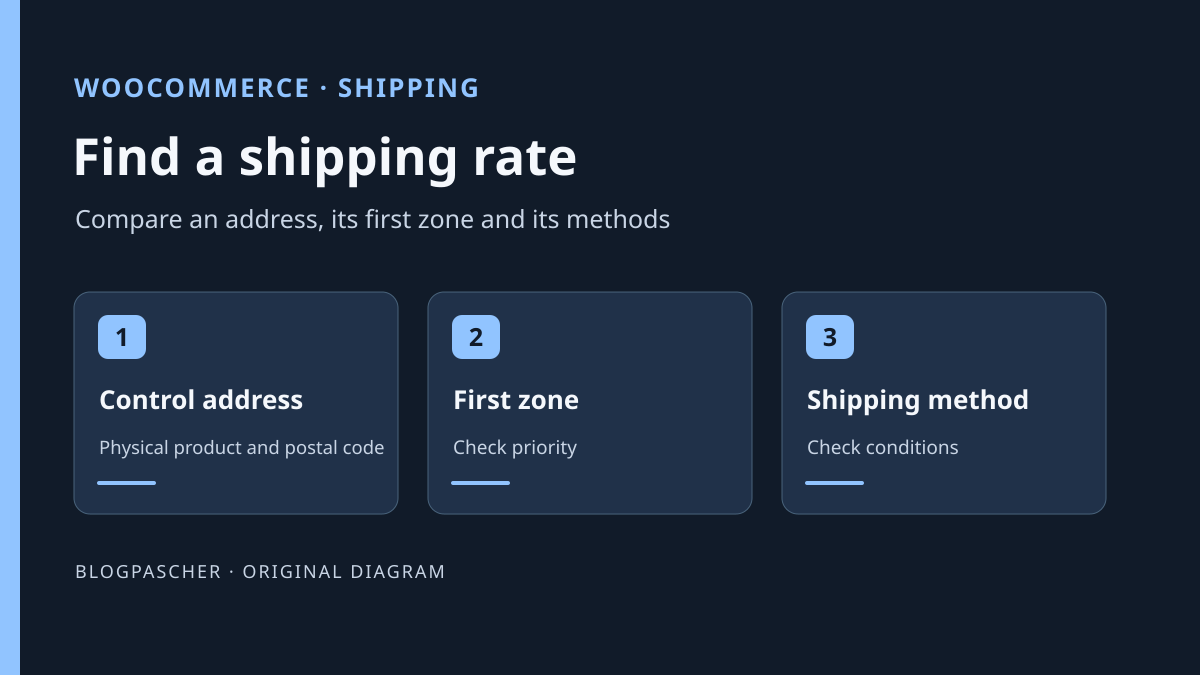
Open WooCommerce > Settings > Shipping > Shipping zones. Record zone order, regions, and postal restrictions. WooCommerce selects only one zone for the destination and works through the list from top to bottom. When two zones cover an address, it chooses the first. If the desired method is missing there, methods from the next zone are not added. Therefore open the first matching zone even if its name seems less precise than a lower zone's name.
Suppose the “France” zone precedes “Local delivery 69001.” An address in Lyon may match both definitions. If the first zone offers no applicable rate, WooCommerce does not add the local zone's methods. On the copy, put the local zone before the general zone if that order matches store policy. Then test an identical cart with 69001 and another French destination outside the local zone, such as 75011. Also check a destination excluded by the store. For every address, record the country, postal code, expected zone, and method name that should appear.
If the zone has a postal restriction, reread the codes in its definition. WooCommerce accepts individual codes, wildcard prefixes, and numeric ranges, among other options. Check both ends of a range, then a neighboring code that must not match. For a prefix rule, also use a control sharing the first digits but belonging to a destination outside the commercial scope. Check the zone's associated country and region before broadening the restriction.
If no defined zone matches, inspect the fallback zone for uncovered destinations. An absent method may be intentional when the store does not serve certain countries or regions. Validate the commercial scope before adding a fallback rate. Record the initial order and methods present. To roll back after testing, restore the previous order and confirm the local destination, general destination, and destination that must remain excluded.
- Identify the first zone using the effective address.
- Change only one order or scope setting on the copy.
- Compare all three destinations before and after.
Approach 2. Examine methods in the selected zone
In the correct zone, open the method list. Check that at least one method applicable to the cart is present and active. If free shipping is the only method, a cart below its threshold may receive no offer. Record the exact free-shipping setting. WooCommerce may require a valid coupon, minimum purchase, either condition, or both. Test a value just below and one above the threshold using the same product and address. Keep the same tax context and state whether a coupon is applied.
For free shipping based on a minimum amount, check whether the store evaluates it before or after coupon discount. For example, an order of 55 euros reduced to 45 euros by a discount produces different results around a 50-euro threshold depending on the chosen setting. The result must follow written commercial policy. If the store provides paid shipping when the threshold is not met, check that this rate is active in the same zone. Adding unconditional free shipping may mask the problem and change prices for every customer in the zone.
If a native flat rate is used, compare its configuration with the variation actually added. A flat rate may have costs based on shipping classes. A missing class does not automatically mean every method should disappear. First check the method, its costs, and any third-party plugin rules. A live carrier rate requires conditions and a service distinct from native flat rate.
Approach 3. Distinguish native calculation from checkout flow
On an authorized copy, open WooCommerce > Settings > Shipping > Shipping settings. Record the current debug mode state, enable it for testing, and save. WooCommerce then bypasses the shipping-rate cache. With a shippable product and reference address, reload the classic cart. Debug mode may display the matched zone's name there. Documentation states that this notice is not a reliable indicator in Cart or Checkout blocks, during asynchronous updates, or on the classic checkout page.
If the copy uses only blocks, create a staging page with a Shortcode block containing [woocommerce_cart] and open it with a product in the cart. If your installation redirects to the assigned cart, record the current page under WooCommerce > Settings > Advanced before temporarily assigning this staging page. Compare the zone name in the classic cart with rates in the customer flow. A missing notice in blocks is insufficient to conclude that WooCommerce matched no zone. Restore the initial assignment after this check.
Disable debug mode after testing because it may display information to visitors. Return to a fresh staging cart and recalculate under normal conditions. If the result succeeds only in debug mode, compare the same products and address after leaving the test cart. Report the difference between modes to the maintainer before moving zones again or changing rates.
Isolate the carrier or component filtering the response
If a native staging flat rate appears in the expected zone while the carrier rate remains missing, the zone and basic calculation have a positive control. Next examine carrier conditions. Check destinations, variation weight and dimensions, requested service type, and account limits. Consult the component's log on the copy using test data. No rate may be a valid carrier response for a package not meeting its conditions.
If options appear on the standard WooCommerce page but not in the usual flow, compare both with the same cart. Ask the maintainer to check theme, builder, or plugin rules filtering available methods. When the address changes but totals do not recalculate, also record any request or script error. A method never returned and one returned but never displayed call for different corrections.
A temporary flat rate may help isolate the stage on the copy. Give it a staging label, a known amount, and a scope limited to the control. Remove it after comparison or restore the original state. The control amount is not intended to become a real shipping price. If the copy does not represent the carrier integration, state that in the handoff and request a test in the environment intended for that service.
Test the cart and checkout in the actual interface
Repeat the complete flow on the copy with three prepared cases. The first should obtain a method for the local destination. The second should remain in the general zone and retain its expected rate. The third should retain no shipping if that destination is genuinely excluded. With a free-shipping threshold, vary quantity or coupon to check the boundary. Record method name, amount, and observed zone where available.
Then check that the choice remains consistent when moving from cart to checkout and changing the address. Compare totals before and after. If staging must verify the saved method, prepare outgoing actions before ordering. Redirect emails to a test mailbox, disable real label creation and webhooks unrelated to testing, then select a test-mode gateway or authorized method without collection of payment. Place the dummy order on this copy. Open it in administration and compare its shipping line with the displayed choice and amount. At the end, handle the test order and restore copy integrations according to the intended workflow.
If the store uses a block-based flow, repeat in those blocks, then compare at a representative mobile width. Moving from an allowed address to an excluded destination should produce the intended behavior. Do not reuse a cart containing an old coupon for this comparison. A fresh session helps distinguish the setting's effect from a state dependent on the previous address.
Return to the previous rate and order
To undo a change, restore precisely what changed. Return zones to their initial order or restore postal rules. For a method, restore its conditions and state recorded initially. Remove the staging flat rate if added. Confirm debug mode is disabled after testing and the classic cart no longer shows the zone notice. If a test page replaced the usual assigned page on the copy, restore the assignment and reopen the intended flow.
On an open store, restoring a general backup may remove orders received in the meantime. Targeted configuration rollback is preferable for a test limited to zones or a rate. Keep original values and the changed method's name so another manager can restore that point without reworking the catalog or payment settings. If several settings changed in parallel, review the list before restoring a group of values.
In the handoff, finally state which destination selected which zone, the condition excluding the method, and control results with debugging disabled. A complete dummy example with product and postal code enables retesting after a shipping-offer change. Record the WooCommerce version and cart type used for validation.
Isolate the free-shipping threshold with three simple carts
A correct zone may contain only a conditional free-shipping method. Here is a fictional staging test for a zone with a 50-euro minimum and no required coupon. Prepare nontaxable staging products to separate this test from tax calculation without changing general store taxes.
| Reference cart | Expected result if free shipping is the only method | | --- | --- | | 49 euros before discount, no coupon | No free shipping | | 50 euros before discount, no coupon | Free shipping available | | 55 euros reduced to 45 euros by a coupon | Depends on the before- or after-discount setting |
These values are expectations to verify, not measured store results. For the third case, read the setting that ignores or applies discounts when checking the minimum. If the business provides paid shipping below the threshold, add or reactivate the intended flat rate in the same zone on the copy. Native flat rate is free to configure, but its cost must reflect your policy, not an amount invented to hide the error.
Repeat the same carts through the customer flow, then with an excluded address that must remain without a rate. Remove staging products and the staging flat rate after comparison. Restore method conditions and zone order separately if both changed.
Sources and references
Use these references to check the features, requirements and limitations described. Reading documentation is not a practical test.