

Identify what remains blank on the page
A video displays an empty rectangle, a refusal message or a preview that never starts. An external post may also become a simple link after saving. The goal is to display authorized content in the correct block, with operation verified for its intended visitors.
Start by determining the content type. A provider-hosted video, a web page to embed and a video file placed directly in your media library do not follow the same route. Choose the method corresponding to the source before replacing the player.
Note the WordPress page, resource address and exact message. Compare the editor with the public site. A correct preview with your account does not demonstrate that visitors have the same rights on the external platform. Conversely, an unavailable editor preview is insufficient to declare the public display broken.
Keep the initial URL and embed code in a private note, then work in a draft or page copy. Do not remove all site protections or replace several players simultaneously. A reference resource helps distinguish an incorrect URL, missing permission and technical blocking.
Check the resource at its provider
Open the video or content’s normal page at the provider rather than directly using the player’s internal address. Verify the correct item, its status and permission to share it. A deleted resource, one still processing or one restricted to certain accounts does not become accessible merely because it is embedded in WordPress.
Then compare with a session logged out of the provider when the content is intended for the public. Respect intended restrictions for a course or private area. Diagnosis does not require making confidential content public: understand which audience is actually authorized.
Do not mistake a management, personal-library or editing URL for the address to embed. Use the sharing link or code supplied for that purpose. Some unlisted resources contain an additional URL element; do not reduce that link to a simple number.
A directly viewable page is not necessarily embeddable on another site. The provider may restrict domains or refuse external frames. If you do not own the resource, ask its owner for an authorized method or keep an explicit link to its page. Downloading and rehosting is not equivalent troubleshooting and must not replace this check.
Approach 1: recreate a native embed with the appropriate URL
This approach suits a WordPress-supported source and an account authorized to edit content. It requires no new plugin. It replaces an incorrectly configured block or unnecessary code with the native mechanism without changing external-resource permissions.
In the post or page, add an Embed block using the inserter and block search. Paste the verified sharing URL into its field, then click Embed. WordPress may recognize the provider and adjust the block type. An arbitrary address is not necessarily supported.
If an Embed block already exists, use Edit URL in its toolbar and replace only the confirmed incorrect value. Do not paste an HTML fragment into that field. Code containing an iframe belongs in a Custom HTML block with the corresponding permissions.
Preview the draft, then check the public page before removing the old block. The expected result is a functional player or content for the intended audience. If the source is refused, keep the message and continue diagnosis; clicking Embed repeatedly does not change its permission. To undo, remove the test block or restore the saved initial URL.
Approach 2: check permission with the video owner
This approach requires access to the account owning the video. It applies when the player explicitly refuses embedding or the problem appears only on a new domain. Note initial settings and intended audience before changing them.
For a YouTube video you manage, open YouTube Studio → Content, then the video’s Details. Open Show more and check Allow embedding. If embedding should be permitted and the box is disabled, enable it and save. Then check the WordPress page. Some restrictions, including age restrictions, may still require playback at the provider.
Do not replace a privacy setting with public publication simply to obtain a preview. If you are not the owner, request permission or an appropriate link. The expected result is player access in the intended context, not wider distribution than the author decided.
To roll back, restore the initial setting in the same account, bearing in mind that affected embeds will then stop working. Keep the reason for a permission correction: domain added after migration, authorized audience or restored option. It is distinct from replacing a WordPress block.
Adapt this check to Vimeo settings and unlisted URLs
In Vimeo, open Library, select the video, then Share. Check the Embeddable switch and Embed panel. Where can this be embedded? determines allowed locations. A video viewable in your account may remain prohibited on the site embedding it.
If your account offers Specific domains and this restriction is intentional, add the site’s exact domain to the allowed list and confirm with the plus button. Also check the actual subdomain used, particularly after migration. Verify scope after enabling Embeddable: do not replace a restriction with permission everywhere without checking.
A private video remains subject to viewers’ permissions. An unlisted video may also require its complete link, including Vimeo’s supplied privacy component. Preserve the entire URL; do not construct a link from the identifier alone.
Test the page as the intended audience, then keep the selected setting. To undo, remove only the domain addition or restore the initial option. Available options depend on the account; this troubleshooting does not require purchasing a plan to check an existing restriction. If a control is missing, have the owner confirm the authorized method instead of making the video public.
Approach 3: use official code when the native URL is insufficient
Some providers require embed code instead of a URL recognized by WordPress. Use this approach only when intended and when your account can retain the necessary HTML. In YouTube, find the code under Share → Embed; in Vimeo, Share → Embed → Copy embed code.
In the WordPress draft, add a Custom HTML block through the inserter. Paste the provider’s complete code into the HTML area, then check the preview. Do not place it in a Code block, which displays the text instead of executing it as an embed. Keep necessary player attributes and a meaningful title where provided.
Save, then reopen the content to check that the code remains. WordPress may remove an iframe or script if the account lacks the unfiltered_html capability. Recent versions also have separate HTML, CSS and JavaScript panels according to permissions. An HTML field appearing does not guarantee every tag will be accepted.
In multisite, these capabilities belong particularly to the super administrator; on a managed plan, the platform may impose its own limits. Have the administrator approve the embed or use a natively supported source. Do not grant broad permissions to every author for one video. To undo the test, remove the added block and restore the saved content.
Compare loading under different visitor conditions
On the public page, first look for an external-content placeholder or load control. A consent tool may wait for the visitor’s choice before contacting the provider. In your control session, use the intended mechanism if you want to allow loading, then compare the result.
Do not force the player to load for people who declined. The problem to fix may be an inactive button, an incorrectly associated category or a missing message rather than the blocking itself. Have this setting examined in the existing tool with one reference provider and the initial value saved.
Then compare in a clean browser profile whose extensions you know. A private window may still allow some extensions: it is not automatically a blocker-free environment. If your own browser’s content protection explains the difference, perform a test limited to this site and restore your preference afterward.
The goal is a reproducible difference between the conditions. If the player works only in a particular session, record exactly which one before changing WordPress. A content correction does not necessarily resolve a local browser rule. Keep a useful link or explanation when external content cannot load under the chosen conditions.
Read browser errors without confusing headers
Open developer tools on the affected page, then Console and Network. Reload and record the first error related to the player domain. A local blocking message, provider refusal and security-policy error lead to different corrections.
A Content Security Policy is a loading rule transmitted by a site. Your page’s frame-src directive may limit the origins of frames it loads. The embedded resource’s frame-ancestors directive determines which pages may include it. The provider’s X-Frame-Options header may also prohibit that display.
If your own policy rejects an otherwise authorized player, have the person managing site headers adjust only the necessary origin. Keep the previous policy and check the response actually received after the change. A configuration file may be overridden by the server or an intermediary.
If the source prohibits embedding, WordPress CSS or a new plugin will not lift that restriction. Use its official method or a link. Do not remove the entire security policy for one piece of content. Send the URL, exact message and relevant header in a private ticket without unnecessary cookies or session tokens.
Examine the referrer when the provider does not recognize the site
Some players also check the page calling them. YouTube documents error 153 when an embed does not supply the expected HTTP referrer. Opening the player URL directly in the address bar may lack that context: therefore check the player from its embedding page, not only from an isolated tab.
An overly restrictive referrer policy may also prevent a service from verifying an authorized domain. Vimeo describes this case for videos limited to certain sites. Compare the actual public domain with the provider’s setting and have the referrer sent in the player request checked.
If a custom rule or iframe attribute removes this information, ask the integration administrator for a setting compatible with provider documentation. Do not invent a browser header or falsify the origin: the goal is for the legitimate page to supply the expected context.
After a targeted correction, reload the same page and verify playback for the expected audience. To undo, restore the previous rule or attribute if the test is not retained. Note whether the problem came from the domain, referrer or privacy; these settings interact in some players but do not replace one another.
Choose the Video block only for a directly accessible file
If you have a video file you are authorized to host, the Video block provides another insertion type. For direct playback, use a media-library file or its compatible address. If WordPress recognizes a provider URL such as YouTube, it may transform the Video block into an embed block; that result then uses the external player.
In a draft, add a Video block and use Media Library to choose the existing file, or Insert from URL for a verified direct address. Check loading, playback and controls. Do not upload another large copy if the file already exists and is correctly identified.
Try playback with its button before concluding that the player is empty. Missing autoplay does not necessarily mean the video cannot play. Also check that the address does not return an HTML page, login or protected download instead of the expected file.
To undo, remove the test block or restore the previous source. Rehosting an external video changes its storage and distribution; it does not replace diagnosis of an authorized embed. Do not choose it merely to bypass a provider refusal.
If the player loads but its frame remains invisible
When the request succeeds and no refusal explains the blank space, inspect the player area in the browser. Check its width, height and container’s computed styles. Zero height, a hidden element or a clipping rule may prevent a loaded player from becoming visible.
On the page copy, temporarily disable only the suspect rule in the inspector to observe its effect. This local change disappears on reload and does not fix the site. If it reveals the player, then find the setting producing that rule in the theme or relevant component, preserving its previous value.
For responsive embed code, copy everything necessary for the player, including its container when the provider includes one. In Vimeo, the Embed panel offers Responsive and Fixed modes; check that the selected code matches your layout. Removing only part of that code may break sizing.
The expected result is a visible frame with its controls at several widths. Do not generalize one height or CSS rule to every iframe. Undo the local test by reloading, then retain only the confirmed correction in its original location.
Validate the correction and keep fallback access
After the chosen correction, check the draft and then the public page on desktop and phone. Compare logged-in and logged-out sessions if the content should be public. Check playback, controls, narrow-width display and intended behavior before the external service loads.
Also examine another page using the same provider. A header or consent change may have broader scope than the reference block. Conversely, changing one block’s URL does not automatically fix copies elsewhere. Keep this distinction in your intervention note.
Remove abandoned tests and keep initial URLs, code and settings until validation. Rollback must match the action performed: old block URL, preserved code, allowed domain or previous policy. Disabling a plugin does not automatically restore these values or choices made in the provider account.
If content remains unavailable, provide the administrator with the page, resource, message, check time and conditions changing the result. Keep an explanation and fallback link to the source when appropriate for its audience. A blank area without explanation leaves visitors unable to understand what is missing.
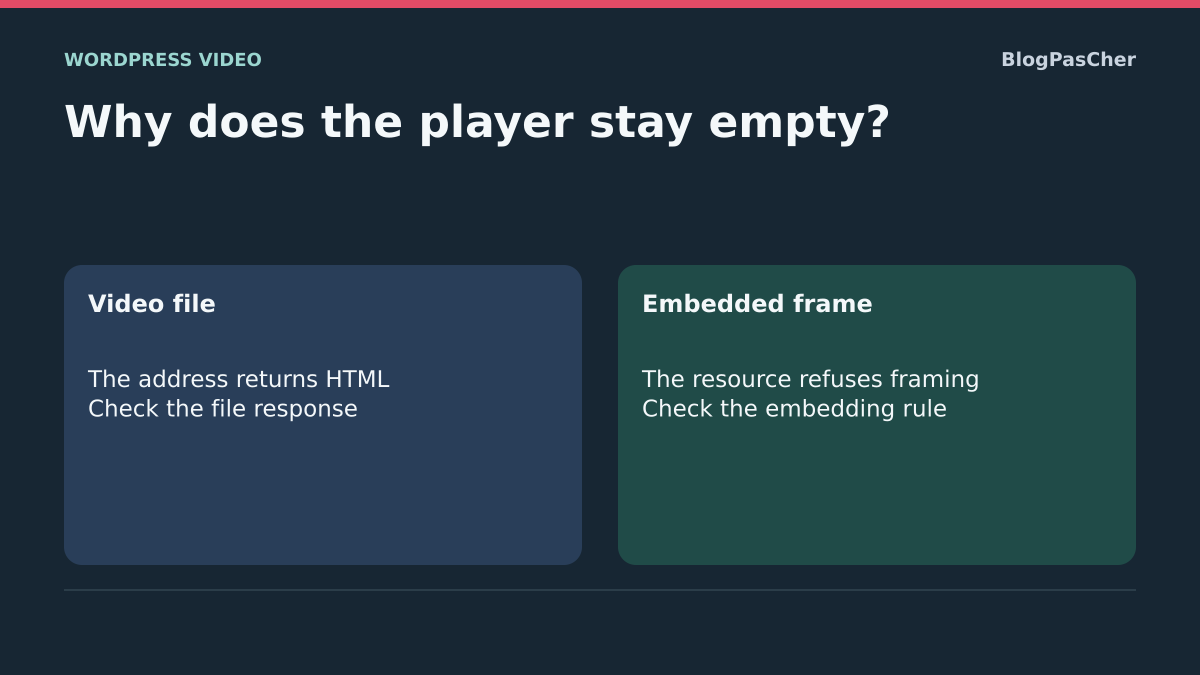
Recognize a video-file request receiving an HTML page
On a copy, put a short authorized video in a Video block. On the page, try playback, then open the browser’s Network tab and reload. Record the video request, its status and Content-Type header. Also check the final response if redirects occur. In a test case, a URL ending in .webm returned a text/html document with status 200. The player remained without video. A login page, download page or intermediary-generated response can produce a similar symptom.
If the address should identify the file directly, use the already validated media URL or have the response corrected on the host serving that file. For a test WebM clip, check a video/webm response, browser decoding and advancing playback time. Repeat checks with the initial settings if the change proves unsuitable. A genuinely decoded file may still have a problem with extended playback or seeking. That case requires examining player requests when playback stalls.
Distinguish a refused frame from failed direct video playback
On the copy, compare the frame response with the main page’s response. Select the iframe in the inspector, verify its address and consult Console. A document may respond 200 and be directly accessible while refusing embedding with X-Frame-Options: DENY. Check whether that refusal actually appears; correcting the Video block does not repair a restriction issued by the frame resource.
When you manage the resource to embed and its use is approved, have its administrator check embedding rules. On the copy, the administrator can authorize the precise intended origin through frame-ancestors on the resource response. Then check the frame independently of the direct video. For an external resource you do not control, choose its officially authorized embed or an accessible link. Keep the copy’s initial settings to reproduce or undo the test.
Check a reference page and rollback
On the copy, correct one block or setting at a time. Separately record the file response type, playback state and Console message for the frame. Then open another page using the same component to measure change scope. A provider or site setting may affect several pages even if the first problem was observed in one block.
To verify rollback on the copy, restore the initial responses and restrictions, then compare both symptoms. Keep the original link or embed code and document the changed setting. Use a fictional clip and frame for this protocol. Video-provider permissions and consent behavior must be checked separately on authorized resources.
Look for multiple CSP policies before changing permission
If a provider is already allowed in a setting but remains blocked, examine every Content-Security-Policy header on the page and any policies declared in the document. Multiple active policies combine restrictively: adding a more permissive policy does not neutralize one already refusing the load. The server, CDN and a plugin may each contribute to the response.
Ask the administrator to identify the policy producing the visible Console refusal, then correct its directive in the right location on the copy. Keep the old value and other restrictions. After changing it, reload the test page and verify both authorized playback and the absence of a new policy error. A Report-Only header reports violations without blocking the player by itself; distinguish it from an enforced policy.
Sources and references
Use these references to check the features, requirements and limitations described. Reading documentation is not a practical test.
View 16 references
- WordPress: Embed block ↗
- WordPress: Custom HTML block and filtering ↗
- WordPress: roles and the unfiltered_html capability ↗
- YouTube: embedding, permission and error 153 ↗
- Vimeo: embedding and allowed domains ↗
- Vimeo: unlisted URLs and oEmbed errors ↗
- Vimeo: referrer policy and domain privacy ↗
- MDN: the page’s frame-src policy ↗
- MDN: the source’s frame-ancestors restrictions ↗
- MDN: X-Frame-Options header ↗
- Chrome: requests, status and network responses ↗
- WordPress: Video block for a directly hosted file ↗
- Chrome: computed styles and local tests ↗
- W3C: frame-ancestors directive ↗
- IETF: X-Frame-Options response ↗
- MDN: multiple CSP policies ↗