

Check what actually appears twice
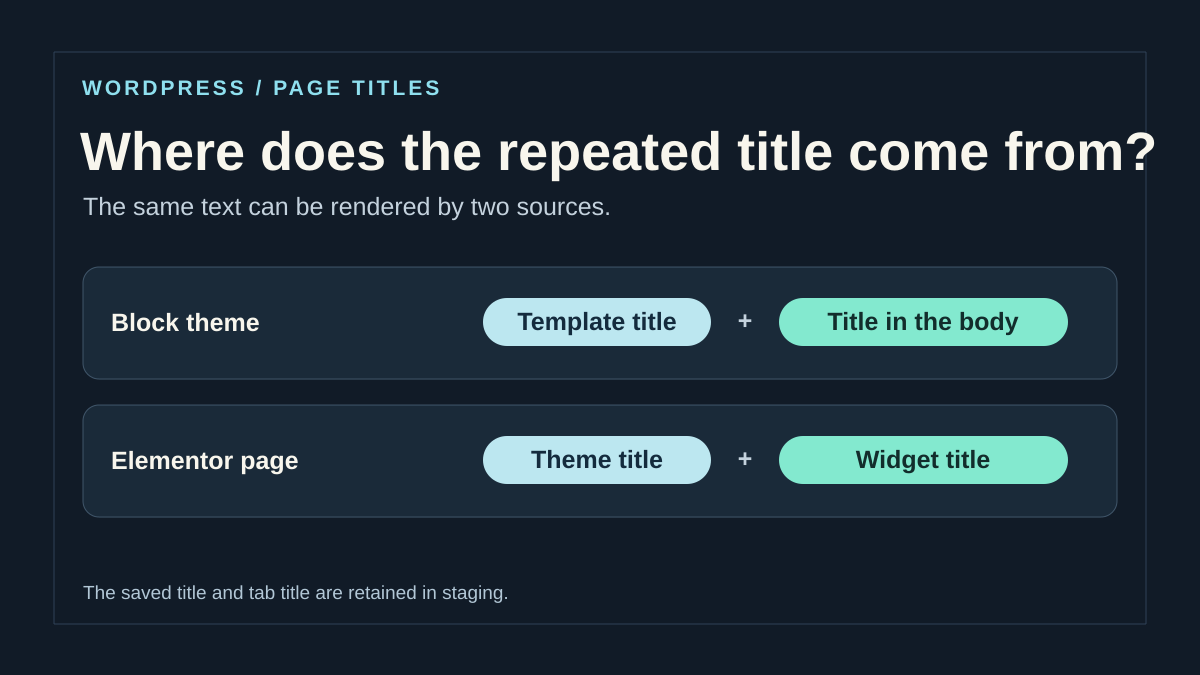
You open a page and its title seems repeated: once above the content, then again in a banner or large text. The desired result is a clear main title and a readable page without erasing its name in the administration area. Start by identifying both occurrences at the public address.
The name displayed in the browser tab, a breadcrumb link and the content title serve different purposes. Their resemblance does not automatically mean there is a duplicate to remove. This guide concerns two visible titles that unnecessarily introduce the same content within the page.
Keep the address and a screenshot of the problem. Also open a comparable page that must not change. The first corrections affect an individual block; template or global setting changes should be prepared on a backed-up copy.
- Open the public page in a logged-out session.
- Identify both texts and their locations.
- Distinguish them from the browser tab and a breadcrumb trail.
- Record which one should remain, along with its role in reading the page.
- Keep a control page to detect an unintended removal elsewhere.
- Do not empty the page title field yet.
Match each title to its editing location
Revisit both occurrences at phone and desktop widths. Note which one changes position or visibility. A title placed in a component reserved for one screen size may explain a duplicate visible on only one screen. Keep these two measurements as references for the post-correction check.
In developer tools, use Inspect on each occurrence. Record its tag, class and enclosing container. In a block theme, a class such as wp-block-post-title may lead you to the template’s Title block. An occurrence beneath the Content block may come from a heading block added to the page. A classic theme may use a class such as entry-title. An Elementor Heading widget may sit in an elementor-widget-heading container. These classes help you search. Then confirm the source in the editor, because a class can be added to another element.
First open the page in its corresponding editor. In the block editor, use List View and look for the heading block containing the same text. In Elementor, use the Structure panel and select the widget displaying the title. If you find both occurrences in the same body, address the duplicate there. If you find only one, identify the assigned template and check whether it also adds the saved title. On a site where the builder applies templates, also check the template and its display conditions. Different mechanisms can produce the same text twice.
Keep the automatic title and correct only the body
This approach applies when the template title should remain and a body block or widget repeats the same text. On a copy, record the page ID and preserve the current content. In the block editor, select the repeated heading block in List View. If that block contains wording that is useful but redundant as a title, you can retain the information as introductory text. A section heading can become a lower-level heading if a genuine section starts there. For a builder widget, apply the same reasoning to that page’s widget.
Remove only the confirmed occurrence and save the page. The title entered in the main field remains available to mechanisms that read the document name. Avoid emptying this field to make the template title disappear. Check the public page at both widths and inspect the content immediately after the title. The expected result is one visible title with the useful paragraph or section preserved. If the attempt removes the wrong item, recover the block or widget from your working copy and check the output again.
If a page displays a title designed in its body and must keep that presentation, record its assigned template before deleting a block from the shared template. For an exception, prepare a dedicated template. Check another page still using the original template to ensure its own title remains visible. If instead the duplicate appears on every page using that template, compare several examples and determine which source should remain for all of them. The correction’s scope depends on the template those pages actually use.
Keep an understandable heading structure
After removing the duplicate, check the content’s organization. A main title introduces the page; section headings then introduce its different parts. Text’s visual size does not establish its heading level. Enlarged paragraph text is not necessarily a heading, and a section heading can be displayed small.
In the editor, the document outline helps examine content headings. It does not necessarily show every title added by the template or header. Therefore also check the public result, especially the main title that was retained.
Changing a duplicate from H1 to H2 does not eliminate its visible repetition. If this text genuinely introduces a section, give it a distinct label and a consistent level. Otherwise, removal remains the right choice. Do not promise a guaranteed search-ranking improvement from this change alone.
- Open the document outline in the editor overview.
- Check section order and labels.
- Select a section heading to check its level in its toolbar or settings.
- Adapt the level to the structure, without using it merely as a size control.
- View the public page to check the title produced by the template.
- Keep a clear main title and sections that do not unnecessarily repeat that same title.
Approach 2: copy a template for a single page
This approach applies when you want to keep a title designed within the content, for example in a banner, and remove the automatic title only on this page. With a block theme, start on a backed-up copy using an account authorized to manage templates. Do not directly delete the title from the shared Pages template.
Record the target page’s current template. In Appearance → Editor → Templates, open it and use Options → Copy all blocks. Then create a separate custom template. The copy preserves the starting structure, which you can adapt without changing the original template.
The expected result is a variant saved with a recognizable name, still separate from the selection assigned to the page. Keep the Content block and common parts that must remain displayed. Undoing this preparation simply means leaving the variant unused.
- Record the target page’s original template.
- Open that template in the Site Editor and copy all its blocks.
- Return to Templates, then choose Add New Template → Custom template.
- Give it a name such as Page with title in content.
- If an initial pattern is offered, skip it to obtain an empty space.
- Paste the copied structure and check its blocks.
- Save only this new variant.
Remove the dynamic title from the copied template
Open the new variant and confirm its name before changing its structure. In List View, locate the Title block that dynamically displays the page title. Depending on translations or older versions, its name may still refer to the post title. Do not confuse it with Site Title, which represents the site’s general name.
Remove only the dynamic block responsible for the duplicate. Keep the Content block, where your custom title and the rest of the page will appear. If the template contains a list of other posts, do not delete that list’s titles thinking they belong to the current page.
The expected result is a template displaying the content without adding this automatic title. To undo, reinsert the block or restore the structure copied before the attempt. The original template must remain intact.
- Open the variant and its List View.
- Select the page Title block in the correct location.
- Check that it is indeed the source identified during diagnosis.
- Delete only this block.
- Confirm that Content, the required header and footer are still present.
- Save and read the summary of modified objects.
- Do not apply this removal to the shared template if only one page should change.
Assign the variant and compare both pages
The new template must be selected for the target page. Open its editor, then Settings → Page → template name → Change template. Choose the variant without an automatic title and save. The title you designed in the content must remain visible and clearly introduce the page.
The expected result is one occurrence on the target page, while the control page retains its normal title. If both pages lose their titles, check whether you changed the original template or assigned the variant to several pages. A template name does not automatically limit its scope.
To undo, reassign the page’s original template and save. The variant can remain unused while you assess its usefulness; no global deletion is required. The home page or an automatic destination may follow a different template selection, which should be examined separately.
- Open the target page and record its current template.
- Choose Change template, then the variant created.
- Save the page.
- Visit its address in a logged-out session.
- Check the custom title and page content.
- Open the control page and confirm its automatic title remains.
- If the attempt fails, restore the original assignment before trying again.
Correct the right source on an Elementor page
If Elementor is already used on this page, open it in the builder editor. Compare the widgets visible in Structure with the title appearing outside that structure in the theme header. If both titles are widgets in the same body, remove or edit the repeated widget. If one is produced by the theme and the other by a widget you want to keep, open Page Settings in the top bar, record the current Hide Title value, then enable it on the copy. Save and reload the public page.
The setting depends on the selector the builder uses to recognize the theme title. For example, a classic theme may render its title as h1.entry-title. CSS hiding may leave this element in the HTML structure while removing it from view. In the inspector, therefore check both the element’s existence and its computed display. If the theme uses another selector or an Elementor template renders the second title, identify that source before changing a global setting.
After saving, verify that the content beneath the title remains visible and open a second page using the same theme. If the setting does nothing, restore its initial value and inspect the selector of the title you want to remove. If changing Page Title Selector in Site Settings → Layout becomes necessary, record the old value and check other pages already using title hiding. Canvas changes the page’s presentation, including the header and footer. Keep the current layout when only the title needs changing.
Technical variant: a strictly scoped CSS rule
For a classic theme without a suitable option, a CSS rule can hide only the page’s automatic title. Prepare it on a copy after inspecting the structure. This method hides a display element; it does not replace the title saved in the page record and does not resolve a duplicate added by another component.
The example below assumes a page with ID 123, an article identified by post-123 and an H1 title directly inside its header. Replace both IDs and check the exact tags and classes. If your structure differs, do not use this selector as a universal formula.
Add only this rule in Appearance → Customize → Additional CSS for the classic theme, after preserving the current CSS. The expected result is hiding the identified automatic title while retaining the main title in the content. A display: none rule also normally removes this element from accessible information; the remaining title must therefore fulfill the intended function.
- Inspect the automatic title and confirm the example structure.
- Record the current CSS and adapt both IDs.
- Add the scoped snippet, then save.
- Check the page and another post.
- Remove only the snippet to return to the initial state.
body.page-id-123 article#post-123 > header.entry-header > h1.entry-title {
  display: none;
}
If the duplicate affects every page using the same template
When several pages have the same problem, examine their common template before correcting each body separately. A pattern added to that template may have introduced a second dynamic Title block. In that case, correcting the shared structure may be appropriate, provided all its uses are checked.
This approach requires an account authorized to edit templates and a backed-up copy. Preserve the current template before removing a block. The expected result is one automatic title remaining in the intended locations, without losing post-card titles or the site identity.
If some pages intentionally have their own banner with a title, they may need the local variant described earlier. Do not turn a rule suitable for one group into universal hiding of all site titles.
- Record the templates of pages displaying the duplicate.
- On the copy, open the template they actually share.
- Find the two responsible blocks in List View.
- Remove only the unnecessary structural occurrence after preserving the initial state.
- Check at least two different pages using this template.
- Restore the block if the correction removes a necessary title elsewhere.
- Then handle exceptions with a separate template rather than an additional global setting.
Avoid fixes that remove more than the duplicate
Emptying the record’s title field can make it harder to identify in the administration area and affect uses that depend on this name. It is not equivalent to removing a display block. Keep a useful saved title even when the page presents its heading in a custom banner.
Do not choose an entirely blank page template merely to remove one line either. In some builders, a Canvas-type mode can also remove the header and footer. This structural change should meet a real need, not serve as an indirect duplicate fix.
A CSS rule hiding all H1 elements would affect other functions and pages. Prefer the duplicate’s source or a strictly verified target. On WordPress.com, CSS access also depends on plan features; native content or template corrections should still be examined first.
- Keep the page’s saved title.
- Remove the block or display actually identified as redundant.
- Check that no template change removes useful areas.
- Check the remaining main title in the public output.
- If a rule hides more than the intended target, remove it immediately on the copy.
- Do not combine hiding methods whose scope becomes hard to track.
Check the three outputs with the same control page
On the copy, compare methods separately: removing the duplicate in the body, assigning a template variant without an automatic title or using the builder’s hiding setting. Do not combine all three in the same attempt.
At each step, record visible titles on desktop and phone, the page’s saved title and its tab title. Also check the following paragraph and a second page retaining the original template. If this control page loses its title, the change’s scope exceeds the intended exception.
This procedure is a comparison protocol. Keep the results actually obtained with your theme and builder version. Return to the previous block, template or value before broadening a selector that does not target the correct title.
Check the result and plan rollback
Resolution is confirmed when the page displays the useful title once, preserves its content and retains an understandable section structure. Check the public page at several widths: a banner or another component may display a different variant on a phone.
Keep a note identifying the removed source: content block, dynamic block in a variant, builder setting or scoped CSS snippet. Add the original template and previous values. You can then undo a single correction without restoring the entire site database.
The control page must remain consistent with your chosen scope. If it loses its title after a correction described as local, return to the template or global setting before saving further changes. A corrected display in the editor does not replace this public comparison.
- Open the target page in a logged-out session.
- Check the remaining title and content sections.
- Check the menu, header and footer.
- Check the same page at a smaller width.
- Open the control page and compare its title.
- Keep the removed block, original assignment or CSS snippet to undo the chosen method.
- Remove discarded attempts once the result is verified.
Distinguish duplicate removal from an SEO title change
The title visible in the content, the page’s saved title and the title tag used in the browser tab are three elements to check separately. An SEO tool may compose the latter from the page title and site name. Removing a redundant block does not require emptying the SEO title.
After the visual correction, open the public preview and check the retained main title. Then look at the browser tab and the page’s menu link: their labels should remain understandable. If one changed, identify the setting actually modified instead of reintroducing a second title into the body.
The native block or template approach is free. Targeted CSS remains a fallback for a confirmed classic theme; it hides an element rather than changing the content source. In both cases, keep the same small-width check, because a different banner title may appear only on mobile.
Sources and references
Use these references to check the features, requirements and limitations described. Reading documentation is not a practical test.
View 16 references
- WordPress: dynamic Title block ↗
- WordPress: Heading block ↗
- WordPress: List View ↗
- WordPress.com: creating a template copy ↗
- WordPress.com: assigning a variant to a page ↗
- WordPress: template content and structure ↗
- Elementor: hiding page titles ↗
- Elementor: page settings ↗
- W3C WAI: organizing headings ↗
- WordPress: site Additional CSS ↗
- WordPress: classic theme CSS ↗
- Chrome: identifying an HTML element and its rule ↗
- Elementor: plugin version and requirements ↗
- WordPress: body classes and page ID ↗
- MDN: CSS display and display:none accessibility ↗
- Elementor — page title selector settings ↗