

Identify what pasting actually changed
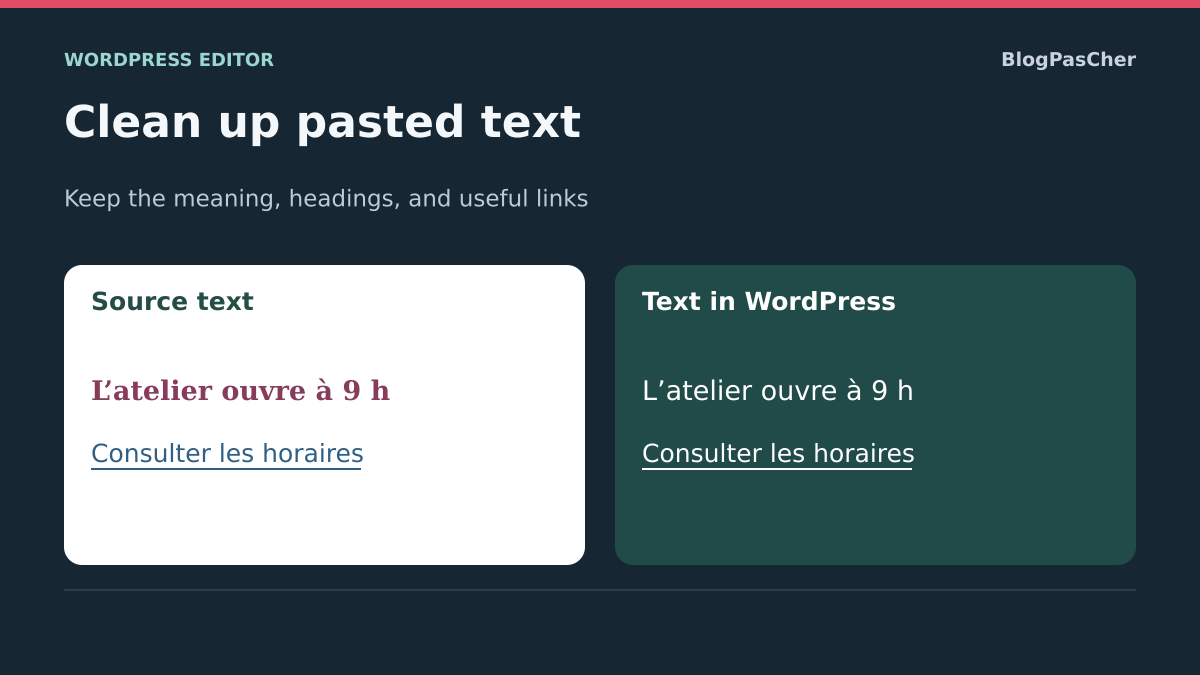
You copy text from a word processor, then WordPress displays an unexpected font, colors, spacing or lists that are difficult to edit. The goal is a presentation consistent with the site while retaining the document’s useful information: headings, links, notes and reading order.
Start with a short representative passage. Compare the source document, result in the editor and page preview. A difference between the word processor’s font and the site’s font is often expected; an unreadable sentence or a list converted into paragraphs needs correction.
Identify the problem’s scope. Does it affect a few words, an entire block or every paragraph on the site? Pasting may import local formatting, but appearance also depends on block and theme settings. Repeating the paste without distinguishing these layers may preserve the same problem.
If WordPress reports unexpected or invalid content, keep that message and preserve the text before following block troubleshooting. Removing a color and repairing a rejected block structure are not exactly the same action.
Keep the source document and a working copy
Keep the original file and duplicate the WordPress draft or preserve its content in a local document. When the editor menu allows it, use the command to copy all blocks. Check for the beginning, final sentence and special elements before changing anything.
Note passages containing links, meaningful bold text, subscripts, superscripts or notes. Blanket formatting removal may erase useful distinctions even while making text more uniform. A screenshot helps comparison but does not preserve a link’s actual address.
Work first in a draft whose status is clear. A published post should not receive multiple cleanup experiments visible to readers. Keep the original available until the corrected version is validated.
You need permission to edit the affected document; site styles require other permissions. Record whether this is self-hosted WordPress or WordPress.com, the version and editor used. A classic theme does not necessarily require the old editor. Commands described must match the actual screen without installing another plugin.
Choose cleanup that preserves what you need
The first approach pastes text without its presentation, then rebuilds its structure with WordPress blocks. It suits mainly textual passages or pasted content whose formatting is largely unusable.
The second cleans an already pasted selection. Choose it if links, lists and headings are generally correct and only some formatting causes problems. It avoids rebuilding an entire document for a color or imported style on a few words.
The third checks inherited styles. It becomes useful if a new paragraph typed directly has the same unwanted appearance as the pasted passage. In that case, removing clipboard formatting again does not explain everything.
Compare a short passage before processing the whole document. Define the expected result: complete text, editable structure and readable presentation in the preview. If a step removes a link, note or necessary distinction, undo it and choose a more targeted method. The number of formats removed is not a success metric.
Approach 1: paste without formatting into a new block
In the control draft, add a Paragraph block in a clean location. Copy a short passage from the source document, place the cursor in that block and use your browser’s paste-without-formatting command when available.
In Microsoft Edge on Windows, the documented shortcut is Ctrl + Shift + V; on Mac, Command + Shift + V. Check the result in your environment before processing the whole document. Other applications or custom shortcuts may intercept a combination: an action that pastes block styles does not replace this text-pasting operation.
If this command does not suit your environment, use a local plain-text editor: paste a copy, check the text and copy it into WordPress. This step removes presentation and may lose links or structure; keep the rich document alongside it to rebuild them.
The new paragraph will still adopt the appearance intended for its location on the site. It does not automatically retain the source font. If the text remains abnormal despite this paste, compare a directly typed paragraph and examine local or inherited styles before starting again.
Rebuild useful headings, lists and links
After plain-text pasting, recreate section headings with the Heading block, choosing levels according to document structure. Making a sentence large and bold does not give it the same role. Use the document outline to check section progression.
For an enumeration, create a bulleted or numbered List, then check every item and sublevel. Hyphens typed at the start of paragraphs do not guarantee a structured list. If numbering has a specific meaning, check its order after rebuilding.
Restore links from the source document using the selected text’s link tool. Check the address and label; text resembling a link may have lost its destination during conversion to plain text. Open necessary destinations in the preview, taking care with links that trigger an action.
Work section by section and compare with the source before continuing. If rebuilding becomes riskier than correcting a few styles, undo that passage and use targeted cleanup. The method must preserve content functions rather than merely produce equally sized paragraphs.
Approach 2: remove only troublesome formatting
In the already pasted copy, select a short passage with incorrect presentation. Examine its toolbar controls: bold, italic, link and additional text options. Disable only the unwanted formatting and compare the result immediately.
If WordPress detects unrecognized formatting, it may offer Clear unknown formatting. This option does not appear in every case. It removes unrecognized elements; its absence does not mean your installation is incomplete.
Try it on the copy and check what changed. This button does not promise to remove every block size, color or spacing setting. If the problem remains, examine block settings instead of clicking repeatedly.
Avoid selecting the entire post to clean it in one action. Useful links, notes, superscripts and emphasis must remain verifiable. If information disappears, use Undo and compare with the source copy. Do not save a simplification after checking only its first line: the end of the passage and embedded elements matter too.
Distinguish word formatting from block settings
A bold word may carry formatting applied to that selection. An entirely bold paragraph may also depend on a block typography setting. Removing bold through the text toolbar may therefore be insufficient in the second case.
Select the block and open its sidebar settings. Examine Typography, Colors and available styles according to the block and theme. Note specific values before restoring the expected setting. Available options vary: do not search for a missing command as though it must exist on every installation.
Also check the block type. A sentence pasted as a Heading does not regain paragraph behavior through a simple size change. Use the appropriate transformation or rebuild a Paragraph block on the copy, retaining its content and useful links.
After each correction, compare with a new block of the same type placed in the same context. If the difference disappears, local formatting was a relevant clue. If all blocks remain similarly affected, move to inherited styles. Avoid compensating for a global setting with a different size in every paragraph: this accumulation would make later changes difficult to understand.
Handle tables, images and notes separately
A rich document may contain tables, images and note references. Do not treat them as decorations to remove along with colors. Before converting to plain text, record their locations and what they help explain.
For a data table, recreate a Table block if necessary and check rows, columns and headers. Verify values against the source. Do not use spaces or tabs to align data: their appearance may change with screen width. A column-based page layout is not necessarily a data table.
For an image, check its presence in the media library and preview. An image visible immediately after pasting does not prove it has been durably saved on the site. Keep its authorized source file and follow the normal media workflow if needed, without deleting the original during testing.
If the block toolbar offers Upload to Media Library, use that command to retain an authorized copy on the site, then check its display after reopening.
For notes, check the reference, content and return link to the relevant passage. The editor offers footnote functions in text options, but you must verify what pasting actually created. Do not replace a note with a simple superscript number if its content becomes inaccessible.
If you already use the classic editor
In the old classic editor, controls differ from block controls. When the toolbar offers it, enable Paste as text before inserting the control passage. Paste cleanup then removes imported presentation that could impose its own appearance.
For existing text, the clear-formatting command acts on the selection. Try it on a few words and check useful elements before expanding. It must not be confused with clearing unknown formatting in the block editor.
Keep the rich document to restore headings, links and other necessary information. If the passage is in a Classic block within the block editor, first identify the tool actually used. Converting the entire post changes more than simply cleaning up words.
You do not need to install the old editor to remove formatting. Stay in the environment already intended for the site, working on a copy. If conversion becomes relevant for a separate reason, have it approved and check structure and rendering separately instead of presenting it as a universal paste fix.
Approach 3: compare inherited site styles
On the copy, create a short paragraph by typing directly without pasting. Compare it with the cleaned passage in the same group and using the same block type. If their appearance is identical and unwanted, the problem does not necessarily come from the source document.
First examine the block’s style and its container’s style. Compare with an equivalent paragraph elsewhere on the same page. A rule applied to a group may affect its children without representing the style of every site paragraph.
With a block theme and suitable permissions, view site styles under Appearance, Editor, then Styles. This interface can define typography or a block type’s appearance across several pages. Consult it with the person responsible for presentation; do not change these values to fix a single paste.
With a classic theme, theme options and styles follow a different route. Have the effective setting identified. If a general correction is justified, prepare a backup and checks across several pieces of content. If the problem remains local, return to the recorded settings for the affected block. The goal remains a correction with understood scope, without changing all text as compensation.
Work section by section in a long or sensitive document
For a long text, define a reference section containing a heading, paragraphs, a list and a link. Validate the method on this excerpt before applying it to the rest. Keep correspondence with the source outline to avoid omitting or duplicating a section.
Save the draft after checked groups of changes, then reopen it to verify retention. A series of cleanup operations without a comparison point makes rollback harder. Keep the external copy and do not replace the source document with the simplified version.
For a confidential document, prefer local tools and existing WordPress functions. An online HTML-cleaning service would receive the submitted text. You do not need to entrust it with private data to remove a color or rebuild a list.
If you need help, prepare a short authorized excerpt reproducing the problem, with browser and editor versions. A sanitized screenshot and description of the command used are often enough to start. Do not publish the entire document or its internal links on a support forum.
Validate meaning, rendering and saving
Compare everything with the source document: beginning and end, headings, section order, numbers, units, quotations and notes. Pay particular attention to passages where a subscript, superscript or bold formatting carried meaning. More uniform text may remain incorrect if an essential distinction disappeared.
Check links and lists, then open the preview on wide and narrow screens. Verify that tables remain understandable and useful images appear. Headings must organize reading; their level must not be chosen merely to obtain a visual size.
Save and reopen the draft from administration. Find the latest corrections, links and media. For an already published post, transfer only the validated version with expected status and permissions, then check the actual page. Do not publish the cleanup draft as a second identical post.
If a check fails, return to the preserved copy or undo the targeted change while still available. Note the method that worked for your source and editor. For the next paste, start with this small representative test: it will help choose between retaining rich text, partial cleanup and rebuilding without repeating the same losses.
Check words and links in a reference passage
On a copy, paste the same passage in two forms: HTML with one bold word and a link on “horaires”, then plain text containing the same words. Compare text, bold formatting and link destination after insertion. Plain-text pasting should retain words but requires rebuilding necessary formatting and links. Note what your source and editor actually preserve.
The plain-text test draft was saved and reread from the copy. The source document remained available. Inherited theme settings still need checking in your page preview even after copied formatting has been removed from the text.
- Compare the passage in two working blocks. First check words and punctuation, then find clickable text and its destination.
- If only bold formatting causes a problem, select the word and remove that format. Check that the other word’s address remains present. Verify that Undo restores the formatted passage before continuing.
- If choosing plain text, recreate necessary links from the source. Save the draft, reload the editor and check the text before replacing the passage in the post.
Preserve characters in a technical excerpt
Pasting without formatting removes styles but does not guarantee that characters match the original technical document. For a command, address or programming example, compare straight quotation marks, hyphens and spaces with the source in particular. A visually similar character may change a command. Do not automatically correct punctuation throughout the site.
To display an excerpt, insert the native Code block with /code, then paste its text. This block presents code to readers; it does not execute it. Save a draft, open its preview and copy the displayed excerpt into a text editor to compare it with the original. Keep the source document until that comparison. If characters changed before pasting into WordPress, return to a reliable plain-text source instead of repeatedly cleaning styles.
Sources and references
Use these references to check the features, requirements and limitations described. Reading documentation is not a practical test.
View 14 references
- Microsoft Edge: paste without formatting ↗
- WordPress: clear unknown formatting ↗
- WordPress: Paragraph block and settings ↗
- WordPress: Heading block and hierarchy ↗
- WordPress: structured lists ↗
- WordPress: data table ↗
- WordPress.com: selected text and block typography ↗
- WordPress.com: local settings and block styles ↗
- WordPress: site style scope ↗
- WordPress.com: pasting and cleanup in the classic editor ↗
- WordPress.com: copy content before troubleshooting ↗
- WordPress: copying and the editor workspace ↗
- WordPress: copied images and saving to the media library ↗
- WordPress: Code block ↗