

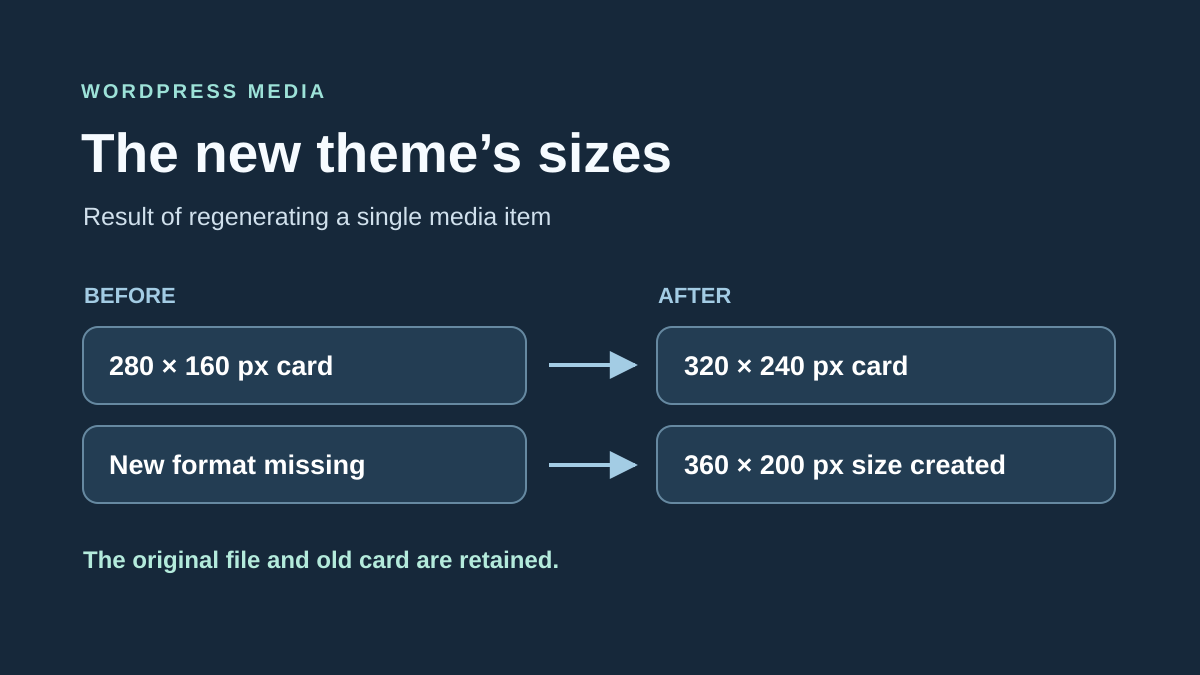
Understand what the new theme expects from your images
After a theme change, old images may look too small, have unusual cropping or be missing from some cards while a new image works. The desired result is supplying the theme with variants actually needed without erasing those still serving existing posts.
An image size here is a definition of dimensions and cropping used to create a derivative file. The theme may request new ones. Activating it does not guarantee general reprocessing of every existing file. New and old images may therefore have different variant sets.
Distinguish three things: the size requested by the theme, the file actually generated and the space occupied on the page. Enlarging an image with a width setting does not create extra pixels. Likewise, seeing a size name in a tool does not guarantee every media item already has that variant on disk.
This guide concerns adapting sizes after a theme change. An entirely empty library or an image still pointing to an old domain requires another diagnosis. If the file exists but a frame cuts off the subject’s face, also examine page cropping before regeneration. This avoids heavy processing that would leave the visual defect unchanged.
Choose reference media and compare results
Take an old image used by the new theme and record the relevant page. In Media → Library, open its record and verify the main file remains accessible. Record dimensions, name and ID. In list view, the edit address usually contains the number after post=; confirm the record genuinely represents your image.
On the public page, open developer tools, then Network and reload. Record the URL actually requested and response status. The browser may choose a different variant according to screen width. Therefore compare desktop and phone without assuming the single file specified in content is always the one delivered.
Then identify the theme’s need: dimensions stated in settings, documentation or the registered-size list. Record the technical name when available. “Post card” in an interface and carte-theme in code are not necessarily interchangeable names.
Diagnosis should reach a precise case. A new size was never generated for this media; an existing size changed dimensions; or a correct variant exists but the page selects another. Keep these observations separate. The first two cases may justify regeneration, while the last mainly calls for selection or display correction.
Preserve sources and prepare rollback
Before regeneration, keep a backup of the media files and database metadata. This metadata describes associated variants among other things. Backing up only the original photograph is insufficient to restore the exact previous state of files and references. Arrange targeted recovery if you do not understand both parts.
Start on a working copy and a single media item. The new theme and components defining sizes must be active in that environment with representative settings. A copy retaining the old theme will not necessarily provide the target’s size list.
Check available space and file limits before creating additional variants. A large library may generate many small files. Processing also needs to read the source and write to the destination. Correct a write error before multiplying attempts.
The following procedures concern self-hosted WordPress with necessary permissions. On multisite, confirm the subsite with the network administrator; a media ID only makes sense in context. On a managed plan, use authorized features or have the administrator perform the operation. A post-editing role does not automatically grant permission to install a tool or regenerate server files.
Approach 1: choose an available resolution without creating files
If the problem is an inserted image with insufficient resolution, first correct that selection in WordPress. This approach requires page-editing permission and an available variant of sufficient quality. It creates no new custom size and does not recover a missing original.
Open the page or post, select the Image block and its Settings panel. Under Resolution, choose an appropriate offered size. Depending on theme and source, the list may include Large, Medium, Thumbnail or Full Size. Preview at several widths before saving.
Do not always choose the largest: the file should meet the need without unnecessarily transferring a huge photograph for a small card. Conversely, enlarging a thumbnail through Width and Height does not restore lost detail. Those fields control display, not generation of a higher-resolution file.
To undo, restore the resolution and dimensions recorded before the attempt. If the defect affects a template-generated featured image, body Image block settings do not control it. Examine the component or size requested by that template instead. Proceed to regeneration only if the required variant genuinely is missing.
Identify sizes actually declared by the active theme
Without a terminal, a regeneration tool’s size list may help confirm currently declared names and dimensions. Compare it with the page’s need without adding a size merely because it looks appealing. Regeneration does not decide which variant the theme displays.
If WP-CLI is already available with authorized SSH access, the command below lists registered sizes. Run it from the correct installation directory; on a network, select the subsite using --url. It provides name, width, height and crop mode. It is not a list of files present for each photo.
Keep the target theme and relevant components loaded. A command skipping themes or plugins may produce a different list. If the expected size is undeclared, have the setting or defining component corrected before regeneration. Repeating processing will not spontaneously create a requirement unknown to the installation.
The output is a reference state. Keep it with the reference media and expected dimensions, then compare after intervention. No rollback is required for this read; it does not modify media.
wp media image-sizeApproach 2: prepare targeted regeneration without a terminal
reGenerate Thumbnails Advanced by ShortPixel offers individual processing in its free edition. Check the offered version’s WordPress and PHP requirements before installation. The approach below targets one variant and excludes deletion features from diagnosis; labels may vary by version.
Install only this plugin through Plugins → Add New Plugin after confirming name and author. Its identifier is regenerate-thumbnails-advanced. Then open Tools → Regenerate Thumbnails. Under Settings, find Regenerate these thumbnails and record the initial selection.
Select only the size required for the reference media. If the variant is missing, leave Force regeneration unchecked. If its name is unchanged but dimensions or cropping changed, this setting regenerates it even when a file already exists; enable it only for this size and after backup. Click Save Settings to retain your choice.
Do not change JPEG quality or dimension definitions during this first diagnosis. Leave deletion or cleanup functions disabled, including Delete Unselected Thumbnails, Remove non-existent images and Clean unknown metadata, offered within Pro. No purchase is required to create the targeted variant. Optimization and cleanup features serve other needs and must not broaden this troubleshooting.
Process one media item and check what was created
After saving options, return to Media → Library and choose list view. Find the reference media row, verify its identity and use its Regenerate Thumbnails action. In this version, that individual action starts processing: prepare backup and size selection before clicking.
Wait to return to the library and read the resulting message. Then open the reference page and check requested address, file dimensions and display at several widths. A success notification does not demonstrate the theme now chooses that variant. Compare with the need recorded before the operation.
If satisfactory, record the processed size and media. If the message indicates a missing source, processing error or denied access, stop retries. Regeneration does not reconstruct detail from a lost original or repair an unwritable folder.
To return to the previous state, have this media’s files and metadata restored from the prepared backup. Also restore initial selection and options if abandoning the attempt. Deactivating the plugin does not undo these writes. If used only for this troubleshooting and no size the site depends on was defined there, you may deactivate it after validation.
WP-CLI alternative for the same targeted processing
With existing WP-CLI and SSH access, the example below processes only media 123 and size carte-theme. Replace both values with the verified ID and name. Run in the correct installation; add the appropriate --url context on multisite.
This command writes immediately: it offers no simulation. --image_size limits the processed size and --skip-delete preserves old thumbnails instead of requesting their deletion. Preservation does not prevent writing a regenerated file with the same name or updating metadata. Backup remains necessary.
Do not remove the ID and accidentally run the whole library. Do not add deletion or content-reference-update options for this first attempt. Check results and rollback as in the individual approach: files, metadata, reference page and targeted restoration if degraded.
wp media regenerate 123 --image_size=carte-theme --skip-deleteRecognize limits preventing a new variant
A source that is too small cannot produce a large detailed image through simple regeneration. WordPress calculates dimensions from what it can read and does not systematically create every requested format when it exceeds the source. If the theme requests a large banner, find a sufficiently high-quality photograph rather than enlarging a thumbnail.
A size may also be declared with cropping. Generating a technically correct file does not guarantee the important subject remains in frame. Compare expected proportions and actual content. If the defect is visual template cropping, correct it there; recreating the same file may reproduce the same result.
If the expected size does not appear, check the actually active theme and required components. A theme option, child theme or plugin may hold its definition. Do not copy a function found for another theme into the parent theme merely to make a size name appear.
Finally, a source readable in the browser may be inaccessible to local processing when external storage is involved. Have the integration-compatible method and how variants are sent to remote storage confirmed. Creating a local file does not prove availability on the public image domain.
Extend processing to the useful scope after the test
Once the reference media works, identify other images actually using the new size. A post card, gallery and banner may have different requirements. Creating every size for every media item without distinguishing uses increases work and storage.
For a few images, repeat the individual action with the same verified selection. For a large library, prepare an ID list and batches suited to available resources. The WP-CLI alternative accepts several explicit IDs in one command; retain the chosen size name and options, then check every batch report.
In Tools → Regenerate Thumbnails, Regenerate only Featured Images limits processing to featured images when that matches your need. It does not mean an arbitrary manual photo selection. Do not assume advanced date-range choices offered within Pro are available in the free edition. Do not launch the general button until its scope matches the intended one.
Keep old-size files during transition. An old post may still contain a direct address to a variant no longer declared by the new theme. Absence of that definition from the current list does not prove the file is unused. Any cleanup requires separate checking after page and backup validation.
Check quality and keep a record of the theme change
Check an old post, a recent page, a gallery and a theme-generated card. Compare landscape and portrait images. Verify requested files load, resolution suits the occupied space and the subject stays visible. A present variant that is too small or poorly cropped does not meet the need.
Reload after targeted purging of the existing cache if the old result persists. Do not conclude regeneration failed solely from a cached page, but do not purge before checking the produced file. The browser may retain a result different from what is now available at the origin.
Record the active theme, retained size names and dimensions, processed media and preserved old variants. If you later return to the old theme, that change does not automatically restore files and metadata from before regeneration. Use the prepared rollback if you need that exact state.
After validation, keep sources and backup during the useful review period. For the next theme change, compare sizes on a copy before switching and process a sample first. This distinguishes file selection, creation and display instead of rerunning the whole library for every visual difference.
Compare an added size with one retaining the same name
Prepare two cases on the copy: a genuinely new size and a size whose name already exists but dimensions changed. Record target-theme definitions and media metadata before processing.
On your copy, record each format’s name, declared dimensions and whether a matching file exists for the selected media. Open the page using the variant and record the file address actually loaded. A size may be declared without having been created for this old media. A size present in metadata may also retain the previous theme’s dimensions. The check covers both values and the file.
Verify targeted regeneration before processing a batch
The --only-missing option must be checked with your version and reference media, especially when the size name already exists. Compare declared dimensions, metadata and files after the command. A core missing-size list is not equivalent evidence of behavior across every WP-CLI version.
The example below targets the new size. Replace ID and name with those recorded on the copy. The command writes immediately. Keep a backup of media files and metadata before running, then compare the resulting size with the theme’s expectation. With another WP-CLI version, confirm option behavior on the single reference media before making it a batch rule.
wp media regenerate 123 --image_size=nom-de-la-taille-ajoutee --only-missing --skip-deleteCheck old URLs and change scope
The check must include the original, old variants still referenced and a media item excluded from the operation. --skip-delete limits deletion of old thumbnails but does not guarantee a same-named file was not rewritten.
To verify your intervention, record the old card’s address before the test and reopen it after regeneration. Also check the address displayed on the page intended to use the target format. If that page retains an old URL in content or cache, correct the source of that reference before regenerating more images. For complete rollback on the copy, restore the tested media’s metadata and backed-up files together, then compare the page and old addresses again.
Check a declared variant whose file disappeared
A size may appear in metadata while its file was deleted, transferred incorrectly or absent from remote storage. In that case, the registered-size list is insufficient. Record the URL requested by the page and its status; then compare the expected path with files accessible to media processing. A 403 means access denial and must not automatically be treated as a missing file.
On the copy, retain reference media and a control item excluded from processing. If the need is confirmed, use the free plugin’s individual action or WP-CLI with an explicit ID and verified size name. The --only-missing option does not replace checking files and dimensions: verify your version’s actual result before extending to a batch.
After processing, open the new variant’s public URL and then its intended page. If the file exists but the page still requests an old address, investigate that reference or cache instead of rerunning generation. Complete rollback concerns backed-up files and metadata, not merely theme activation.
Sources and references
Use these references to check the features, requirements and limitations described. Reading documentation is not a practical test.
View 10 references
- WordPress: image-size definitions ↗
- WordPress: generating variants and metadata ↗
- WordPress: missing sizes in metadata ↗
- WordPress: calculating dimensions without artificial enlargement ↗
- WordPress: Image block resolution and dimensions ↗
- WP-CLI: listing registered sizes ↗
- WP-CLI: regenerating targeted sizes ↗
- reGenerate Thumbnails Advanced: official listing ↗
- reGenerate Thumbnails Advanced: official free 2.5.0 code ↗
- MDN: image chosen among variants ↗