

Choose the state to recover before restoring
A color, font or spacing change may degrade the entire site while posts remain intact. The correct rollback depends on what changed: block-theme global styles, a block-specific value, custom CSS or template structure. Restoring an entire page does not necessarily return its global styles to their previous state.
Start by describing the desired result. Do you want yesterday’s appearance, one color restored or the design supplied by the theme? These goals require different actions. A reset restores defaults; it does not automatically select your last satisfactory customization.
Record the active theme, approximate incident date and affected elements. An earlier screenshot helps identify a difference but does not contain the values and rules needed to restore it. Also choose recent changes to retain: a new button or readability improvement may have been saved after the state you seek.
This guide favors native checks and targeted recovery. Global-style steps concern a theme compatible with the Site Editor. With a classic theme or builder, find the setting actually producing the appearance. Do not switch themes or reinstall WordPress to recover an old color.
Find the correct history and required access
An account authorized to manage appearance is needed to restore global styles. Permission to edit a post does not automatically grant access to templates or theme settings. On a multisite network, network restrictions may further limit options. Ask the appropriate person to intervene without changing roles to bypass this limit.
The first approach uses an existing style revision. It suits several global values that need to return together to a known version. The second retains the current state and restores only one value or CSS rule. Choose it if the rest of the site is already correct or recent improvements must remain.
The third recovers information from an already available backup restored on an isolated copy. It applies when no usable revision exists. A new backup plugin cannot invent a state preceding its installation. Therefore first check backups and histories actually retained.
On WordPress.com, customization access depends on the plan and site interface. History labels may also change by version. Identify the object and date before clicking Restore or Reset. If you see a post’s history while every page changed color, you are probably following the wrong approach.
Preserve current appearance before any comparison
Even imperfect, the current state may contain useful settings absent from the older version. Copy Additional CSS into a text file and record important values: palette, fonts, content width and relevant spacing. Indicate which theme and date each copy corresponds to, avoiding later reintroduction of the wrong set.
In the Site Editor, the options menu at the top right lets you export the customized theme under Tools. The archive includes templates, template parts and style settings covered by this export. Keep it as preservation material; it is not a complete backup of site content, media, accounts and settings.
For broader rollback, check that a current file and database backup exists and can be retrieved. Do not settle for a message saying a backup is scheduled. Also retain information identifying the set and its date.
Perform these operations before opening an old revision if you still have unsaved changes. Apply commands may discard them. Deliberately save work to retain or copy its values, then start comparison in a single tab. Another administrator must not save competing styles during this rollback.
Restore a complete global-style revision
In Appearance → Editor, open Styles and its three-dot menu to access revisions offered by your interface. In the current WordPress.com interface, Revisions may also appear at the bottom of the design menu; some views show a clock in Styles. Use style history, not template history.
Select a date and examine the preview and change summary. Apply prepares that version in the editor; Save retains it on the site. A version marked active does not need reapplying. If no revision is available, move to targeted recovery or a backup copy.
Do not apply a date solely because it precedes the incident. It may also remove valid customizations. A missing older version means it is unavailable in this history; a new backup will not make it reappear.
- Preserve the current state as described above.
- Open Revisions and choose the state to compare.
- Check expected changes and those you want to retain.
- Click Apply, then Save only if the entire set is suitable.
- Check public pages and record the selected revision.
- To undo this rollback, reapply the version preceding your intervention if available, or restore retained values.
Examine pages that reveal side effects
An appealing homepage preview does not demonstrate that the older version suits the entire site. Before validation, choose a long page, a post with headings and lists, a page containing buttons and a page using another template. You will compare effects on the elements actually changed.
Look at links, contrast, text size and wrapping. An older font may change button height or make a heading wrap onto three lines. A restored content width may also change image alignment. These effects do not mean revision restoration failed: they describe its scope.
In particular, identify improvements made since that version. If a recent contrast fix would disappear with a full rollback, record only useful older values and prefer targeted recovery. Retaining the current version and restoring known spacing is better than reproducing an older readability weakness.
The preview also relies on resources present today. A font or image removed since the revision may be missing even if the historical setting is correct. In that case, address that resource separately. Restoring style values does not automatically restore every file that existed on their date.
Recover only CSS from an old revision
This approach is for someone able to recognize their CSS rules and with a revision containing them. First retain current CSS. In style history, apply the old revision to examine it, then open Additional CSS and copy useful text into a working file. Do not click Save at this stage.
Then reload the editor, discarding prepared changes, and check that the current state has returned. Open its Additional CSS again. Reintroduce only rules whose effect you want back, preserving other customizations. Save this targeted change and check the public result.
This method lets you consult an older value without publishing its entire visual era. However, it requires careful comparison: replacing all current CSS with old CSS would remove more recent rules. An old rule may also target a class that no longer exists after a structural change.
The expected result is restoration of the chosen effect while current colors, fonts and other settings remain. To undo, restore CSS copied before intervention. If you cannot identify relevant rules, give both versions to the person managing styles instead of randomly merging conflicting blocks.
Restore a single value or return to theme defaults
If you know the correct value, the most direct fix is to restore it in its original control. In Appearance → Editor → Styles, open Typography, Colors or Layout according to the fault. Choose the relevant element and restore the recorded value, then save. For a block type, open Styles → Blocks and select that type before changing its setting.
This action preserves other customizations. Record the replaced value to roll back if the correction is unsuitable. Check its scope: a block-type setting may affect every occurrence, while a local page setting concerns its block.
The style-reset command serves another goal: restoring values supplied by the active theme. In the Styles panel’s three-dot menu, its label may be Reset styles or Reset to defaults. Use it only if you truly intend to remove those customizations.
Start on a copy, compare the result and save only after checking the whole set. A reset is not a selection of yesterday’s version. If the theme has evolved since then, its current defaults may also differ from your old site. To undo, use the retained state or an available revision, without assuming a reset button provides its own universal rollback.
Recover classic CSS without switching themes
With a classic theme, open Appearance → Customize → Additional CSS. Copy current content before editing. If you have an older text file for the same theme, compare rules and restore only those needed. Classic CSS is associated with the theme; a copy from another theme may target different classes and structure.
On WordPress.com, the CSS editor may offer See full history when versions exist. This is not a universally guaranteed history for every self-hosted site. If the link is missing, do not seek a plugin claiming to automatically recover old values never retained.
A removed rule is recovered from a real copy: working file, history of the component managing it or backup. If CSS was in a child theme, retain the current file and compare its old version. Do not replace the entire theme directory to recover a few lines, and do not edit the parent without understanding the consequences of a future update.
The expected result is the useful old effect on the current structure. If the selector no longer matches displayed elements, adapt it after inspection instead of adding general rules. To undo, restore retained CSS and reload the public site.
Recognize a local setting or structure to restore
If only one page changed, select the relevant block in its editor and examine local settings. A typography or color choice applied to that block may continue taking precedence after global restoration. Record its value, restore the desired value or inheritance where the control permits, then save the page.
If the fault is a moved element, deleted group or modified template width, style history may be irrelevant. Open Appearance → Editor → Templates and identify the template actually used. Template revisions restore its structure; they are neither style revisions nor page-content revisions.
Before restoring a template, check pages using it and the shared parts it references. An old structure may still point to a header part whose current content has changed. Therefore check each actually affected object separately instead of assuming a single date restores every site object.
The desired result remains limited to the identified fault. Retain current values and structure before any change. If content itself was overwritten, use the content-recovery approach; do not reset overall appearance in an attempt to make it reappear.
Option: retain a rollback point with UpdraftPlus
If no backup tool is already available, UpdraftPlus can help retain the current state before changes. It does not recreate a lost earlier appearance. The plugin is published by David Anderson / Team Updraft; verified version 1.26.14 declares WordPress 3.9 minimum and tested compatibility up to 7.1.4. This does not recommend using an old WordPress version.
Install it through Plugins → Add New Plugin, checking the name and author, only if you need this function. In Settings → UpdraftPlus Backups, open Backup/Restore and Backup Now. Include the database and relevant file categories after checking any exclusions. Wait for completion and check the set displayed in Existing Backups.
Download required elements and keep a copy beyond the site’s sole server. A completed status must correspond to the data you intend to preserve. Manual backup and restoration of the plugin’s own backups are available in its free version; advanced options belong to other plans.
Creating this backup applies no old style. If you ultimately do not use the plugin, first retain your archives before deactivating it and do not inadvertently choose data deletion. Restoring its complete database would also change data unrelated to styles; do not use it in production for a simple visual correction.
Read an old backup on an isolated copy
This final approach assumes an old backup exists and a consultation copy has been correctly restored from it. Preparation depends on hosting or the migration tool; a restoration intended for the same URL must not be treated as an automatic transfer to another address. Have this copy prepared if it is not already operational.
Isolate sending, payments and external calls at this environment’s level before restoring the old site there. You want to consult settings, not reactivate the effects of old production. Then check the copy’s theme and date; a backup after the loss does not necessarily contain the desired values.
The result is targeted recovery from an old state without restoring its entire database on the live site. If transferring the values is unsuitable, restore retained current values. Do not import an entire table or serialized settings set to avoid recopying a few values: the scope would exceed the visual correction.
- On the old copy, open the styles panel or Additional CSS corresponding to the fault.
- Record values or copy only useful rules into a working file.
- On a copy of the current state, restore these values through native controls or original CSS.
- Compare reference pages and retain recent improvements.
- Transfer only approved changes to the live site after retaining its starting values.
Validate rollback and make future changes reversible
Once the correction is saved, open reference pages as a logged-out visitor. Compare visible values and practical uses: recognizable links, readable headings, accessible buttons and content without overflow. Check phone and desktop widths and page exceptions whose settings must remain specific.
If the old display seems to persist, first confirm the correct object was saved. A style revision does not fix a different template or a block still carrying a local override. Then refresh the relevant cache with the existing tool. A purge is neither restoration nor proof that settings are correct.
Record the restored date or values, their location and the reason for the choice. Keep the initial export and CSS until validation. For future work, make limited changes saved at identifiable stages, with a few stable reference pages.
If no old source exists, values must be reconstructed from available material without claiming exact restoration. A screenshot may serve as a visual reference, but it does not contain original code. Documenting this limit helps choose a reasonable reconstruction and avoid a reset that would lose customizations still present.
Rehearse restoration on a copy with two independent settings
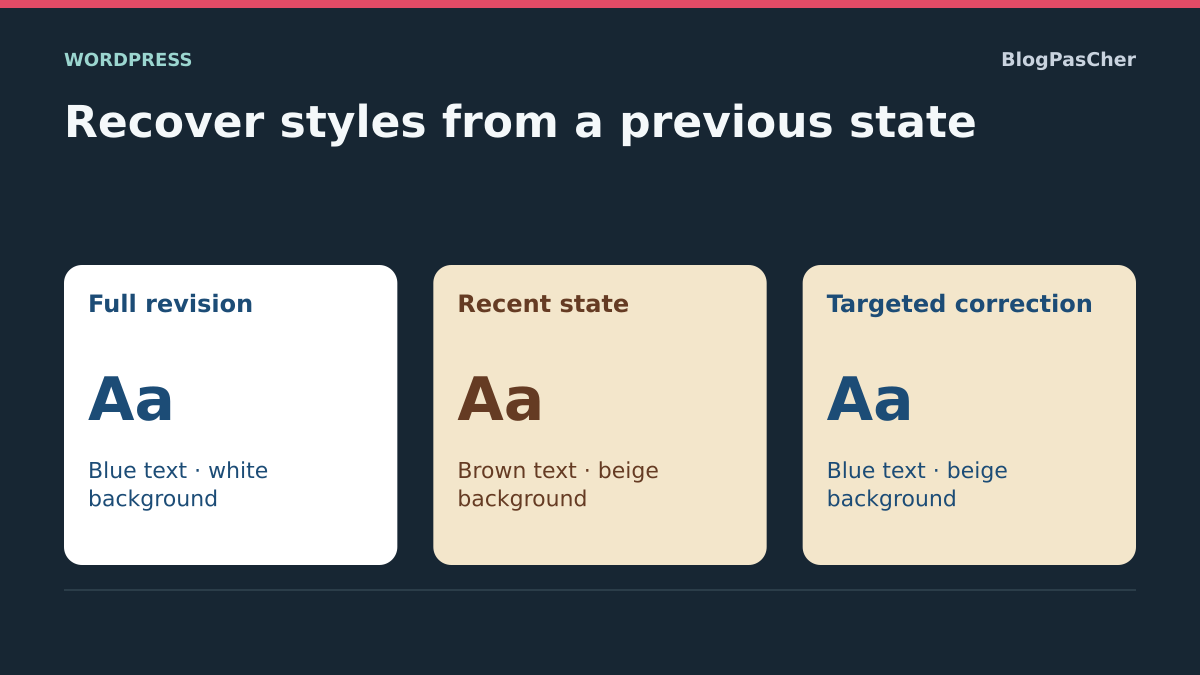
Use an active block theme and a copy retaining its version and customizations. In Appearance → Editor → Styles, choose two easily distinguished global settings. For this test, save dark blue text and a white background. Open a simple page in another tab and check that those colors apply. If block text has its own color, choose a page or paragraph that properly inherits global styles.
Then save brown text and a beige background. You want blue back while retaining beige. Record both values or their hexadecimal codes before testing history. Keep a copy or restoration point of this second state. A theme export may assist comparison within its covered scope. A database and file backup remains your rollback point for the copy.
Open Revisions in the Styles panel and choose the blue-on-white state. First compare the preview and the copy’s public site. To see the full effect on the copy, apply the revision and save. The expected result is blue on white. If you find only the desired color, record it, then return to the brown-on-beige revision. In Styles → Colors → Text, enter blue and save this change alone. The expected result is blue on beige. Check these two results separately on your copy: full restoration must recover both revision colors, while the targeted change must preserve the recent background.
Compare a place with global style and one with local style
After recovering blue on beige, check the homepage and another page in a private tab, starting with ordinary paragraphs. Then open a page with a heading, button or block having its own color. A global paragraph may return to blue while a button stays green. Check that page’s editor for a local block color. If two pages have different templates, also record each template before interpreting a difference.
In browser tools, Computed Styles lets you read the color and background actually applied. Select the paragraph if its color differs from surrounding text. For the background, also examine the container covering the page. A transparent paragraph background is compatible with a beige background visible on its parent. If the preview is correct but the public tab still shows the old combination, check the URL, then purge the relevant cache on the copy and reload.
Keep the same page set after every intervention. In your record, note the expected value, observed value and block context. If a page remains different because its template contains a customization, identify that template before changing another global style.
Return to the recent state if the test has wider effects
If you changed one setting and the result interferes with another page, reopen that exact setting and restore its recent value. In the example, restore brown in Styles → Colors → Text, retain beige and repeat the same checks. You can also return to the recent revision if you tested a full restoration and both states appear in history. In that case, also check other global settings you recorded, particularly links and buttons.
If the test also changed templates, files or plugin data, restore the pretest point on the copy, then restart from that state. For global CSS recovered from an old backup, keep current CSS in a dated text file. Copy only the rule explaining the difference and check pages where it applies. If an unexpected effect occurs, restore the initial text in the same location.
Before making the change on the public site, keep a short list of validated settings and checked pages. If someone else saved styles between testing and intervention, take another capture of the public state and check that starting values still match the copy.
Compare inherited values before merging two styles
Before recopying an old color, determine whether it comes from a precise value or a theme palette. In browser tools, a name such as var(--wp--preset--color--contrast) denotes a variable: its value depends on the active palette. Restoring only the name may therefore retain the new color. Record the computed code and the palette supplying it.
For a no-code correction, use the correct element’s native setting in Styles and check links and buttons separately. For a CSS correction, limit the rule to the identified component; imposing a color on every descendant would prevent local exceptions from working. A backup plugin can retain the current state but does not resolve this inheritance question. The final check must compare the same element’s computed value before and after, then a page that should not change.
Sources and references
Use these references to check the features, requirements and limitations described. Reading documentation is not a practical test.
View 14 references
- Style revisions and resets ↗
- Global styles and restoring theme defaults ↗
- Site Editor and customized theme export ↗
- CSS history and targeted recovery ↗
- Content revisions ↗
- Template revisions ↗
- Classic CSS associated with the theme ↗
- Block typography settings ↗
- Copy and manipulate blocks ↗
- File and database backups ↗
- UpdraftPlus: developer and compatibility status ↗
- Manual backup with UpdraftPlus ↗
- UpdraftPlus restoration and destination limits ↗
- Native revision restoration function ↗