

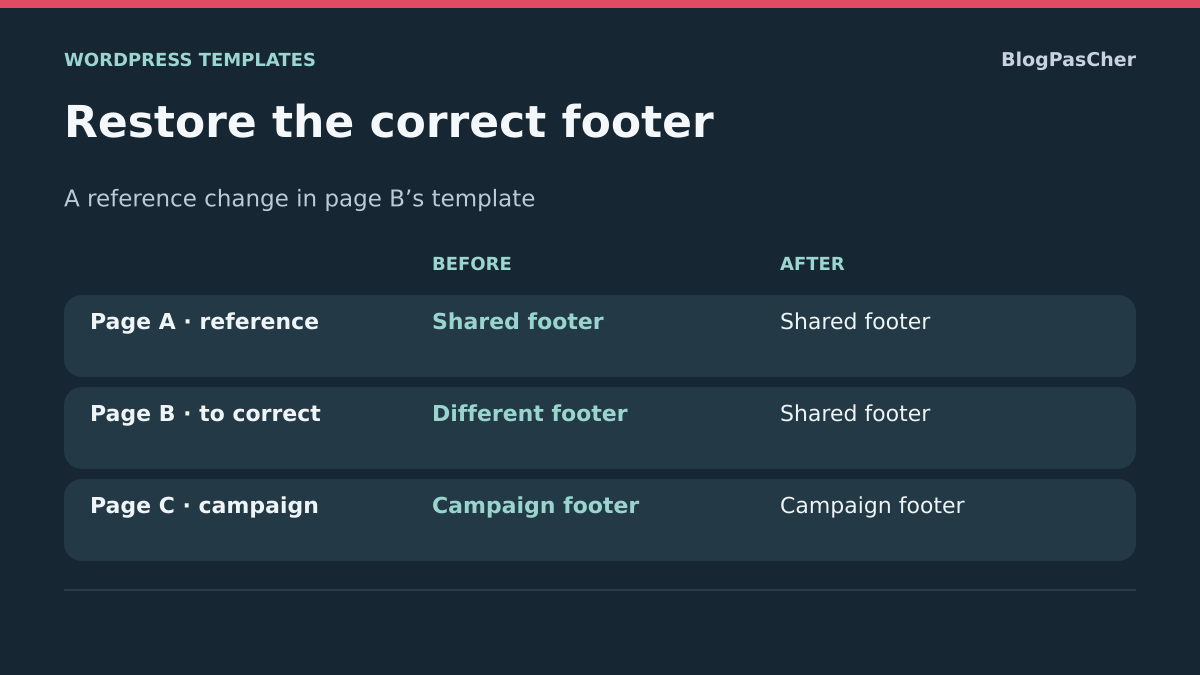
Describe what actually changes in the footer
The footer shows the correct links on one page and old text on another. It may also retain the same content but change layout. The desired result is intentional consistency: a common footer for the relevant pages while preserving variants with a reason to exist.
Start by distinguishing content, source and presentation. Two templates may use two different footer parts. The same part may display a menu or shared data. Finally, a page-specific style rule may change appearance without changing the source. Copying visible text everywhere does not tell you which situation applies.
Prepare the address of a correct page and a different page. Compare them in a logged-out session at similar widths. Keep screenshots of both states before changing a shared setting. Template or file tests take place on a backed-up copy.
- Record both addresses and the differing text or links.
- Check whether the difference concerns content or only layout.
- Compare with the same browser and a similar width.
- Record expected exceptions, such as a language or specialized page.
- Choose the desired footer before deciding to make pages uniform.
Connect each page to its template and footer part
With a block theme, open the correct page in administration and record its template in Settings → Page. Then open the template with the required permissions. In List View, select the footer part and record its name. Repeat this record for the differing page.
The expected result is a comparison of two chains: page → template → footer part. If templates reference different parts, divergence may be normal or stem from an old choice. If parts are identical, continue with the menu, block settings and styles.
Do not assume every destination uses the Pages template. The homepage, an archive or a page produced by an application may select a particular structure. Work on the effective template before saving a correction.
- Open the correct page’s record and record its template.
- Examine this template in Appearance → Editor → Templates.
- In List View, record the footer name.
- Repeat the same checks for the differing page.
- Compare part names and content without saving.
- Keep this information to choose an assignment or targeted replacement.
Choose between fixing assignment and replacing a reference
The first approach suits a page using a template not intended for it. Changing its assignment may restore the expected footer but also change the rest of the layout. Therefore check that the entire selected structure meets the need, not only its final area.
The second approach keeps the current template and replaces its footer reference with the desired common part. It suits a correct page structure pointing to an old variant. The change affects every page using this template; check its scope before saving.
The third approach examines classic themes, widgets or footer files. It applies when Site Editor template parts are not the mechanism used. No new plugin is needed for native checks.
- If the entire layout is incorrect, first examine the assigned template.
- If only the footer differs and references differ, prepare their replacement.
- If the reference is identical, examine the menu and styles before changing it.
- For a classic theme, locate widget areas and footer calls.
- Keep one active hypothesis and an initial state to undo it.
Approach 1: fix an incorrect template assignment
This approach suits an ordinary page mistakenly using a template variant. It requires permission to edit this page and choose from available templates. Record the initial assignment before testing. A template with an apparently correct footer may also change content width, title or header.
On the copy, open Settings → Page, click the template name and choose Change template. Select the structure actually intended for this page, then save. The expected result is the desired footer returning with a fully correct layout.
To undo, restore the initial template and save. Do not use this correction for an archive or automatic destination that does not follow the same page-record choice. If the current structure must be retained, move on to replacing only its footer reference.
- Open the differing page on the copy.
- Record its current template and the areas it displays.
- Choose Change template and the validated variant.
- Save the page.
- Check the footer, but also title, width and header.
- Compare the reference page.
- Restore the initial assignment if the change exceeds the need.
Approach 2: use the same footer part in the correct template
If the page has the correct structure but an old footer part, keep its template and change only this reference. This requires an account authorized to edit templates, a backed-up copy and the correct part name recorded from the reference page.
Open the relevant template in Appearance → Editor → Templates. In List View, select its footer part. Use its three-dot menu and Replace, then choose the desired common part. You are selecting an existing object; you do not need to rewrite its content.
The expected result is that the relevant templates use the same source. A future edit to this part will be shared across its uses. If some pages must retain an exception, do not connect them to the common part without a decision. To undo, restore the template’s initial reference.
- Record the correct part and the current reference of the template to fix.
- Open this template on the copy.
- Select the footer part in List View.
- In its options, choose Replace, then the correct part.
- Check its name before saving.
- Check the summary to confirm the template modified.
- Check every reference page using this structure without editing the original part for this simple replacement.
Check the menu and blocks displayed in the footer
Two similar-looking footers may display different menus. In a template part, the Navigation block selects a saved menu. Copying only its appearance does not merge these menus. Before editing links, record the chosen menu and check whether it is shared elsewhere.
To select the correct menu, open the footer part on the copy and choose its Navigation block. In options near the menu name, open the existing-menu list and select the intended one. If you directly edit a shared menu’s links, its other uses are also affected.
The expected result is the same navigation destination on intended pages, or an explicitly retained difference. Also check text blocks, social icons and contact details: a variation may be old content copied directly into another template.
- In each footer, select the Navigation block.
- Record the menu name actually used.
- Compare links and their destinations.
- Choose the correct menu if assignment is wrong.
- Save and test links from both pages.
- To undo, reselect the menu recorded initially.
- Do not delete an entire menu simply because one of its uses was incorrect.
Create a common part if footers were copied into templates
Sometimes footer blocks are copied directly into several templates instead of forming a reusable part. Editing one of these groups then does not update the others. A common part can simplify maintenance after comparing content to retain.
On the copy, select only the correct footer’s block group, then copy it through its options. Do not copy every template block into a footer part: that would also place page content or the header there. Then create a separate part through Appearance → Editor → Patterns.
The expected result is a clearly named common source. You can select it in the relevant templates using the previous approach. Keep original versions until their links and rendering have been checked.
- In the correct template’s List View, select only the footer group.
- Copy its blocks and retain the original template.
- In Patterns, choose Add pattern → Add template part.
- Give it an explicit name and choose the Footer area.
- Paste footer blocks or rebuild useful elements, then save.
- Check shared menus and links before replacing old groups in templates.
- To undo the test, restore retained groups; do not delete originals prematurely.
Approach 3: examine a classic theme’s widget areas
In a classic theme, the footer may use one or several widget areas. Open Appearance → Widgets if the theme provides them. Depending on configuration, this screen shows blocks or the older widget interface. Area names belong to the theme; do not assume an area called Footer 1 exists everywhere.
Record areas and their content before moving an element. A page may use a template calling another area or displaying none. Moving a widget does not automatically fix template selection. Start by checking that the examined area actually appears on both pages.
The expected result is identification of the responsible area, then a limited correction to its blocks or assignment. To undo, return the element to its initial area and restore its recorded settings.
- Open Appearance → Widgets on the copy.
- Record the provided footer areas and their elements.
- Compare their content with both public pages.
- Change one text or menu choice whose source is confirmed.
- Save using the screen’s command.
- Check both pages before moving other elements.
- If one page does not use this area, examine its template instead of emptying common widgets.
Technical case: a classic template calls a named footer
This approach is for the developer maintaining theme files with a backed-up copy. In a classic theme, a call to get_footer( 'special' ) looks for a variant such as footer-special.php, then the default footer. Another template may call the standard footer directly. Check the file actually selected, including child-theme adaptations.
If the difference is unintended and the initial call is exactly get_footer( 'special' );, without a second argument, you can test replacing it with the standard call below. Do this at the call’s location in the confirmed PHP template, not in a page block. Files are in the active theme or child-theme directory under wp-content/themes/.
The expected result is loading the standard footer validated for this page. To undo, restore the retained call and file. If arguments or conditional logic are present, this example must not erase them.
- Retain the template file before editing.
- Compare its footer call with the correct template’s call.
- Check that the standard footer is indeed the desired source.
- Only in the described case, replace the named call alone.
- Check page rendering and functions on the copy.
- Restore the initial file if the test is unsuitable.
get_footer();When the source is identical but appearance differs
When both pages use the same part and menu, compare their presentation under similar conditions. A page-specific style rule, different width or element just above may change the footer’s impression. A mobile variant may also hide or reorganize blocks.
Inspect the public footer in the browser and look at the relevant element’s computed styles. The expected result is finding a property explaining the difference instead of creating a second part to compensate for a presentation problem. If received text is old, also examine the cache layer actually used after confirming saved changes.
Do not turn an intentional responsive adaptation into a fixed layout everywhere. Check that links remain usable and important content is not simply hidden on a narrower screen.
- Open both pages with the same width and session.
- Compare content before examining colors or spacing.
- Inspect the varying property, such as width, margin or display.
- Record its source and test a correction on a copy.
- Also check a mobile width.
- Restore the initial value if the correction creates another fault; do not edit the common part for a purely local effect.
Preserve intended conditions and footer functions
A different footer may be intentional: site language, campaign page, specialized section or specific workflow. Before making them uniform, confirm which links and information must be common. Retain useful destinations, particularly information and contact pages, instead of replacing a variant with a visually shorter footer.
A builder may choose the footer according to its own display conditions. Identify the product and actually active rules. The native template-part menu does not replace its system. Do not combine two footers from different layers to try to make pages identical.
In a classic theme, do not delete the wp_footer() call to make the bottom of the page disappear. This function triggers actions used by WordPress and components; removing its call may affect scripts or other functions. Visible content and this execution point are not the same thing.
- List variants that must remain different.
- Check their links and context before replacement.
- For a builder, record the condition selecting each footer.
- Correct the identified condition or reference on a copy according to its documentation.
- Preserve the theme’s functional calls.
- Do not delete a variant before confirming it is no longer used.
Validate consistency across several destinations
The final check must cover the actually affected pages and an exception that should remain different. One corrected page does not prove every template now uses the correct source. Return to your initial record to check assignments, parts and menus.
Test links, contact details and small-width display. If you changed a file call or widget area, also check general page functionality. Keep old settings and files until this comparison is complete.
Rollback depends on the change: the page’s initial template, previous part reference, selected menu or retained PHP file. None requires resetting every footer or restoring an old database in production.
- Open the corrected and reference pages in a logged-out session.
- Check that their footer matches the desired source.
- Check a page with an intentional exception.
- Test main links and mobile presentation.
- Reopen settings to confirm saved names.
- Keep the page → template → footer → menu note with rollback.
- Clean unused variants only later, after checking their uses.
Check whether a working link comes from the wrong footer
Prepare three reference pages: a correct reference, a page with an incorrectly different footer and an intentional exception. Check actual link destinations: a link returning 200 may still lead to the wrong page.
On your copy, choose a reference page, a page showing the difference and, if present, a page whose footer must remain different. For each, record template, part name and two important destinations. Open every link in the copy’s public session to check the expected title or content. This comparison distinguishes an incorrect footer part from an incorrect link within an otherwise suitable part.
Change the footer reference in only the relevant template
On the copy, replace only the footer reference in the relevant template. The expected result is the common footer on the corrected page with its header and content retained. The reference and exception pages must retain their intended destinations.
With Site Editor access, open the differing page’s template, then List View. Select the footer part and record its name. If both pages should share the same footer, replace this reference with the existing part in only the relevant template. Check the save screen to confirm you are saving the expected template. If you have only page editor access, confirm its template and give the three records to the person who can edit templates or the theme.
For a classic theme, have the maintainer check which file and widget area render each page’s footer. Compare calls to a named footer before unifying areas intentionally serving different content.
Check reference pages after correction
Reload all three pages on the copy as a visitor. Open footer links, then check header and content markers. If the campaign page changed when it should retain its footer, return to the saved reference and check the modified template’s scope. After any rollback, check all three renderings again instead of assuming restoration has no effect elsewhere.
Distinguish a footer reference from its shared content
Before replacing a part, record whether you are choosing another footer in the template or editing the original existing part. The first action changes the reference for pages using that template; the second changes content for every template reusing the part. These scopes remain different even if the editor previews the same page.
On the copy, choose a reference detail in the footer without editing common links. Compare a correct page, the page to fix and an intentional exception. If only a link is wrong in an otherwise correct part, correct that destination after checking its uses; creating a new part for a simple link may multiply variants unnecessarily.
For a classic theme, the developer must compare get_footer calls and passed arguments, then the selected file. The simplified replacement shown above must not delete data expected by the footer. Native tools suffice for the no-code approach. Success is checked through actually opened destinations, not only their 200 status. If a regression occurs, restore the specific reference or link without resetting the entire template.
Sources and references
Use these references to check the features, requirements and limitations described. Reading documentation is not a practical test.
View 15 references
- WordPress.com: edit the footer ↗
- WordPress.com: choose different parts for templates ↗
- WordPress: shared template part ↗
- WordPress.com: assign a page template ↗
- WordPress: template and content ↗
- WordPress: Navigation block menus ↗
- WordPress: block-based widgets editor ↗
- WordPress: classic widgets ↗
- WordPress: load a named classic footer ↗
- WordPress: templates and hierarchy ↗
- WordPress: child themes and files ↗
- WordPress: wp_footer hook ↗
- WordPress: manipulate and copy blocks ↗
- Chrome: computed styles and rule sources ↗
- WordPress — Read the template assigned to a page ↗