

Define what should change on the page
You edit a page in WordPress, save, then find the same structure on the site. The problem may be the wrong content open, a different template from the one you think you are using, or a template that does not display this page’s content. The desired result is to connect the visited address to the correct page record and its actual display template.
A page’s content and its template are two separate objects. The former contains its own text and blocks. The latter defines a reusable structure: header, content location, columns or footer. Editing a paragraph in the page therefore does not automatically replace its template.
Conversely, text entered directly in a template may appear on several pages using that template. Before continuing, record what you intended to change: individual text, one page’s structure or a common structure. This decision avoids changing a shared object to meet a local need.
- Keep the exact address of the visited page.
- Record the expected change and where you saved it.
- Choose a second page that must remain identical.
- Retain the initial content or template state before a correction.
- Use a backed-up copy for tests on shared templates.
Choose whether to fix content, assignment or structure
The first approach confirms that you are editing the correct page and that the change is saved. Choose it when page-specific text or an image does not update. The second approach checks the assigned template, then the context that may influence the actual selection. It suits a page that should use another layout.
The third approach examines the block template itself. It is useful if individual text never appears, particularly when the Content block has been removed or replaced with fixed blocks. This intervention requires template editing permissions and a scope check.
The native procedures concern the WordPress editor. On WordPress.com, first select the correct site. On multisite, work in the relevant site’s administration. A builder may apply its own rules; identify its role before treating its screen as the native editor.
- If the editor contains a different version from the expected one, start with the page record.
- If the correct page is saved but has the wrong layout, check its assignment.
- If the correct structure omits individual text, examine the Content block.
- After each test, check the same address and the reference page.
- Correct only one level at a time to keep the diagnosis clear.
Approach 1: confirm the correct page record and saved state
Open the relevant public page, then use Edit Page in the administration bar if this link is available to your account. This reduces the risk of opening another page with a similar title. Otherwise, go through Pages → All Pages and compare its address with the intended destination.
In the editor, confirm that you are editing page content rather than its template. Check the title, expected text and status. A draft preview may show a version that is not public yet; a private page may also be visible to you but inaccessible to a visitor.
The expected result is an unambiguously identified page and a change saved in the correct object. For a content test, retain the initial version and work on the copy. Do not add a diagnostic announcement to a public page merely to observe a difference.
- Open the editor for the page corresponding to the target address.
- Check its title, address and status in page settings.
- Confirm that the expected content is present in its blocks.
- Save the authorized change.
- Close and reopen the record to confirm it was retained.
- Then compare the preview and public address, accounting for their different statuses.
Approach 2: change an ordinary page’s assignment
For an ordinary page, open Settings → Page and click the current template name. Choose Change template, then the variant actually intended for this page. The Edit template button does not perform the same action: it opens the shared structure for modification.
Record the initial assignment before choosing another layout. The expected result is use of the variant on this page, with its content preserved. To undo, choose the initial template again and save. Do not reset the theme’s templates to reverse a simple assignment.
If the desired template does not appear, check its purpose: an archive template is not a custom template assignable to any page. Also check the active theme. A variant saved for another theme does not automatically become available when you switch themes.
- In the page editor, open Settings → Page.
- Record the current template.
- Click its name, then Change template.
- Choose a variant compatible with this page.
- Save the page and reopen its settings to confirm the choice.
- Visit its address and the reference page.
- If the layout does not meet the need, restore the initial assignment before another test.
Read the assignment with WP-CLI when the interface remains ambiguous
This optional check is for a technician who already has WP-CLI and authorized access to the copy. It reads the page’s assignment metadata. Replace the example address with the test site’s address and 123 with the verified page identifier. Run the command in the correct installation directory.
The returned value describes a saved assignment. It does not prove the template ultimately resolved for an HTTP request, particularly for the homepage or when code filters selection. A default value, an empty value or missing metadata must be considered alongside theme behavior; do not create an artificial value to make a message disappear.
The expected result is a record to compare with the page panel. This command does not change the template or activate anything. However, it loads WordPress and its components; use the designated diagnostic environment. No settings rollback is necessary for this read alone.
- Confirm the page identifier from its editing address.
- Check the copy’s directory and address.
- Run the read command below.
- Record the value or reported absence without running a write command.
- Compare this result with the visible assignment and continue checking context.
wp --url="https://copie.exemple.fr" post meta get 123 _wp_page_template --format=jsonCheck context before editing the general template
WordPress does not choose a structure solely from the page title. It considers the requested address and destination type. A page-specific template may be selected instead of the general page template; a front-page template may apply to the site root. Editing Pages therefore does not necessarily transform all these destinations.
In a block theme, customizations saved in administration may also take precedence over templates supplied in files. In a classic theme, selection follows its templates and any filters added to the site. Avoid treating every missing change as a simple cache problem.
The expected result is identification of the display template matching this destination. Inspect before writing anything. If you cannot connect the address to a template, keep the record and request verification of the effective selection; do not save changes in several templates in succession.
- Classify the destination: ordinary page, homepage, posts page or archive.
- In Appearance → Editor → Templates, examine the available specific templates.
- Compare them with the general template you thought you were editing.
- Open the identified template and check its name and content without saving.
- Prepare the correction only when its scope matches the intended destination.
Approach 3: check the Content block in a block template
The Content block displays the current page’s own blocks. If the template contains only fixed paragraphs and images, edits to the page record may be saved correctly without ever appearing in this structure. Open the identified template on the copy and examine its List View.
This correction requires permission to edit templates. Keep a template version before testing. If it is shared, adding the Content block may affect every page using it. Check that this result is intended; for a single page, use a separate template before changing its structure.
The expected result is the appearance of individual content at the chosen location. Add the block in the template, not inside the page content as an attempt to display itself. To undo the test, remove only the added block or restore the retained template state.
- Open the confirmed template and its List View.
- Look for an existing Content block, including inside nested groups.
- If it is missing and should be displayed, use the block inserter at the desired location.
- Search for Content and insert this block.
- Save, checking the template named in the summary.
- Check the target page and another page using this template; their text must remain distinct.
Move text entered in the template to the correct place
Fixed text entered in the template belongs to the common structure. For example, an introductory sentence written in the middle of the Pages template may repeat everywhere, while the sentence written in your page does not appear in its place. Do not replace this common text with each page’s text in succession.
On the copy, preserve the fixed text before deleting anything and examine its uses. If it should belong only to the target page, copy it into that page’s blocks, then check that its template contains the Content block. Remove the text from the shared template only after confirming that no other page needs it there.
The expected result is clear separation: structure stays in the template and individual text in the page. Rollback means putting the text back at its recorded location and restoring the page’s initial content without changing other structural elements.
- Copy the fixed text into an authorized local note.
- Open the target page and place this text in its content blocks.
- Save this page on the copy.
- Check the Content block in the template used.
- Remove fixed text from the template only after checking its scope.
- Compare the target and reference pages to avoid unintended removal elsewhere.
Distinguish a theme file from a saved customization
A developer may edit a template file and see no effect because a customization saved in the database is used instead. In a block theme, WordPress assembles a template object from these different sources. The file on disk is therefore not always the displayed version.
This case concerns the theme maintainer, who has a copy and a suitable backup. They must compare the template saved in Appearance → Editor with the active theme’s file, accounting for a child theme. Editing another directory or only the parent does not prove the effective structure changed.
Do not delete the saved customization solely to test a hypothesis. It may contain useful adaptations absent from the file. Preserve both versions and explicitly decide which should become the reference.
- Confirm the active theme and any parent in Appearance → Themes.
- On the copy, open the saved template and retain its structure.
- Compare it with the corresponding file in the theme actually used.
- If they differ, identify the version to retain before any replacement.
- Test the change in this effective source, then check the relevant pages.
- Restore the retained version if the test does not produce the expected result.
Treat the homepage and posts page as special cases
The site root may display the latest posts or a static page. Open Settings → Reading to check what is actually selected. Record the homepage and posts page if defined. Do not change these assignments solely to force a template to appear: that would change the public destination.
A specific front-page template may take precedence for this address. It may display a fixed structure without using the static page’s content as you imagined. The designated posts page follows the blog display workflow; its edited content is not necessarily presented like an ordinary page’s content.
The expected result is a context diagnosis, then a correction of the appropriate display template. If the Reading assignment was actually wrong, retain initial values and correct only the validated choice. To roll back, restore those values and save.
- Open Settings → Reading with an authorized account.
- Record the homepage mode and selected pages.
- Compare them with the address you are testing.
- Examine the corresponding homepage or blog template before editing Pages.
- Do not save any Reading change if current destinations are correct.
Adapt the investigation to a classic theme or builder
With a classic theme, the Template panel depends on the page templates the theme provides. A lack of choices is not an invitation to enter a filename in the database. The technician can examine the selection intended by the theme: assigned custom template, file specific to the page name or identifier, then the general template according to the applicable hierarchy.
If a builder produces the structure, open the page with the tool actually used to author it. Check its documentation to determine whether it receives a local layout or a template governed by conditions. A page may retain WordPress settings while being displayed by another layer. Labels and effects vary; do not invent this guide’s native commands in its interface.
The expected result is identification of what controls display. The three preceding native corrections remain feasible when they match your installation. A third-party case requires its specific procedure, with the product name and version, before any scope change.
- Record the active theme and the tool that created the page.
- Check whether a template variant is actually offered in its settings.
- On a copy, compare the reference and target pages with the same configuration.
- Retain current display conditions before any builder-specific change.
- If text is saved but missing, have the effective template checked instead of rewriting the page.
Confirm the result at the real address and on a reference page
The correction is confirmed when the page retains the expected content, uses the intended layout and leaves the reference page in its desired state. A single editor preview is insufficient: it may use a different context from the public address. Therefore check that address in a logged-out session, then the preview if you are still working in draft.
If the change seems absent despite reopening correct settings, examine site caches using the tool actually installed. Purge the relevant address where available and follow its documentation. A universal purge button does not exist in every installation. Do not edit the template again merely to trigger a refresh.
Keep the target page, its identifier, assignment and name of the template actually corrected in your note. Add the previous value and the result on the reference page. You can then undo the correct change and understand a future regression without resetting the entire theme.
- Reopen the page in administration and confirm it was saved.
- Visit the target address in a logged-out session.
- Check individual text, header, footer and layout.
- Open the reference page and check expected shared effects or their absence.
- Undo unnecessary experimental settings.
- Retain rollback for only the content, assignment or template modified.
Check the assigned template and the content actually displayed
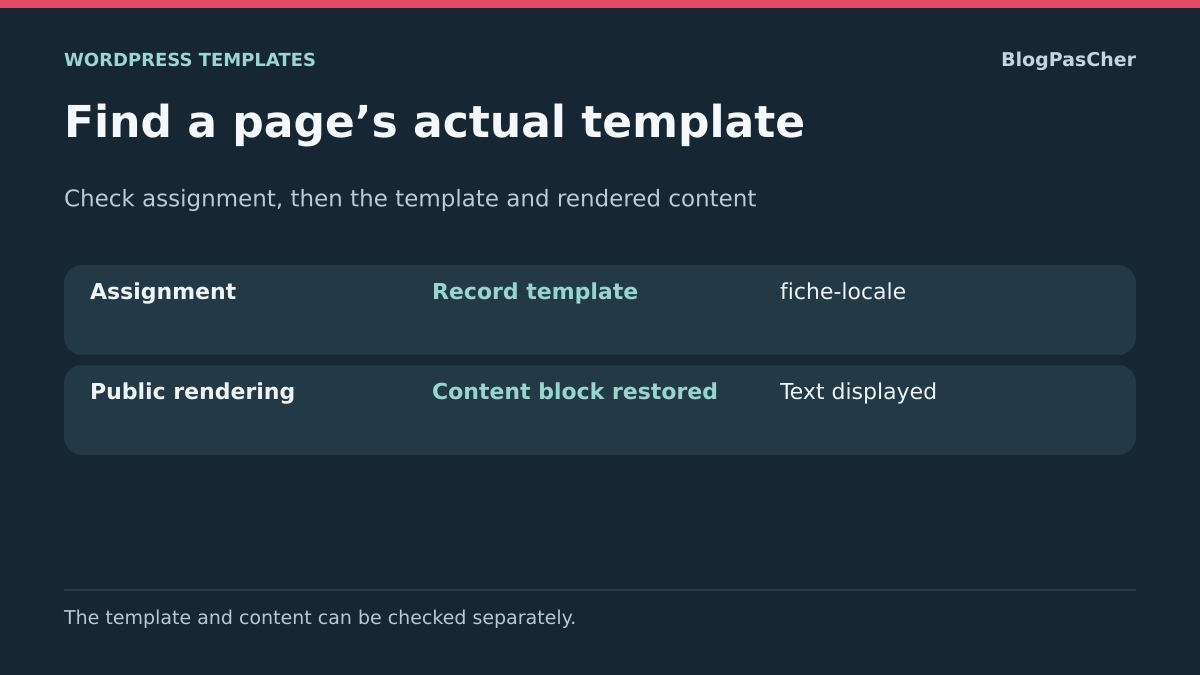
To check the template on your copy, compare assignment metadata, the visible frame and a sentence specific to the page’s content. A template may be assigned correctly while omitting the Content block; the text then remains saved without appearing in this structure.
In block theme code, this comment represents the Post Content block. In the interface, look for it in the used template’s List View and check its position before adding it.
<!-- wp:post-content /-->Check the return of content before touching the general template
Reinsert the block into the described template on a copy. Save the template, open the public address and look for a sentence specific to the page content. Also check the reference page to confirm that the repair is limited to the correct template.
If you want to abandon the variant, switch the page back to the default template in its settings. Then check that this reassignment actually produces the expected template at the relevant address. For a homepage or posts page, repeat assignment and hierarchy checks before editing the general template.
Confirm the template with Query Monitor when the hierarchy remains ambiguous
Query Monitor is a free diagnostic option if you can install a plugin on the copy. Through Plugins → Add New, verify the product by John Blackbourn, install it, then open the relevant address as an administrator. In its administration bar menu, consult template and hierarchy information. Labels may vary by translation.
Record the resolved template and loaded parts, then compare this information with the page assignment. For a block theme, the PHP wrapper file is not enough to identify the entire structure: also examine template and block information. For a builder, this record may require the product’s own conditions.
Repeat the reading on the reference page and at the root if that is the special case. Do not change any template during collection. A page already served from a full-page cache may bypass part of the diagnosis; therefore compare with the public context after correction. Query Monitor observes loading; it does not repair assignment. Deactivate it after diagnosis if you installed it solely for this test, and retain the name of the display template actually modified.
Sources and references
Use these references to check the features, requirements and limitations described. Reading documentation is not a practical test.
View 14 references
- WordPress: page settings and template ↗
- WordPress.com: changing templates ↗
- WordPress: template and page content ↗
- WordPress: Content block ↗
- WordPress: choosing the template according to the request ↗
- WordPress: assigned template and page metadata ↗
- WP-CLI: reading post metadata ↗
- WordPress: page hierarchy in a classic theme ↗
- WordPress: unified block template from the database or files ↗
- WordPress: homepage and posts page ↗
- WordPress: List View ↗
- WordPress.com: editing and template revisions ↗
- WordPress: shared template parts ↗
- Query Monitor — Templates ↗