

Identify the missing text and the affected page
You wrote an introduction, added an image or prepared blocks on a page called Blog. The editor retains them, but the public address displays only posts. The goal is to show this introduction in the right place without losing the list, its navigation or the content already prepared.
From Pages, open the original document and check that your changes are saved. Record its address, title and the beginning of the missing text. Compare them with the address opened from the site menu. A Blog label may lead to a category or another page; start by confirming that you are viewing the correct destination.
Also distinguish introductory text from the content of listed posts. If a particular post is missing, diagnosis concerns the list’s criteria. Here the symptom is different: the body of the page carrying the blog address is not being used as you expected.
Keep the original and a copy of its content before testing. Do not republish the same blocks on several pages to find which one becomes visible. If a change does not save in the editor, address that failure first: a missing introduction despite retained text requires a different check.
Check the posts page’s special role
With the necessary permissions, open Settings, Reading and record the assignments. If the document is selected as Posts page, WordPress uses it as the blog index’s destination. This role differs from an ordinary page that directly displays its body blocks.
The list is generated from posts and the theme’s presentation. Text entered in the assigned page is therefore not automatically added above the results. Editing that text again or selecting another page template in its settings may have no effect on the index actually displayed.
Do not infer from this absence that the text has been erased. Return to the editor to confirm that it is present and retained. This check lets you choose where it will be managed next: in the blog template or in a custom page that keeps ordinary page behavior.
On WordPress.com, check the selected site’s settings; in multisite, those of the correct subsite. If your account cannot view Reading or templates, ask the administrator to record those values. You do not need to change content permissions or create a new administrator account to establish its role.
Preserve the existing setup and choose an organization
Record the homepage, posts page, navigation link and relevant template. Separately keep the prepared introduction and list settings. To change a template, assignment or component with significant scope, arrange a recoverable backup and test copy with the site administrator.
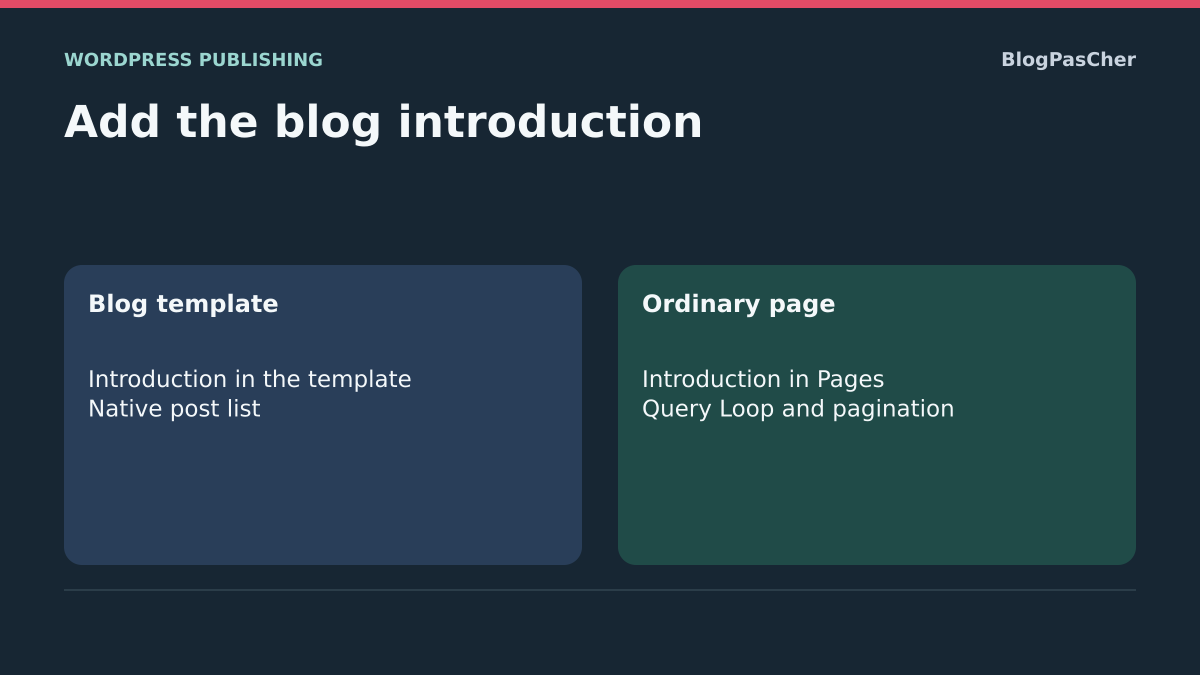
The first approach suits a block theme when you want to keep the native index and add an introduction. The second looks for documented features of a classic theme or existing tool. The third prepares an ordinary page with its own list when the team needs to manage everything from the page editor.
These choices meet different maintenance needs. A short introduction shared across the blog can live in its template. An editorial page regularly enriched by someone without template permissions may justify a custom page. Confirm this organization before moving content.
Do not install a plugin to immediately compensate for this difference in behavior. Start with existing tools and keep a way back to the current list. After each test, check the text, posts and pagination; a visible introduction on a page whose list has disappeared is not the intended solution.
Approach 1: add the introduction to the blog template
On the site copy, with appearance permissions, open Appearance, Editor, Templates. Identify the template displaying the posts index, generally Blog Home. Do not automatically select Pages: that template concerns ordinary pages and does not necessarily govern your blog destination.
Open List View and find the Query Loop that builds the post cards. Select its location in the structure. For a shared introduction, add a Paragraph block or the necessary introductory group before that loop, at the desired location in the main content.
Transfer only the useful blocks from your preserved copy, then reread their text and links. Content added here belongs to the template. A later change to the body of the page assigned in Reading will not automatically update this transferred introduction.
Save the relevant elements after reading the summary, then open the blog address on the copy. You should find the introduction once before the list. If it repeats for every post, the addition was probably placed within the repeated structure; return to List View to correct its location without deleting the loop.
Preserve the loop and its pagination
Within a Query Loop’s structure, the Post Template organizes the presentation repeated for each result. Each post’s title, image or excerpt belongs there. Your general introduction must remain outside that repeated card if you do not want it to appear several times.
Keep the existing query when its results are correct. You do not need to change filters, order or selection mode to make a paragraph before the list visible. Changing those criteria could make posts disappear and add a second problem to the first.
Also check the Pagination block inside the loop, with the intended previous, next or numbered links. Do not remove the entire list to rebuild its presentation when only introductory text is missing. Keep its structure and the settings recorded initially.
After saving, view at least the first page and a subsequent page when there are enough posts. Check the card links. If your introduction remains on several results pages, verify that this behavior suits the editorial use; a more precise display condition needs an approach appropriate to the theme, not improvised removal of navigation.
Check the template’s scope and text management
The template may be shared. If the blog uses Index as a fallback, changing it can affect other destinations that lack a more specific template. Confirm its scope before placing a blog-specific introduction there. Have the administrator prepare a dedicated template if that separation is necessary.
Also avoid editing the shared header or footer to hold the introduction. The text could appear in several sections. Keep it in the identified template’s main area, with the blocks and spacing needed for readability.
Do not add the Content block assuming it will automatically retrieve the body of the page assigned to the blog. This block depends on the document in its display context; within a list, it may represent a post’s content. For a short introduction managed in the template, use appropriate text blocks. If you want to keep management under Pages, consider the third approach instead.
Tell the team where the authoritative version now lives. Keep the preserved original during validation, but afterward avoid presenting two locations as simultaneously active. To undo the test, remove only the added blocks or restore the saved structure; resetting the entire template would also erase other customizations.
Approach 2: find the feature provided by the classic theme
With a classic theme, check its official documentation and existing appearance options. Under Appearance, Customize, look for a documented feature concerning the blog, its title or introduction. Panels depend on the theme; do not try to reproduce block-theme controls in an interface that does not offer them.
If an introduction option exists, record its current value and prepare the text in that field. Examine the preview at the exact destination, then confirm the change using the customization save or publish button. A difference visible only in the preview is not yet a saved public change.
Also check the stated scope: an archive description, blog title and general text area are not necessarily interchangeable. Do not use a field that would display the introduction across all categories when you want it only on the main index.
If no appropriate setting is offered, keep the prepared text and move to a custom page or the theme maintainer. A missing panel is not a reason to import a demo or replace the theme. To undo a field test, restore its previous value and check that the list remains intact.
Know when to hand the template to the technical administrator
In a classic theme, the posts index is normally built by the blog template, particularly the file named home.php or its index.php fallback. The template selected in the ordinary page’s settings is not necessarily the one organizing that index. Repeatedly changing that page choice may therefore have no effect.
These names help explain the diagnosis to the administrator; they are not an invitation to edit active-theme files. A technical adaptation must preserve customizations, provide rollback and remain compatible with updates. This approach does not require adding code.
If an already installed builder manages the blog, record its template and display conditions. Ask its maintainer where the introduction should be edited. Options and terminology belong to that tool; avoid automatically applying a procedure designed for the native Site Editor.
Provide the blog address, Reading assignment, text to insert and desired location. Specify that results and pagination must be preserved. This targeted request lets you compare a template adaptation with a custom page without rebuilding the whole site.
Approach 3: prepare an ordinary page with its own list
If you want to manage the introduction and presentation blocks under Pages, prepare an ordinary page on the test copy. Add the preserved text, then a Query Loop block to display posts. Do not assign this page as Posts page: that would restore the special role explaining the initial symptom.
Select the parent loop block and choose a custom query when you want a list independent of the page context. Check the Post type, sorting and useful filters. Keep a selection consistent with your current blog without randomly adding a category filter to obtain a few cards.
Choose a presentation retaining the necessary titles and links, then the intended pagination inside the loop. A list pattern can provide a starting structure. Reread the presentation blocks: the introduction should appear once, and post information should vary with each result.
Also check this ordinary page’s template: it must display its content. If both the introduction and loop are missing despite being saved, examine the relevant template’s Content block. Do not fix this problem by copying the entire page into a shared header.
Organize the transition without moving the homepage
On the copy, compare the prepared page with the current index before changing public links. Record the address you want to retain, expected results and old pagination pages. An ordinary page with its own list does not have exactly the same role as the native index, even when they look similar.
You can prepare content intended for the current blog page without creating a second public destination. If the chosen plan is to make this an ordinary page, remove its Posts page assignment under Reading on the copy, then check its content and loop. Keep the Homepage choice; you do not need to move it for this transition.
If the organization instead chooses another address, prepare navigation links and handling of the old destination with the administrator. Do not rename several pages to give them the same address or leave two competing blog paths without a decision. Preserve useful links for visitors already on the site.
Also check functions that relied on the native index with their maintainer. If this transition creates unwanted differences or requires unplanned adaptations, return to the initial assignment and retain the template approach. Managing content under Pages is an organizational choice to validate, not a correction to impose in every case.
Check the text, posts and subsequent pages
After saving, open the exact public destination in a new visit according to the intended visibility. Find the introduction, its images and links. Then view several post cards to check that they point to different documents and retain the expected information.
Browse subsequent results and return to the beginning. Check the resulting addresses, the absence of mistakenly repeated cards and the previous or next links. A preview of the first page alone does not validate a complete list. If the new organization does not preserve the expected path, do not transfer it to the live site yet.
Also examine the homepage and another site page, especially if you changed a fallback template. On a phone, check that the introduction does not hide the list and that links remain usable. A correctly displayed introduction must not have moved the header or duplicated the footer.
If the saved setting seems correct but the old display persists, compare sessions and the existing cache through its documented procedure. Do not delete the introduction to purge the site or add another cache. Checking the page’s role and template must precede this hypothesis.
Keep rollback instructions and the update location
Record the chosen organization: native index with an introduction in its template, a theme-specific feature or an ordinary page containing a list. State where the team will edit the text in future. This prevents someone from continuing to edit a page body that is no longer the source of the visible introduction.
To undo a template addition, remove only the affected blocks or restore the preserved copy. For a page transition, restore the Reading assignment and initial links. Check the homepage, list and pagination again. A global restoration could lose posts created since the intervention began.
Keep originals until final validation without letting a confidential draft become public inadvertently. If the site remains in production during preparation, coordinate the necessary changes with the administrator to avoid an intermediate stage where the blog no longer contains its list.
If the result remains unexplained, provide versions, theme, addresses and Reading values. Add the observed template name and specify whether the missing content is under Pages or in that template. This evidence is more useful than repeated ineffective republications or replacing the entire theme.
Compare both organizations at the same address
On a copy with a block theme, assign one page as the homepage and another as the posts page. Write a reference sentence in the blog page’s body. Prepare two test posts and set the list to one post per page on the copy. Then open the blog as a visitor. Check that the first post appears, the second remains accessible through pagination and the body saved in the assigned posts page is not used as an ordinary page.
Note the template used and each page’s address before changing the public site. If a caching plugin or theme changes the loop, check the same elements on your own copy before approving the organization.
- Add the sentence as a paragraph in the Blog Home template while retaining the inherited loop. Check both list pages. The posts and their pagination links must remain available.
- If you want to manage text under Pages, remove the template test and try the ordinary page. Remove only its posts-page assignment and add an independent Query Loop with pagination. Compare the blog’s starting address and the form of the link to the second page, which may change with the new loop. Therefore check old links to subsequent pages.
- Check the root and another page. To return to the native index, restore the Reading value and the saved initial content. The homepage and contact page must retain their content; check that the blog regains its original pagination.
Confirm assignments with a WP-CLI read
For a technician who already has WP-CLI, these reads confirm the three Reading settings without changing them. Replace the path and URL with those of the copy; the URL parameter is particularly important in multisite.
The first value distinguishes displaying latest posts (posts) from a static homepage (page). The next two are page IDs; zero indicates no corresponding assignment. Compare the page_for_posts ID with the number visible in the Blog page’s edit-screen address. This read does not tell you which file or template was ultimately rendered: continue with the posts-index template. It requires no restoration and does not justify editing options directly in the database.
wp --path="/chemin/copie-wordpress" --url="https://copie.example.test" option get show_on_front
wp --path="/chemin/copie-wordpress" --url="https://copie.example.test" option get page_on_front
wp --path="/chemin/copie-wordpress" --url="https://copie.example.test" option get page_for_posts
Sources and references
Use these references to check the features, requirements and limitations described. Reading documentation is not a practical test.
View 16 references
- WordPress.com: the role of the posts page ↗
- WordPress: Reading assignments ↗
- WordPress: block templates and blog index ↗
- WordPress: classic theme hierarchy ↗
- WordPress: the special context of the posts index ↗
- WordPress: editing templates and their scope ↗
- WordPress: List View for locating an addition ↗
- WordPress: Paragraph block ↗
- WordPress: inherited or custom query ↗
- WordPress: paginated navigation in the loop ↗
- WordPress.com: an ordinary page with a post list ↗
- WordPress.com: Content in an ordinary page template ↗
- WordPress: customization options by theme ↗
- WordPress: appropriate backup before an intervention ↗
- WordPress.com: displaying a cached response ↗
- WP-CLI: read an option ↗