

Stop unwanted additions without deleting the page
You publish a page and its title appears in a menu that should not have changed: the footer, main navigation or mobile variant. The problem may come from an automatic setting, a list generated from pages, or the menu selected for that location. You do not need to delete the page to fix this navigation.
The desired result involves two separate actions: prevent the next unwanted addition, then remove the link already added to the wrong menu. Disabling an automatic setting does not necessarily clean up existing links. Conversely, removing the link without changing its source may allow the problem to return when another page is published.
Note the page title, its address and the menus where it appears. Compare the home page, an internal page and a phone. If the link appears in only one location, identify its structure before editing a random list. Navigation can share its data across several locations while presenting it differently.
Keep a screenshot of the list, its labels, destinations and current settings. Use a working copy for changes to shared elements. You will be able to restore links and their order without restoring the whole site. Removing a menu link does not remove the page’s content or automatically change its public visibility.
Identify the link’s source before changing the menu
Open the page where the link appears while logged out and note its exact location. For example, the link might appear in the home-page header when you wanted it in the footer. Copy its destination from the browser and compare it with the page’s address in Pages. This avoids treating two identically named links to different pages as duplicates. Also check an internal page and the collapsed navigation on a phone if your theme uses several headers.
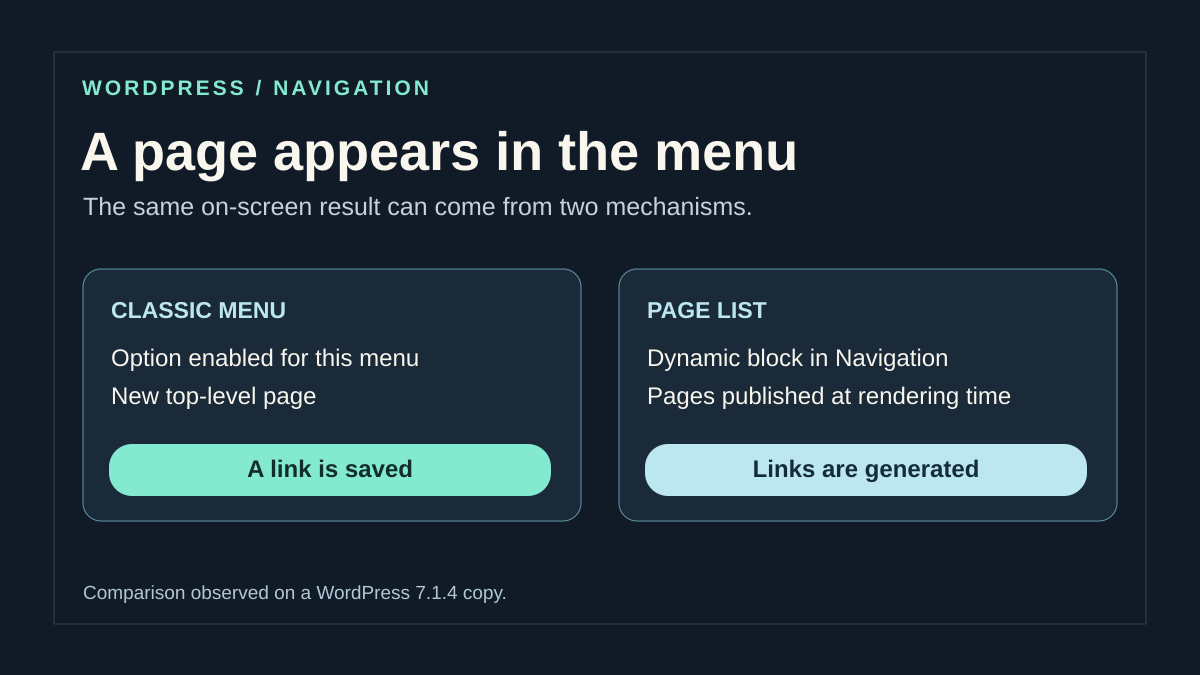
With a classic theme, open Appearance → Menus → Manage Locations and note the name of the menu actually assigned to this area. Then open that menu in the editing tab. If the new link appears among its items, it is a saved link. Check whether automatic additions were enabled for this menu and whether the page has just changed to Published status without a parent page. A link present when the checkbox is already cleared may date from an earlier publication. In that case, the checkbox and the link are two separate things to check.
With a block theme, open Appearance → Editor. Find the template and header or footer part used by the page, then open Navigation in List View. Note the menu name and expand its items. If the pages come from a Page List block, a new public page can appear without an individual item being added to the menu. If you already see individual links, check the selected menu and where it is used before looking for an automatic setting. The same saved menu can appear in two different areas. Separating the two menus then allows you to keep the link where you want it. Menu screens require permission to manage appearance. If you can publish pages but cannot change these settings, give an authorized person the address, area and menu you were able to identify.
Choose the fix that matches the source you observed
If the link exists in a classic menu and the automatic-addition checkbox is selected, start with that setting. It affects future publications of top-level pages. It does not mean that every post or child page automatically follows the same behavior.
If Navigation contains Page List, decide whether you want an automatic list or a manual selection. In the first case, filtering by parent page may be useful when that option is available. In the second, detach the list or convert it to individual links before freely removing selected entries.
If the administration area already shows the correct manual list but the site displays another menu, correct the menu selection or assignment. Automatic additions may not be the issue. A classic theme may also display a fallback list when no suitable menu is supplied.
Do not install a plugin to hide a link before completing this diagnosis. Native controls address these causes and keep navigation understandable. If an existing plugin intentionally manages dynamic additions, examine its settings only after ruling out the native mechanisms. You can then choose a limited intervention and plan the corresponding rollback.
Disable automatic additions for the affected classic menu
In Appearance → Menus, choose the menu under Select a menu to edit, then click Select. Below its structure, the menu settings offer automatic addition of new top-level pages. Clear this option, then click Save Menu. Leave menu locations unchanged if their assignments are already correct.
The verified classic native mechanism runs when a page becomes published and has no parent page. Updating an already published page is not the same trigger. This distinction explains why testing with old content may not reveal a setting that remains enabled.
The expected result applies to future pages covered by this automatic behavior; existing entries remain. To undo the change, select the checkbox again and save. This re-enables the behavior for future qualifying events, without recreating every link you may have removed. Keep a list of those links as well.
- Record the menu name and the state of its checkbox.
- Clear automatic additions for this menu only.
- Save and reopen the menu to check the stored value.
- Examine other menus assigned to areas where the problem appears.
- Remove previously added links separately, as explained in the next section.
Remove the existing link without changing the content
In the selected classic menu, expand the unwanted link using its arrow and choose Remove. Check its label and destination before saving the menu. Several pages may have similar titles; removing the wrong navigation link can confuse visitors even when no content is deleted.
If the link has children, check their position after the operation. You may want to keep some of these links under another section. Note their order before removing the item and move them to the intended positions. Do not empty the entire structure to remove a single entry.
For navigation made of individual links in the Site Editor, select the link in List View, then use its options menu to remove it from the menu. If you cannot remove or reorder the entry individually, first check whether it comes from Page List; the detaching procedure below addresses that case.
After saving, check the affected area on the public site. The expected result is that only the unwanted link disappears while the page remains available at its address. To undo the change, add that existing page to the menu again and restore its order. Do not restore the whole database or republish the content just to recreate a link.
Detach a Page List to manage links manually
This procedure applies to a Page List inside Navigation when you want to choose its entries. Keep a record of the current list and destinations before converting it. Detaching preserves the existing pages as individual links, then stops new pages from being added automatically to that collection.
In Appearance → Editor, open the correct header or template. Select Page List within Navigation in List View. In the current WordPress.com interface, the block toolbar offers Detach, followed by a Detach confirmation dialog. Native documentation also describes an Edit button followed by Edit for this conversion, depending on the interface.
Check the message explaining that the list will become editable links. The detaching action described here is not a button available on every Page List placed on its own in a post or page. After conversion, remove the unwanted link and save the affected objects.
The expected result is a manual list whose entries you can manage, without automatic additions after every publication. There is no universal automatic undo for this change. To restore a dynamic list, insert a Page List block again or restore the state you saved. A new dynamic list reflects the pages and filters at that new moment; it is not guaranteed to reproduce your former selection exactly.
Keep an automatic list limited to one section
A dynamic list can remain useful for a section whose new pages should appear without manual intervention. If your Page List block offers a Parent Page setting, choose the page that defines that section. The list then uses that parent’s child pages instead of all published pages on the site.
This choice is suitable only if that hierarchy already matches your editorial organization. Note the original filter, select the required parent and check the list before saving. The filtered list does not include the parent page itself; add its link separately if visitors need to reach it.
Do not change a page’s actual parent simply to remove it from a menu. The content hierarchy may serve other purposes and may change addresses, depending on the site. The block setting lets you choose what it displays; it should not become a reason to reorganize pages without examining the consequences.
The expected result is automatic behavior limited to the intended scope. If the Parent Page control is unavailable in your version or this approach does not meet the need, use a manual list. To undo the change, restore the previous filter. Check other blocks using this source before assuming the setting affects only this location.
Choose another source when two areas share the same menu
A footer and header can display the same menu. Removing an entry from their shared data removes it from both, even if their layouts differ. If the page must remain in one area and disappear from the other, choose separate sources rather than removing the entry everywhere.
In the affected Navigation block, open the three-dot menu beside the name, then Menus to select another existing menu. Check its links and save the modified header or template. Keep the original source name so you can reassign it if the test is unsuitable.
If no suitable menu exists, Create new menu lets you prepare an independent selection. Add the necessary pages and give it a clear name. Renaming the old menu does not duplicate it or make its uses independent. Copying a Navigation block can also retain a reference to a shared source: check the data actually selected.
With a classic theme, use Manage Locations in Appearance → Menus and assign the correct menu to the corresponding area. The expected result is two distinct sets of links. To undo the change, reassign the original source without deleting menus or their pages. Check mobile variants of these areas as well.
Add the page to the menu where it belongs
Once automatic additions have stopped, the new page may still belong in another collection. With a classic theme, select the destination menu in Appearance → Menus. In the Pages panel, find the already published page, select it and click Add to Menu. Place its link in the intended order and hierarchy, then save.
With the Navigation block, open the correct template or template part and select the destination menu. Click the block’s add button, search for the page title and choose the matching result. Check the content type and destination. Do not choose Create page if the page you want already exists.
Use a clear menu label; it can differ from the page’s longer title. If the link should be a child of a section, check its position in List View or the classic menu hierarchy. The relationship between menu entries is separate from a page’s parent in the content structure.
After saving, follow the link on the public site and check other uses of the menu. The result should be a page linked from the correct location and absent from the unwanted collection. To undo the change, remove only the entry added to this menu and, if necessary, restore the previous entry recorded in your notes.
Recognize a theme’s fallback list
If no menu structure contains the new links you see, check whether the classic theme is displaying a fallback page list. The native menu-rendering function supports fallback behavior when the expected menu does not exist. The theme may also define its own fallback.
In Appearance → Menus → Manage Locations, identify the area being used, then assign an explicit menu containing the required links. Save and check that area on the public site. If it now displays this selection instead of a general list, you have corrected the source without removing or unpublishing pages.
Not every theme follows exactly this approach. If a theme option or builder generates the list, find its menu selector or component in the header. Do not edit a PHP file to remove the navigation call merely to stop the addition from appearing.
The expected result is a named, controlled collection for this area. To undo the change, restore the previous assignment. If a page needs to be confidential, address its status and permissions separately: excluding a published page from a menu does not protect it. It may still be accessible directly at its address or through other paths on the site.
Compare a top-level page, a child page and a draft
To distinguish the two mechanisms, use a copy of the site and two easily recognized areas. Record the links before creating the test pages. In the classic header menu, record the state of Automatically add new top-level pages to this menu. In a block theme’s Site Editor, note whether Page List is present. You can run the two tests on different copies if your public site uses only one type of theme. Keep the same titles and hierarchy so that the results can be compared.
- Prepare a fictional top-level page, a child page under an existing section, and a third page with Draft status. Publish only the first two test pages on the copy.
- Reopen the classic header menu. When the option is enabled for this menu, the top-level page should appear as a menu item. The child page and draft are not covered by this automatic behavior. Check the footer menu separately.
- Inspect the block theme’s navigation containing Page List. In a general list, both published pages can appear, with the child page beneath its parent. In a list restricted to the section, look for the child and check that the top-level page outside the section remains absent.
- Reopen the saved navigation. If it still contains the same Page List block without a new individual item, its rendering changed based on the available pages. In a classic menu with automatic additions, the record instead shows a new saved item. These two observations tell you where to intervene.
Check the next addition and keep the page
Once you have identified the source, first correct the automatic behavior on the copy. For a classic menu, disable the checkbox in the affected menu, save and reopen that same menu. For Navigation, choose a manual list in the header if it needs to remain stable. Before saving, check the affected menu’s name in the summary. If the header and footer share a source but need different behavior, separate them first. Keep the old assignment so you can restore the previous state.
Next, publish a second top-level test page on the copy. It should remain absent from the classic menu with the cleared checkbox and from navigation converted to manual links. Check removal of the first saved link separately. In the classic menu, remove only the item pointing to that page. If it belongs in the footer, add the existing page to its destination menu and check the address. In manual navigation, remove the unwanted individual link while keeping the other destinations. The test pages check new additions, while the first link checks targeted removal.
In this procedure for you to reproduce, record the items saved in the classic menu and compare them with the Page List output. The first mechanism can create a persistent entry; the second can change its output when the available pages change without adding an individual link to Navigation. Check the top-level page, child page and draft separately.
After disabling classic automatic additions or switching to manual links, publish a second test page on the copy and record its absence from the corrected area. Remove the first saved link separately, then check that the page retains its status and address. Record the results obtained with your theme rather than assuming they apply to every navigation component.
Finally, open the direct link in a private window. Then check the header, footer and every other area that used the menu before the correction. If you need to undo the change, reassign the previous source or restore the option recorded at the start. To restore a removed link, add the existing page in the correct place and keep its URL. To restore a dynamic list, reinsert Page List with its previous setting and check the pages it renders now.
Keep navigation predictable after future publications
For each menu, note its purpose and source: manual selection, classic automatic additions, or Page List with any filter. A clear name such as Main navigation or Useful footer links helps you choose the right source more reliably. It does not replace checking its actual locations.
As part of publication, decide where the new page should appear. Publishing content and adding a link are separate operations when the menu is manual. Check the label, order, hierarchy and destination; this brief step prevents navigation from becoming an uncontrolled copy of every page on the site.
After a theme or template change, check the assignments again. An old menu may still exist without being the one displayed by the new component. Keep the original settings and links so you can quickly restore a source if an area stops working correctly.
If you hand the problem to someone else, specify the new page, unwanted menu, theme type, whether Page List is present and the result of testing on a copy. These details let them correct the relevant automatic behavior or selection without deleting content or rebuilding all navigation.
Choose between menu data and presentation alone
Before using CSS to hide the link, check whether you want to remove it from the source or merely change its appearance. A visually hidden link can remain in other outputs, and an overly broad rule can hide a same-named page elsewhere. To stop new pages from being added, correct the native source: the classic menu’s automatic-addition option or the Page List block.
Keep two pieces of evidence after the change: the first page no longer appears in the wrong area, and a new test page published on the copy does not appear there automatically. Then check that the first page remains accessible at its address and, if necessary, through its destination menu.
This correction requires no additional free or paid plugin. For a custom integration, the developer should examine the process that adds links and its publication event rather than filtering every menu on the site. Shared references and locations must remain identified to avoid removing a link elsewhere.
Sources and references
Use these references to check the features, requirements and limitations described. Reading documentation is not a practical test.
View 15 references
- Classic menus and locations ↗
- Automatic-addition checkbox in WordPress 7.1.4 ↗
- What triggers classic page additions ↗
- Native navigation and converting the list ↗
- Page List and detaching it in Navigation ↗
- Page List block ↗
- Choosing the Navigation block’s menu ↗
- Adding an existing page to a menu ↗
- Removing a link without deleting a page ↗
- Troubleshooting WordPress.com menus ↗
- Classic menus and the automatic fallback ↗
- Shared header template parts ↗
- WordPress — automatically adding classic menu items ↗
- WordPress — reading saved menu items ↗
- WordPress — dynamic rendering and parent pages ↗