

Check that the same notification was actually received twice
Two site emails arrive a few seconds apart. Before deactivating a plugin, check that they concern the same event and final recipient. A team notification and visitor acknowledgment may reach the same mailbox during a test. Similarly, two team addresses may converge on a common mailbox.
The desired result is one useful send per event and intended recipient. The goal is not to remove all notifications so duplicates are no longer visible. Keep two copies of a specific case with their times, subjects and headers. If the message contains an account link or order data, keep this set in a private location.
Start with the mailbox’s webmail. If the message appears once on the server but twice in an application, examine that application’s accounts and display before changing WordPress. The same email appearing under several labels does not prove multiple sends. If webmail shows two actual messages, continue comparing.
The operations below concern email you control and components already used by the site. They require permissions corresponding to the settings changed. On multisite, identify the site producing the event. On a managed platform, some transports or automations may belong to the service rather than the WordPress dashboard.
Compare originals before counting sends
In desktop Gmail, open each message, then More next to Reply, and Show original. Record Message-ID, visible recipients and receipt times. With another email service, use its full-source function. The same subject does not uniquely identify an email: many notifications always use the same wording.
Message-ID normally identifies a precise version of a message. Two different identifiers suggest two separately created messages. An identical identifier with different reception routes may suggest redistribution or a transport retry. These are clues to correlate with logs: a faulty component may reuse an identifier, and two legitimate templates may contain similar content.
To find an identifier in Gmail, use the rfc822msgid operator followed by a colon and the recorded value. A deliveredto search may also help distinguish the final address receiving a copy. Inspect the messages themselves, because a conversation may group several emails and create a misleading impression of the result count.
Also record the event causing the notification: a reference submission, a single change or a scheduled action. If the user submitted the form twice, two notifications do not demonstrate double processing of one submission. The next steps must compare an identified action with its messages, not a day’s total email count.
Approach 1: remove a redundant receiving route
This approach suits copies passing through two addresses ending in the same mailbox. Examine recipients configured in the notification, then the corresponding forwarding and email aliases. For example, a general address and personal address may both be listed in To while the first already forwards messages to the second. The site may have sent exactly what was requested, but routing produces two receptions.
In the notification-producing component, record To and the Cc and Bcc lines. Choose with the team which route to retain. Remove only the confirmed redundant address without removing a copy intended for another person. A mailing list may distribute to several members even if its name appears only once.
For Gmail forwarding, Settings → See all settings lets you examine Forwarding and POP/IMAP, and Filters and Blocked Addresses for conditional forwarding. Record initial values. Change only the responsible rule if you have permission and other messages must retain their route. An organization-managed alias requires intervention in its email configuration.
Then perform a single reference action and check the final mailbox and recipients who must still receive messages. The expected result is one receipt per intended route. To undo, restore the initial address or rule in the same place; do not reset every mailbox filter.
Approach 2: correct a form’s two templates
This approach suits a main notification and second template both sent to the same mailbox when that is not intended. With Contact Form 7 already installed, open Contact → Contact Forms and select the form actually embedded in the page. Its block or shortcode identifier distinguishes it from a similarly titled form.
In Mail, copy the main template values. Scroll down to Use Mail (2), then record this second template’s activation, recipient and content. Mail (2) is an additional email, often used as an acknowledgment. It is triggered after the main send succeeds according to the sending mechanism; it does not replace that first email.
If the second template was enabled by mistake and serves no expected purpose, disable only Use Mail (2), then click Save. If the acknowledgment is wanted, correct its destination and subject to match that role without removing the team notification. During a test where your address is both the team recipient and visitor address, receiving two templates may be normal.
Make a single reference submission using a controlled team mailbox and visitor address that distinguish the roles. The expected result is one copy of the intended template for each role. To undo, restore Mail (2)’s initial activation and values. Do not delete the form to remove an extra message.
Examine copies in To, Cc and Bcc within the same template
Still in Mail, compare To with Additional headers. Contact Form 7 lets you add Cc or Bcc there, with one header per line. A team address may appear directly in To and also be represented by an alias in Bcc. Visible duplication then depends on final routing and server behavior; it does not prove the form was submitted twice.
Keep a copy of the headers before removing only the recipient confirmed redundant. Keep Reply-To if the team needs to reply to the visitor: this header selects the reply address and does not by itself add a notification to that person. Confusing these roles may remove a useful function without reducing duplication.
This approach describes fields in Contact Form 7 already in use without requiring form migration. Check the offered version’s requirements before any update; the repair first concerns identified recipients and templates.
After Save, repeat the reference scenario and also check other expected recipients. If the correction is not the intended one, restore the copied To and Additional headers values. Keep messages already received to document the change; deleting them from the mailbox does not fix their cause.
Distinguish two submissions from two emails for one submission
If your form already has a history, correlate entries with the reference time and subject. Two entries do not automatically prove a double click, but indicate that the investigation must also cover submission and integrations transmitting it. A single entry accompanied by two different templates points instead to notifications configured for that entry.
With Flamingo already active for Contact Form 7, open Flamingo → Inbound Messages and examine only reference entries. The plugin saves compatible submissions in WordPress; it does not trace every transport send or provide a delivery acknowledgment. Modes or non-retention rules may prevent an entry. Absence from Flamingo is therefore insufficient proof of no action.
You do not need to install Flamingo to fix a Mail (2) template. Its usefulness here is reading an already available history. Check the offered version’s requirements before any update and do not add full archiving of customer content solely for this incident.
For a request also triggering external automation, record its identifier and its own stages. Two emails may come from the form and this automation. The correction must remove the identified redundant sending action in the correct tool while retaining other useful processing.
Read provider logs without counting each event as an email
When the notification appears unique in WordPress, consult the provider actually handling messages. With an existing Brevo account, Transactional → Logs lets you filter by recipient, period, subject or message identifier. Choose the reference case and compare identifiers before counting rows.
The same email may produce several events: sending, delivery, opening or clicking. These rows do not each represent a new send. Two open events do not demonstrate two received notifications, and a recorded delivery does not prove the recipient read the email. Examine the relevant message’s details and timeline.
If two identifiers correspond to two distinct calls for the same action, record their times, known origin and templates used. If only one identifier appears but two copies arrive, correlate receiving routes and any forwarding. Limit this diagnosis to the transport queried: another component may send directly through another service.
Do not use a log’s resend function to verify an already received duplicate. It would create a new attempt and confuse the evidence. Do not delete logs before recording required identifiers. The expected result of this reading is identification of the stage multiplying emails, not an artificial reduction in displayed row count.
Understand a retry or backup connection
An automatic retry is not always a fault. It may let a temporarily rejected message be sent later. However, if a server accepted an email and its confirmation did not reach the sender, a new attempt may produce another copy. Received messages and the transport timeline are necessary to identify this case; a delay between two emails is insufficient.
WP Mail SMTP may use a Backup Connection as fallback after the main connection fails. This feature depends on an appropriate license and configuration; it is not systematic simultaneous sending through two providers. If already configured, examine WP Mail SMTP → Settings → General → Backup Connection and available logs before attributing duplication to it.
Check features available in your WP Mail SMTP edition: detailed logs and retention may depend on the license. Do not enable storage of bodies and attachments containing personal data merely to count attempts.
Do not disable the backup connection before confirming its role: you could turn duplicate receipt into no notification. Have the specific retry reason corrected with the transport manager, retaining the initial configuration and a way to observe the next attempt.
Handle repeated automation or tasks without clearing the queue
If emails repeat at regular intervals, correlate their times with application events. A scheduled task, external integration and native notification may produce similar messages. The interval is a clue, not proof of a duplicate Cron task. Identify the component and action actually requesting each send before changing them.
In the existing automation, find the sending action linked to the reference event. Check whether a second rule targets the same event and recipient. Record its name, conditions and state. If duplication is established, suspend only the redundant rule using the tool’s designated setting, then check that the retained workflow still performs its function. To undo, restore the recorded state and conditions.
Do not clear a scheduled action queue to stop emails. It may also contain synchronization or other essential processing. Globally disabling WP-Cron does not fix the rule that registered several tasks and may delay the entire site. Detailed background task diagnosis should remain a separate approach when logs confirm that origin.
For custom code that restarts sending after every external callback, its maintainer must check how it recognizes an already processed event. Supply duplicate references and the timeline; do not create a general filter suppressing every email with the same subject, because several legitimate notifications may share that subject.
Perform one reference action to validate the correction
Choose a scenario without customer data that reproduces the problem: same form, department choice and notification type. Notify the people monitoring reference mailboxes, then perform the action once. Wait for its response to finish before deciding it failed. Do not resend the request merely because the first email takes time to appear.
Then compare action count, available application entries, message identifiers and final receipts. The expected result is not always just one email in total: a team notification and visitor acknowledgment may both be necessary. Each intended recipient should receive only the template expected for their role.
If the problem was periodic, also observe the next relevant interval without manually restarting the task. Correcting the recipient does not validate automation that will trigger later. Retain useful verified settings and explicitly state what remains to be observed.
For a store, do not reproduce a real payment solely to test email. Use the environment’s designated test mechanism with external effects isolated. If a business action already occurred, verify its state separately: two emails prove neither two charges nor two orders. The notification is a consequence to correlate with the business object, not sufficient proof of duplication.
Record the cause and rollback in your follow-up
Record the removed route, disabled template or corrected rule with its initial value and reference result. This note prevents someone later reactivating the second workflow believing they are fixing a missing message. Also preserve the distinction between main notification, internal copy and acknowledgment in template names and subjects.
If evidence remains insufficient, provide both identifiers, times with time zone, recipient roles and the transport timeline through a private channel. State whether copies exist in webmail and whether one mailbox receives several addresses. This description lets the responsible person examine the correct stage without disabling every site message.
- Only one copy in webmail: examine the email client and its accounts.
- Two converging addresses: remove the confirmed redundant routing.
- Two templates for one submission: retain useful roles and correct the second template.
- Several events for one identifier: read their nature before concluding there were multiple sends.
- Several calls for one event: fix the identified rule or retry, then check one unique reference action.
- Rollback needed: restore only changed settings without replaying already processed requests.
Reproduce two notifications for one submission
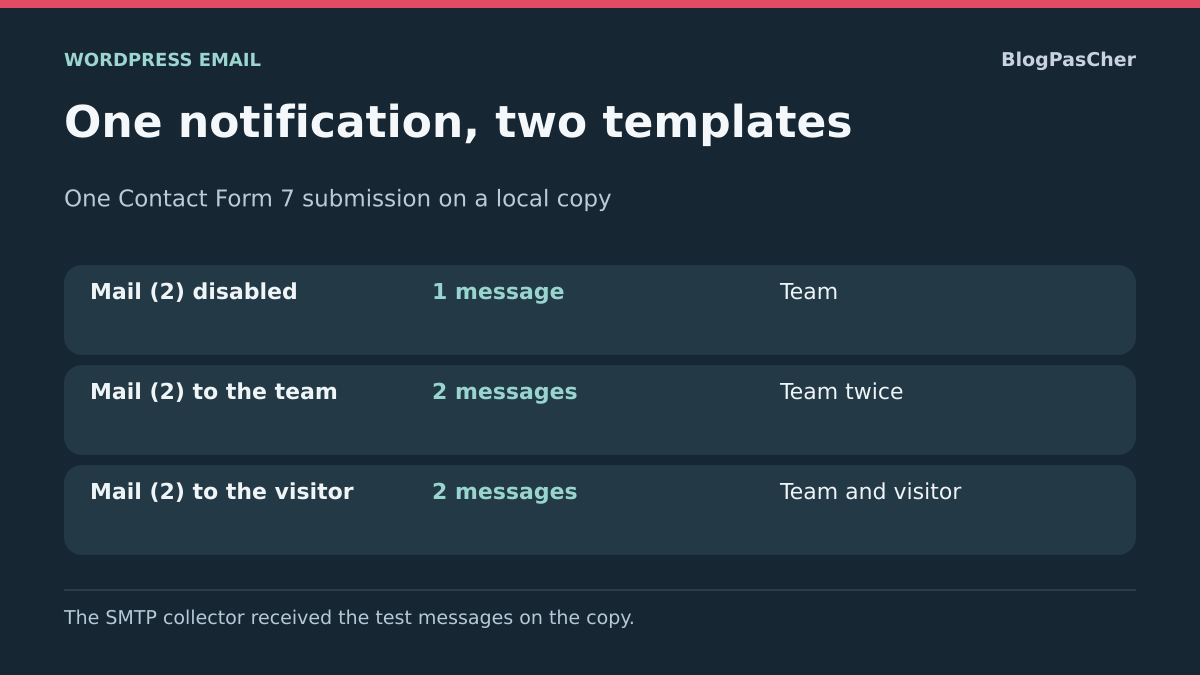
On a Contact Form 7 copy, direct emails to a local SMTP collector. Use different team and visitor addresses. Choose a reference subject, submit the form once per case and compare captured transactions. In the synthetic example below, the team is equipe@atelier.test and the visitor is visiteur@atelier.test.
In the second illustrated case, two templates target the same role. Check the messages actually produced and their identifiers in your collector or log. If the acknowledgment is useful, correct its destination and distinguish its subject; otherwise, test disabling only the additional template.
Réglage du formulaire                   Transactions   Destinataires
Mail (2) désactivé                     1              équipe
Mail (2) envoyé à l’équipe             2              équipe, équipe
Mail (2) envoyé au visiteur            2              équipe, visiteur
Count recipients without counting two sends
The following synthetic example represents one piece of content transmitted to two envelope recipients. It illustrates the role of To and Cc without attesting to an executed send.
On your site, compare recipients, copies and each message identifier with the transport trace. If two addresses converge on a mailbox you manage, find the forwarding or alias explaining the two receptions. If the trace shows two contents for a single action and the same role, check that action’s templates and automations. A local collector lets you count transactions without attesting to delivery into an external mailbox.
RCPT TO:<equipe@atelier.test>    250
RCPT TO:<copie@atelier.test>     250
Fin de DATA                     250
Label both templates to understand their roles
On the copy, temporarily give the main template and Mail (2) distinct subjects, such as “Team reference” and “Visitor reference.” Retain initial subjects and use two mailboxes you control. One submission then reveals whether two legitimate messages converge on the same mailbox or one template is actually repeated.
Check the final recipient in each original, then compare time and message identifier with available traces. The same provider may produce several events for one email: count messages and recipients, not simply log rows. Do not use the resend function to validate this count.
Contact Form 7 provides both templates’ settings free of charge; no deduplication plugin is needed for this test. After identifying the redundant route, correct its destination or activation, then restore the initial editorial subjects. The final check must retain one useful message for each intended role. If duplication persists with only one active template, keep this result and examine automation or transport retry without removing other site notifications.
Sources and references
Use these references to check the features, requirements and limitations described. Reading documentation is not a practical test.
View 13 references
- Internet format: message identity ↗
- SMTP: retries after timeout ↗
- Gmail: original message ↗
- Gmail: searches by recipient and Message-ID ↗
- Gmail: filters ↗
- Gmail: automatic forwarding ↗
- Contact Form 7: mail templates ↗
- Contact Form 7: additional headers ↗
- Contact Form 7: archive6.2.4.1 ↗
- Flamingo: storage separate from email ↗
- WP Mail SMTP: backup connection ↗
- WP Mail SMTP: logging ↗
- Brevo: email events ↗