

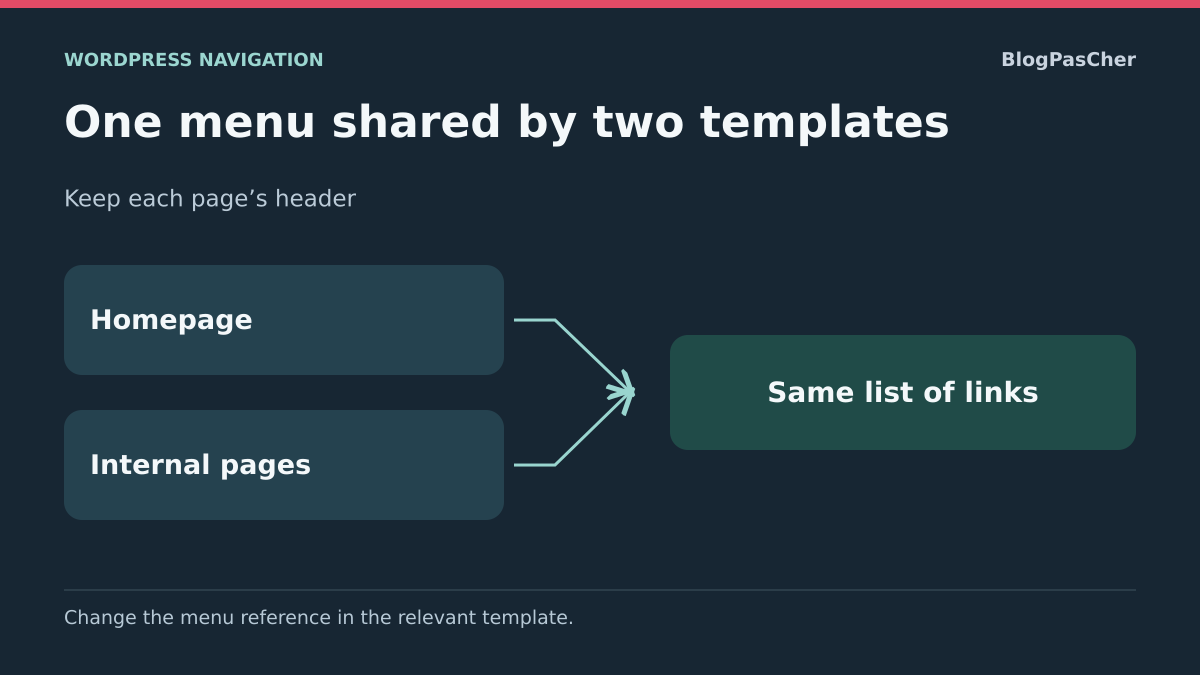
Compare links before looking for a general fault
The homepage displays the correct links, but an internal page shows an old menu, another section or incomplete navigation. This difference may be intentional for a site section or may come from a different template, header or menu source. Editing links in the first menu you find risks changing an area that was already correct.
The goal is consistent navigation on pages that should share it while retaining useful variants. Start by comparing actual destinations, rather than just colors and apparent order. A link may be present in a collapsed submenu or outside the visible area.
Use the same session, width and scroll position to compare the homepage with an internal page. Note the present, absent and unexpected links, then their addresses. Mobile and desktop versions may present the same source differently; this is not necessarily a data discrepancy.
Keep menu names and initial settings before any correction. Work on a copy for a shared or technical change. You can then reassign the previous source without rebuilding links or replacing the entire site header.
Map the source of each navigation
For each reference page, record its type, template, header part and the menu selected by its navigation component. This chain helps locate the discrepancy. Two pages may use different templates but the same part; two different parts may also display the same set of links.
With a block theme, open the page for editing and check its template in the sidebar. For automatic destinations such as the posts page or an archive, examine the corresponding template under Appearance → Editor → Templates. A page name under Pages does not guarantee that this is the template producing its display.
In the template, List View helps locate the header and then Navigation. Note the part name and the menu selected in the block settings. Repeat on the other destination. Do not edit links during this comparison: first identify the references used.
With a classic theme, record locations under Appearance → Menus → Manage Locations and the theme’s header-specific options. An account authorized to edit content does not necessarily have appearance permissions. On WordPress.com or a multisite network, check available access before choosing an approach requiring additional settings or files.
Distinguish the site homepage from the post list
WordPress distinguishes the site’s main address from the posts index. If a static page serves as the homepage and another holds posts, those two destinations may use different templates. Changing an ordinary page’s template therefore does not necessarily fix the homepage or blog’s navigation source.
In block themes, a front-page template may have its own header. In classic themes, theme files and conditions may also select a variant. The is_front_page condition targets the main homepage; is_home targets the posts index. They may coincide when latest posts form the homepage, but they are not interchangeable in every configuration.
Check what each address represents before interpreting the name Home in a file or template. A wrong assumption here may lead you to standardize the blog instead of the main page. Do not change Settings → Reading solely to make menus identical: that action changes the destination of displayed content.
The first correction is to make the existing component select the correct menu source. If the rest of the layout is appropriate, you do not need to replace its entire template. Preserve other layouts and section exceptions during this intervention.
Choose the same menu in the relevant Navigation blocks
This approach applies when both headers should keep their layouts but display the same links. Under Appearance → Editor → Templates, open the template for the destination showing incorrect navigation. In List View, select Navigation in its header.
In the block settings, open the three-dot menu beside the menu name. Choose Menus, then the set used by the correct reference page. Check its content before saving. You are changing the block’s reference; you do not need to copy links individually or delete the old menu.
If the chosen menu should remain a shared source, future edits will affect its uses. This suits the need for an identical set, but not two independent lists that happen to look alike today. Clarify this intention before subsequently editing the menu’s content.
The expected result is the same set of destinations in both areas, while their styles may remain different if that presentation is intentional.
- Record each affected block’s initial menu.
- Select the intended shared source in the incorrect block.
- Save the template or part actually changed.
- Check the homepage and internal pages in the same display context.
- Test links, submenus and the mobile version.
- To undo, select the initial source again without deleting its data.
Replace the header or template only if its entire layout is suitable
If several header elements differ unintentionally, a shared part may be more appropriate than simply a menu reference. In the affected template, select the header part in List View. Its options menu lets you choose Replace, then an existing part. Check the logo, title, spacing and navigation before saving.
Keep the previous part’s name so you can restore it. Choosing another part does not mean editing its original. If you edit a shared part’s content, its other uses may change; if you replace only its reference in one template, you change that template’s structure and the pages using it.
An ordinary page may also have been assigned the wrong template. Under Pages, open it, click the template name in the sidebar, then Change template. Choose one whose entire layout is suitable, save and check the page. Note the initial template for rollback.
Do not use this method solely because a menu differs if the rest of the page must retain its special layout. Changing the entire template may alter its title, width and footer. The expected result is a structure appropriate for that destination without losing intended exceptions. Restore the initial part or template if the test goes beyond the intended correction.
Correct assignments in a classic theme
With a classic theme, open Appearance → Menus → Manage Locations. Record the menus assigned to areas used by the homepage and internal pages. Names depend on the theme; it may provide a primary location, a homepage variant or separate mobile navigation.
Choose the desired menu in each area that should share the same links, then save. Keep initial assignments in your notes. If the theme uses only one primary location, a page-dependent difference may come from a header setting or a call forcing another menu rather than this screen.
Then examine documented options for the theme or builder producing the header. A page-specific setting may override the global header. Correct this exception only if unintended; do not remove every site variant for one misconfigured page. The destination menu must be the one actually displayed by the component.
After each change, check the main address, an internal page and the posts page. The expected result is the correct source in the intended areas. To undo, restore the recorded assignments or exception. If administration shows the correct source but the theme still forces another, move to targeted technical diagnosis without unnecessarily recreating menus.
Limited technical case: a menu explicitly set in the theme
This option is for an authorized developer working on a copy when the classic theme already forces a specific menu in a wp_nav_menu call. A valid menu argument may take precedence over lookup by location. Changing the administrative assignment may then fail to change the source displayed by that call.
First confirm the file actually loaded. A named get_header call may use header-interieur.php instead of header.php. In an existing child theme, the confirmed file might be wp-content/themes/mon-theme-enfant/header-interieur.php; replace that name with the real directory, without creating this file at random. Keep a complete copy of its current version.
In the hosting file manager, open only that file on the copy. If the call already contains a menu entry with an incorrect literal value, replace only its value with the desired menu ID. Under Appearance → Menus, selecting that menu lets you record its number from the admin address, for example menu=42. Use the ID from the same site, not another installation.
The fragment below is an entry to place within the existing arguments array, without adding a PHP tag or replacing the entire call. Preserve other arguments, containers and rendering functions. Do not apply this fragment to a value calculated by a condition or filter whose logic you have not examined.
Check affected pages after saving. To undo, restore the complete saved file. If the expected effect does not appear, continue identifying the actual source instead of editing every call in the theme.
'menu' => 42,Retain language, section and session variants
Not every menu difference should disappear. A professional section, account area or language version may use its own set of destinations. Compare each variant’s purpose before choosing a shared source.
For a language-related difference, check each link’s destination and language. Selecting the same menu name across all pages may replace appropriate links with those of another version. For a login-related difference, compare with identical permissions; visitors and logged-in users may intentionally have different entries.
If an existing component chooses menus according to a condition, record that condition and its intended scope. Correct the wrong selection instead of removing all conditional logic. Do not blindly swap is_front_page and is_home to hide a discrepancy: each destination’s meaning remains decisive.
The expected result is consistency within each page group, with explicit exceptions. Keep starting values to undo the change. If two menus should share only some links while remaining different, manage those entries in their respective sources; a shared reference would synchronize a broader set than needed.
Separate a style difference from a content difference
If names, destinations and order are identical, presentation may be the issue. A different active-link color depending on the page is often expected: it indicates the visitor’s position. Removing that indication to make two screenshots identical would lose a useful cue.
Instead, check links that appear missing. A collapsed submenu, line wrap or clipped area may hide an entry present in the data. On the public page, inspect the component and its computed styles. Compare available width, header layout and template- or page-specific rules.
Change only the confirmed setting or rule. Record its value, perform a temporary test in the inspector, then apply the correction at its source if successful. A temporary browser change disappears on reload; it is not a saved site correction.
The expected result is a readable presentation of the correct source, with active states and submenus preserved. To undo, restore the initial value. Do not add another menu copy to compensate for simple CSS hiding: competing sources would make future changes harder to understand.
Check whether a source remains automatic or outdated
A difference may return after every publication if one area uses Page List while the other contains a manual selection. Examine the Navigation block’s children before rebuilding links. A dynamic source follows its pages and filters; a manual selection requires deliberate additions.
If both areas should share stable editorial navigation, choose the same manual menu as described above. If one must remain automatic for a section, retain that exception and document its scope. Copying today’s visible links without choosing the intended logic would allow the problem to return later.
If saved settings are correct but the public site still shows the old list, first check the template actually used. Then reload the affected pages and refresh the relevant cache with the existing tool. A purge changes neither the menu reference nor its source content; it only renews a copy.
The expected result is a source consistent with the desired future behavior. If you changed a reference or mode, keep its initial state for rollback. Do not delete the old menu until all its uses have been examined: it may remain necessary for an intentional variant.
Check destinations using different templates
Validation must cover the destinations actually affected, not just two screenshots of the homepage and one page. Choose representative reference pages and repeat tests with the same width and session context. Check labels, destinations and submenu access.
A shared reference can fix links while changing another use of the menu. Therefore check pages sharing the header and those using a variant. After a file change, also check that no rendering error appears and navigation containers remain compatible with existing styles.
The result is a verified scope of consistent navigation. The active-page indicator may naturally vary across these destinations. You do not need to make every visual detail identical to confirm that the correct sources are used.
- Test the main homepage at its actual address.
- Check an ordinary internal page and a page with a special template.
- Check the posts page if separate.
- Examine an archive and a post if their headers are affected.
- Recheck mobile versions and intended language or session variants.
- Activate links and submenus with the keyboard, then by touch on a phone.
- Restore the saved reference or file if the correction affects an exception that must be preserved.
Document references to prevent the next discrepancy
For each page group, keep the template, header part and selected menu. For a classic theme, note the location or call that forces a source. This simple map helps identify where to make the next change without touching unused copies.
Give menus and parts names describing their use. A name such as Home is not enough to establish whether the set should be shared throughout the site or reserved for one destination. Also note intended exceptions: language, section, login state or a compact header version.
After a theme or template change, check references before editing all links again. Data may still be present but no longer displayed by the new structure. Keep existing menus until this check is complete, along with your correction’s starting values.
If the difference persists, provide both addresses, their templates, headers and recorded menus, specifying whether links or only presentation differ. Add the setting tested and its result. These details allow investigation at the correct point in the chain without standardizing useful variants or replacing the entire layout for one incorrect navigation reference.
Compare links on the homepage, a page and a separate section
On a copy, prepare a homepage and an internal page using two different menu references, along with a reference section with its own link. Change only the internal reference. The expected result is the same set of links on the homepage and internal page, while retaining the internal branding and the reference section’s distinct path.
Keep this record with the template name, header part and reference menu. The team can then change links in the correct place during the next update.
- Record labels and destinations for three representative addresses. Use a wide and a narrow screen. At 360 pixels, open the mobile panel to compare actual links. Also check closing the panel with Escape.
- Replace only the incorrect Navigation block reference in the block theme. Compare links and branding again. If the section must retain a distinct path, check that it still uses its own source.
- With a classic theme, start with locations. If an explicit
menuargument still forces the old menu despite the corrected assignment, adjust that argument on the copy, then check destinations. - Restore initial references or assignments on the copy and compare rendering. This check shows exactly which change to undo if another page uses the same template.
Do not confuse removing a link with deleting its page
In the Navigation block, removing a menu item does not mean deleting the content it pointed to. Conversely, moving a page to Trash is not a good way to hide it from a single navigation variant. Correct the menu source that needs changing, then open the page directly to check that it remains available if intended.
Before removing a duplicate, compare its type: a custom link to an entered address or an item attached to a page. Identical labels may lead to different destinations. Keep the link and its position for undoing. After saving, check the menu on an internal page, then its mobile version opened with the keyboard. If the public page remains correct but the removed menu is still visible, first check the Navigation reference actually used; do not delete a second menu at random.
Sources and references
Use these references to check the features, requirements and limitations described. Reading documentation is not a practical test.
View 14 references
- Different menu on the homepage or a specific page ↗
- Selecting the menu in Navigation ↗
- Native Navigation and menu sources ↗
- Shared template parts ↗
- Choosing different header parts ↗
- Assigning a page template ↗
- Template hierarchy ↗
- Classic menu locations ↗
- Classic menu rendering arguments ↗
- Main homepage and the is_front_page condition ↗
- Posts index and the is_home condition ↗
- Named classic header ↗
- Child theme files ↗
- Computed component styles ↗