

Protect your work before the next save
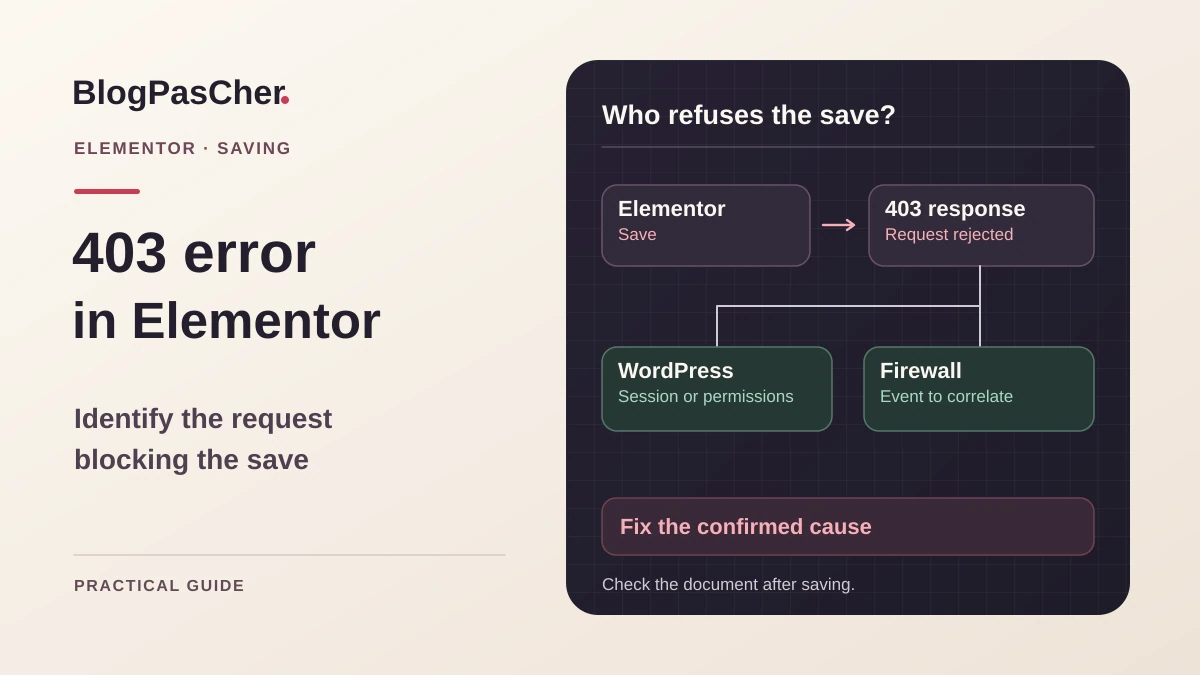
You can open the page in Elementor and edit its widgets. Rejection occurs when you click Update, Publish, or Save Draft. If the browser confirms an HTTP 403 response at that moment, start by recording the refused request and the state actually saved. WordPress, a security plugin, or a service in front of the site may issue the same code. The correction depends on the layer that made this decision.
Keep the tab containing your changes. Copy added text, important settings, and section order into a private note. If the interface can still save a template from this page, use it as an additional copy, then check that it actually exists. This operation may encounter the same rejection as the initial save. It does not necessarily preserve status, other plugins' data, or used media. A template is useful as a control only if you can find it and recognize its changes.
Open administration in another tab with the same account. View the saved page without writing to it. Compare a detail you just changed or a revision visible in Elementor history. A secondary request may be refused even though content was already saved. If your change is present, record that difference before clicking again. If missing, work on a control draft or site copy. A published page and its forms, integrations, or dynamic data require a test that sends neither real messages nor external operations.
This guide concerns Elementor on an installation allowing inspection of editor requests. You can make observations with your usual editing account. Permission or firewall changes require the administrator responsible for them. On a hosted service, send the record to the provider if its logs are not exposed in the panel. In multisite, also record the relevant URL and subsite.
Read the actual rejection in the browser
Open developer tools, then the Network tab. Clear old request entries. If navigation interrupts saving, enable Preserve log to retain entries. Make one change and one save on the control. Start with Fetch/XHR if you see background calls. Return to the complete list if nothing appears there. The failing entry must correspond to the click time and observed action. A resource blocked during editor loading may remain red without any relation to saving.
Open the selected entry and examine its status, method, and path. Some installations use wp-admin/admin-ajax.php, and other requests may target the REST API. Use the observed path. In Response, look for the response type and an explicit clue. A structured WordPress error may point toward a permission or token. An HTML blocking page or request ID may point toward the firewall. A 403 status with a very short body, such as -1, may also correspond to a failed AJAX check. Confirm this lead with code or logs instead of inferring the rule from status alone.
- Record the time with time zone, method, path, status, and a visible request ID.
- Record a nonsensitive response excerpt and the returned content type. Keep cookies, tokens, authorizations, and page data out of the shared record.
- Check the draft's state in administration after rejection. If the selected entry concerns another action, find the call actually corresponding to the write.
- If the save request does not receive 403, continue with diagnosis appropriate to the observed status or message.
Approach 1. Compare session, permissions, and content
Start here if the response mentions session, permissions, or an expired token. This also applies when only one author encounters rejection. For REST calls authenticated by the WordPress cookie, the REST nonce accompanies the request. An old session and a browser instance open for a long time may distort comparison. Start again from an authorized session with the same account after preserving changes in the old tab. Going straight to an administrator account would change both session and permissions.
Compare a minimal Elementor draft with the affected document. Use short, recognizable text. If the minimal draft saves, next check who owns the failing page, its status, and whether the account can edit that content type. Permission to edit one's own draft may differ from permission to update a page published by someone else. If the administrator needs to adjust a permission, limit it to the function actually assigned to this person.
- Open Elementor in a new session of the account that encountered rejection. Save the minimal control and reopen it to verify its text.
- Compare a second control of the same type and status as the affected page, on a copy if necessary.
- If the account fails where an already authorized account succeeds, compare document status, owner, and permissions. Restore any temporary authorization after testing.
- If the same account can save the control but fails with a particular layout, move to content testing. If the response identifies a firewall, find the corresponding event.
Test a control fragment without replaying the request
If only one document fails, prepare a draft or isolated copy of that page using available means. A short page lets you check the basic write path. A copy of the page then lets you identify a detail absent from the short page. A tag in an HTML widget, a long embedded configuration, or a code fragment may produce a different result. This observation narrows the problem's scope. It does not establish that content is malicious or the firewall is wrong.
On the copy, retain the status and functions necessary for testing. Temporarily remove only one suspected section or replace its contents with a neutral value. If the page contains dynamic widgets, preserve their configuration in the original control. Save, then reopen the document. Next add the suspected element again in an isolated draft and compare the same request's status. This path may reveal a difference between the submitted fragment and the rest of the page without losing the content you want to repair.
Avoid copying a request from browser tools into a terminal. The copy may contain an active session and the page's complete content. Replaying it may rewrite the document or trigger other operations. The control through the editor is sufficient to generate a request with the site's intended permissions and tokens.
- Confirm that a simple change succeeds with the same account in the same installation.
- On a copy, change only one element and record the HTTP result and version actually saved.
- Restore that fragment and check whether rejection returns. If the fragment contains code, have it examined before requesting an exception.
- If the element is unnecessary, a simpler representation in a suitable widget may resolve the problem without changing filtering. Check that the function and its rendering remain usable.
Approach 2. Identify the rule that blocked writing
This route suits a blocking message, request ID, or precise reproduction suggesting an intermediate protection. The web application firewall, often called a WAF, examines a request's path and content, among other things. A rule may recognize a pattern in a field transmitted by Elementor. Several services may analyze the same request successively. The presence of a CDN, firewall, or plugin alone cannot identify the responsible layer.
In the service panel, open security or audit logs according to the provider. Filter around the exact recorded time and path. Look for the method, request ID, blocking action, rule number, and affected field if logged. With CRS anomaly scoring, a threshold event may explain blocking without alone identifying the responsible detection. Correlate it with rules and fields contributing to the score in that same transaction. An event for another URL, another host, or a detection alone does not explain the observed response. If several entries match, ask which actually decided the rejection. If you have only a statistics screen, give these details to the host to find the event in its logs.
Once the false positive is confirmed, request an adjustment limited to the authorized context. With ModSecurity and the OWASP CRS ruleset, an administrator may, depending on engine and configuration, exclude a specific field from a given rule on an identified route. The form depends on the server, phase, and field name actually analyzed. A ready-to-paste example with a dummy rule number would be dangerous here. The correction must start from the exact event. Preserve protection on other fields and other operations sharing the same entry point.
- Find the event corresponding to saving and identify the rule that actually blocked it.
- Have the action's legitimacy and the adjustment's technical scope confirmed.
- On the copy, apply the narrowest adjustment the service permits. Keep its original value or the exception ID.
- Repeat saving with the affected account. If the same rejection persists, remove the adjustment and compare the new event with the first.
Adjust an existing Wordfence rule
If the response or log identifies Wordfence and the plugin is already installed, open Wordfence > Tools > Live Traffic. If your version offers Blocked by Firewall under Filter Traffic, use that filter. Find the rejection you just reproduced. If the log provides no event attributable to this request, pass the record to the person responsible before changing a Wordfence rule. Expand its entry and check the time, URL, and reason. Rate limiting, address blocking, and application-rule events require different settings. A parameter allowlisting option should be used only for a case whose legitimacy you confirmed.
In the documented situation, Wordfence may offer Add param to firewall allowlist. Check the path and parameter to be added before accepting. The exclusion may apply to other operations using the same combination. Have the firewall manager review it if that scope exceeds the Elementor request. Learning Mode may record other exceptions while active. A targeted entry from a known event is easier to examine and remove. If the manager uses Learning Mode on an isolated copy, first record the starting mode and allowlist. At the end of testing, restore the initial protection mode, compare the list, and remove entries created by operations unrelated to the control. Transfer only an entry whose scope has been validated.
- Reproduce rejection on the copy and open its entry in Live Traffic.
- Add only the confirmed entry if the interface offers it and its scope is acceptable.
- Review the entry under Wordfence > Firewall > All Firewall Options > Allowlisted URLs. Test saving again and check that the firewall remains active.
- To roll back, remove the added entry and confirm that firewall status matches the intended state.
Verify the correction with the correct account
The first check is to reopen the control in Elementor using the account that encountered rejection. Save an identifiable change and reopen the page from administration. Check that the result contains that change. If the HTTP request succeeds but old content returns, examine the response sent to the editor and the document state. A 200 status may carry a failure message. If administration shows the correct version while the public still sees the old one, caching is now a separate issue.
On a copy, next reintroduce the fragment that triggered the 403, with its actual function and dummy values. Check the save result, then open a preview. For a simplified HTML widget, check the elements the simplification needed to preserve. For a firewall correction, compare the test log with the initial event. The person responsible must be able to identify the single changed rule or entry. A new blocking event may correspond to a second check that occurred after the first.
- Save the control with the affected account, then reopen the saved version.
- Check that the document and its visibility remain in the intended state.
- If the correction is an exception, check its scope and firewall status. Restore the previous state if observed scope exceeds the need.
- Once the test succeeds, apply the validated change to the intended document according to the site's process and check the change from administration.
Prepare rollback and the incident record
A session incident is closed when the same person can write again with their usual permissions. A permission difference is corrected within the content scope assigned to them. In that case, rollback means removing the temporary role or capability change and confirming the actions that should remain accessible. If rejection returns immediately without that capability, give this result to the person responsible to decide the appropriate access level.
For a firewall false positive, keep the exception ID, rule, URL, and targeted parameter. An exclusion of unknown scope becomes difficult to review after an update. If rollback is needed, remove the exception from the service that created it, then compare the control's behavior with the log. If the page changed in parallel, use a revision of this document only after reviewing the relevant content and status. A complete backup is useful for a broader incident, but restoring it may overwrite changes unrelated to this page.
If no service finds the event, provide the time and time zone, path and method, status, response type, and results from both controls. Add Elementor and WordPress versions, document status, and tested role. A request ID may help the provider find the entry even if the log does not show content. Supply a dummy fragment reproducing rejection where one exists. Keep complete logs and content copies in the site's authorized space. These details support a verifiable correction instead of temporary unblocking whose cause nobody knows.
Recognize an event actually related to saving
Use a short record to correlate the browser and Live Traffic. Fictional example: click at 14:32 UTC, POST method, path /wp-admin/admin-ajax.php, 403 response; at the same second, the log shows a blocked action on this path and names a parameter from submitted content. This correlation provides a lead. A GET entry for an image, even shown in red during the same minute, does not describe saving.
In the expanded Wordfence entry, record the reason and parameter actually proposed for allowlisting. Do not replace that name with action or an assumed widget name: these values may identify another request level. Before accepting the entry, check whether it concerns the entire entry point or only the observed parameter. The AJAX path is shared by many operations.
After the limited correction, create a new control and check three pieces of evidence: the corresponding rejection does not return, Elementor confirms saving, and the text remains after reopening. The absence of a Wordfence event does not demonstrate the absence of CDN or hosting filtering. Native Network diagnostics remain free; installing a second firewall does not make attribution easier. To roll back, remove the exact entry created during testing and keep its description in the record.
Sources and references
Use these references to check the features, requirements and limitations described. Reading documentation is not a practical test.
View 11 references
- Elementor: Publish or Update button ↗
- Elementor: creating a template from a page ↗
- Elementor: revisions and history ↗
- Chrome DevTools: network request and response ↗
- WordPress: REST API authentication ↗
- WordPress: AJAX nonce verification ↗
- Wordfence: firewall and exclusions ↗
- Wordfence: finding a rejection in Live Traffic ↗
- Wordfence: targeted exclusion and Learning Mode ↗
- OWASP CRS: adjusting a rule for a false positive ↗
- Wordfence: official listing ↗