

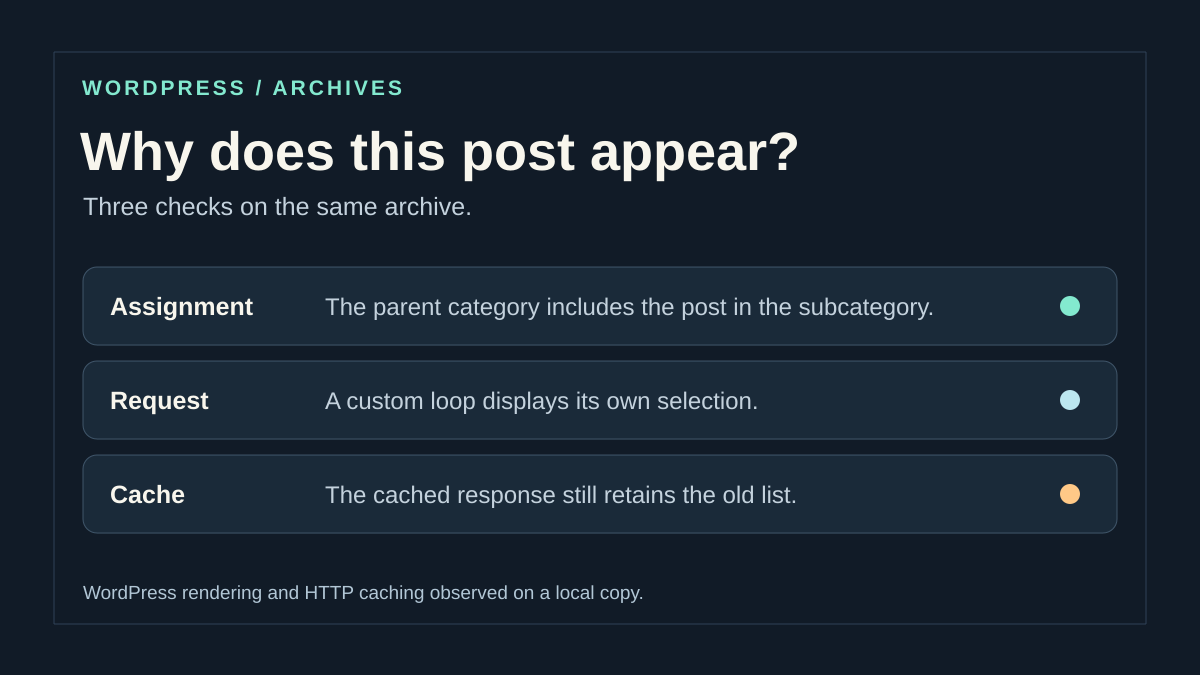
Identify the list that seems incorrect
You click a category and find a post that seems off-topic. Or a tag shows posts you did not think you had associated with it. The desired result is precise: understand why these posts appear, then correct the right assignment or display. Deleting posts to clean up the list would be the wrong response to this symptom alone.
An archive is a page that automatically gathers content according to a criterion, such as its category. An ordinary page can also display a list of posts. They can look identical even though their settings are in different places. Start by saving the address actually opened and two examples: an expected post and an unexpected one.
The initial checks are suitable for anyone who can view the site and open the affected posts in the administration area. A change requires permission to save those posts; changing a template requires additional permissions. On WordPress.com, first select the correct site in your dashboard. On multisite, also check the network site.
- Open the list from the link visitors use and copy its address.
- Record its title and the titles of two sample posts.
- Open each post in a new tab to confirm its actual destination.
- Keep this information before making changes; it will be used for the final check.
Choose between assignment, hierarchy and display
The first approach checks the categories and tags saved on a post. Choose it when only a few posts seem misclassified. Removing an association added by mistake is often enough. The second approach explains why a parent category can gather posts from its subcategories. In that case, the list may be technically correct while not matching your editorial choice.
The third approach concerns a list that clearly ignores context: several archives show the same posts, a page presents content on every topic, or a block displays another post type. It leads to the template or Query Loop, the block responsible for selecting content.
Work on one sample post and one setting at a time. For a simple authorized classification correction, keep the original associations. Before changing a shared template, use a backed-up test copy and record the template name. You must be able to return it to its previous state without restoring the whole site.
- If the post has the wrong term, follow the assignment correction.
- If the post belongs to a subcategory of the opened term, examine the hierarchy.
- If the associations do not explain the list, identify its block or template.
- After each attempt, check the same address with the same sample posts.
Approach 1: remove an incorrect association from a post
This approach suits an author authorized to edit their post or an editor responsible for classification. Open Posts → All Posts, then the relevant title. In the block editor, open Settings and the Post tab rather than the selected block’s tab. The Categories and Tags panels apply to the entire content item.
The expected result is to retain the intended terms and remove only the incorrect term. Keep at least one suitable category: a WordPress post receives a default category when none is selected. To undo the change, restore the recorded associations and save again. Do not rely on a text revision to restore your classification automatically.
Take time to distinguish a tag from a word merely present in the text. Deleting an expression from a paragraph does not remove the tag. Conversely, removing the tag does not change the written content. Check the relevant panel before altering the post.
- Record or capture the checked categories and existing tags.
- Uncheck only the mistakenly assigned category, keeping the correct category.
- For an incorrect tag, use its small removal cross in the Tags panel.
- Save or update the post.
- Reopen its settings to confirm the change, then visit the affected archive.
Check several posts without starting a bulk correction
Misclassification can affect several posts after an import, editorial handover or accidental selection. Start with a small sample. In Posts → All Posts, the Categories and Tags columns let you compare assignments. The category filter helps narrow the list; searching for a title remains useful for finding an exact sample.
Native bulk editing lets you add categories or tags. It is not a universal tool for removing a term from a set of posts. Do not select every row assuming that an unchecked box will necessarily erase the old association. For a few posts, open them individually and check each result.
This check is suitable for an editor with access to the affected posts. The expected result is an identified scope: which posts actually have the term to remove? An inconsistent public list does not justify changing every record. No change is needed while collecting this information.
- Open Posts → All Posts and search for the first sample title.
- Compare the visible terms with those in its editor.
- Repeat for two other posts, including one correctly classified.
- If the error recurs, compile the list of affected posts before correcting them.
- Correct one post first, then check the archive before continuing.
Approach 2: recognize a parent category and its children
A category can have subcategories. Imagine a Travel category with an Italy subcategory. In normal category archive behavior, a post classified under Italy can appear in the Travel archive without Travel being checked directly on the post. This grouping alone is therefore not proof of an incorrect assignment.
Tags have no native parent-child relationship. If a tag archive shows a post without that tag, category hierarchy does not explain the result. Return to the exact term and display mode. Categories added by a particular application must also be distinguished from standard post categories.
This approach requires access to Posts → Categories to view the organization. It requires no initial change. The desired result is to find a parent-child chain explaining the sample post. A custom query may behave differently; the conclusion therefore initially concerns the normal archive before modification by the theme or a plugin.
- Open Posts → Categories and find the sample post’s category.
- Open its Edit screen, then look at the Parent Category field.
- Compare this parent with the category whose archive surprises you.
- Visit both archives to check whether the post fits the grouping.
- If the hierarchy explains the result, choose an editorial solution before changing terms.
Choose a correction that respects the site’s organization
When grouping is intentional, adjust the reader’s expectation instead: a link to Italy leads to a more precise selection than a link to Travel. This lets you keep the hierarchy without removing correctly classified posts. However, check the link’s actual destination; a menu label does not change an archive’s contents.
If the parent-child relationship itself is an error, an authorized administrator or editor can correct it in Posts → Categories. This change affects the whole category and its uses. With some permalink structures, moving a term may also change its address. Record the original address and plan how to handle old links before making a change on the public site.
The expected result depends on your choice: a more precise link or a hierarchy matching the intended classification. If posts must remain in subcategories but disappear only from a special selection, a page with a custom list may be preferable to a general move.
- Write down the desired result: the entire category family or only a precise selection.
- For a simple destination problem, replace the affected link with the correct term’s address in the tool that actually manages that link.
- For an incorrect parent, record its value, choose the correct parent and save.
- Check the archive, public link and old addresses on the copy.
- If the result is incorrect, restore the recorded parent and link; do not delete the category.
Approach 3: distinguish an archive from a constructed page
A page called Italy News is not necessarily the Italy category archive. It may contain a separately configured list. Similarly, an archive header may display the correct name while the block beneath it selects all posts. The visible title therefore does not prove that the list uses the right criterion.
This step is an inspection, accessible to someone who can open the relevant page or template. The expected result is identifying the actual source: an ordinary page, a general archive template or a term-specific template. WordPress chooses templates according to a hierarchy; a specific template can override a more general one.
Do not randomly change page content to fix an archive that does not use it. Do not reset all theme customizations either. Keep the identified source’s name and scope before continuing on a copy.
- In Pages → All Pages, search for the visible title and check whether a page matches the observed address.
- If it exists, open it and find the post list in the editor’s List View.
- With a block theme and the necessary permissions, open Appearance → Editor → Templates to examine archive templates.
- Distinguish the general template from templates specific to a category or tag.
- Keep the name of the template actually used; if its identity remains uncertain, do not save a change.
Check whether the loop follows the archive or its own selection
This check is useful when assignments are correct but the list remains surprising. On a copy using a block theme, open Appearance → Editor → Templates and find the template serving the archive. Select Query Loop in List View, above the Post Template and the titles it contains. Several lists can coexist in one template, such as the main list and a featured selection. Identify the block displaying the incorrect result.
In recent WordPress versions, Query type may offer Default and Custom. In other versions, look for the option to inherit the template query. An inheriting block uses the current context’s query. A custom block can request its own post type, category and order. It can therefore show an independent selection beneath a correct archive title. A particular category can also load a different template from other categories. Check the effective template before changing the loop.
On the copy, record current filters and test the mode that follows the archive query for only the affected list. Reload the category, another category and a tag. Expect content belonging to each address’s term, with the intended visibility rules. On an editorial page, a custom selection may be intended. In that case, correct that page’s filter, then verify the native archive retains its own list. To undo, restore the recorded mode and filters. If the site uses a classic theme, the maintainer must examine the archive template and any intervention on the main query before changing a working secondary query. A pre_get_posts intervention must target the intended query and term. Compare another archive on the copy to verify the change’s scope.
Correct a custom selection on a page
This case concerns an ordinary page that should display a precise selection. Its editor may use a custom Query Loop. Open that page on the copy, select the block in List View and open its Settings. Record values before changing them: an existing selection may serve an intention the page title does not explain.
The expected result is a list respecting the chosen term. The post type must match the desired content. An exclusion, a required author or an additional keyword can narrow the selection; examine these criteria together. To undo, restore the recorded values or the saved copy of this page.
Labels vary by version and tools added to the site. If your block comes from a builder, use its documented settings; do not assume the native controls described here are present.
- Select the native Query Loop and choose Custom if you are indeed building a list independent of context.
- Check that Post type is Post.
- Under Filters, use the button to add filters, then Taxonomies.
- Choose the intended category or tag and examine existing exclusions.
- Save the page and check the sample posts on the copy.
- Restore the initial values if the new selection does not meet the need.
Compare the archive term with the post’s assignments
Take the exact URL where you see an unexpected post. In the administration area, open Posts → Categories or Posts → Tags and use View to open the relevant term. Compare the resulting address with the menu or problematic link’s address. A manually created page can be called “News” just like the category. If it has its own loop, it can display different posts. Record the taxonomy, slug and, if accessible, term ID. Two identical labels may belong to different taxonomies or subsites. If the link opens another destination, correct that address in the menu or page containing it. Keep the old value for rollback. Assignments do not change in this case.
Next open the document that should be in the list and the one that surprises you. In their settings, record the categories and tags actually saved. Check status and date if an expected post is missing. A parent category can include a post classified under one of its child categories. The parent can therefore appear in the result even when its box is not checked on that post. In the native tag workflow, look for the association with the tag itself. In both cases, visibility rules or a custom query can still limit what appears.
With WP-CLI, the administrator can read a document’s assignments without changing its classification. From the WordPress folder, replace the URL with the site or subsite URL and 123 with the post ID. The two reads query separate taxonomies. The result shows the terms associated with the document. Comparison with the category tree and public output remains necessary.
wp --url=https://exemple.test post term list 123 category --fields=term_id,name,slug --format=json
wp --url=https://exemple.test post term list 123 post_tag --fields=term_id,name,slug --format=json
Compare the origin with the cached response
If you have just corrected an assignment or the loop and the public list seems unchanged, compare two responses for the same URL. In the browser, first take the result from an anonymous session. Record the titles and, if you have access to Network, the cache headers exposed by your hosting. A header such as Age or a provider cache indicator can help locate the layer. Its absence does not prove the response comes from the origin. A logged-in session may use a different cache policy and mainly serve as a clue.
Ask the person managing hosting to render the same URL through the authorized origin path or the provider’s uncached preview mode. Compare the same term, pagination and public context. Clearing the browser cache does not purge a response kept on the server or a CDN. Adding a parameter to the address may also change the cache key and, depending on the site, the query. Prefer the service’s documented method to isolate the responsible layer.
If the origin output is already correct but a stored response is stale, invalidate the affected page or archive group using your service’s control. Include pagination pages only if they are actually affected. Then reload the page in an anonymous session and check a fresh response followed by the cached response. Keep another archive as a control. If the origin output still contains the error, return to assignments and the active template. Repeated purging will reproduce the incorrect content. To undo a cache-setting change, restore its previous value. Targeted invalidation lets the service rebuild the response.
Repeat the three comparisons with sample posts
On your copy, prepare one post assigned directly to the parent category, one assigned only to its child category and one in another category. Separately associate a tag with two samples. Compare saved assignments with the output of native archives.
If a custom loop ignores context, record its filter before correcting it, then reload two distinct archives. If the origin is correct but the public version remains old, use the cache’s targeted invalidation and compare the same URL again.
This acceptance test describes evidence to collect; it does not claim that a test has already been performed on your site. Keep a control that must remain absent and check subsequent pages before considering the selection restored.
Confirm resolution without changing other classifications
Resolution is more than seeing a title disappear. The post must remain accessible at its usual address, retain its correct associations and appear in the lists where it is expected. If you changed a hierarchy, also check links to the term. If you corrected a shared template, verify a second archive before concluding.
Keep a short record of the change: affected post, removed term or changed parent, corrected page or template, initial values and observed result. This note helps explain the rule to another author and undo a specific change. It prevents a bad filter from being reinstated later because a selection looked empty.
No new plugin is required for this guide’s native corrections. If the site uses a selection specific to a third-party tool, its configuration must be examined separately. Adding another classification system does not automatically fix existing associations.
- Open the sample post directly and confirm it has not been deleted or unpublished.
- Visit the corrected archive in a logged-out session.
- Check an archive that should remain unchanged and, if necessary, the next page.
- Reopen the modified settings to confirm they were saved.
- Share the chosen classification rule and available rollback with the team.
Check the next page and excluded content
An archive can seem fixed on its first page while repeating or omitting posts further on. After changing a Query Loop, follow the native pagination and verify it retains the archive term. Keep the same sort order during comparison; a post moved by date may simply have changed pages.
Prepare three samples: a post directly associated with the term, a post in a child category and a post that must stay outside the selection. For a category, hierarchy explains some inclusions; for a native tag, it does not. Check IDs because two identical titles may identify two posts.
Native tools and WP-CLI are sufficient for this free check. If a developer changes the main query, they must preserve the intended public context and check another archive. A correction applied to every query can unintentionally change administration lists or secondary blocks.
Sources and references
Use these references to check the features, requirements and limitations described. Reading documentation is not a practical test.
View 16 references
- WordPress: managing categories ↗
- WordPress: managing tags ↗
- WordPress: associations in post settings ↗
- WordPress: filtering and editing posts ↗
- WordPress: Query Loop and filters ↗
- WordPress: descendant categories and queries ↗
- WordPress: template hierarchy ↗
- WordPress: targeted query changes ↗
- WordPress.com: organizing categories ↗
- WordPress.com: organizing tags ↗
- WordPress: Site Editor and templates ↗
- WordPress: Template Editor ↗
- WordPress: building the block query ↗
- WordPress — reading terms assigned to a document with WP-CLI ↗
- WordPress — WP_Query category parameters ↗
- WordPress — rendering the Post Template and inherited query ↗