

Preserve text before touching the button
You click Publish, Update or Save, but the editor seems unresponsive. First determine whether a confirmation awaits your response, the document was already saved or a request is failing. The desired result is verified preservation of the text and intended status, without a test publication.
Keep the tab open until recent work has been copied. A spinning indicator proves neither failure nor success; repeated clicking can complicate observation. If the entire interface remains blank, use editor-loading diagnosis instead of this approach.
You can compare saved content with the same authorized account. Avoid writing to the same document from two tabs during this comparison.
- Copy recent text, title and excerpt into a separate local file; if the menu responds, use Copy all blocks.
- Check the copy for a sentence added immediately before the blockage.
- Open Posts or Pages in another tab, find the original and view its state.
- Reopen its saved version without editing and compare that sentence.
- If it is preserved, do not immediately resend the same change; otherwise keep the original tab and external copy.
Choose a test draft and expected result
A simple draft is sufficient to test saving. Use an account permitted to edit it; there is no need to make a page public. The comparison should distinguish a general failure from a problem limited to the original document, its author or a particular block.
On WordPress.com, select the correct site and available features. On multisite, check the subsite. Record the WordPress version and any recent change that may have preceded the problem, without declaring it responsible yet.
If a simple draft saves but the original does not, keep that difference: it will guide the final approach. A saved draft does not prove you have publication or editing permissions for every document.
- Open Posts, Add New and create an identifiable test draft.
- Add a short sentence without confidential data.
- Use Save draft; reopen it from Posts to verify the sentence.
- Record whether failure affects this draft, only the original or both.
- Keep the same draft for subsequent attempts and delete it afterwards through the usual editorial procedure.
Choose between confirmation, browser and component
The first approach applies when the button opens a panel, stays grayed out or displays an unexpected status. It checks confirmations and permissions through the native interface. The second compares a clean browser and then the network request when saving appears to start without a result. The third isolates components when evidence points to a plugin or theme.
Component tests require settings or plugin permissions, preferably on a copy. A copy must have sending, payments and external synchronization disabled before testing. Do not treat a plugin’s troubleshooting mode as an independent database.
A positive result is confirmed by reopening the draft and finding the test sentence. A green message without preserved text is insufficient. To undo an attempt, restore only the changed setting before comparing another.
- Start with confirmations and status, without a new plugin.
- Then compare a separate browser session with the same authorized account.
- Observe a single save request if failure persists.
- Isolate components on a copy or with the optional mode described later, according to available access.
Approach 1: complete the correct confirmation
This method applies if the first click opens a panel or the interface awaits a choice. To publish, your account must have permission for this document and its content must be approved. To merely preserve work, use a draft; publishing is not a save test.
A first publication may require a second confirmation of date and visibility. On WordPress.com, also review displayed distribution or newsletter options. In the Site Editor, Save may show several changed items: page, template and styles have different scopes.
The expected result is the intended status and text found after reopening. To cancel an unconfirmed panel, close it without confirming. A publication already made may require editorial withdrawal; withdrawal does not undo notifications already sent.
- Click the action matching your objective once.
- Examine the sidebar or confirmation window; check date, visibility and any recipients.
- If you intended a draft, cancel publication and choose Save draft.
- For a template, reread the item list and confirm only what you genuinely want to save.
- Wait for confirmation, reopen the document from its list and check the test sentence.
Restore the session and check relevant permissions
A Submit for Review button may reflect the account’s normal permissions. Being able to write your draft does not mean you can publish or edit another author’s public post. Do not promote a user to administrator to unblock an action without checking their actual responsibility.
A session becoming unusable during lengthy writing can also explain the blockage. The external copy lets you log in again and resume the saved version without depending on the old tab alone. The expected result is a recognized session and successful draft save. If denial remains identical after logging in again, move to network observation.
An administrator can check the role under Accounts or Users on the relevant site. Any role correction must remain limited to the validated permission and scope; retain its previous value for rollback.
- After copying text, open the site’s usual login in a new tab.
- Log in normally with your own account if necessary.
- Find the draft through Posts or Pages and make one test save.
- If the proposed action remains review submission, have the administrator confirm publication permissions.
- Recover recent text from the external copy after comparing with the latest saved version.
Compare a browser profile without extensions
This comparison requires only browser access and your WordPress account. It applies if a browser extension, local data or an old session might disrupt the editor. A new profile avoids immediately changing the profile containing your work.
In Chrome, the profile icon lets you add a profile. For this test, do not synchronize extensions or settings from your usual profile. Creation labels may vary; use the offered local process. A private window is another possible comparison, but some extensions may be allowed there.
If the draft works in the clean profile, return to the usual profile and identify the responsible browser setting or extension. Success does not automatically implicate WordPress or its theme. To undo the test, close the separate profile; retain your usual data until text is recovered.
- First copy the blocked tab’s work into your local file.
- In Chrome, open the profile menu, then Add profile; create a separate unsynchronized session for the test.
- Log into the same site with the same WordPress account.
- Open the test draft, change its short sentence and save.
- Reopen it and compare the result; if this profile works, examine original-profile browser extensions individually instead of changing the site.
Approach 2: observe the save request
Choose this approach if the action remains pending after confirmations and logging in again. Browser developer tools let you read the request without server access. Use the test draft because submitted data may appear in these tools.
In Chrome, right-clicking the page then choosing Inspect opens developer tools. Select Network. Depending on the editor, you may see a REST API request, for example an address containing wp-json, or another administration request. Identify the row associated with the click by time and content, not merely color.
The expected result is knowing whether a request is sent, its code and received message. If nothing is sent, check Console for a script error and return to browser or component comparison. Closing tools ends only observation; do not replay a write using Replay or a copied command.
- Open the draft, then developer tools and the Network tab.
- Clear the displayed log to make the attempt readable; keep network recording active.
- Change a short sentence and click Save draft once.
- Select the matching request; under Headers, record the useful address, method and status code.
- Under Response, read the returned message; then check in Posts whether the sentence was preserved.
Correct according to the observed response
A JSON response is data the editor can read. If the server instead returns an HTML login or protection page, the button may remain inconsistent. A favorable HTTP code is therefore insufficient: examine response contents and the saved document.
A 401 or 403 denial does not automatically mean insufficient WordPress permissions. A session or protection token may be invalid; an intermediary protection may also refuse the request. The message indicates the lead. A 500 error or timeout requires corresponding server diagnosis after checking what was already written.
The correction’s expected result is success with the same small draft, verified by reopening. Limit each attempt to one hypothesis. To undo an exception or setting, use its previous value; do not globally remove the protection that supplied the message.
- If the response contains a login or session error, preserve the text and log in again using the previous approach.
- If it indicates a WordPress permission denial, check the document, author and relevant role with the administrator.
- If it reports invalid JSON or a missing route, keep the address and message to follow the corresponding JSON guide.
- If a named protection blocks the request, record the time and rule in its log with an authorized account; correct only the identified blockage.
- If a server error persists, provide the sanitized code and message without repeatedly retrying the write.
Keep useful evidence without exposing the draft
The record correlates an attempt with a result. It does not need the complete draft, login cookies or authorization headers. Avoid exporting all traffic into a public ticket: it can contain much more than the observed row.
Keep the WordPress version, editor type, time with time zone and document ID in an appropriate place. For a successful comparison, also state what changed: clean profile, fresh login, isolated component or simply completed confirmation. Several simultaneous changes prevent clearly attributing success.
If text is saved but only the public page remains old, examine display and existing cache. Reading the document in administration and viewing the public page verify different things. Repeating a save does not fix a cached public response.
- Record the exact action, intended result and status actually retained.
- Copy only the useful response code and message after removing private data.
- State whether the same sentence saves from a separate profile and a simple draft.
- Keep a record of each changed setting and its initial value.
Approach 3: isolate a component on a copy
This approach requires authorized plugin access and an independent site copy. Start without a new tool: normal component deactivation on that copy lets you compare its effect. The expected result is reproducible failure with the component and successful saving in the compared context, not merely a clickable button.
Before testing, have notifications, payments and external synchronization disabled on the copy. Retain the active-plugin list and initial theme. If the post contains blocks supplied by the deactivated plugin, use the simple test draft; do not save the original while its functionality is missing.
If only one document fails, create a separate draft on the copy with a representative portion, then gradually add other blocks. Record when failure returns. Keep the original intact; converting or deleting blocks is not a lossless test.
- First reproduce failure in the same draft on the prepared copy.
- In Plugins, Installed Plugins, deactivate one suspected component without deleting it.
- Return to the draft, change the test sentence, save and reopen.
- Reactivate the component before comparing another suspect; record both results.
- If the theme is suspected, record the initial theme and use Appearance, Themes on the copy to compare an already available reference theme, then restore the initial one.
Optional: use Troubleshooting to isolate the session
Troubleshooting, by Marius L. J., also known as Clorith, provides the troubleshooting mode separately from the old Health Check for free. Check the offered version’s requirements in its listing and package before installation. The old Health Check is not recommended in this approach.
This option requires installation and settings permissions. It aims to change components for your session but does not create an independent database, disable sending or deactivate mandatory mu-plugins. Caches may also interfere with isolation. Prefer a copy; if using this mode on the live site, limit yourself to the simple draft and also check a separate visit.
The expected result is identifying a combination that causes saving to fail. The mode does not itself correct the component. To return to normal context, use Disable Troubleshooting Mode in its panel or administration bar; logging out also exits the troubleshooting session.
- In Plugins, Add New Plugin, search for Troubleshooting; verify the author and directory link with the
troubleshootingslug, then install and activate if the environment is compatible. - Open Tools, Site Health, Troubleshooting tab and click Enable Troubleshooting Mode after reading the instructions.
- Try saving the simple draft in this baseline session.
- In the administration bar’s Troubleshooting Mode menu, reactivate components for the session one at a time and repeat the same check after each.
- Record when failure returns, then exit with Disable Troubleshooting Mode.
- Check the usual context, component list and a separate visit; if an old display persists, check the existing cache through its documented process.
Verify preservation, then return to the original
After a correction, the final attempt must prove text preservation and the correct status. First perform it on the test draft. Publishing the original occurs only through the normal editorial workflow; a future schedule or pending review must not become immediate publication just to finish troubleshooting.
Recover recent passages from the preserved copy after comparing with the latest saved changes. Another author may have made corrections during diagnosis. Do not replace the whole document with an older copy without that comparison.
If preservation still fails in a minimal context, retain the network and draft results for JSON, permission or server diagnosis. Support can then handle a precise request after available actions have been performed. Do not leave protections loosened or troubleshooting mode active without reason.
- Return to the usual browser and components after testing.
- Add a sentence to the draft, save and reopen it from Posts.
- Check title, recent sentence, status and date; then remove the test sentence.
- Compare the original and external copy, then transfer only missing passages.
- Confirm its date and visibility before the authorized update or publication.
- Restore temporary settings and retain useful evidence until validation.
Check whether the first click opens a confirmation
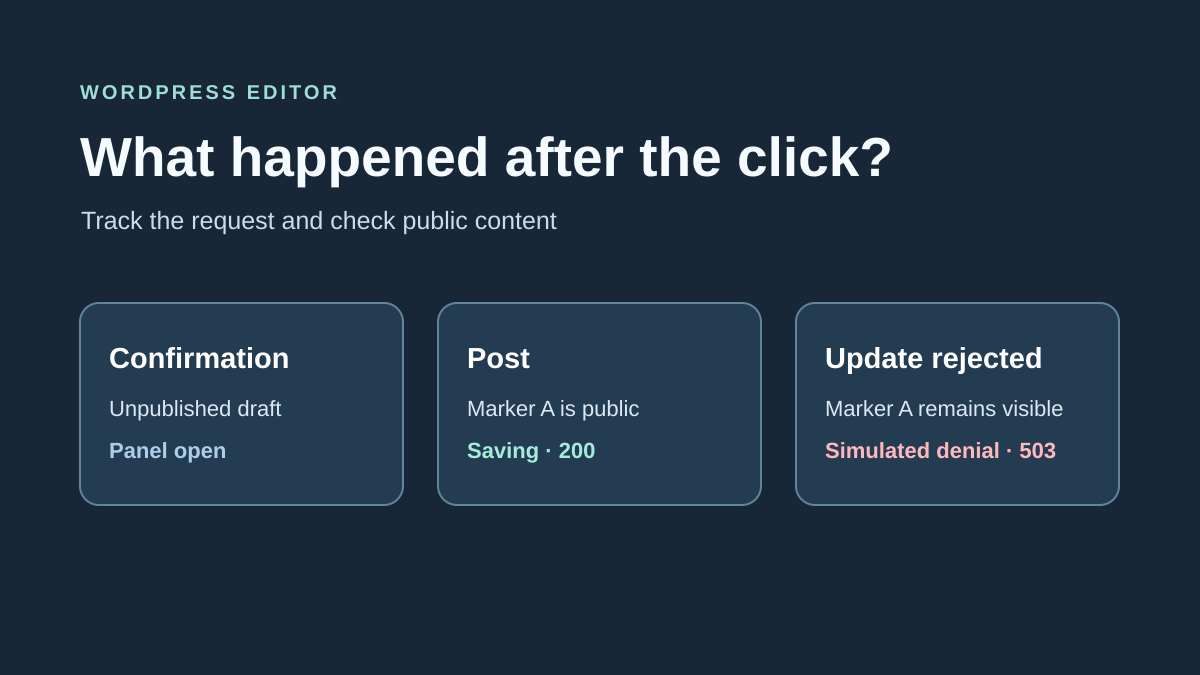
On a copy, use an identifiable draft to distinguish the initial publication click from its confirmation. Observe the panel, network request and retained status. The protocol below lets you produce your own observations without assuming every editor version sends identical requests.
To repeat the check, use a draft created for this attempt with an easily recognizable sentence. In the browser, open developer tools, choose Network and show Fetch/XHR requests. Click Publish once. Check whether a panel appeared and record requests targeting the post. Autosaves have their own route. Identify the request for the post itself before interpreting the presence or absence of a call.
If the panel still offers confirmation, check title, visibility and date. On the copy, confirm once, then check the response and status in the post list. To restore the starting state, return the test post to draft and verify it disappears from the copy’s public flow.
In Network, open the post’s save request and look at the Response tab. Below is an example of the status field expected for successful immediate publication. The request’s ID must also match the document. Then compare the anonymous page with the expected marker.
{
  "status": "publish"
}
Check which version is visible after a denied save
A network error after saving is insufficient to determine which version was retained. Compare the marker in the editor with the saved version and, if public, the page viewed while logged out. A simulated 503 would not constitute evidence of a server outage.
On a copy, keep a local copy of edited text before leaving the screen. If Network shows a failed save request, open the published address in a logged-out window and look for your marker. Return to the post list to check status. If the intended version is already public, retain the record and finish checking without repeating the write. If the public version is old, correct the cause indicated by logs or ask the administrator to do so. Reopen the post before reapplying only the intended change.
Confirm recovery on the correct document
After correction, check the document’s title and ID in the editor, then save the copy’s change once. Record the response associated with that post. A 200 response still requires verifying the saved state and displayed text. For a public document, open its address in the logged-out window. For a document awaiting review, check status and text in the list and editor using the intended permissions.
If the copy works in another browser profile, return to the original profile and restore its settings one at a time until the difference is found. If the same request fails in both profiles, send its time, status and path to the site administrator. Keep draft contents, cookies and tokens out of this record.
Identify a session denial without bypassing protection
In a REST request issued by the editor, login and the protection token complement each other. A browser may retain an open interface while the context required for saving is no longer valid. In Network → Response, record the WordPress error code when present, such as rest_cookie_invalid_nonce, instead of drawing conclusions from status 403 alone.
After saving your text outside the editor, log in again in a new tab, then reopen the draft from its list. Make one short change. If it persists, compare versions and recover missing passages; do not resend the old captured request. If denial persists with a fresh session, investigate its source in the message and relevant protection log.
Repair does not consist of removing nonce verification, making the route public or creating an application password for the browser. Those changes would alter access mechanisms without explaining the failure. The native editor and browser tools are sufficient for this free check. Success remains finding the text in the correct document with its editorial status preserved.
Sources and references
Use these references to check the features, requirements and limitations described. Reading documentation is not a practical test.
View 21 references
- WordPress.com: publishing a post and checking confirmation ↗
- WordPress.com: publishing errors and copying work ↗
- WordPress.com: save panel and interface ↗
- WordPress: statuses and publishing workflow ↗
- WordPress: document settings ↗
- WordPress: account capabilities ↗
- WordPress: REST request authentication ↗
- Chrome: observing the request and response ↗
- WordPress: identifying a JavaScript error ↗
- WordPress.com: browser issues ↗
- WordPress.com: isolating a theme or plugin ↗
- WordPress: backups before intervention ↗
- Chrome: creating a separate profile ↗
- Troubleshooting: official listing and limitations ↗
- Troubleshooting: Site Health tab ↗
- Troubleshooting: mode overview ↗
- Troubleshooting: enabling and disabling the mode ↗
- Troubleshooting: requirements in the official repository ↗
- Health Check: old listing not recommended ↗
- WordPress.org: current Troubleshooting metadata ↗
- WordPress — Posts REST resource ↗