

Compare the site root with the Home link
You prepared a home page, but visitors still see a list of the latest posts. The goal is to display the intended content at the site entrance while preserving blog access. Before changing WordPress, check which address actually displays that list.
Open the site’s main public address directly, then use the menu’s Home link and the logo. Compare destinations in the address bar. If the root shows the correct page but the menu leads to the blog, the problem initially concerns that link. Its label does not prove it leads home.
From Pages, also find the document you intended to use. Check its title, address and content to avoid selecting another page with the same name. An editorial preview does not prove what someone sees at the public address.
Keep these three reference points: public site entrance, menu destination and desired page. If a redirect leads to another site or old installation, retain that symptom for separate diagnosis. Changing the home page in an administration area unrelated to the visited address would not resolve that difference.
Understand the difference between a page and a template
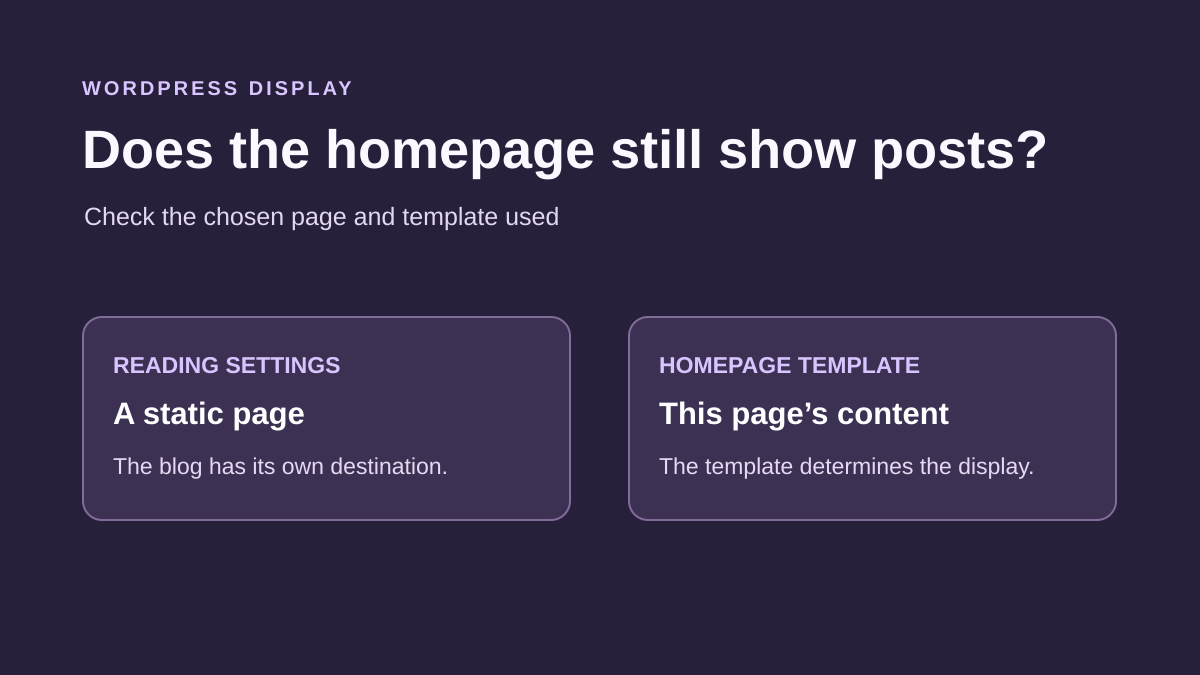
A page contains your text and blocks. A template organizes display and may itself contain a selection of posts. Home page assignment and template structure are therefore complementary checks. A template can show posts even if the selected document contains a static introduction.
Identify the active theme and tools actually available under Appearance. A block theme is mainly managed in the Site Editor; a classic theme may offer Customize and its own options. A missing menu can also depend on permissions: with a limited account, do not infer theme type from that alone.
To edit Reading or global presentation, use an authorized account, generally an administrator for these settings. On WordPress.com, follow the relevant site’s dashboard and available functions. On multisite, verify the subsite before any action; some component decisions depend on the network administrator.
Record WordPress and theme versions if the route differs. An already installed builder may add another presentation layer. Identify its role without installing a new one. Diagnosis begins with native settings and the site’s existing organization.
Preserve the organization and choose the right approach
Before changing a value, record Reading’s display mode, home page and any posts page. Also retain menu addresses and the observed template name. Preserve the page’s original content; you do not need to delete it to change its assignment.
If the setting is incorrect, the first approach selects a static page. If that assignment is already correct but the home page still displays posts, the second examines the template building the site entrance. The third concerns old responses and components after the first two levels are confirmed.
For a template or component change, work on a backed-up copy with the site administrator. A recoverable backup must cover affected items, including database and files for structural work. A simple Reading selection change can be undone by restoring its recorded values.
Make one correction at a time. Check the home page and blog after each, then restore the initial value if the hypothesis is unconfirmed. A repair displaying the right introduction but removing the route to posts remains incomplete.
Approach 1: assign a static page in Reading
In the correct site’s administration area, open Settings, Reading. Locate the choice between latest posts and a static page. If the intended organization relies on a specific page, select A static page, then choose that document in the Homepage field.
Check the selected title before saving. A page called Home does not automatically become the site entrance because of its name. Likewise, a document called Blog is not necessarily the posts page. Saved assignments establish this organization.
Confirm changes, wait for confirmation and reopen Reading to verify the retained value. Then visit the site’s public root. The expected result is the selected page displayed by its corresponding template. If posts remain despite a correct assignment, continue by examining the template.
Do not repeat selection by randomly changing pages. If saving fails, keep the message and time; investigate permissions or saving before blaming display. To undo this step, restore the initially recorded mode and assignments, save and check both destinations again.
Check that the right page is available
If the expected document is missing from the list, find it in Pages and check its status. On WordPress.com, selecting a static page relies on a published page; a draft does not appear in that selection. Do not publish unfinished or confidential content merely to make its title available.
Have it confirmed as the document intended for visitors, then prepare publication through the normal editorial process. If the site must remain restricted, retain the intended global restriction; deciding to make the site accessible is separate from choosing its home page.
Also check that the document is a page, not a post created by mistake. The home selector is not a content-type conversion tool. Preserve the original and prepare a targeted correction with the administrator rather than rushing a public duplicate.
After a theme change, also check drafts and the old page’s status. In some WordPress.com flows, an old home page may have moved there. This does not justify publishing every draft or immediately reactivating the old theme. Identify the right document, reread its content and preserve current customizations before any attempt.
Maintain a separate destination for the blog
If the site should retain a separate post list, record the posts page in Reading. It must differ from the home page. Check the intended organization before changing this second choice: correcting the home page does not require replacing an already correct blog destination.
When a new blog page is necessary, prepare it through the normal page-creation process, then assign it as the posts page. Do not manually copy every post into its body. The list will be built according to blog rules and its template; this page’s edited content does not behave like an ordinary page’s content.
Then check the menu’s Blog and Home links. If either targets an old address, correct only its destination with the theme’s navigation tool. Keep the old value for rollback. Changing only the label does not move content to the correct address.
Also check the logo and mobile flow. If you do not need a separate posts page, do not automatically create an empty destination. Confirm where visitors should find publications. The goal is understandable organization, not adding pages with expected names but no real function.
Approach 2: identify the priority home page template
In a block theme, a Front Page template takes precedence at the site entrance. It can be used with either latest posts or a static page. Its presence explains why Reading selection is not always enough to display blocks entered in Pages.
With the required permissions, open Appearance, Editor, Templates and find the template corresponding to the entrance address. Do not confuse it with Blog Home or Home, which concerns the posts index. Translated labels may vary: check the stated function rather than the word Home alone.
If no Front Page template exists, the theme uses other templates in its hierarchy according to Reading settings. Ask the theme administrator to confirm the effective template if the interface cannot identify it clearly. Do not create an extra template merely because a name is absent from the list.
Open List View to see the home page structure on the test copy. Identify header, main content, any Query Loop and footer. The text you seek may be in a page while the template displays exclusively its own post selection.
Display the selected content without erasing layout
If you want to manage the home page through the static page, the template must display its content. On the copy, check for the Content block, sometimes called Post Content depending on version. This block displays the relevant document’s body; it does not replace selecting that document in Reading.
Add or restore this block in the intended main page location if its absence is confirmed. Do not place it inside the repeated card of a Query Loop intended for posts: you are not trying to display every blog post’s body.
If a list occupies that location, determine whether it should disappear or remain as a supplementary section below the introduction. Preserve its settings before targeted removal. Keep the header, footer and useful template elements; deleting everything between them could erase other intended customizations.
Check the document shown in preview, then the save summary. Confirm only items actually changed. Next visit the root on the copy and another representative page. If incorrect, remove the addition or restore the preserved structure; do not reset the entire template to undo only this attempt.
Adapt the check to a classic theme or builder
For a classic theme, also start with Reading. If Appearance, Customize offers Homepage Settings, compare the displayed choices and their saved state. The customization preview may show a change not yet confirmed for the public site.
Then consult the theme’s official options if it composes a special home page. A section setting, specialized template or page built with an existing tool may contribute to the result. Record what is active before changing anything and keep the previous value.
With a builder, identify the document or template actually targeting the site entrance. Follow its documentation to examine display conditions. Do not assume a template named Home necessarily matches the page you just selected; its name may simply be a working label.
If correction requires editing files or rules you do not understand, send the case to the theme administrator. Provide the Reading assignment and compared addresses. Replacing PHP files, importing a complete demo or changing the theme on the live site exceeds this check’s need and could overwrite existing work.
Approach 3: examine an old response or a component
If Reading retains the correct choice and the displayed template matches your organization, compare the result during a new visit without administrator login when the site is public. Use the same address and record the difference. A private window is a session comparison; it does not guarantee every site cache is bypassed.
Check that page and template changes were saved, including the final confirmation requested by the editor. If the site already has caching, use its documented process to refresh the affected response when that action is available. Do not add a caching plugin or repeat purges without a new observation.
If the discrepancy follows an update or component activation, prepare a targeted attempt on a backed-up copy. The copy’s administrator must disable sending, payments and other external effects. Compare one suspected item at a time with the same Reading values and reference content.
Restore the component if the attempt does not confirm its role. Keep the result and useful configuration for its support team. General deactivation or changing the live site’s theme would have a much broader scope than this investigation. If a managed service lacks the required controls, report the case without circumventing that limit.
Check the home page, blog and useful links
The result must be checked at the site’s main address without using editor preview. Find characteristic elements of the selected page: its introduction, images or expected links. Merely matching preview colors does not prove the correct document is used.
Explore the menu, logo and main home page buttons. Check that their destinations match the chosen organization. If a post section intentionally remains on this page, check its position and links; a few posts do not necessarily mean the static home page failed.
Then open the blog and an individual post. If you changed a shared template, also examine another page using it. Check desktop and phone output, especially header and content beginning, to detect erased structure or a block added in the wrong place.
Finally compare an authorized visit and a logged-out visit according to intended visibility. Do not change site restrictions to make this check easier. If saving is correct but the visits still differ, keep their addresses and context to continue investigating caching or display conditions.
Keep precise rollback and document the cause
Record what explained the problem: latest posts still selected, wrong page chosen, Home link pointing to the blog or a template displaying its own list. Several causes may combine; record every actually confirmed change rather than attributing the entire repair to the last click.
To undo an assignment, restore the saved initial values in Reading. For a link, restore its previous destination. For the template, remove the targeted change or use the preserved version through the available process. Restoring the entire site could erase content created since the intervention.
If you need to share the case, add compared addresses, theme name, versions and the Reading value retained after reload. Specify the observed template and expected result. A settings screenshot is often sufficient; avoid including credentials or other private administration data.
After resolution, tell the team where the home page is now edited: in the selected page, its template or an identified theme tool. This prevents the next person editing the blog while thinking they are changing the site entrance. Keep useful originals until the final organization is validated.
Test Reading settings at the site root
The following check separately verifies home page and blog assignments on your copy. It describes a procedure to perform; results depend on the active theme and templates.
To reproduce it on your copy, place a distinct phrase in the test home page and prepare a published post you can easily find. Keep current Reading values and the posts page link. Assign one published page to the home page and another to the posts list. After saving, open the root in a logged-out window, then the blog. Expect the home page phrase at the root and the reference post at the blog address. If the first attempt changes an organization you wanted to retain, restore the recorded values and check both destinations.
Isolate the template when the assignment is already correct
A front-page.php file may take precedence at the root despite a correct Reading assignment. If it composes its own post list, the selected page’s content may remain absent. Therefore check the template actually loaded before changing assignments again.
On a classic theme copy, check with the administrator whether the active theme or its parent supplies front-page.php. Compare the called file with public output. If the file displays a theme-selected list, find how to include the assigned page’s content or use a template intended for that purpose. For a block theme, open Appearance, Editor, then Templates. Find the home template and check List View for the Content block and space occupied by any Query Loop. After a change, verify the marker appears at the root and the blog still works.
In a classic theme, check that the main loop contains the page selected in Reading. The snippet below displays its content. On a copy, insert it at the confirmed main-area location only if your theme uses this same loop. Keep the rest of the template and its header and footer calls, then compare root and blog. Restore the initial file if the expected output does not return.
<?php while (have_posts()) { the_post(); the_content(); } ?>Return to the setting or template recorded before testing
If the attempt concerned only Reading, restore values recorded on that screen. If you changed the template, restore its previous version in the Site Editor or from the prepared file copy. Apply one rollback at a time and reload root and blog after each step. Check the result after restoring the template and after any return to Your latest posts: these changes act at different levels.
If the menu’s Home link leads elsewhere after rollback, check its address independently of the root. On a site whose response varies by browser or account, also record the final address and available cache clues. Adapt this procedure to the theme type and page WordPress actually renders.
Distinguish blog content from its assigned page
The page selected as “Posts page” serves as a reference for the blog index. Its content and the template selected in its editor do not necessarily determine that index: WordPress applies the blog hierarchy. If your presentation needs an introduction above the posts, change the blog template or a documented theme setting while preserving its initial state. Do not add that introduction to the home page to compensate for its absence from the blog.
For a beginner, the free approach remains Settings → Reading, then the corresponding template editor if the block theme offers it. Before saving, verify in the summary that this is the blog template and not the front page. Then open the blog, its second page if present and a post. The introduction should appear where intended without replacing the list or repeating in every card.
Also note that a password assigned to this supporting page does not protect the posts index. Publication privacy must be configured and checked separately. To roll back, restore only the changed template or presentation setting.
Sources and references
Use these references to check the features, requirements and limitations described. Reading documentation is not a practical test.
View 14 references
- WordPress: assigning the home page and posts page ↗
- WordPress.com: choosing a static home page ↗
- WordPress: Front Page template priority ↗
- WordPress: site templates and change scope ↗
- WordPress.com: diagnosing a different home page ↗
- WordPress: page Content block ↗
- WordPress.com: home page structure in the Site Editor ↗
- WordPress: customizing a classic theme ↗
- WordPress: block List View ↗
- WordPress.com: existing cache and old responses ↗
- WordPress.com: comparing themes and plugins ↗
- WordPress: file and database backup ↗
- Gutenberg: Content block context ↗
- WordPress — Classic template hierarchy ↗